We’ve all been there: you used to have this great app on your iPhone but now you can’t find it anymore. It probably got deleted in the purge to free up storage space. Have no fear, it’s actually very easy to re-download deleted apps from the App Store on any of your Apple devices.
There used to be one App Store, now there are three. One for iPhone, iPad, and iPod touch, a second for Mac, and a third for Apple TV. They’re each slightly different to one another but the process to find deleted apps on your iPhone, Mac, or Apple TV are almost exactly the same.
Each App Store has a different selection of apps.
Whether you need to restore accidentally deleted apps on iPhone and iPad or are just curious about what apps you used to have on your Mac, we’ve got you sorted. This post will explain how to download deleted apps on any Apple device while answering important questions, like whether you need to buy paid apps and in-app purchases again.
How do I restore deleted apps on my iPhone, iPad, or iPod touch?
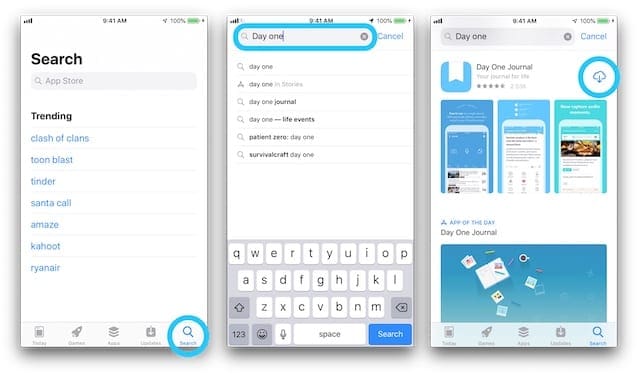
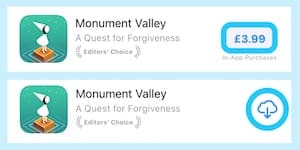
If you know the name of the app you want to restore, search for it in the App Store on your iPhone, iPad, or iPod and tap the cloud icon next to its name.
Find and download deleted apps the same as you normally would.
Alternatively, you can view all your deleted apps together from the Purchased list. The name is something of a misnomer as the Purchased list includes both paid and free apps you’ve downloaded.
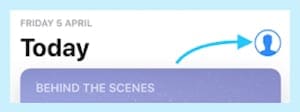
Go to the Today page in the App Store.
Tap the Profile photo or icon in the top right corner.
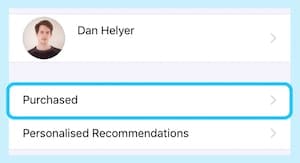
Go to Purchased, then My Purchases if you use Family Sharing.
Tap Not on this [device] to see only the deleted apps.
Search or scroll through the list to find the relevant app.
Tap the cloud icon next to an app to restore it.
Tap Not on this [device] to see all your deleted apps.
How do I restore deleted apps on my Mac?
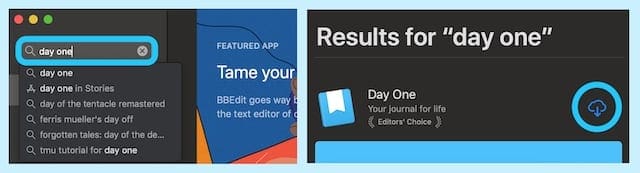
Once again, if you remember the name, you can restore a deleted app on your Mac by searching for it in the App Store and downloading it as usual by clicking the cloud button.
Download deleted apps from the Mac App Store as normal.
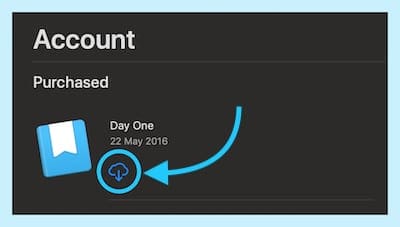
However, if you don’t remember the name of an app or want to see all your previously downloaded Mac apps together, you can view them in the App Store Purchased list.
Click your name at the bottom of the App Store sidebar.
Scroll through the Purchased list to find the relevant app.
Click the cloud icon next to an app to restore it.
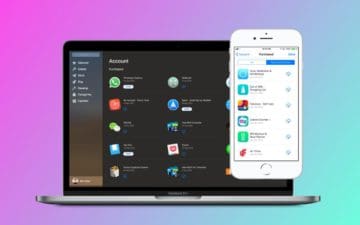
Find deleted apps in the Purchased section of your Account.
How do I restore deleted apps on my Apple TV?
The Purchased list is immediately available from the App Store on Apple TV. From here you can view all your previously downloaded apps and restore any deleted ones.
Go to the Purchased page from the App Store.
Find and select the relevant app.
Click the cloud icon to restore the app.
Do I need to pay for App Store purchases again?
Once an app has been paid for, you can re-download it for free.
No. Provided you’re signed in to the same Apple ID, you can re-download previously paid for apps as many times as you like for free. You can also restore some in-app purchases like upgrades, extra features, and subscriptions.
If you no longer have access to the Apple ID account that you paid for apps on, try contacting Apple Support. They can help you restore accidentally deleted apps on iPhone and iPad or might be able to transfer your purchases to a new account.
How do I restore in-app purchases?
To restore in-app purchases, open the specific app and search for a Restore button. You might find this in the main menu, settings, options, or in-app store.
You can restore non-consumable in-app purchases bought with the same Apple ID account that you’re using. These normally don’t include in-game currency or hints because they are consumable and get used up.
How do I remove apps from my Purchased list?
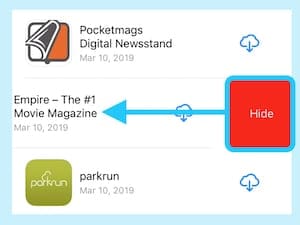
Slide to Hide apps from your Purchased list.
Swipe left or click the options button on apps in your App Store Purchased list to reveal a Hide Purchase option. You might do this when an app is so awful you never want to see it again. Or if you’d be embarrassed to get caught downloading it in the first place.
Apps that are hidden from your Purchased list will appear in the App Store as though you’d never downloaded them.
You can view or restore all your Hidden Purchases at any time by visiting your Account within the App Store and selecting Hidden Purchases.
How can I see all my deleted apps from the App Store?
You can view your entire Apple purchase history through iTunes. That means every app, song, film, or book from any Apple device you own. Your iTunes Purchase History will even show apps that have been hidden from your Purchased list.
Open the iTunes Store.
Click the Account button under Quick Links.
Enter your Apple ID details if prompted.
Click See All under the Purchase History heading.
Your iTunes purchase history will list everything you’ve bought through Apple.
How do I find a missing app in the App Store?
Remember Flappy Bird? It was a very simple game which gained so much popularity that back in 2014 the overwhelmed app developer removed it from the store. This happens from time to time, and when it does you won’t be able to find or re-download those apps anymore.
Flappy Bird isn’t available on the App Store anymore, but you can still play it online.
But what about Apple apps, surely they aren’t discontinued? Apps like Safari, Camera, iTunes, or even the App Store itself can vanish for a couple of different reasons. When they do you won’t be able to find them on your device or in the App Store.
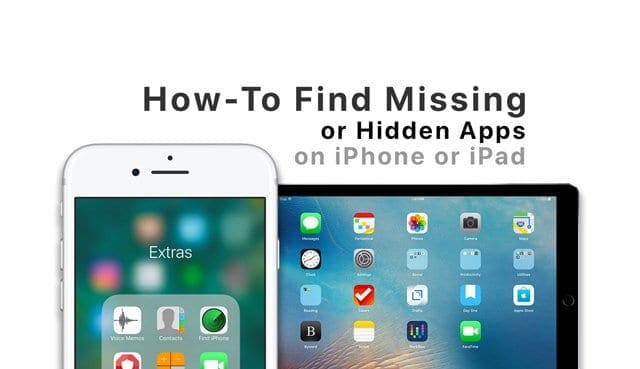
Find out how to find missing or hidden apps on this post.
Well, that should have you covered, now you know how to restore accidentally deleted apps on iPhone, iPad, iPod touch, Mac, or Apple TV. If you’ve any other questions about how to download deleted apps, be sure to let us know in the comments below!
Dan writes tutorials and troubleshooting guides to help people make the most of their technology. Before becoming a writer, he earned a BSc in Sound Technology, supervised repairs at an Apple Store, and even taught English in China.
You should find all your previously purchased apps. In iPadOS/iOS 13, open the App Store and tap your picture or the profile icon in the top-right. Then choose Purchased and scroll through your previous purchases to locate that app. If you share in a family plan, you will also have access to your family purchases.
I downloaded the latest iOS, and now some of my apps won’t work at all. EBay is one of them I deleted it and tried to reload from the App Store but I can’t load anything at all from the App Store. Just goes round and round.
Close all your open apps and then restart to see if that solves these issues.
Close an app
1. On an iPhone or an iPad with no home button from the Home screen, swipe up from the bottom of the screen and pause slightly in the middle of the screen
2. On an iDevice with a home button, double-click the Home button and swipe right or left to find the app that you want to close
3. Swipe right or left to locate the app you want to close
4. Swipe up on the app’s preview to close it
5. Repeat for all open apps
If the problem continues, reset your network settings via Settings > Reset > Reset Network Settings
Resets all your network connection options and sets your device’s network settings back to the factory defaults. Clears your current cellular (if applicable) and WiFi networks including saved networks, WiFi passwords, and VPN settings.
Before you reset your network’s settings, be sure have your WiFi network name and passwords available for re-entry.
Finding your app at the app store and downloading again seems to do the trick. I was having a problem loading on to an iPad mini and the free British Airways App got stuck and wouldn’t allow me to delete. The fresh download did the trick.
Thanks all
I can no longer purchase apps after downloading i06. I click the app and the new terms and conditions box pops up. I agree to this. The actual terms and conditions language pops up and i agree to this. the next box says “Your session has timed out try again”. Anybody?
The suggestions here did not help me. But I was able to recover iBooks from iTunes on my mac. I was again asked to update iBooks. It again went into a “waiting” status, but later finished. All seems to be well now, but I am not happy with a vendor (Apple iPhone apps) who won’t be honest when they are having the problem. I went to a lot of trouble on my device when the problem definition is that the app store was failing to talk to my device.
-Sid Wyckoff
This might provide a clue. When I go to app store->update->purchased to re-install iBooks I see a cloud symbol where I would normally see an install button. Rather than downloading from an app store image you are trying to force an install from cloud backup. Since I was upgrading my product at the time of initial failure, there is no upgraded product for iCloud to send me.
Testing on the customers again! We should get paid for it. -Sid
Same here! I can delete functional apps, but the ones stuck during installing updates will not let me delete them. Neither will they open, so they are complete unusable. It all started when I allowed them to install updates.
My solution was to reset the iPhone and after that the apps would continue their download. They would get stuck again eventually, but I will reset my iPhone every time until all apps are installed
I read that if you have stuck apps that you should delete and then reinstall. Mine will not let me delete them. All functional apps have the delete icon but not the problematic ones.


![Tap Not on this [device] to restore accidentally deleted App Store apps.](https://appletoolbox.com/wp-content/uploads/2012/07/Not-on-this-iPhone-apps.jpg)











Hello,
can you help me recover the Mavericks app I purchased on app store. I deleted it accidentally.
Many thanks.
Hi Kevin,
You should find all your previously purchased apps. In iPadOS/iOS 13, open the App Store and tap your picture or the profile icon in the top-right. Then choose Purchased and scroll through your previous purchases to locate that app. If you share in a family plan, you will also have access to your family purchases.
I downloaded the latest iOS, and now some of my apps won’t work at all. EBay is one of them I deleted it and tried to reload from the App Store but I can’t load anything at all from the App Store. Just goes round and round.
HI Jennifer,
Close all your open apps and then restart to see if that solves these issues.
Close an app
1. On an iPhone or an iPad with no home button from the Home screen, swipe up from the bottom of the screen and pause slightly in the middle of the screen
2. On an iDevice with a home button, double-click the Home button and swipe right or left to find the app that you want to close
3. Swipe right or left to locate the app you want to close
4. Swipe up on the app’s preview to close it
5. Repeat for all open apps
If the problem continues, reset your network settings via Settings > Reset > Reset Network Settings
Resets all your network connection options and sets your device’s network settings back to the factory defaults. Clears your current cellular (if applicable) and WiFi networks including saved networks, WiFi passwords, and VPN settings.
Before you reset your network’s settings, be sure have your WiFi network name and passwords available for re-entry.
My daughter deleted YouTube and now i can’t get it back tried App Store but it just says open and when u press it nothing happens
Tried to update, just spins and or waiting. Frustrating!
It just says waiting
cannot delete the apps that are stuck!
so now what???????????
Finding your app at the app store and downloading again seems to do the trick. I was having a problem loading on to an iPad mini and the free British Airways App got stuck and wouldn’t allow me to delete. The fresh download did the trick.
Thanks all
How do I get back my deleted app?
I somehow erased it from my purchases. So its no longer on there to re download.
I can no longer purchase apps after downloading i06. I click the app and the new terms and conditions box pops up. I agree to this. The actual terms and conditions language pops up and i agree to this. the next box says “Your session has timed out try again”. Anybody?
The suggestions here did not help me. But I was able to recover iBooks from iTunes on my mac. I was again asked to update iBooks. It again went into a “waiting” status, but later finished. All seems to be well now, but I am not happy with a vendor (Apple iPhone apps) who won’t be honest when they are having the problem. I went to a lot of trouble on my device when the problem definition is that the app store was failing to talk to my device.
-Sid Wyckoff
Half my app’s have gone
This might provide a clue. When I go to app store->update->purchased to re-install iBooks I see a cloud symbol where I would normally see an install button. Rather than downloading from an app store image you are trying to force an install from cloud backup. Since I was upgrading my product at the time of initial failure, there is no upgraded product for iCloud to send me.
Testing on the customers again! We should get paid for it. -Sid
Can not delete non-functionable apps
Same here! I can delete functional apps, but the ones stuck during installing updates will not let me delete them. Neither will they open, so they are complete unusable. It all started when I allowed them to install updates.
My solution was to reset the iPhone and after that the apps would continue their download. They would get stuck again eventually, but I will reset my iPhone every time until all apps are installed
Tapping on the problem apps when stuck also seems to help
I read that if you have stuck apps that you should delete and then reinstall. Mine will not let me delete them. All functional apps have the delete icon but not the problematic ones.
I’m having the same problem
Help me I can’t download Ann app it sends me to a page of terms n conditions n send to my email it sends it but there’s no button that says agree):