A lot of people send images via Messages app(s), Facebook, or through email and want to attach images without saving them first. In a previous article, I explained how to attach your photos, images, docs, videos, notes etc. that are stored on your iOS devices to your e-mail. This short article explains the easiest way to attach images without saving them first.
How to Attach Images to Messages and Email Without Saving the Image: Copy and Paste
One feature that has been around for quite a long time on the iPhone and iPad is to simply copy images or photos from one app, then paste them in another. This works with most applications on your device, including the likes of the built-in Photos app. But it’s also possible to attach images to messages and emails without saving the image from Safari by just searching for a picture. Here’s how you can copy and paste images without actually saving them.
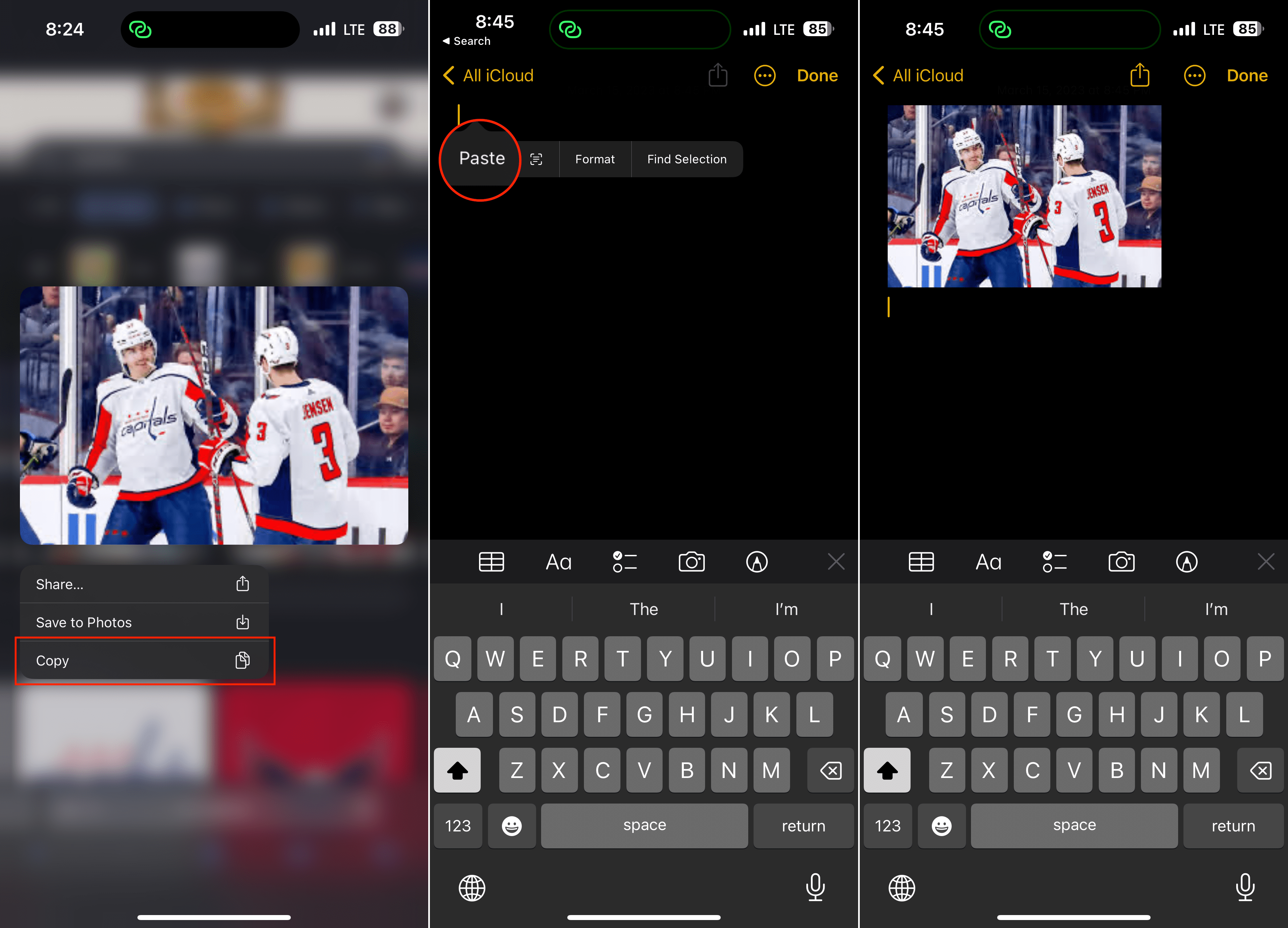
Locate the image that you want to attach to a Message or email.
Long-press on the image until you see a drop-down menu appear.
From the drop-down menu, tap Copy.
Open the Message, note, email, or other documents that you want to attach the image to.
Make sure that you see the cursor and that you are inserting it into an empty space.
Long-press on the text area.
From the drop-down menu that appears, tap Paste.
After just a moment, and depending on how many images you copied, they will appear within the app that you pasted them. This is definitely the easiest way to share an image from Photos without dealing with the Share Sheet, as long as you know what photos that you want to attach.
How to Attach Images to Messages and Email Without Saving the Image: Drag and Drop
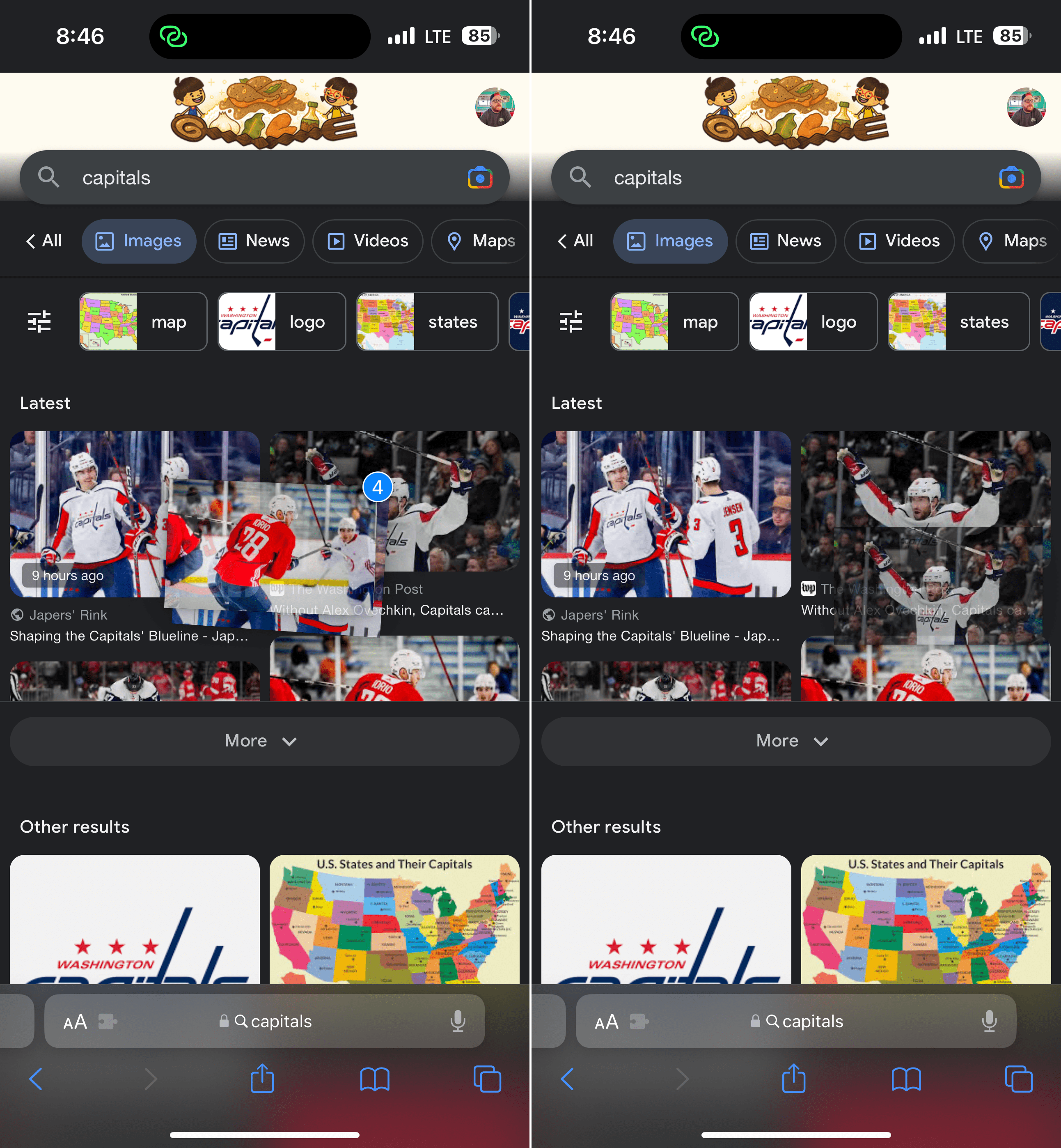
When Apple released iOS 15 and iPadOS 15, the iPhone and iPad gained quite a few new and exciting features. However, one of the newer features tends to fly under the radar as you might not have even thought that you can drag and drop files between apps. This makes more sense for those who are using the iPad, as it offers a bigger screen than the iPhone. However, you also have the ability to attach images to messages and email without saving the image using drag-and-drop. Here’s how you can do so:
Locate the image that you want to attach to a Message or email.
Long-press on the image until you see a drop-down menu appear.
Drag your finger around so that the image floats under your finger.
Select any other images that you want to attach.
Without lifting the finger “holding” onto the images, use another finger to open the appropriate app.
Make sure that you see the cursor and that you are inserting it into an empty space.
Drag the image, or stack of images, to the area and hold it there until you see the green plus icon in the top right corner.
Lift your finger and “let go” of the image (or images) into the empty space or text field.
From there, the image or stack of images will be pasted into the empty space, allowing you to attach them without needing to waste precious space. This method is also great if you’re looking for different pictures that you took (or have saved) and want to share them with someone else. It’s really nice being able to drag and drop images or files between apps on your iPhone. The only “catch” is that you might need to try this out a couple of times so you can get used to the gesture.
Obsessed with tech since the early arrival of A/UX on Apple, Sudz (SK) is responsible for the original editorial direction of AppleToolBox. He is based out of Los Angeles, CA.
Sudz specializes in covering all things macOS, having reviewed dozens of OS X and macOS developments over the years.
In a former life, Sudz worked helping Fortune 100 companies with their technology and business transformation aspirations.
Hi Joe,
Hope this day finds you well. Performing this same process of attaching images without saving on your MAC computer is also quite easy. First, locate your desired image. Then control click (or right-click) on that image and select “copy image.” This action copies your image to the clipboard. Now you paste that image into whatever application or location (email, Messages, etc) desired by selecting Edit>Paste or using the keyboard function command+V. And that’s it. There are times when images are not able to be copied, due to restrictions set on that particular image. In that case, the simplest solution is to choose another image. If that’s not possible, taking a screen shoot via command-shift-3 or command-shift-4 includes the image desired. Best of luck!
Liz











Found this on yahoo and I’m happy I did. Well written website.
now how do you do it on a computer?
Hi Joe,
Hope this day finds you well. Performing this same process of attaching images without saving on your MAC computer is also quite easy. First, locate your desired image. Then control click (or right-click) on that image and select “copy image.” This action copies your image to the clipboard. Now you paste that image into whatever application or location (email, Messages, etc) desired by selecting Edit>Paste or using the keyboard function command+V. And that’s it. There are times when images are not able to be copied, due to restrictions set on that particular image. In that case, the simplest solution is to choose another image. If that’s not possible, taking a screen shoot via command-shift-3 or command-shift-4 includes the image desired. Best of luck!
Liz