It’s pretty incredible to be able to contact anyone around the globe from wherever you are. Being able to message your friends and family right from your iPhone is extremely useful, but there’s a problem that continues to develop. Not only can you reach out to your friends or family, but the amount of unwanted calls and text messages is growing at an alarming rate. Thankfully, Apple has integrated a few tools to help you block unwanted calls and text messages on iPhone.
How to block unwanted calls and text messages on iPhone
Silence Unknown Callers
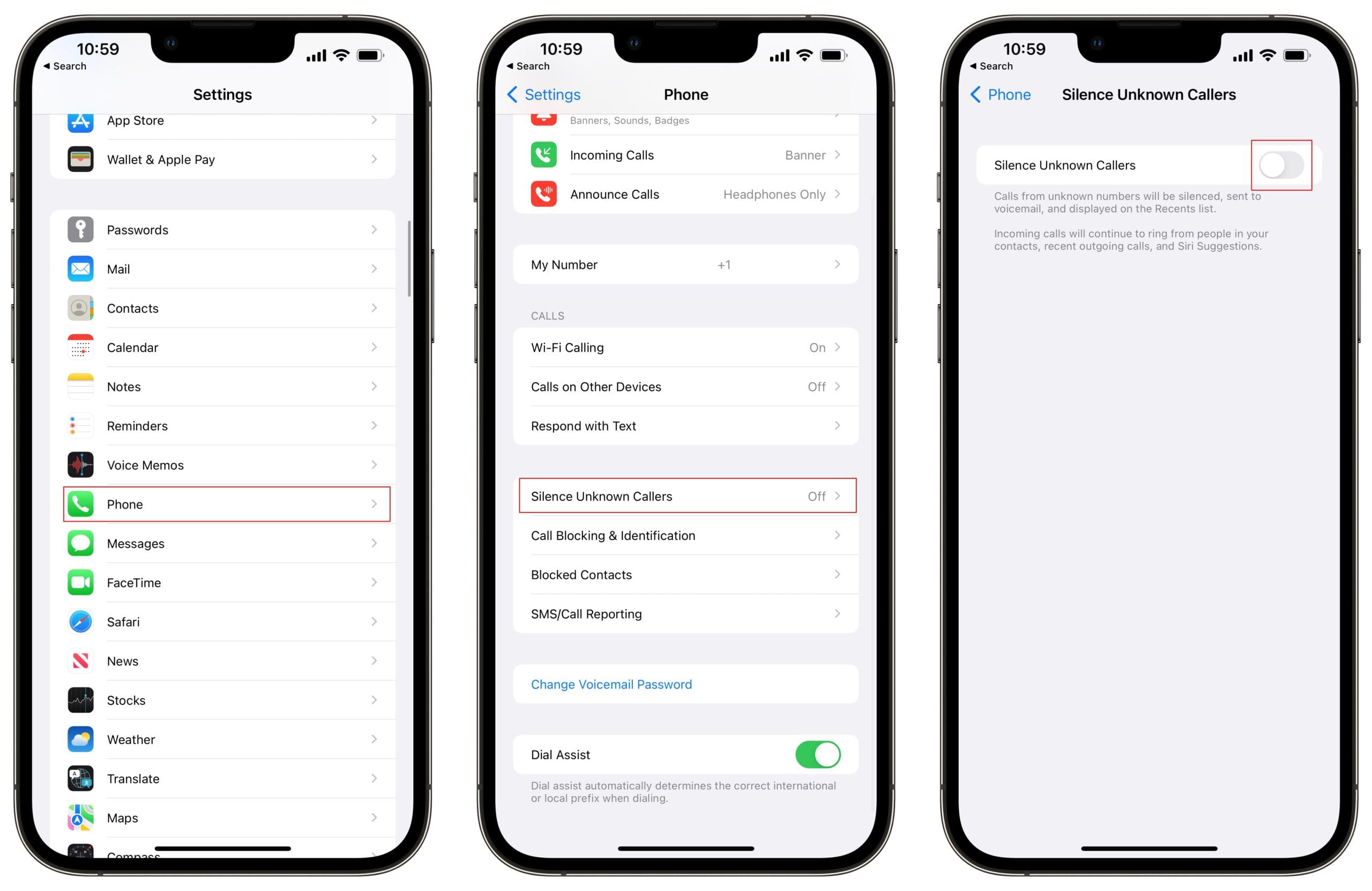
With the release of iOS 13, Apple introduced a new option to help eliminate robocalls from interrupting you and overwhelming you. The feature continues to be available on iOS 15, and is the easiest way to avoid those annoying robocallers. Here’s how you can enable the ability to silence unknown callers:
Open the Settings app on your iPhone.
Scroll down and tap Phone.
Scroll down and again and tap Silence Unknown Callers.
Tap the toggle next to Silence Unknown Callers to the On position.
There is a bit of a catch, however, if you turn this feature on. There’s a chance that if your friend gets a new phone number and tries to call you, your iPhone won’t ring. This is also true if you happen to use delivery services like DoorDash or Uber Eats and the delivery person needs to contact you. But if you don’t use delivery services, then this feature works wonders to stop unwanted calls from coming in.
Filter Unknown Senders in Messages
Unfortunately, robocalls are not the only problem anymore, as the number of spam text messages is also growing at a rapid pace. While you can block numbers altogether, Apple has another feature that allows you to filter your Messages app to help separate the recognized senders from the potential spam.
Open the Settings app on your iPhone.
Scroll down and tap Messages.
Scroll down until you reach the Message Filtering section.
Tap the toggle next to Filter Unknown Senders to the On position.
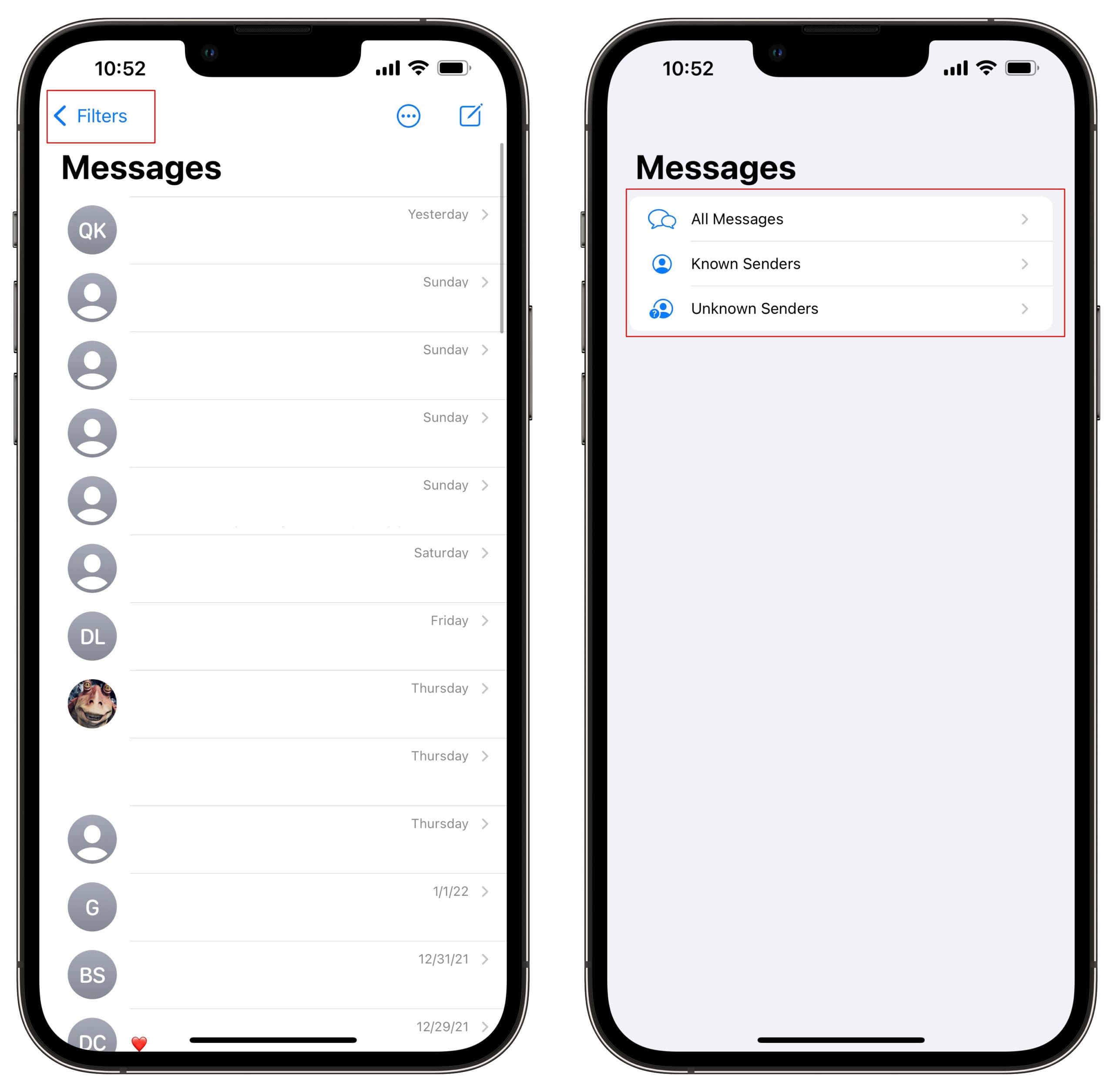
With “Filter Unknown Senders” enabled, you’ll want to make sure that your Messages app only shows conversations from those in your contact list. Here’s how you can filter the conversations in the Messages app:
Open the Messages app on your iPhone.
Tap Filters in the top left corner.
Select one of the following:
All Messages
Known Senders
Unknown Senders
Once the results have been filtered, you’ll be able to switch between the conversations you care about, and the ones that you don’t. This also makes it easier for you to go through the list and block the numbers you don’t want to receive messages from any longer.
Block Unwanted Calls
Everyone’s biggest question when it comes to these spam and robocalls is how you can actually block them. Thankfully, you don’t need to rely on third-party apps from the App Store. Instead, Apple has integrated the functionality right into your iPhone, making life much easier and allowing you to block unwanted calls.
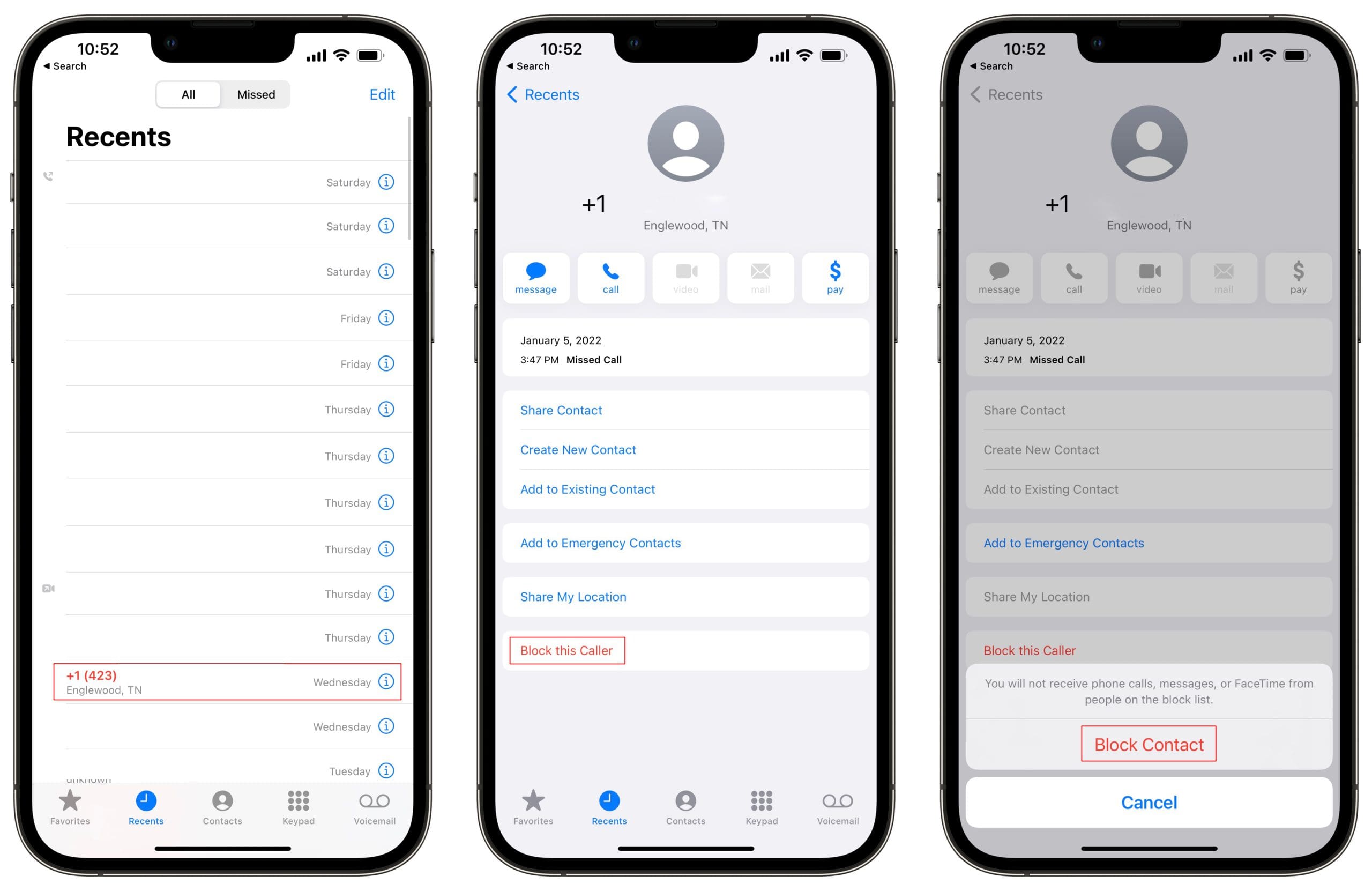
Open the Phone app on your iPhone.
Tap the Recents tab in the bottom toolbar.
Locate the number that you wish to block.
Tap the i icon next to the number listed.
At the bottom of the page, tap Block this Caller.
Tap Block Contact to confirm.
Now, the contact will be completely blocked and is unable to send you messages or try and call you again.
Block Unwanted Text Messages
If you get some unwanted text messages, you can opt to block the contact in order to block any future messages from making their way into the Messages app. Here’s how you can block unwanted text messages from clogging up your conversations in Messages:
Open the Messages app on your iPhone.
Select the conversation for the number that you want to block.
Tap the contact icon at the top of the page.
Select Info.
Tap Block this Caller.
Tap Block Contact to confirm.
Just like if you block unwanted calls, you will no longer need to worry about unwanted messages appearing and causing you frustration.
Report Spam or Junk in Messages
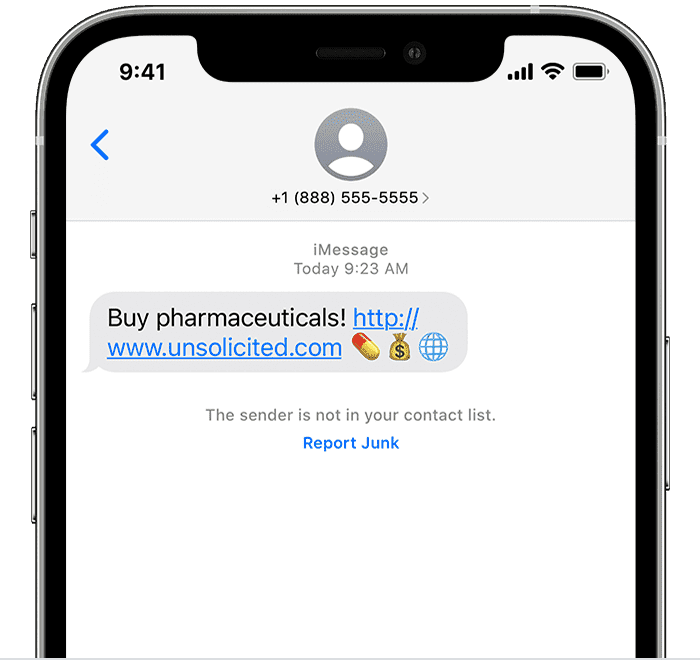
Another new-ish feature in iOS is to actually report a number as “spam or junk” from within the Messages app. When such an occurrence happens, there’s a new link that appears below the message. Here’s how you can report spam or junk in messages.
Open the Messages app on your iPhone.
Select the conversation for the number that you want to report.
Under the last message received, tap Report Junk.
Tap Delete and Report Junk.
Not only will the number be blocked from being able to send you any future messages, but the number is also reported to Apple. This helps to ensure that the number won’t be able to send messages to other iPhone users.
Contact Your Cell Provider to Block Spam
By the time a spam call, text, or email arrives on your iPhone, it’s already gotten past your cell or email provider. For this reason, one of the most effective ways to stop getting spam on your iPhone is to ask your cell or email provider to block it at the source.
Call your cell provider to ask if they offer any spam filter services. Many cell providers do, and they may be able to increase the strength of the filter to block more spam calls or texts from getting through to your iPhone.
Andrew Myrick is a freelance writer based on the East Coast of the US. He enjoys everything to do with technology, including tablets, smartphones, and everything in between. Perhaps his favorite past-time is having a never-ending supply of different keyboards and gaming handhelds that end up collecting more dust than the consoles that are being emulated.
As to home this may concern, I am constantly being bothered by spam text messages with phone numbers attached there unknown numbers don’t know what area they came from because I looked them up and it says Unknown I work as a caretaker and I need my phone to work for me not to be taken up by the stupid spam calls can somebody show me how to fix this and get back with me as soon as possible I would appreciate it thank you I’m at my wits end just don’t know what to do any advice would be appeasable thank you










As to home this may concern, I am constantly being bothered by spam text messages with phone numbers attached there unknown numbers don’t know what area they came from because I looked them up and it says Unknown I work as a caretaker and I need my phone to work for me not to be taken up by the stupid spam calls can somebody show me how to fix this and get back with me as soon as possible I would appreciate it thank you I’m at my wits end just don’t know what to do any advice would be appeasable thank you
Does not work on porn texts- there is no number to block