There are a few things that are as annoying as when you plug in your device only to find that your iPhone or iPad won’t charge. It can be really frustrating, especially if you charge your devices overnight, expecting them to be ready to go when you’re getting your day started.
On the bright side, there are a few different steps you can take to try and get your devices back in working order. Here are the most common ways to solve the problem if your iPhone or iPad won’t charge.
The first step that you’ll want to take if your iPhone or iPad won’t charge is to force restart the problematic device. However, one thing to be aware of is that you’ll need to perform the steps rather quickly in succession.
Press the VolumeUp button and release.
Press the Volume Down button and release.
Press and hold the Side button for 10-15 seconds until your iPhone reboots.
Once the Apple Logo appears, let go of the Side button.
In the event that you followed the steps above and your iPhone or iPad doesn’t reboot, you might want to try pressing the buttons in a faster sequence. The timing is key, as you’ll need to make sure the iPhone or iPad recognizes what it is that you’re trying to do.
iPhone or iPad Won’t Charge: Check For Debris In the Charging Port
This one doesn’t apply as much to the iPad as it does to the iPhone. However, putting your iPhone in your pocket throughout the day means that there’s a good chance that the charging port has gathered a bit of debris. It’s especially true if you’ve owned your iPhone for quite awhile and never thought to check the charging port.
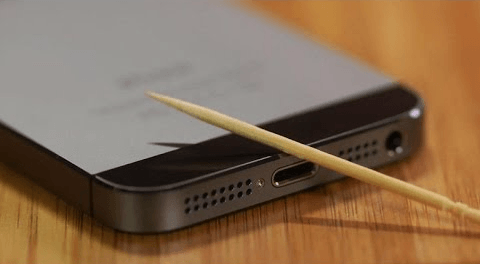
Plus, if you still rely on plugging in your iPhone to a Lightning cable, there’s also a good chance that you have continued pushing debris further into the charging port. But not to fear! Provided that you have a non-metallic slim object, like a toothpick, then you can carefully dig out any lint or other debris that may be “stuck”.
iPhone or iPad Won’t Charge: Use A Different Charger or Cable
If you have been using the same charging cable from high school days with duct tape on it, Maybe it is time to revisit that strategy. Borrow a friend’s wall adapter and charging cable and try it out. If the other Lightning cable works and charges your iPhone, this will solve you a lot of headaches, as you can just grab another charger and cable, and replace your old one.
iPhone or iPad Won’t Charge: Charging Stopped at 80%
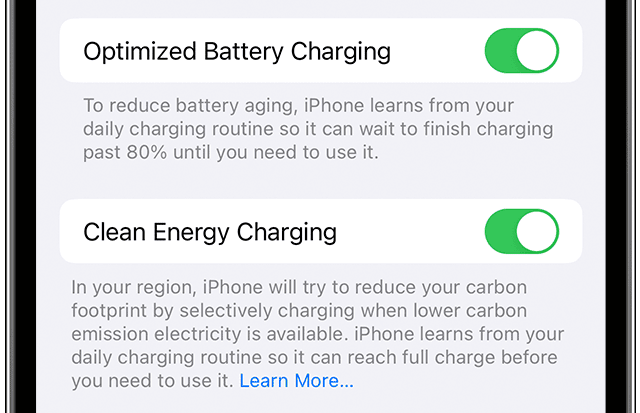
If you’ve found that your iPhone or iPad won’t charge past 80%, this might have more to do with the battery health of your device than anything else. Optimized Battery Charging was added to the iPhone with the release of iOS 13, and is designed to “reduce the wear on your battery and improve its lifespan by reducing the time your iPhone spends fully charged.”
Essentially, this is a feature that Apple implemented in an effort to keep your iPhone or iPad’s battery functioning for longer than if you were to charge your device all the way up to 100% every time. If you’ve noticed that your iPhone or iPad won’t charge past 80%, here’s how you can turn off Optimized Battery Charging.
Open the Settings app on your iPhone or iPad.
Scroll down and tap Battery.
Tap Battery Health & Charging.
Tap the toggle next to Optimized Battery Charging to the Off position.
At the bottom, tap the toggle next to Clean Energy Charging to the Off position.
Alternatively, you might try and go through the steps above and find that you can’t actually turn off the Optimized Battery Charging feature. This likely has to do with the battery health of your iPhone or iPad. If your device’s “Maximum Capacity” is below 80%, then you’ll need to reach out to Apple Support to determine what course of action you have. It might be as simple as getting your battery replaced, or you might be better off upgrading to a new iPhone or iPad.
iPhone or iPad Won’t Charge: Reset to Factory Settings
Last but not least, if your iPhone or iPad won’t charge, and you’ve tried everything else, we recommend resetting your device back to factory settings. This gives you a blank slate, which helps if you’ve exhausted all of your other avenues. However, if possible, make sure that your iPhone or iPad has been backed up, so you don’t lose anything saved to those devices.
Open the Settings app on your iPhone or iPad.
Tap General.
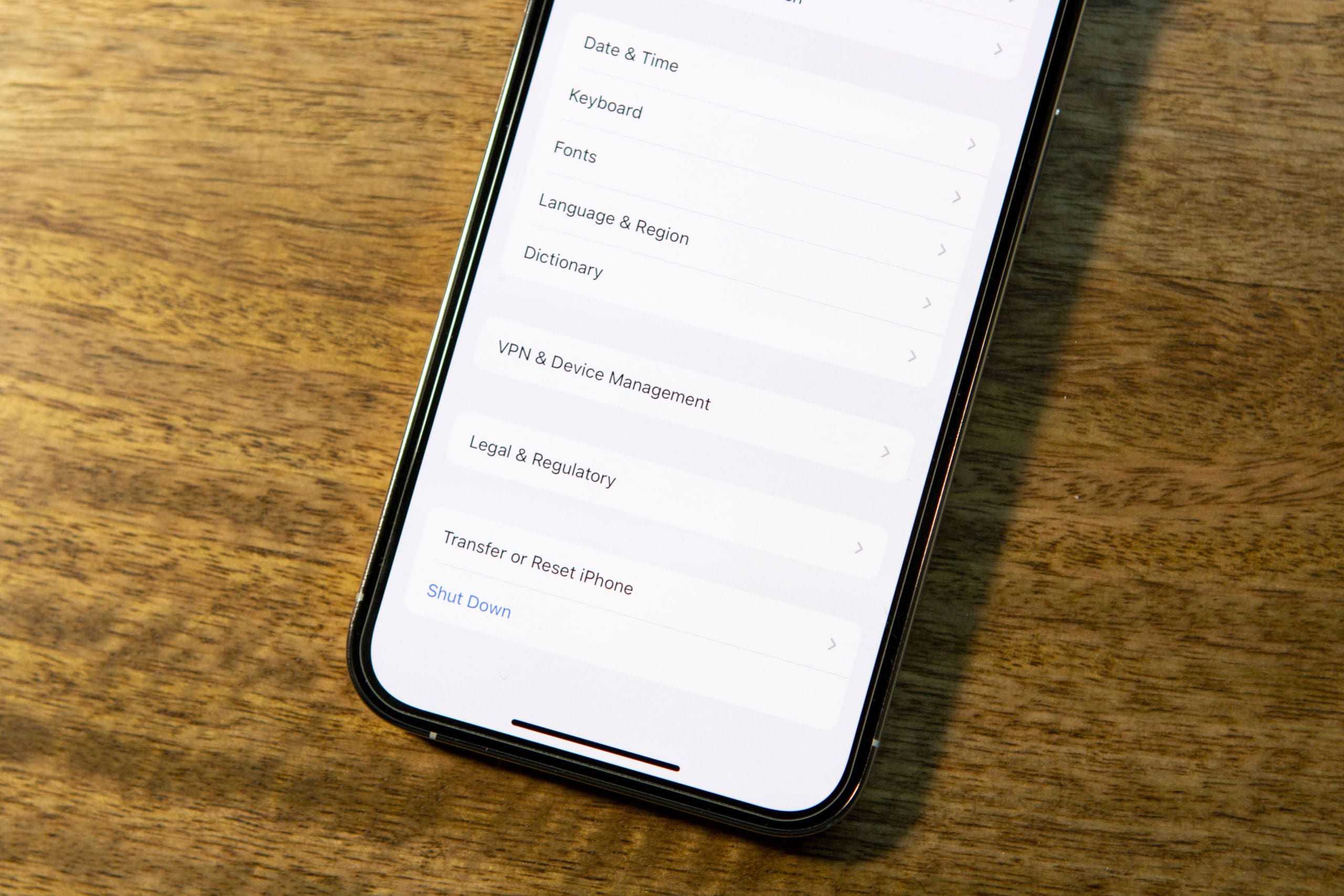
Scroll to the bottom and tap Transfer or Reset iPhone (iPad).
Tap Erase All Content and Settings.
Enter your passcode, when prompted.
Of course, you’ll need to go through and set everything up on your iPhone or iPad again. But, you can also restore from the backup that was created before you reset your device back to its Factory Settings. The only thing that we want to point out is that there’s a chance that a software bug was causing issues, so you might want to set up your device as if it were new, then check to see if you can charge your iPhone or iPad.
Obsessed with tech since the early arrival of A/UX on Apple, Sudz (SK) is responsible for the original editorial direction of AppleToolBox. He is based out of Los Angeles, CA.
Sudz specializes in covering all things macOS, having reviewed dozens of OS X and macOS developments over the years.
In a former life, Sudz worked helping Fortune 100 companies with their technology and business transformation aspirations.
Refusal for an iOS device to charge can be a software problem.
You’ll know if it is if the iOS device recognizes that a charging cable has been plugged into the device, but does not show that it is charging.
Often the device pushes a notification to the lock screen that the device must be unlocked for the cable to function.
That is the evidence you’re looking for.
Whether you find that evidence or not, do the following (because it will only work if the cable is recognized, so you’ll find out, anyway.)
THE WORKAROUND:
Unplug the charging cable.
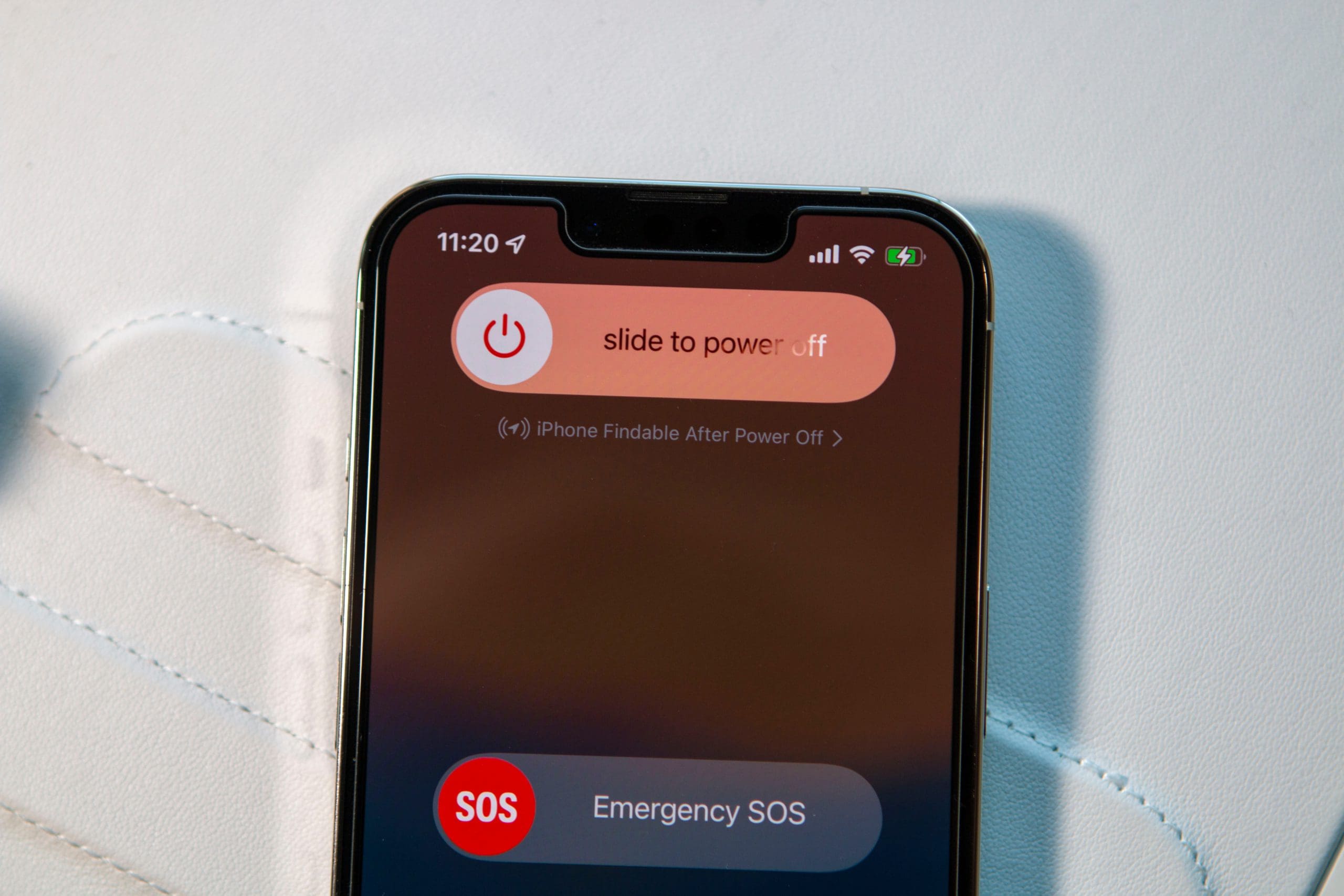
Turn off the iOS device.
Plug in the charging cable.
-> You will notice that the iOS device powers back up on its own.
After powered up, turn off the device again (do not unplug the cable)
Now, your device is charging while turned off.
I’m guessing the software is not able to interfere, and that is why it works.
You will not be able to see the progress of the charge until the device is turned back on.
I’m going to backup my iOS device, reset it and start from scratch as if it were a new device.
I wish I could report if that works, or not. I’m betting it will.
I was using my ipad air while i was charging it and it suddenly stopped working. I took the cable out and it was all black so i guessed it was burnt. I used the iphone charger but that didnt work too. I remember that sometines i use thw iphone charger and it worked. I hope the actual ipad isnt burnt.
My iPad 4 (8gig) hasn’t been charging properly for the last few days. I’ve tried different chargers, but this hasn’t sorted the problem at all. And all the chargers I tried have been genuine apple chargers, the first one using the original charger head that came with my iPad and a genuine apple lighting cable lead I bought at a tech store after my original lead was lost. This charger had been working fine for months. Then I tried my fathers genuine head and cable (head from his iPad and cable from his iPhone) and it only charged 10% overnight. We are in cold conditions (-0*C) so maybe that’s effecting the charging speed.
Did you try holding down the lock button? The lock button is the rounded rectangular button in the top right corner of your iOS device. Some people try using the home button (the circle one) or don’t press the lock button for long enough. Maybe try a different power socket. Has your iPad been exposed to extreme temperatures? If it has been in heat over 35 degrees Celsius your battery might be permanently damaged, meaning it might not have enough power to start. Don’t charge your iPad below 5 degrees Celsius, because this will cause the battery to charge slowly and not give it the power it needs to start up. Don’t worry though, if cold has been the case as soon as you warm your iPad up it will charge fine again.
Hope some of this helps. Good luck.













Refusal for an iOS device to charge can be a software problem.
You’ll know if it is if the iOS device recognizes that a charging cable has been plugged into the device, but does not show that it is charging.
Often the device pushes a notification to the lock screen that the device must be unlocked for the cable to function.
That is the evidence you’re looking for.
Whether you find that evidence or not, do the following (because it will only work if the cable is recognized, so you’ll find out, anyway.)
THE WORKAROUND:
Unplug the charging cable.
Turn off the iOS device.
Plug in the charging cable.
-> You will notice that the iOS device powers back up on its own.
After powered up, turn off the device again (do not unplug the cable)
Now, your device is charging while turned off.
I’m guessing the software is not able to interfere, and that is why it works.
You will not be able to see the progress of the charge until the device is turned back on.
I’m going to backup my iOS device, reset it and start from scratch as if it were a new device.
I wish I could report if that works, or not. I’m betting it will.
Hi Paul,
Thanks for your insight and sharing your experience and thoughts.
Has this procedure worked for you?
I was using my ipad air while i was charging it and it suddenly stopped working. I took the cable out and it was all black so i guessed it was burnt. I used the iphone charger but that didnt work too. I remember that sometines i use thw iphone charger and it worked. I hope the actual ipad isnt burnt.
My ipad air is dead and my charger is not charging I’ve tried to south cords but nothing is working
Switch not south
My iPad 4 (8gig) hasn’t been charging properly for the last few days. I’ve tried different chargers, but this hasn’t sorted the problem at all. And all the chargers I tried have been genuine apple chargers, the first one using the original charger head that came with my iPad and a genuine apple lighting cable lead I bought at a tech store after my original lead was lost. This charger had been working fine for months. Then I tried my fathers genuine head and cable (head from his iPad and cable from his iPhone) and it only charged 10% overnight. We are in cold conditions (-0*C) so maybe that’s effecting the charging speed.
Did you try holding down the lock button? The lock button is the rounded rectangular button in the top right corner of your iOS device. Some people try using the home button (the circle one) or don’t press the lock button for long enough. Maybe try a different power socket. Has your iPad been exposed to extreme temperatures? If it has been in heat over 35 degrees Celsius your battery might be permanently damaged, meaning it might not have enough power to start. Don’t charge your iPad below 5 degrees Celsius, because this will cause the battery to charge slowly and not give it the power it needs to start up. Don’t worry though, if cold has been the case as soon as you warm your iPad up it will charge fine again.
Hope some of this helps. Good luck.