• Skip to primary navigation
  • Skip to main content
  • Skip to primary sidebar
  • Skip to footer

AppleToolBox

Tools and Fixes for Mac, iPad, iPhone & iWatch

Search posts

  • About
  • Contact

CONNECT WITH US

CATEGORIES

  • iPhone
  • iPad
  • iPod
  • Apple Watch
  • Mac/MacBook
  • AirPods
  • Apple TV
  • News
  • Apple Services
  • HomePod
  • Reviews

SITE

  • Home
  • About Us
  • Contact
  • Advertise

Search posts

You are here: Home / iPhone / iPhone: Respond with Text and Using Reply with Message and Reminders

iPhone: Respond with Text and Using Reply with Message and Reminders

By Sudz Kar 4 comments Last updated December 8, 2018

Sometimes you can’t answer an incoming phone call. Maybe you’re driving or in a big meeting, at church, or watching a movie on the big screen. Whatever the reason, you need to decline a phone call.

But what if you want to decline that call with a custom text message?

For those moments, Apple has you covered with its feature Respond with Text.

iPhone users can decline calls while choosing to reply with a text or set a reminder to call back. This feature lets you politely decline an incoming call when you are busy and you can’t answer.

You can only respond with a message if the call is from another mobile number.

This short tutorial shows how to reject a call with a text message and how to set a reminder to call the caller back at a time or at a certain location.

Related Articles

  • How to Auto-Answer or Auto-Reply to Phone Calls on Your iPhone

Contents

  • How to Set Up an Automatic Text Reply on Your iPhone
      • Here you may choose different default options:
      • For older iOS, you see these options:
    • How To Customize Your Respond with Text Phrases
  • Respond With Text Not Working?
  • How to Set Reminders (Remind me Later)
      • Options are:

How to Set Up an Automatic Text Reply on Your iPhone

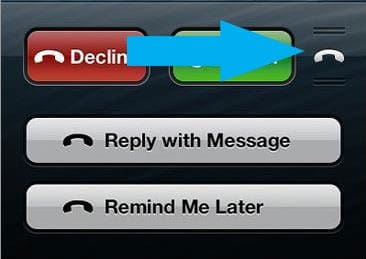
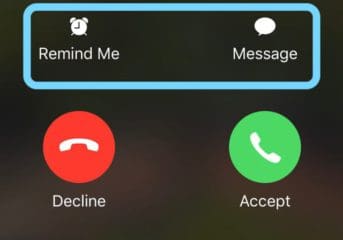
When your iPhone rings, tap on the little phone icon in the lower right and swipe up.

You get the option to either reply with a message or set a reminder you to call the person back later.

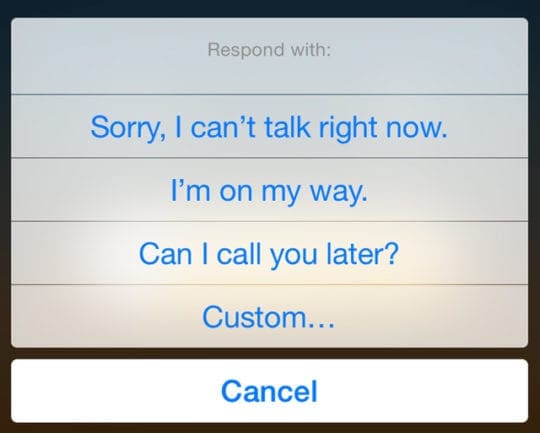
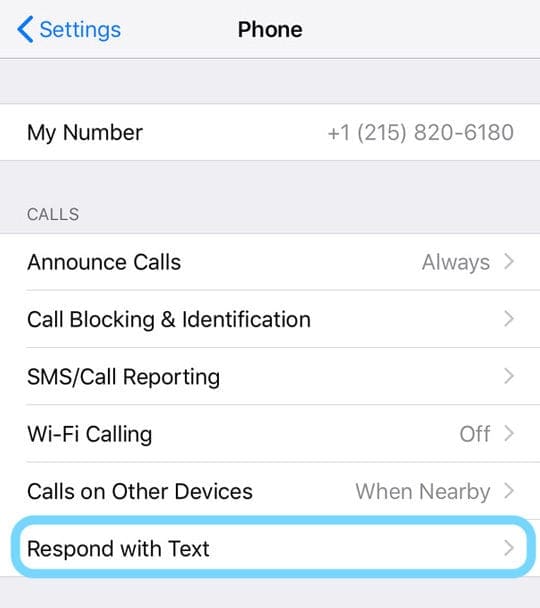
To send a text, tap on Respond with Text (on older iOS, it reads Reply with Message). iPhone Setting for Respond with Text

Here you may choose different default options:

  • Sorry, I can’t talk right now
  • I’m on my way
  • Can I call you later? iPhone Respond with Text Default Replies

For older iOS, you see these options:

  • I’ll call you later
  • I’m on my way
  • What’s up?
  • Custom…

Reply with Message

How To Customize Your Respond with Text Phrases

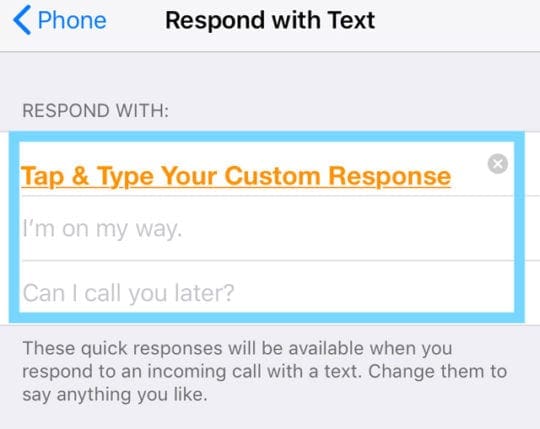
To customize the three options, you may tap Settings > Phone > Respond with Text (or Reply with Message.)

Tap one of the default responses and enter your personalized answers. create a custom reply to iPhone's respond with text feature

Respond With Text Not Working?

First, check that you toggled on Settings > Face ID/Touch ID & Passcode > Reply with Message.

When you turn this feature on, it allows access to the call options even when the iPhone is locked.

How to Set Reminders (Remind me Later)

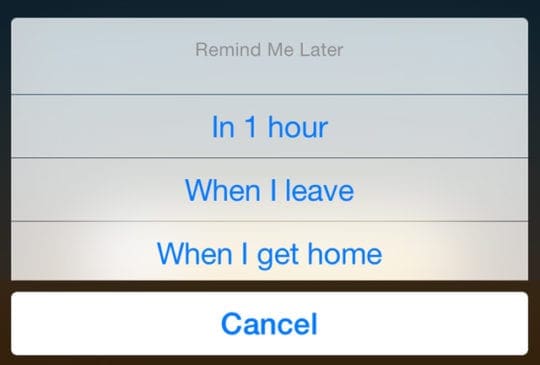
After sliding up during an incoming call, you see another option for setting a reminder. This option supports location-based or time-based reminders.

Options are:

  • In 1 hour
  • When I Leave
  • When I get home Remind Me Later for Missed Calls on iPhone

For location-based reminders to work, you’ll need to have Location Services enabled.

Related Posts:

  • 2022 Mac Mini with Studio Display and Accessories
    Mac Tips For New Users In 2023
  • pexels-designecologist-1779487
    The Best iPhone And Mac Shortcuts For Beginners
  • pexels-tima-miroshnichenko-6860464
    How To Start Using Regex With The Shortcuts App
  • pexels-jeshootscom-1040160
    How To Watch iTunes Extras On An iPhone, iPad, Mac,…
  • photo of an iphone with ios 16 downloaded on it
    iOS 16 Tips and Tricks: The Definitive List
  • pexels-jess-bailey-designs-810079
    How To Run Linux On Mac: A Step-by-Step Guide
  • 0E4A6A0B-65E8-4184-B0C9-16C2179A1256
    The Best Weight Loss Apps For iPhone In 2021
  • pexels-tranmautritam-696899
    iPhone Tips for New Users In 2023
  • Photo of person sleeping after saving so much time with the best Automator routines for Mac
    The Best iPhone Shortcuts (2021 Edition)
sudz - apple
Sudz Kar

Obsessed with tech since the early arrival of A/UX on Apple, Sudz (SK) is responsible for the original editorial direction of AppleToolBox. He is based out of Los Angeles, CA.

Sudz specializes in covering all things macOS, having reviewed dozens of OS X and macOS developments over the years.

In a former life, Sudz worked helping Fortune 100 companies with their technology and business transformation aspirations.
Reader Interactions

Write a Comment Cancel reply

Show 4 Comments

  1. rich walters says

    December 9, 2018 at 6:53 AM

    siri is not working???

    Reply
    • SK says

      December 10, 2018 at 10:40 AM

      Hi Rich,

      At this time, Siri cannot respond to incoming calls with one of your text message replies.

      Reply
  2. Sabita says

    December 8, 2018 at 6:03 AM

    After a missed call I got sms lik’do u want to send sms?’how to disable this type of msg?

    Reply
    • SK says

      December 8, 2018 at 6:20 PM

      Go to Settings > Face ID/Touch ID & Passcode and toggle off Reply with Message. This prevents this options from appearing on your lock screen.

      In iOS 12, you can silence notifications using a new function called Deliver Quietly.

      Reply

Primary Sidebar

Recent Posts

  • How to Hide Username and Photo on the Mac Lock Screen
  • Microsoft Resume vs. Apple Handoff – Which Wins for Cross-Device Work?
  • How to Export iTunes Library to New Computer
  • What the Gemini Desktop App Will Bring to Mac
  • What to Do When Windows 11 Won’t Detect Your iPad
  • Outlook Outage 2026: iPhone Fixes for Sign-In Chaos

Connect with us

Footer

ABOUT

  • About Us
  • Contact us
  • Advertise
  • Privacy
  • Terms of Use

GUIDES

  • iOS & iPadOS
  • Apple ID
  • iCloud
  • App Store
  • iTunes
  • FaceTime
  • iMessage
  • Siri
  • Books and iBooks
  • Game Center
  • AirPlay

CONNECT

  • Facebook
  • Twitter
  • FeedBurner
  • YouTube

© Copyright 2010-2024 Guiding Tech Media · All Rights Reserved

This site and its content are in no way affiliated or endorsed by Apple, Inc. · Reproduction without explicit permission is prohibited

Last Updated on December 8, 2018 by Sudz Kar