• Skip to primary navigation
  • Skip to main content
  • Skip to primary sidebar
  • Skip to footer

AppleToolBox

Tools and Fixes for Mac, iPad, iPhone & iWatch

Search posts

  • About
  • Contact

CONNECT WITH US

CATEGORIES

  • iPhone
  • iPad
  • iPod
  • Apple Watch
  • Mac/MacBook
  • AirPods
  • Apple TV
  • News
  • Apple Services
  • HomePod
  • Reviews

SITE

  • Home
  • About Us
  • Contact
  • Advertise

Search posts

You are here: Home / Mac / Mac: How to create a digital signature and sign PDF files in OS X

Mac: How to create a digital signature and sign PDF files in OS X

By Sudz Kar 1 comment Last updated June 10, 2013

Preview makes it easy to open images and Portable Document Format (PDF) documents. You can also use Preview to take a picture of signature and add it to PDF documents that requires your signature by using your Macs built-in iSight camera to capture your hand written signature. Here is how:

How to create a signature

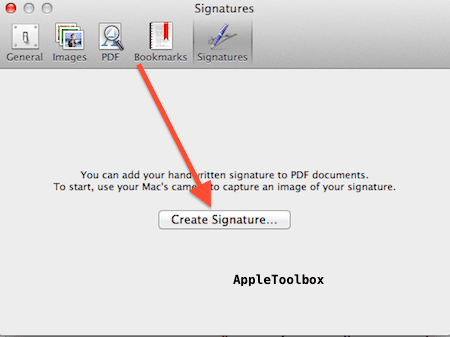
  • Choose Preview > Preferences
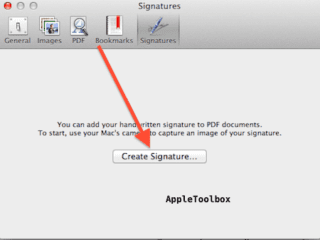
  • Click on “Signatures” and then “Create Signature”

creature signature

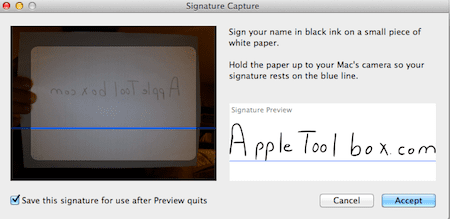
  • Then sign your signature on a piece of paper and hold the paper up to your Mac’s camera.

add your signature

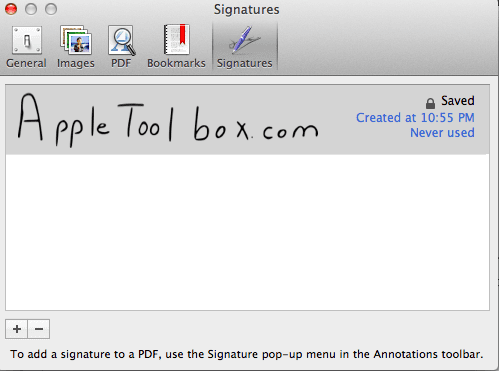
  • When your signature looks correct, click Accept.

accepted signature

How to sign a PDF

  • Launch the PDF file you want to sign
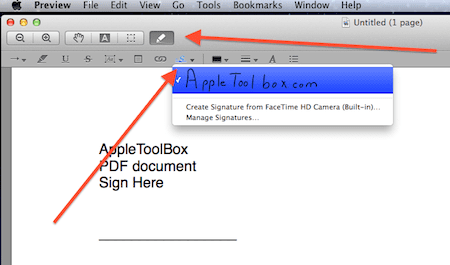
  • Click on the Annotations button (pencil icon) then the Signatures button then choose your signature (you may create multiple signatures so you may have multiple signatures listed here).

Add your signature

  • Now click within the document where you want the signature to appear in the PDF. Thats it.  Your PDF doc is signed.

Related:

Adjusting Image Sizes – Preview

How to annotate PDF’s using Preview

How to use Mac OS X Grab Utility to take screenshots

Related Posts:

  • How to Edit a PDF on Mac 6 Best Methods You Should Know
    How to Edit a PDF on Mac: 6 Best Methods You Should Know
  • How to Recover Unsaved Word Document on Mac in 5 Best Ways
    How to Recover Unsaved Word Document on Mac in 5 Best Ways
  • pexels-skitterphoto-9316
    How To Scan Documents On iPhone And iPad
  • 2023 Mac Studio lifestyle - 1
    macOS Could Not Be Installed, How-To Fix
  • Windows computer
    How to AirDrop from iPhone to Windows PC
  • sidecar on iPadOS and macOS
    Sidecar not working in iPadOS and macOS? How to fix…
  • 14 Best Mac Cloud Storage for Home, Work, and School in 2023
    14 Best Mac Cloud Storage for Home, Work, and School in 2023
  • pexels-tima-miroshnichenko-6860464
    How To Start Using Regex With The Shortcuts App
  • How to connect AirPods to Nintendo Switch 7
    How to Use iPad as a Monitor for Your Nintendo Switch
sudz - apple
Sudz Kar

Obsessed with tech since the early arrival of A/UX on Apple, Sudz (SK) is responsible for the original editorial direction of AppleToolBox. He is based out of Los Angeles, CA.

Sudz specializes in covering all things macOS, having reviewed dozens of OS X and macOS developments over the years.

In a former life, Sudz worked helping Fortune 100 companies with their technology and business transformation aspirations.
Reader Interactions

Write a Comment Cancel reply

Show 1 Comments

  1. TK says

    May 1, 2015 at 5:43 PM

    Useful hint. I didn’t know could do that. Now have a nice signature.

    Reply

Primary Sidebar

Recent Posts

  • What the Gemini Desktop App Will Bring to Mac
  • What to Do When Windows 11 Won’t Detect Your iPad
  • Outlook Outage 2026: iPhone Fixes for Sign-In Chaos
  • Guide to Changing iMessage Backgrounds on iPhone and Mac
  • Has Apple Killed Vision Pro? (Insane Sales Flop Explained)
  • 5 Great Apps for Staying Organized on Your iPhone

Connect with us

Footer

ABOUT

  • About Us
  • Contact us
  • Advertise
  • Privacy
  • Terms of Use

GUIDES

  • iOS & iPadOS
  • Apple ID
  • iCloud
  • App Store
  • iTunes
  • FaceTime
  • iMessage
  • Siri
  • Books and iBooks
  • Game Center
  • AirPlay

CONNECT

  • Facebook
  • Twitter
  • FeedBurner
  • YouTube

© Copyright 2010-2024 Guiding Tech Media · All Rights Reserved

This site and its content are in no way affiliated or endorsed by Apple, Inc. · Reproduction without explicit permission is prohibited

Last Updated on June 10, 2013 by