You may receive documents via email or you may want directly download files from a website. If you want, you may save, edit or email these docs. All you need is a file/word processing app on your iPad or iPhone. There are plenty of free and paid apps in the App Store. In this short tip, we are using the Pages app for word files and iBooks app for PDF files. The Pages app is a great word processing app that lets you create, save and share your files. iBooks is designed to read and buy books, but you can read and save PDF files in iBooks.
How to save word files on your device:
Download and install the Pages app ($9.99 – iTunes link).
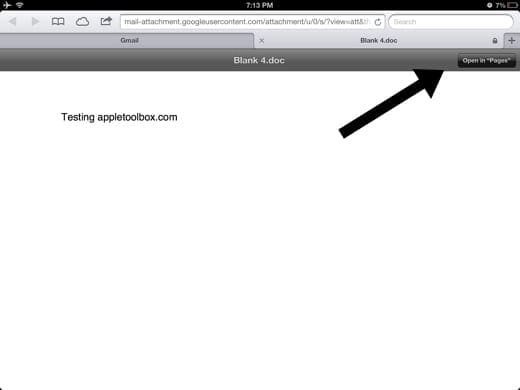
Locate the word file that you want to save on your device. Tap on the file to view/download it.
Select “Open in Pages”.
Your doc will be open and saved in the Pages app. You can open the Pages app to edit/share this document.
How to save PDF files on your device:
Download and install the iBooks app (free – iTunes link).
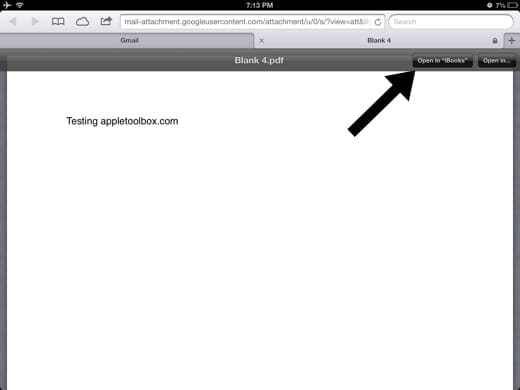
Locate the PDF file that you want to save and tap on the file to open it.
Select “Open in iBooks”.
Your PDF files will be opened and saved in the iBooks app.
Obsessed with tech since the early arrival of A/UX on Apple, Sudz (SK) is responsible for the original editorial direction of AppleToolBox. He is based out of Los Angeles, CA.
Sudz specializes in covering all things macOS, having reviewed dozens of OS X and macOS developments over the years.
In a former life, Sudz worked helping Fortune 100 companies with their technology and business transformation aspirations.
Have you restarted your device? If not try that but follow these steps
Restarting protocol
1. Power off your iDevice
2. Plug into power using charger and a wall outlet–not a computer USB port
3. If the device comes back on, power it off again
4. Wait 2-3 minutes
5. Power your device on
See if the black box went away.
If not, try a forced restart
* On an iPad with no Home Button and iPhones 8 or later: Press and quickly release the Volume Up button. Press and quickly release the Volume Down button. Then press and hold the Side/Top/Power button until the device restarts.
* On an iPhone 7 or iPhone 7 Plus: Press and hold both the Side and Volume Down buttons for at least 10 seconds, until you see the Apple logo.
* On an iPhone 6s and earlier, iPad with a Home Button, or iPod touch: Press and hold both the Home and the Top (or Side) buttons for at least 10 seconds, until you see the Apple logo.
Closing all open and suspended apps might also help:
1. On an iPhone or an iPad with no home button from the Home screen, swipe up from the bottom of the screen and pause slightly in the middle of the screen
2. On an iDevice with a home button, double-click the Home button and swipe right or left to find the app that you want to close
3. Swipe right or left to locate the app you want to close
4. Swipe up on the app’s preview to close it
5. Repeat for all apps in the app switcher until the app switcher is empty and you only see your home screen when accessing the app switcher
If that didn’t work, try resetting all settings and see if that works:
Go to Settings > general > reset > reset all settings.
Reset all settings does the following:
* This is usually the last resort since it resets all your personalized features back to factory defaults
* This resets to default everything in Settings, including notifications, alerts, brightness, and clock settings like wake up alarms
* Resetting all settings also reverts all your personalized and customized features like wallpapers and accessibility settings back to factory defaults.
* Performing this action does not impact any of your personal device data, including photos, texts, documents, and other files
* You need to reconfigure these settings once your iPhone or iDevice restarts












I currently experience a blank box at the top of the screen on my iPhone 7 once a zip file has completely downloaded from the net.
So, I wait the entire 20-30 minutes for it to load only to have it show me the box.
I cannot click on the box and attempt to open it in any other way.
Am I missing something? This only began recently.
Hi Dom,
Have you restarted your device? If not try that but follow these steps
Restarting protocol
1. Power off your iDevice
2. Plug into power using charger and a wall outlet–not a computer USB port
3. If the device comes back on, power it off again
4. Wait 2-3 minutes
5. Power your device on
See if the black box went away.
If not, try a forced restart
* On an iPad with no Home Button and iPhones 8 or later: Press and quickly release the Volume Up button. Press and quickly release the Volume Down button. Then press and hold the Side/Top/Power button until the device restarts.
* On an iPhone 7 or iPhone 7 Plus: Press and hold both the Side and Volume Down buttons for at least 10 seconds, until you see the Apple logo.
* On an iPhone 6s and earlier, iPad with a Home Button, or iPod touch: Press and hold both the Home and the Top (or Side) buttons for at least 10 seconds, until you see the Apple logo.
Closing all open and suspended apps might also help:
1. On an iPhone or an iPad with no home button from the Home screen, swipe up from the bottom of the screen and pause slightly in the middle of the screen
2. On an iDevice with a home button, double-click the Home button and swipe right or left to find the app that you want to close
3. Swipe right or left to locate the app you want to close
4. Swipe up on the app’s preview to close it
5. Repeat for all apps in the app switcher until the app switcher is empty and you only see your home screen when accessing the app switcher
If that didn’t work, try resetting all settings and see if that works:
Go to Settings > general > reset > reset all settings.
Reset all settings does the following:
* This is usually the last resort since it resets all your personalized features back to factory defaults
* This resets to default everything in Settings, including notifications, alerts, brightness, and clock settings like wake up alarms
* Resetting all settings also reverts all your personalized and customized features like wallpapers and accessibility settings back to factory defaults.
* Performing this action does not impact any of your personal device data, including photos, texts, documents, and other files
* You need to reconfigure these settings once your iPhone or iDevice restarts
Adobe is worth trying.
PDF expert is not a bad choice. Also, Adobe and Annotations on App Store are worth trying.
Title is just a bit misleading, I would love to have an app that allowed me to edit pdf, this article merely tells me how to open and save it…
hello, what about the writepdf app that apparently does similar? someone told me it might be worth looking at?