• Skip to primary navigation
  • Skip to main content
  • Skip to primary sidebar
  • Skip to footer

AppleToolBox

Tools and Fixes for Mac, iPad, iPhone & iWatch

Search posts

  • About
  • Contact

CONNECT WITH US

CATEGORIES

  • iPhone
  • iPad
  • iPod
  • Apple Watch
  • Mac/MacBook
  • AirPods
  • Apple TV
  • News
  • Apple Services
  • HomePod
  • Reviews

SITE

  • Home
  • About Us
  • Contact
  • Advertise

Search posts

You are here: Home / iPhone / How to Pair and Use a Non-Apple Smartwatch With Your iPhone

How to Pair and Use a Non-Apple Smartwatch With Your iPhone

By Louis Roundtree 0 comments Last updated September 2, 2026

Things to Know
  • Apple Watches are designed specifically to work with iPhones, but some smartwatches from other brands are also compatible.
  • You’ll need to download the relevant app for the smartwatch you have; for example, Fitbit devices need the Google Health app.
  • You’ll also need to make sure Bluetooth is enabled and grant any necessary permissions for the connection and smartwatch features to work.

Smartwatches are a great way to stay connected, stay healthy, and monitor aspects of daily life from email notifications to phone calls. Some people may assume that if you have an iPhone, you need an Apple Watch to enjoy smartwatch connectivity. The good news is that most smartwatch brands have an iPhone-compatible app that allows you to link them to your phone. Let’s take a look at how easy it is to pair a non-Apple smartwatch with iPhone devices.

Pair a Non-Apple Smartwatch With iPhone: Step-by-Step Guide

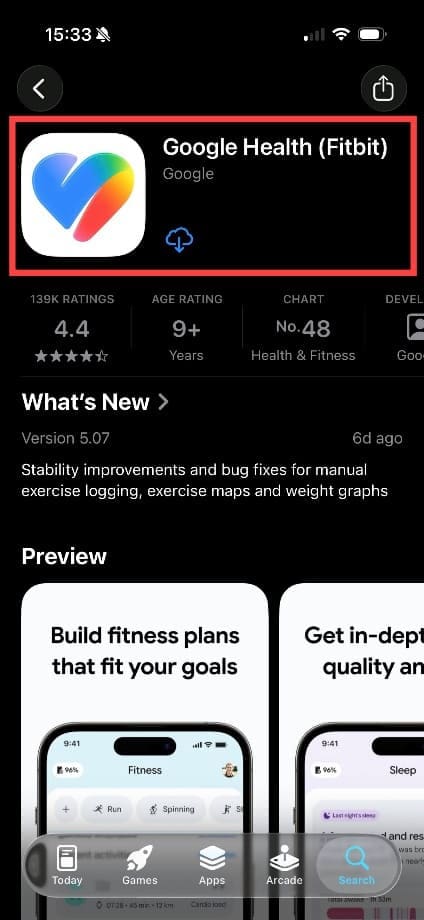
Step 1. Make sure your smartwatch is charged. Check whether your specific smartwatch model is compatible with your iPhone, and download the relevant companion app. Here are some of the most common:

  • Fitbit devices use the Google Health (Fitbit) app.
  • Compatible Samsung Galaxy Watches use the Galaxy Wearable app
  • Garmin smartwatches use Garmin Connect.
  • Huawei smartwatches need Huawei Health.
  • Decathlon smartwatches need Decathlon Connect.

Find the relevant app in the iPhone’s App Store and tap “Get” or the redownload button if you have used it previously.

How to Pair and Use a Non-Apple Smartwatch With Your iPhone 1

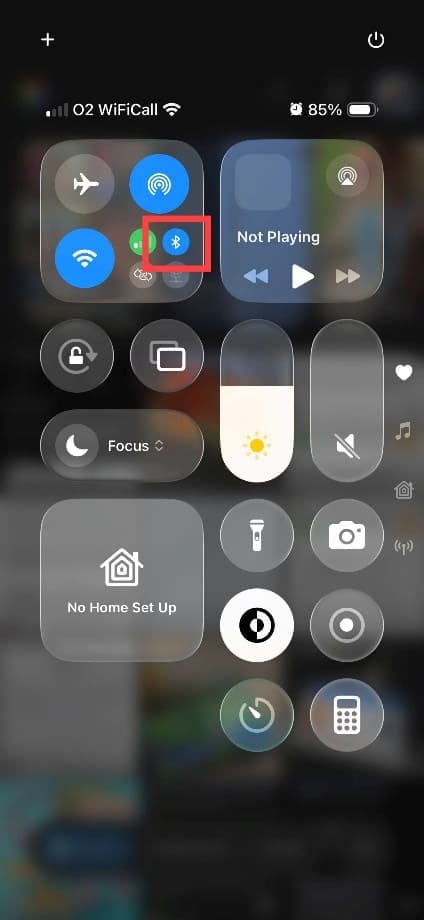
Step 2. While you’re waiting for the app to download and install, check that Bluetooth is switched on. Swipe down from the top right of your iPhone, and check that the Bluetooth symbol is blue. If it’s grey, simply tap it to switch it on.

How to Pair and Use a Non-Apple Smartwatch With Your iPhone 2

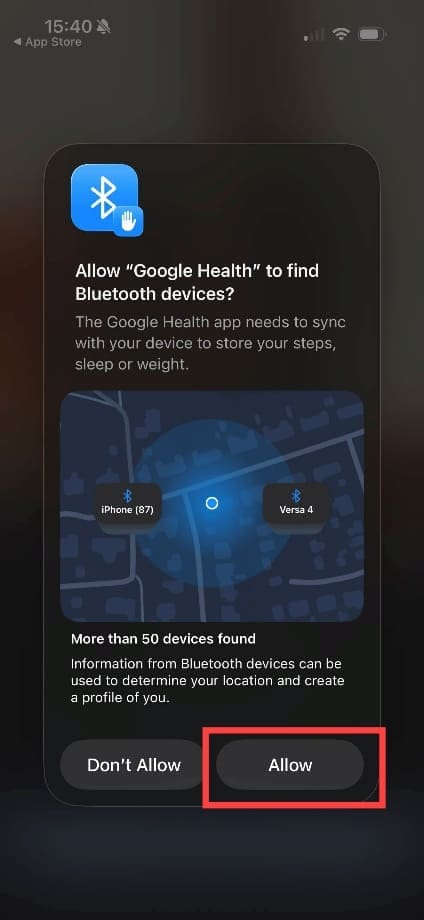
Step 3. Open the relevant app. In this example, the user has a Fitbit and is using the Google Health app. Follow the prompts to allow the app to access Bluetooth devices if requested, as this permission may be necessary to find and connect to your smartwatch.

How to Pair and Use a Non-Apple Smartwatch With Your iPhone 3

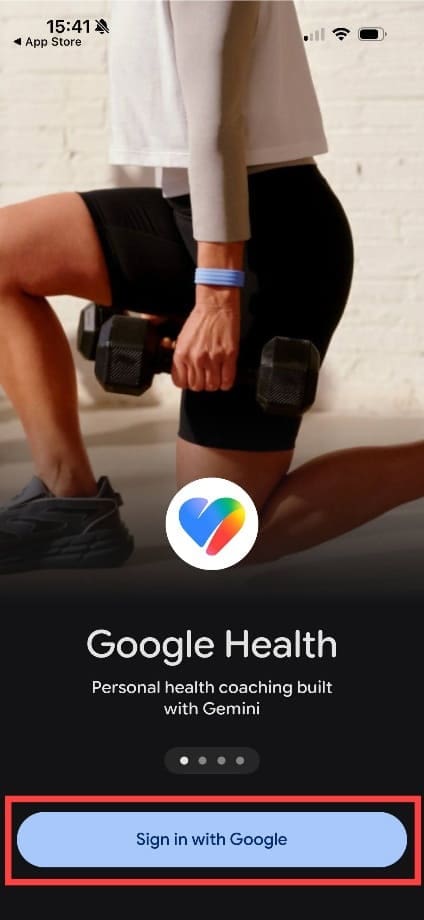
Step 4. Sign in with your account details. If you don’t have an account, you’ll be prompted to set one up.

How to Pair and Use a Non-Apple Smartwatch With Your iPhone 4

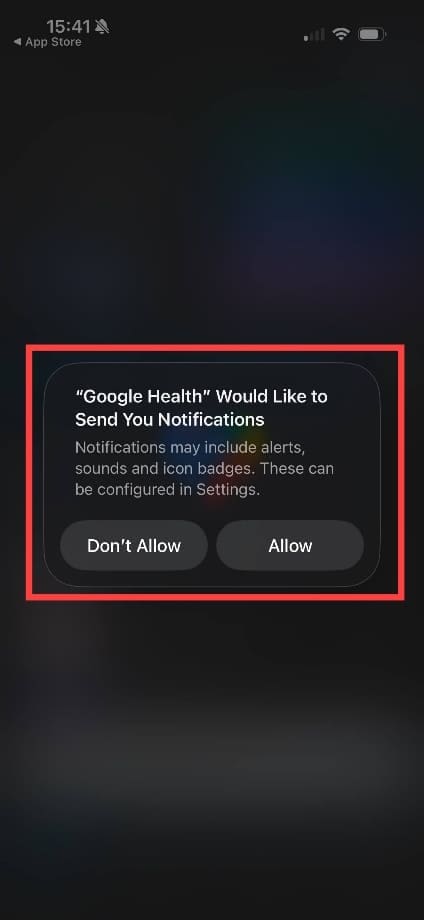
Step 5. Decide if you want the app to send you notifications or not. Note: these are notifications on your iPhone, not your smartwatch.

How to Pair and Use a Non-Apple Smartwatch With Your iPhone 5

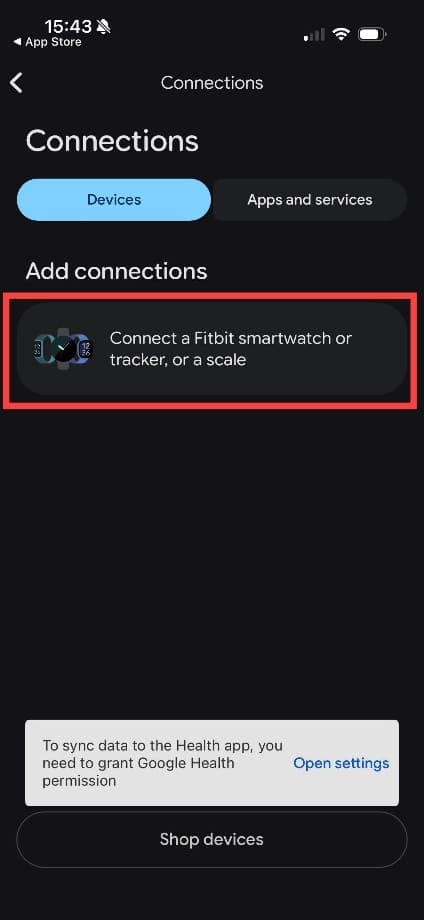
Step 6. Go to Devices or Connections. This will differ from app to app, and in some cases, you can click on “setup,” and the app will talk you through the device connection process. Tap on “Connect a smartwatch” or whichever option is most similar. Some apps may also prompt you to sync the data from your Apple Health app to your Google Health app (or alternative), but you do not have to do this.

How to Pair and Use a Non-Apple Smartwatch With Your iPhone 6

Step 7. Make sure you choose the correct device from the list.

How to Pair and Use a Non-Apple Smartwatch With Your iPhone 7

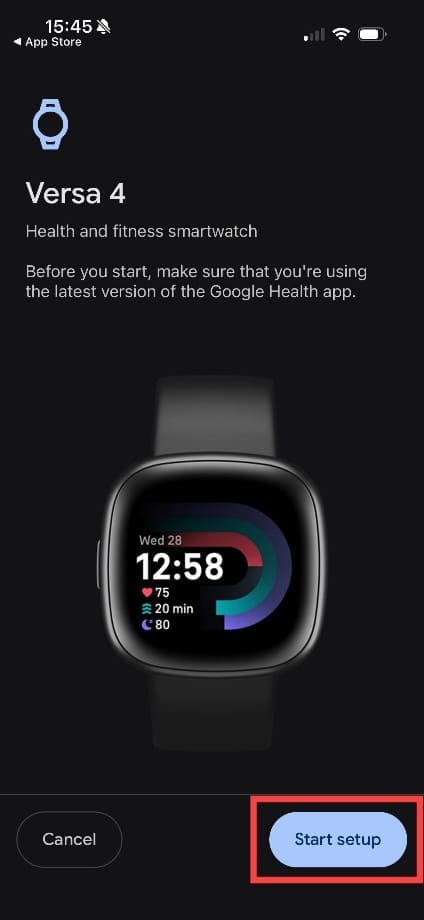
Step 8. Tap the option to start or continue the setup process.

How to Pair and Use a Non-Apple Smartwatch With Your iPhone 8

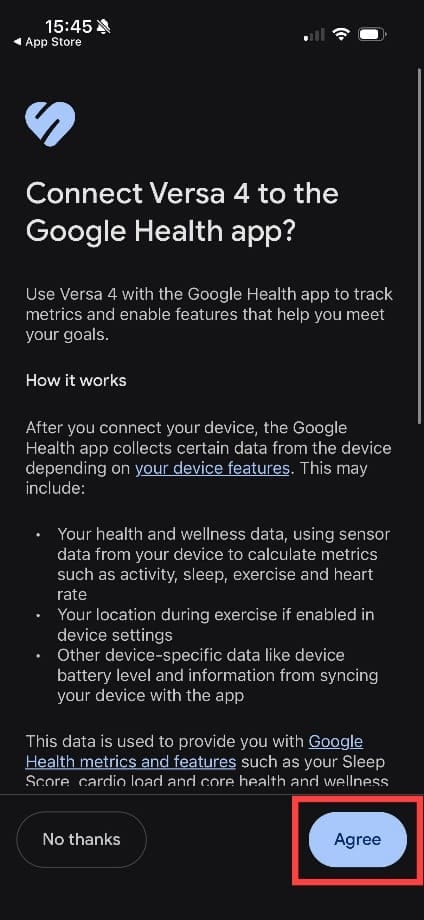
Step 9. Agree to any terms and conditions.

How to Pair and Use a Non-Apple Smartwatch With Your iPhone 9

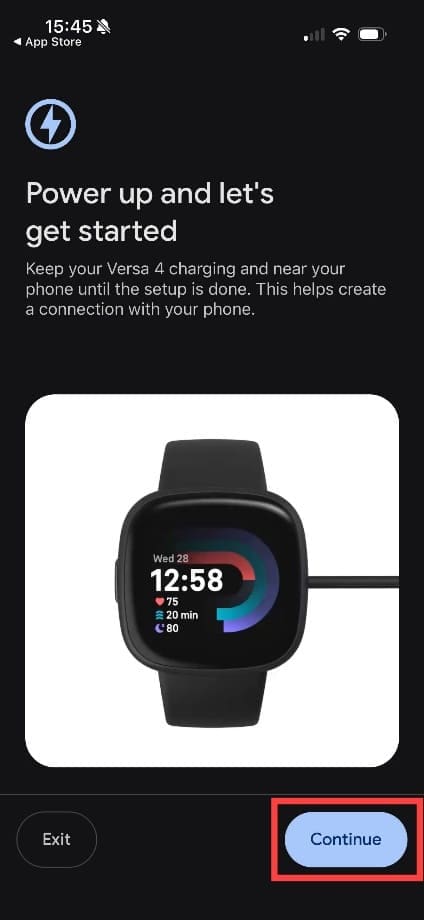
Step 10. Make sure the smartwatch is charged and powered on. Press “Continue.”

How to Pair and Use a Non-Apple Smartwatch With Your iPhone 10

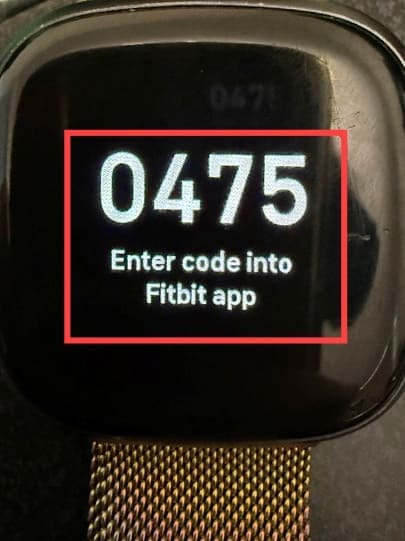
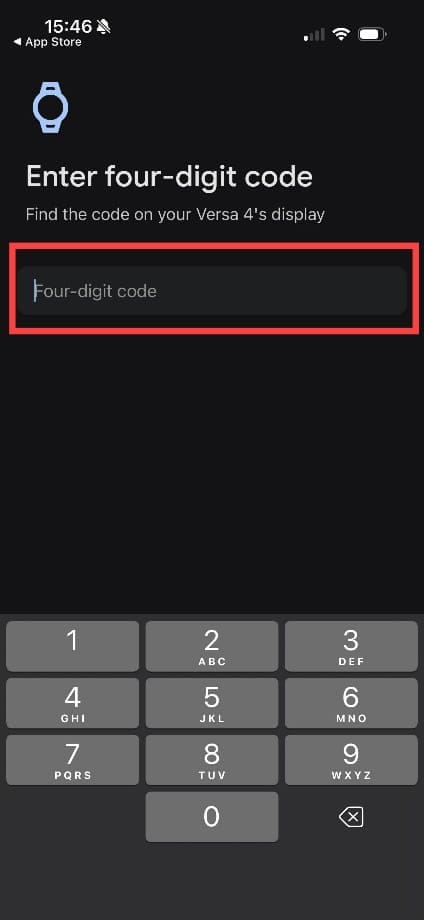
Step 11. You’ll be sent a code to the smartwatch. Once you enter this code on the iPhone, the devices will begin to pair.

How to Pair and Use a Non-Apple Smartwatch With Your iPhone 11

How to Pair and Use a Non-Apple Smartwatch With Your iPhone 12

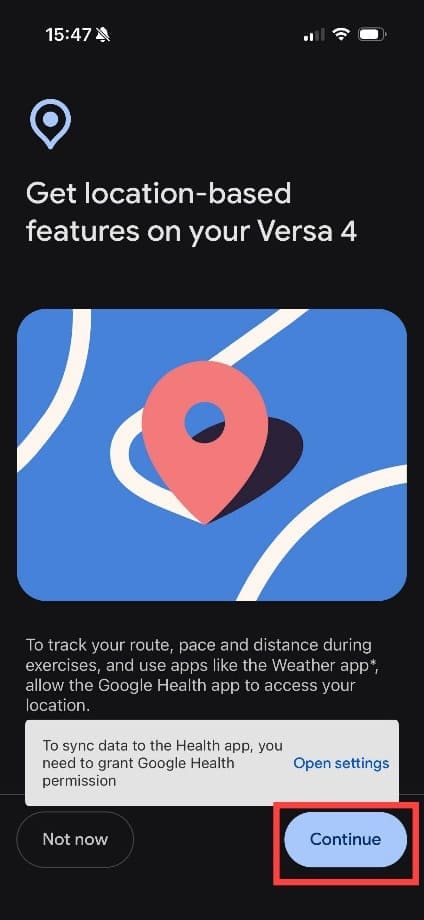
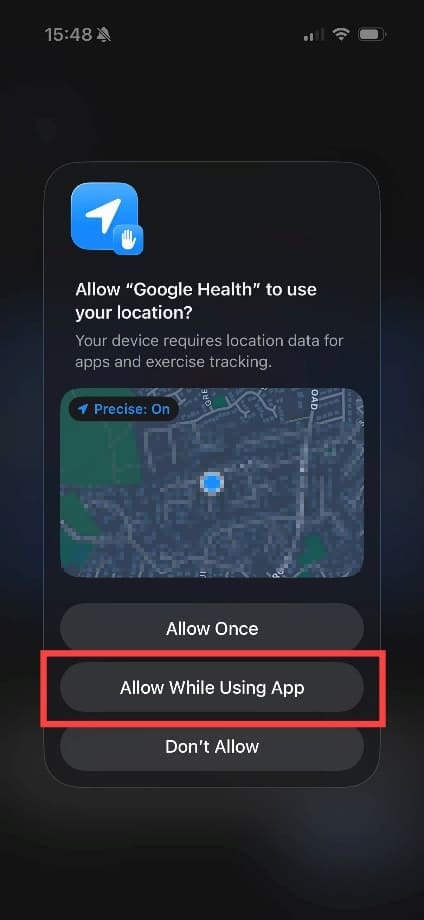
Step 12. Grant permissions for location-based services, or your iPhone won’t be able to track distance and other workout-related features. Choose “Allow While Using the App.”

How to Pair and Use a Non-Apple Smartwatch With Your iPhone 13 How to Pair and Use a Non-Apple Smartwatch With Your iPhone 14

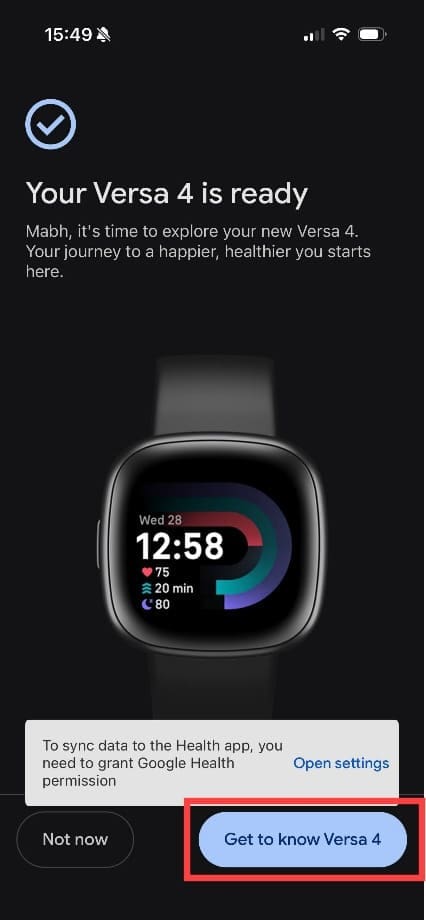
Step 13. After a few seconds, your devices should sync. Most apps will now offer a virtual tour, so you can get to know how your smartwatch works and what data you can see on your iPhone.

How to Pair and Use a Non-Apple Smartwatch With Your iPhone 15

Related Posts:

  • Apple Watch Ultra Tips and Tricks
    Apple Watch Tips and Tricks for 2023
  • iPhone 15 Pro unboxing
    How To Extend Your iPhone Battery Life
  • iPhone 15 Pro Max - 4
    Best iPhone Lock Screen Widgets for iOS 17
  • photo of an iphone with ios 16 downloaded on it
    iOS 16 Tips and Tricks: The Definitive List
  • iphone and airpods on a table
    These Apps Have the Best iOS 17 Widgets
  • 0E4A6A0B-65E8-4184-B0C9-16C2179A1256
    The Best Weight Loss Apps For iPhone In 2021
  • apple-watch-ultra-in-gravel
    Best Smartwatches for iPhone
  • pexels-cottonbro-5082579
    Getting Started With iOS 15: Everything Good And Bad
  • Apple Watch Ultra Tips and Tricks
    How to Fix Apple Watch Stuck in Boot Loop
Louis Roundtree
Louis Roundtree

As an avid gamer, I’ve run into my fair share of error codes and weird faults that have forced me to find fixes to problems I never anticipated. That gave me a passion for sharing those fixes with others so we can all game without feeling like our hardware is rebelling against us.
Reader Interactions

Write a Comment Cancel reply

Primary Sidebar

Recent Posts

  • How to Pair and Use a Non-Apple Smartwatch With Your iPhone
  • How to Keep Your iPhone’s Photo Sizes Under Control
  • How to Get Native Multi-Touch Gestures on Windows 11 Using Apple’s Magic Trackpad
  • LocalSend Guide: The Best Open-Source AirDrop Alternative for iPhone and Windows
  • How to Create iPhone Shortcuts Using Apple Intelligence Prompts
  • How to Sync Apple Passkeys & iCloud Keychain With Windows 11

Connect with us

Footer

ABOUT

  • About Us
  • Contact us
  • Advertise
  • Privacy
  • Terms of Use

GUIDES

  • iOS & iPadOS
  • Apple ID
  • iCloud
  • App Store
  • iTunes
  • FaceTime
  • iMessage
  • Siri
  • Books and iBooks
  • Game Center
  • AirPlay

CONNECT

  • Facebook
  • Twitter
  • FeedBurner
  • YouTube

© Copyright 2010-2024 Guiding Tech Media · All Rights Reserved

This site and its content are in no way affiliated or endorsed by Apple, Inc. · Reproduction without explicit permission is prohibited

Last Updated on September 6, 2026 by Louis Roundtree