If you’ve got stunning photos on your iPhone, it’s only natural you may want to set one as your PC background at some point. Thankfully, it’s really easy to do. There’s no specific instruction for “Set iPhone photo as PC wallpaper.” Instead, you just import your iPhone photos and treat them like any other image.
Follow the step-by-step instructions below to learn three methods of achieving this.
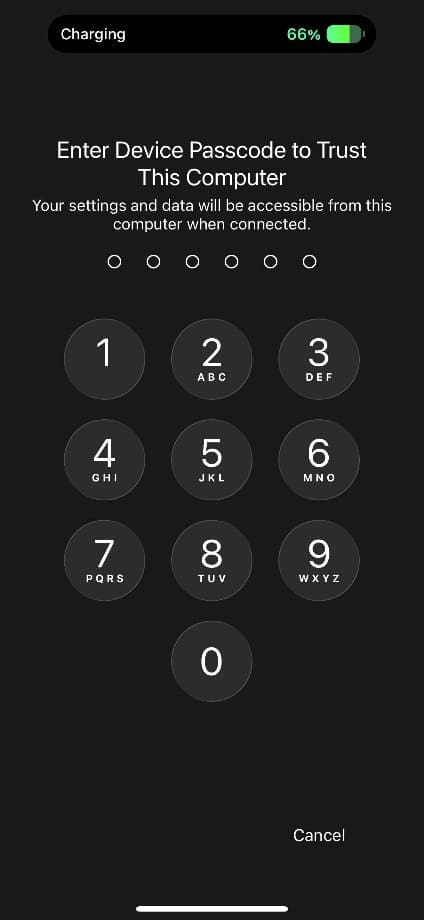
Step 1. Connect your iPhone to your Windows PC using a compatible USB cable. If prompted, unlock your iPhone and tap “Trust” or “Allow” to let the computer access your device.
Step 2. If prompted, enter your iPhone passcode to unlock the device.
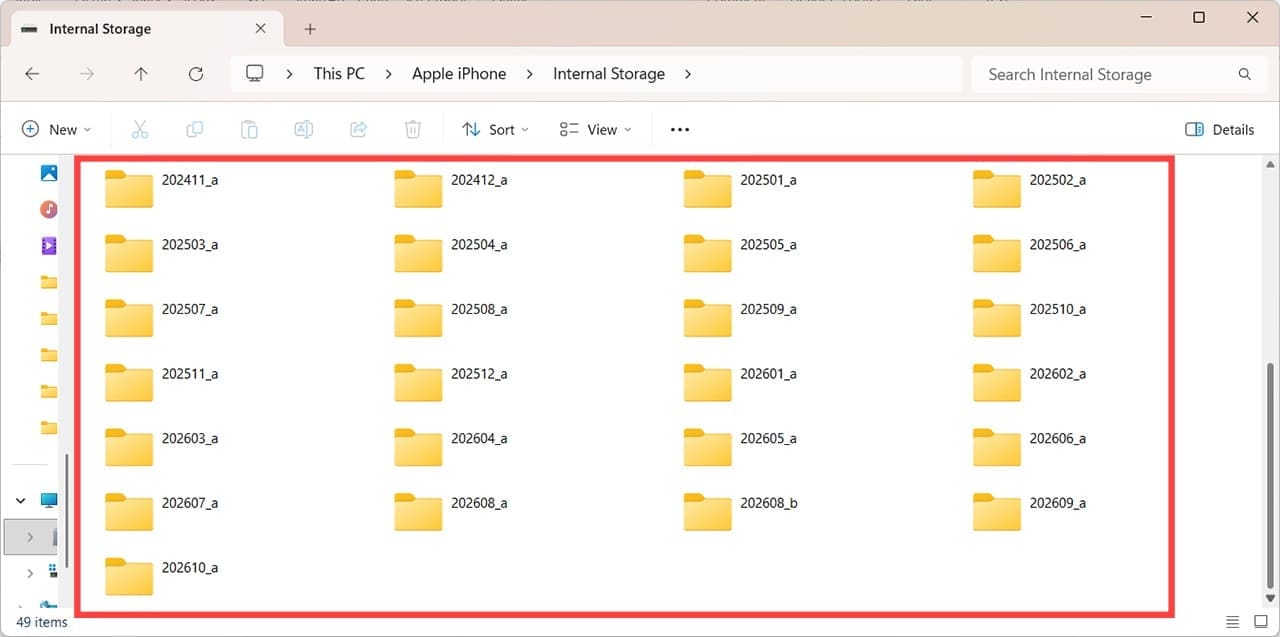
Step 3. On Windows, you can use Windows Explorer to access your iPhone’s internal storage. You’ll find this under This PC > Apple iPhone.
Step 4. Open the iPhone’s photo storage folder and browse for the image you want. The folder structure and names may vary.
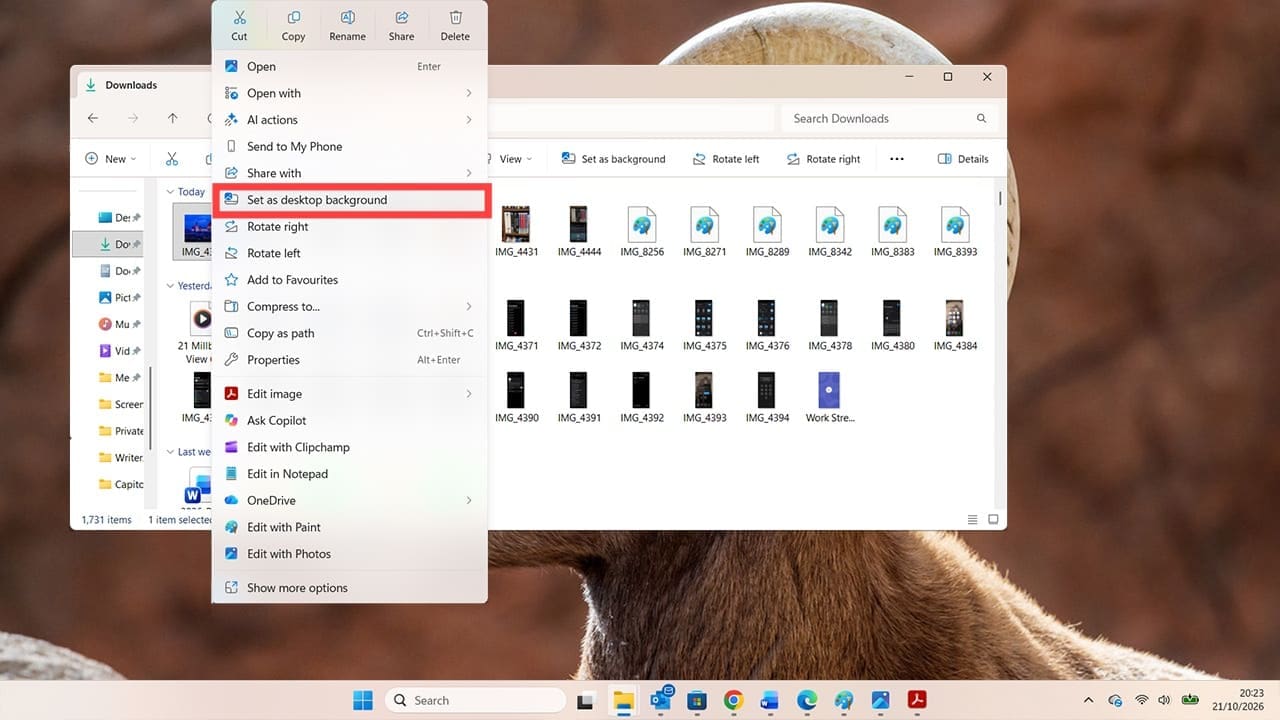
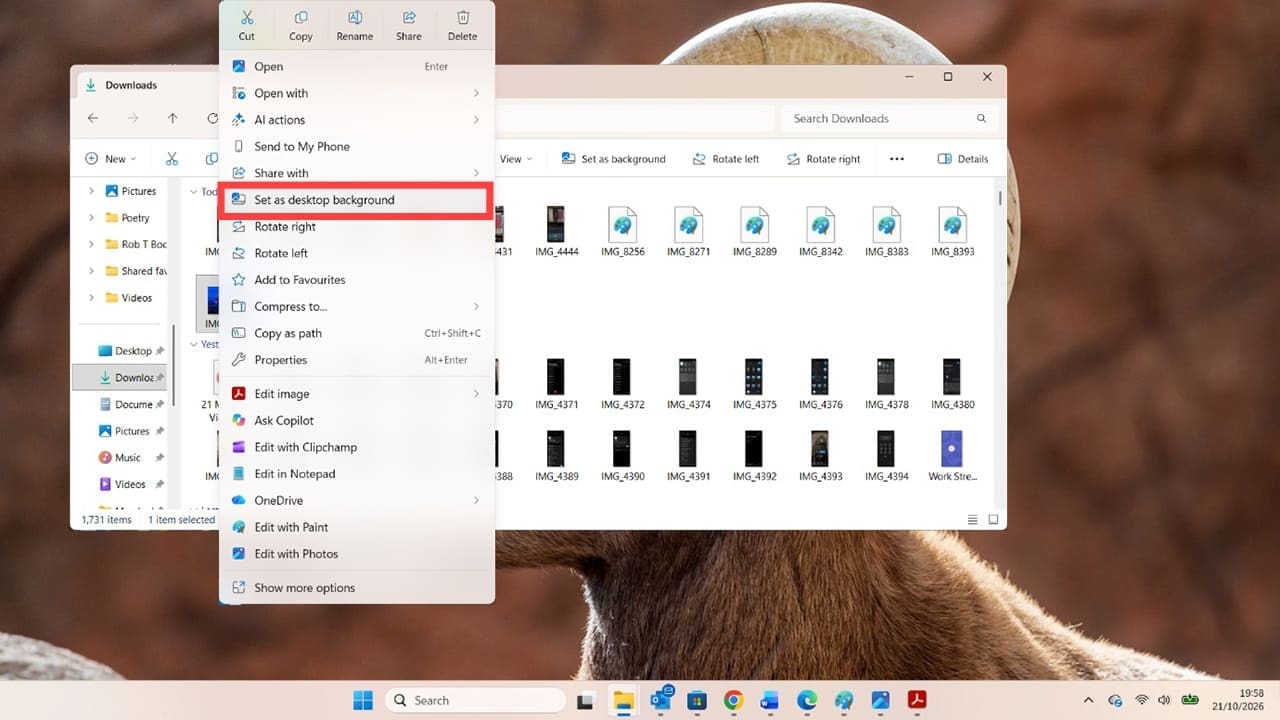
Step 5. Double-click on the folder you want to browse and find the photo you want to set as your PC wallpaper. Right-click on the image, and select “Set as desktop background.”
You’ll now see your chosen photo as your desktop background.
Import PC Background From iPhone: iCloud Method
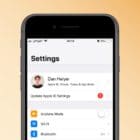
Step 1. Check that your iPhone photos are being saved to iCloud: Go to Settings> Apple Account > iCloud > Saved to iCloud > See All > iCloud Photos and turn on “Sync this iPhone.”
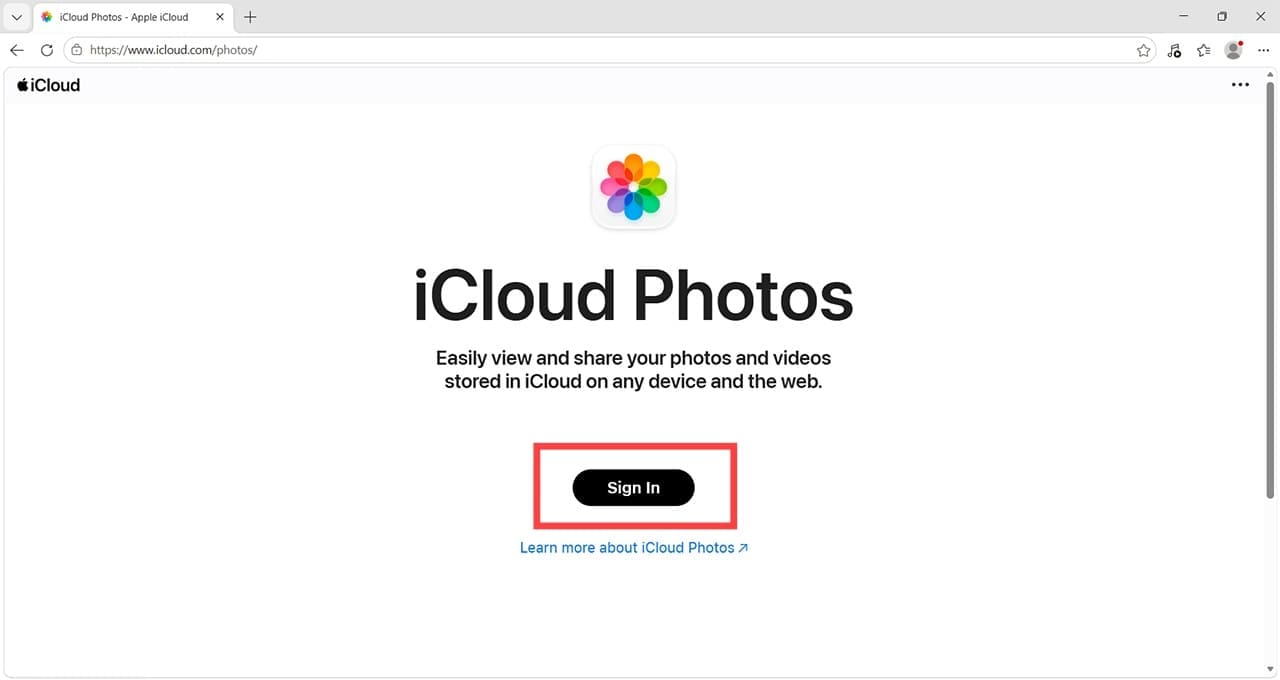
Step 2. On your PC, go to https://www.icloud.com/photos and sign in with the same Apple Account (formerly Apple ID) as you use on your iPhone.
Step 3. Find the photo you want to use, right-click on it, and select “Download.”
Step 4. Head to your Downloads folder, right-click the image, and choose “Set as desktop background.”
Set iPhone Photo as PC Wallpaper: Google Photos Method
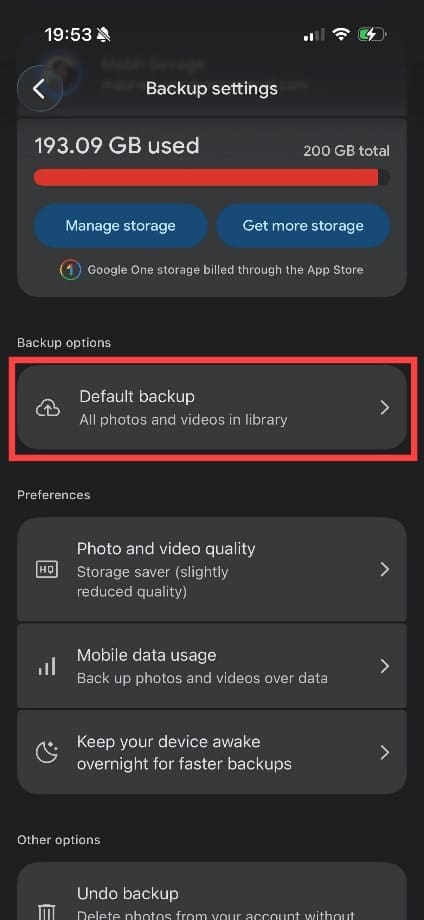
Step 1. You can use similar instructions for other cloud-storage and photo-sharing services, including OneDrive and Dropbox. First, make sure your iPhone is backing up photos to your chosen service, in this case Google Photos. Open the Google Photos app, go to its settings, and check that photo backup is turned on.
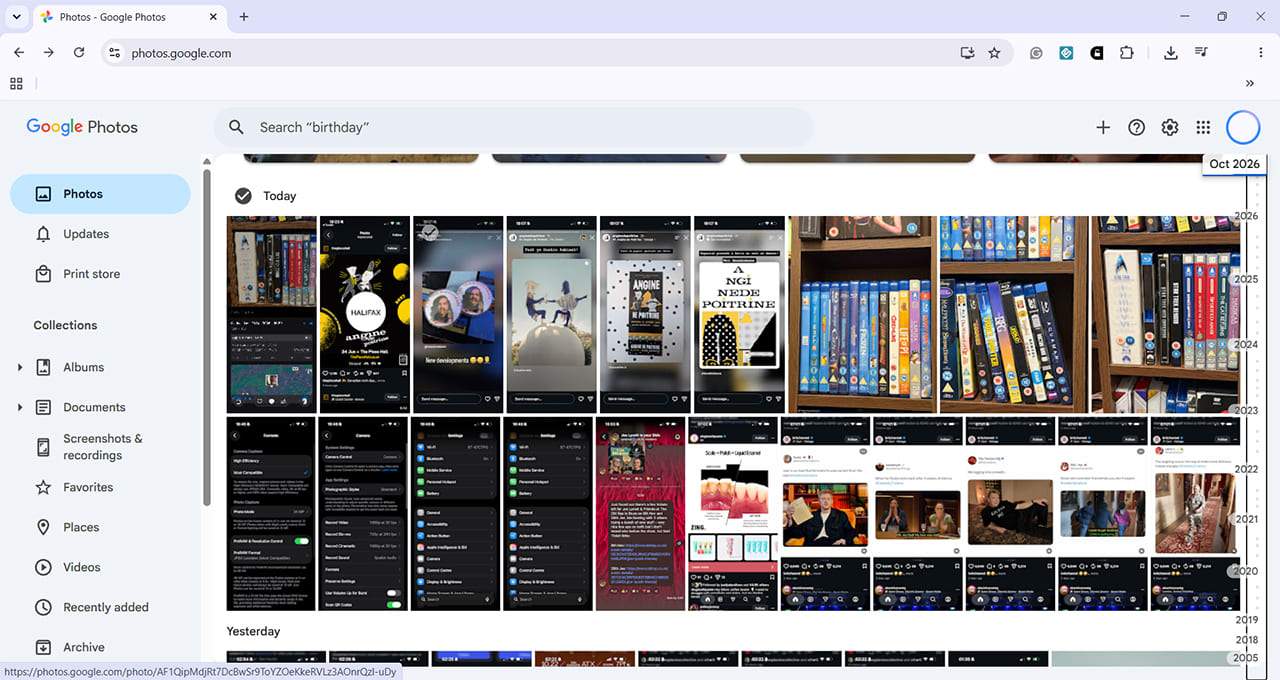
Step 2. On your Windows machine, open any internet browser and search for Google Photos. Sign in with the same Google Account used in the Google Photos app on your iPhone. You should then be able to view the photos that have been backed up.
Step 3. Click on the photo you want to use as a background. Click on the three dots and then click Download, or press SHIFT + D to download the relevant photo. It will go to your usual Downloads location.
Step 4. Locate your downloaded photo. Right-click on it and select “Set as desktop background.”
As an avid gamer, I’ve run into my fair share of error codes and weird faults that have forced me to find fixes to problems I never anticipated. That gave me a passion for sharing those fixes with others so we can all game without feeling like our hardware is rebelling against us.















Write a Comment