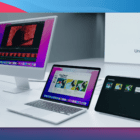
Using several Apple devices for college can either make life easier or create a strange collection of files scattered across your iPhone, iPad, and Mac. The difference often comes down to how well you use Apple’s Continuity features.
Universal Clipboard, AirDrop, and Handoff can remove many tiny steps from your study routine. Once you get used to them, moving between devices starts to feel much more natural.
You might find a useful source on your iPhone while riding the bus, take handwritten notes on an iPad during class, and write the final assignment on a Mac later that evening. You do not need to email every link or file to yourself along the way.
Apple’s devices are designed to pass information between one another in much simpler ways. The trick is knowing which feature works best for each job.
Begin With Universal Clipboard for Small Amounts of Data
It is always appropriate to start with Universal Clipboard when you want to transfer a tiny piece of information. This way, you will be able to transfer any text, picture, photo, or video from one Apple device to another. Thus, the interesting passage that you come across on your iPhone may easily appear in the notes on your Mac computer. No additional message, cloud folder, or temporary file has to be created for this purpose.
Universal Clipboard becomes particularly convenient for conducting research as well. In case you see the name of a valuable scientific article while surfing the Internet on your iPad, you will be able to instantly transfer it to the document on your Mac computer. In addition, you may copy any tiny piece of information, such as a citation, a link, etc.
While managing multiple research windows or multitasking between reading materials on a smaller screen, it can also help to know how to run two apps side by side on an iPhone to streamline your workflow during busy study sessions.
When Too Many Assignments Break a Good Workflow
A smooth Apple setup can save small amounts of time, but it cannot make a packed college week disappear. You may still have reading, lectures, revision, and several assignments competing for the same evening, which leaves little time to organize your notes or catch up in another class.
If one difficult task begins taking over the whole schedule, academic support built around requests such as do my homework for me can help you manage part of that workload while you stay focused on your own classes, study materials, and revision. With a little more space in the week, you can keep your academic files organized and move through your study routine without every task turning into a last-minute rush.
Send the Whole File Via AirDrop
Universal Clipboard works perfectly fine for snippets of data, but sometimes you require the complete file.
This is where AirDrop works better. You can share documents, PDFs, pictures, movies, and other types of files among Apple products by simply sending them without attaching them to an email. It works well when the file is on one of your devices, and you need to use it on the other.
For example, let us suppose your professor provides you with a PDF document in class, which you save on your iPad. At a later stage, you feel that you prefer reading it on a Mac as it is easier to do so on your laptop than on your tablet. AirDrop will help transfer the file directly.
AirDrop is also handy even when working in groups. If everybody is seated in the same room, then there will be no need to ask for email addresses to transfer a PDF, an image, a presentation, or some other file. It can facilitate communication during group work greatly. Remember only to ensure that you are transferring the file to the right person before selecting their name.
According to Apple, AirDrop relies on Wi-Fi and Bluetooth to discover other Apple devices around and allows sharing files between iPhone, iPad, and Mac. Transfers can be accepted or declined by the recipient. Apple’s guide on Continuity describes how AirDrop, Universal Clipboard, Handoff, and other capabilities for connecting Apple devices work. It can be helpful to have this guide bookmarked if something starts going wrong all of a sudden.
Should your phone encounter system hiccups or fail to connect properly during important file transfers, it is useful to remember that if your iPhone is not working, you can still put it into recovery mode to troubleshoot software problems safely.
Use Handoff If the Work Is Already in Progress
This time, however, the situation is not about transferring a file from one Apple device to another; instead, Handoff makes it possible to start an activity on one device and continue doing it on the other.
For instance, you can read a webpage on your iPhone and then move to your computer to continue. Moreover, it is possible to write an email or use a particular app and transfer it to another device.
It is convenient to use such technology since any college work is never performed in one single place. You might start reading before going to class, do some reading during class in a library, and finish after returning home. In order to avoid looking for the same page once again or performing all those actions manually, Handoff helps you continue where you left off.
While managing your project timeline, you might also want to explore how to integrate modern productivity aids, such as learning how to add ChatGPT to Messages on iPhone, to quickly draft outlines or summarize notes on the go.
Convert Your iPhone into a Collection Device for Academic Research
While your iPhone is always close by when your laptop is not, make sure to use it to capture pieces of academic data in the course of your daily routine. You might take a picture of a source, scan a document, or find some interesting articles during a commute. When done, you will be able to transfer all the relevant data to your working device.
One possible sequence of actions may be:
locate sources for your research on your iPhone
transfer short information snippets using Universal Clipboard
transfer bigger files and pictures to your Mac via AirDrop
continue your task with Handoff
keep all things organized when you start working
However, the most critical point here is the last one. Twenty screenshots are one thing; research collection is another. Transfer useful pieces of information to the relevant folder, note, or assignment while you still remember the purpose of your collection.
If you accidentally delete important research notes or course PDFs during your clean-up phases, knowing how to recover deleted files on a Mac ensures your hard work remains safe and accessible.
Use the iPad to Manage the Midpoint of Your Workflow
The iPad can be used effectively between the phone and the Mac. It is portable enough for classes but offers a larger space for notes, PDFs, and sketches compared to the phone. You can annotate a reading in class with an Apple Pencil and then use AirDrop to send the annotated PDF file to your Mac and start working on it.
Universal Clipboard allows transferring any valuable sentences or references from the iPad to the Mac. Handoff will help you move your work from the iPad to the Mac seamlessly if you are using a supported app. Education expert Mariam Navrozashvili suggests using a simple enough digital studying system, which makes transferring information faster than studying itself.
Final Thoughts
None of these Apple features will study for you. What they can do is remove the silly little jobs that interrupt study: emailing a file to yourself, typing the same link twice, hunting for a webpage again, or wondering which device contains the PDF you need.
Start with one feature instead of trying to rebuild your entire study system tonight. Use Universal Clipboard for research this week, AirDrop for your class files, and Handoff when you naturally move between devices. Once those habits feel normal, your iPhone, iPad, and Mac start acting less like separate screens and more like one connected workspace. That is where Apple’s Continuity tools become genuinely useful for college.
AppleToolBox is tech resource website that delivers informative content related to everything Apple. We’re one of the leading voices in providing insightful and authoritative how-tos, news, reviews and tips to Apple aficionados worldwide.













Write a Comment