It’s been a long time coming, but AI is finally making inroads into iPhones. Apple Intelligence, introduced in 2024, brought AI-powered features to supported iPhone experiences. OpenAI’s ChatGPT is integrated into several of those features, including Siri and Writing Tools.
But how is it done, and how do you add ChatGPT to Messages on iPhone? This article will explore this.
Before getting started with ChatGPT and Apple Intelligence, you need to ensure that your iPhone meets the requirements:
An Apple Intelligence-compatible iPhone: iPhone 15 Pro, iPhone 15 Pro Max, or iPhone 16 or later
iOS 18.2 or later, although current Apple Intelligence features and device requirements vary by iOS version.
A supported language and region for Apple Intelligence and the ChatGPT extension
A ChatGPT account (optional; you can use the Apple Intelligence ChatGPT integration without signing in, although signing in provides additional features such as saving conversations to your ChatGPT history)
If you are all set on all of the above, it’s time to enable ChatGPT.
How to Add ChatGPT to Messages on iPhone
There are a few steps to follow to get ChatGPT into your Messages, but the process is pretty straightforward:
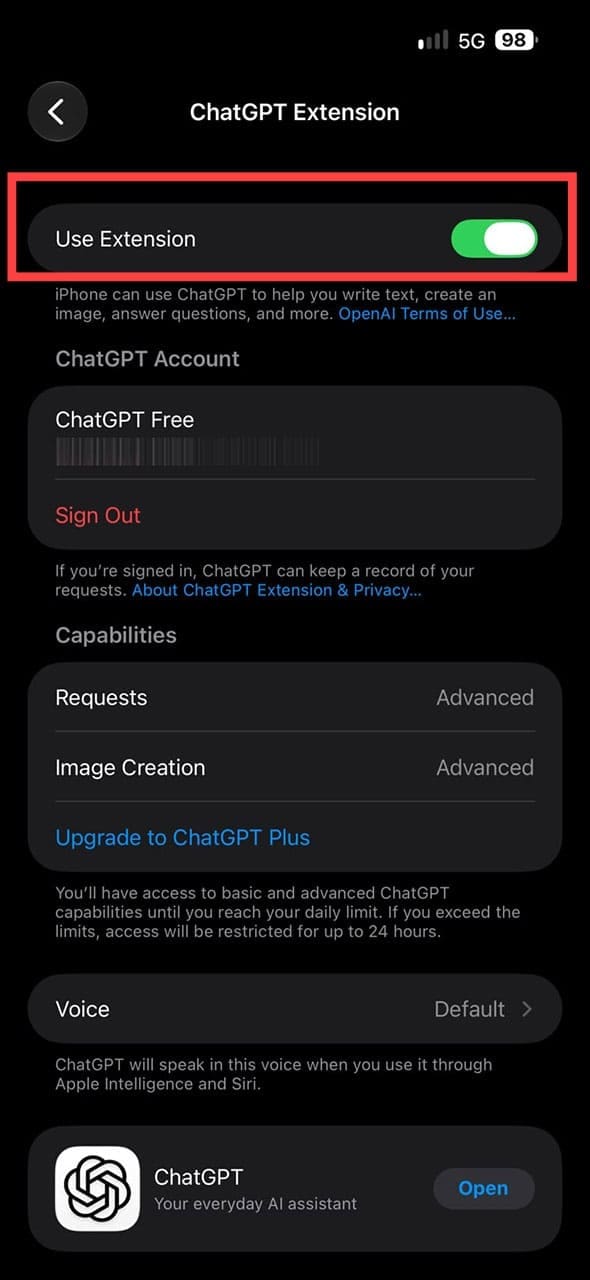
Turn On ChatGPT
First things first, we need to enable ChatGPT. Here’s what to do:
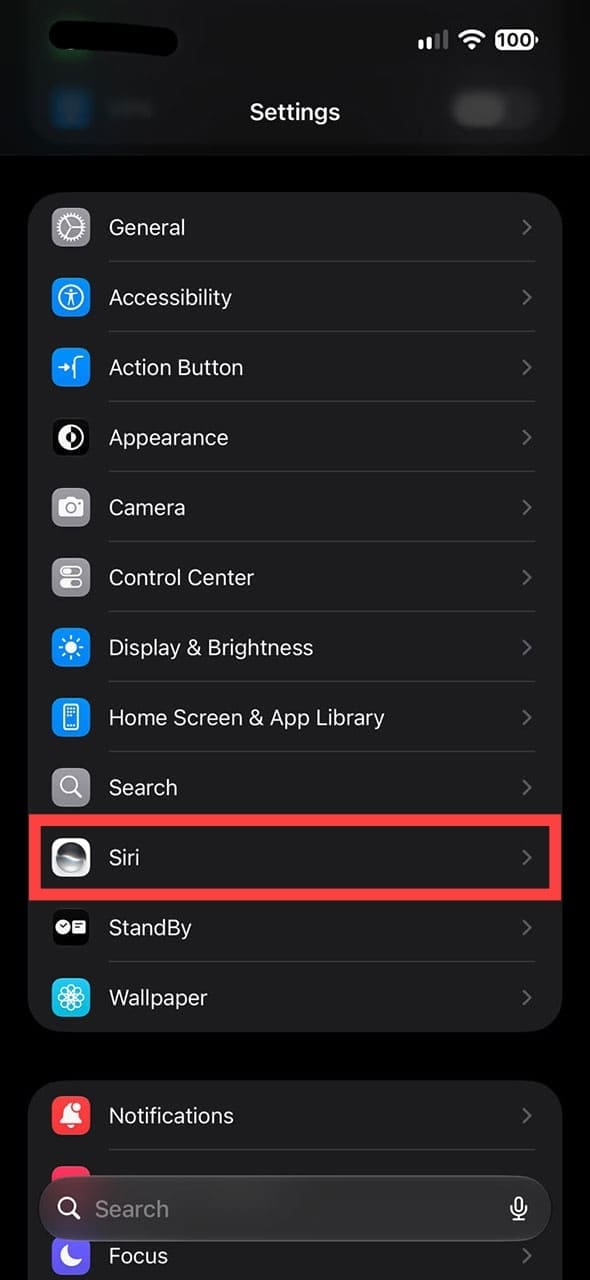
Step 1. Tap the “Settings” app on your Phone.
Step 2. Scroll down to Siri and tap it.
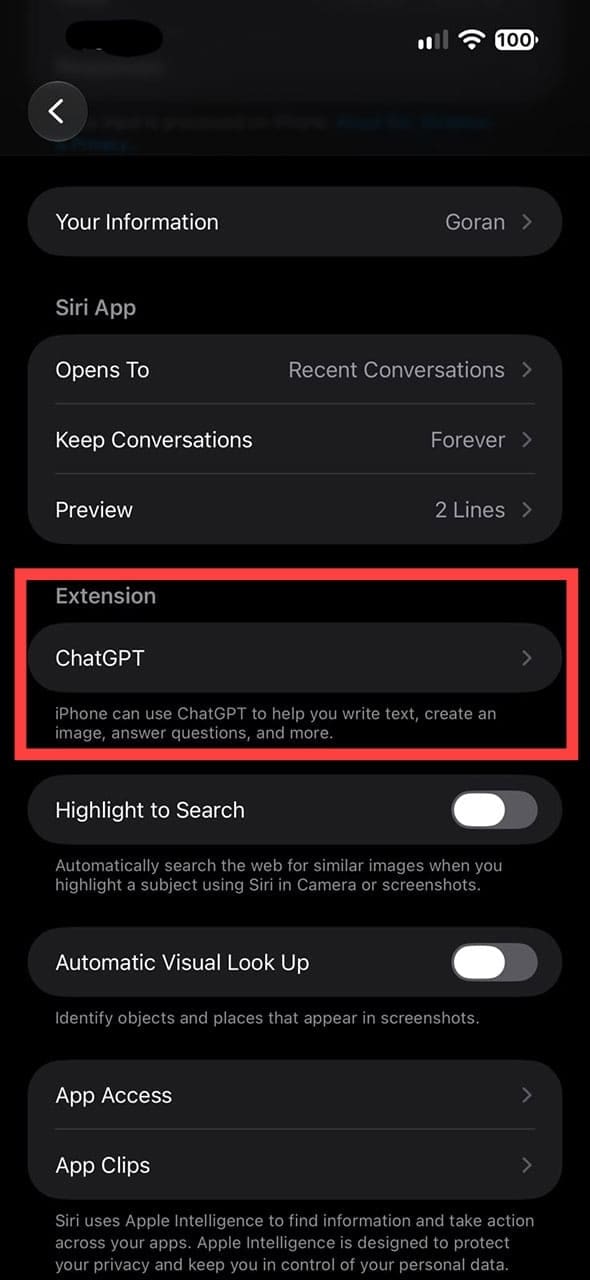
Step 3. Tap “ChatGPT,” then tap “Set Up” and follow the on-screen instructions.
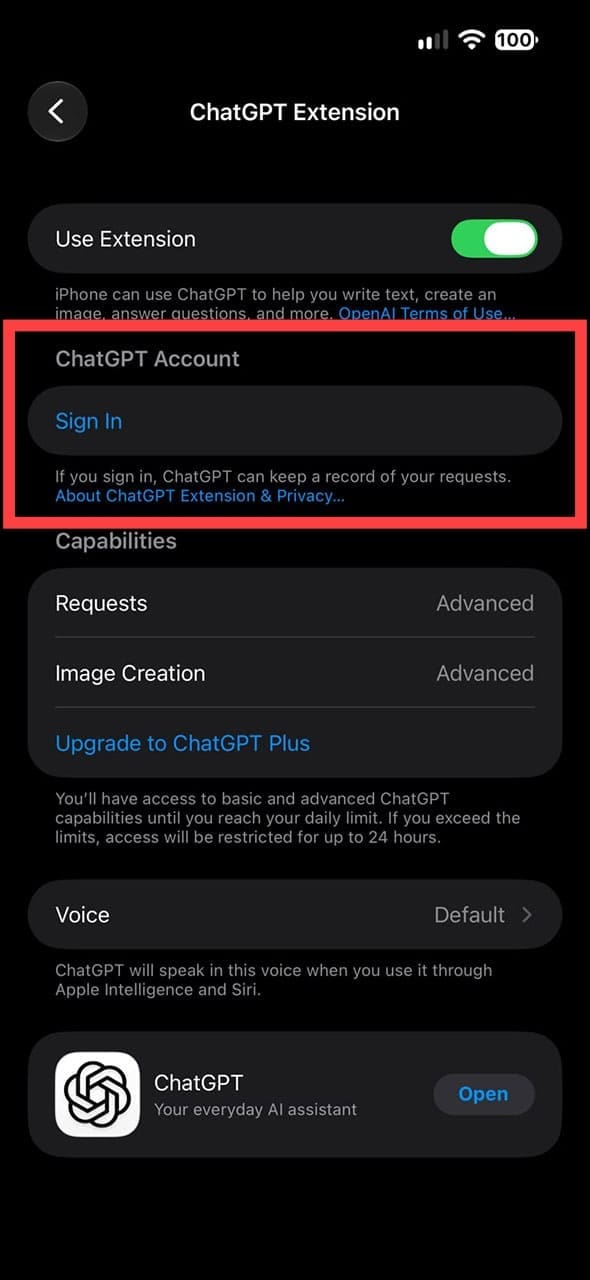
Step 4. If you have a ChatGPT account, you can sign in. Otherwise, you can use ChatGPT through Apple Intelligence without an account.
Use ChatGPT While Writing a Message
Now to the main event. The ChatGPT Apple Messages plugin (actually a part of Apple Intelligence’s Writing Tools) acts as an assistant in Messages, rather than a chatbot, helping you out with various tasks. The AI helps with things like tone, context awareness, and autocomplete. On a supported iPhone, you can access ChatGPT through Apple Intelligence’s Writing Tools while composing a message. Here’s how:
Step 1. Open “Messages” and start or open a conversation.
Step 2. Tap the text field to pull up the keyboard, then tap it again to access Writing Tools.
Step 3. Tap the Writing Tools icon. The Writing Tools window will appear.
Step 4. Pull the Writing Tools window up to see the “Compose” option, then tap it. The “Compose with ChatGPT” options will appear.
Step 5. Type in what you’d like your message to be. Review the generated text, make any changes, and insert it into your message.
What Can the Plugin Do?
Apple Intelligence’s ChatGPT integration is available across supported Apple devices (including iPhone, iPad, and Mac). On iPhone, you can use ChatGPT through Writing Tools (basically an Apple Messages plugin) while composing text. Here’s a quick look at what it can do:
Write and draft messages using ChatGPT through Writing Tools
Rewrite or refine text you’re composing
Use Siri to ask ChatGPT for help with questions, documents, images, and other supported requests
Compose, rewrite, and refine text for messages
Security Concerns
The “wow” of new tech possibilities is (and should be) followed by questions around privacy and security. What you leave for ChatGPT will also leave your phone and head straight to ChatGPT’s servers. Apple and OpenAI provide privacy controls that differ depending on whether you use the integration with or without a ChatGPT account.
The end-to-end encryption for iMessages doesn’t carry over to ChatGPT either, meaning the same privacy protocols aren’t in place. How OpenAI handles and retains information depends on whether you use the Apple integration with or without a ChatGPT account and on your applicable ChatGPT data settings. OpenAI has stated that messages aren’t used for model training. If you connect a ChatGPT account, your ChatGPT account settings and applicable OpenAI data policies determine how your interactions are stored and used.
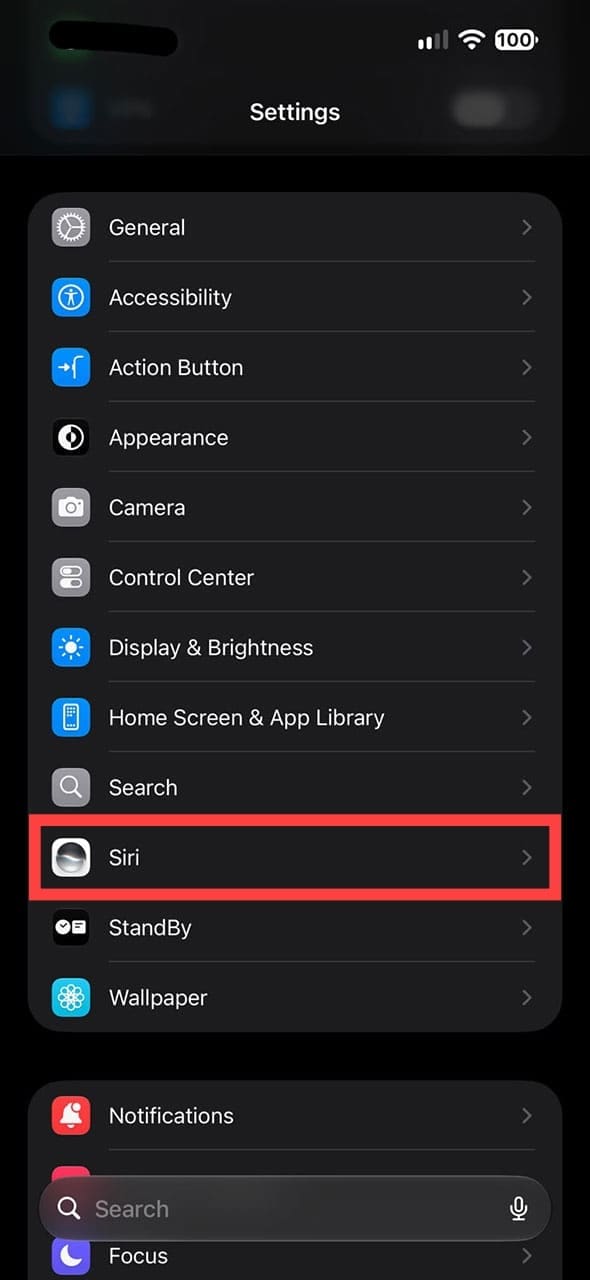
If you ever want to revoke permissions for the plugin, you can do the following:
As an avid gamer, I’ve run into my fair share of error codes and weird faults that have forced me to find fixes to problems I never anticipated. That gave me a passion for sharing those fixes with others so we can all game without feeling like our hardware is rebelling against us.















Write a Comment