Your iPhone takes some brilliant photos, but opening them up on Windows can be challenging. By default, iPhones use a file format called HEIC for enhanced quality and reduced size. While you can use online converters to convert HEIC images to JPEG format, these may not have good privacy policies, which can be alarming when sharing personal photos.
Use the step-by-step guide below to learn how to add an extension that handles this automatically. Or you can simply adjust the settings of your iPhone camera to remove the need to make conversions at all.
HEIC to JPEG Batch Conversion: Download Extension
Step 1. You can download an extension that removes the need to convert HEIC files just to open them in a compatible Windows app. Head to the Microsoft Store and search for “HEIF Image Extensions.” Note: HEIF stands for High Efficiency Image File Format, and HEIC is a type of HEIF.
You’re looking for the HEIF Image Extensions app in the Microsoft Store. If you don’t have it installed, click the “Get” or “Install” button and follow the on-screen prompts. Once installation is complete, reopen the Photos app and try opening a HEIC/HEIF file.
Step 2. You can test this by taking a photo with your iPhone. Head into the Photos app and open the photo you just took. Swipe up to see its properties, so you can confirm it’s in a high-efficiency format.
Step 3. Connect your iPhone to your computer and locate the same photo. In this instance, it’s labeled “IMG_4431.” Open your iPhone’s internal storage in File Explorer and navigate to the folder containing your photos, then search for that image. Depending on your iPhone’s transfer settings, the photo may be transferred as a JPEG. If it remains a HEIC file, the HEIF Image Extensions may allow you to open it in a compatible Windows app, but they do not convert it to JPEG.
Force Your iPhone to Store Images as JPEGs
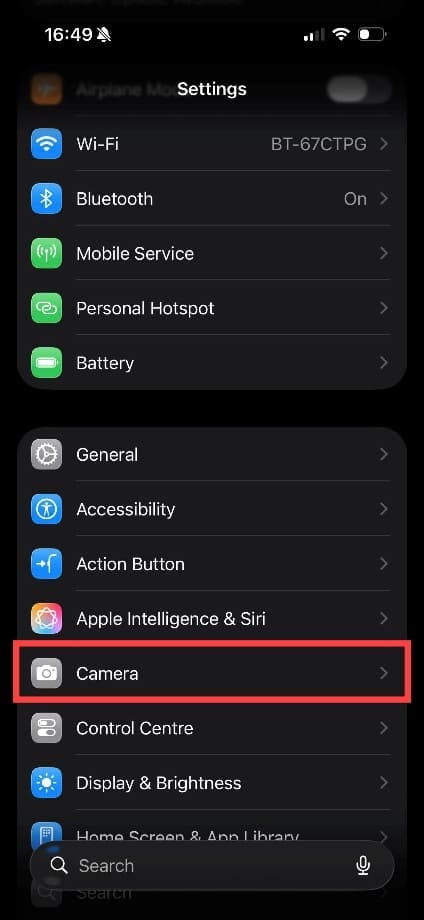
Step 1. The easiest way to ensure all your iPhone images are JPEGs is to change the camera settings. Just remember that with HEIC to JPEG batch conversion, files generally take up less storage space and may be higher quality, so you may find that your device memory becomes full faster. Start by heading to “Settings” on your iPhone.
Step 2. Tap on “Camera” to open all the camera settings.
Step 3. Tap Formats and change “High Efficiency” to “Most Compatible.” This setting makes your iPhone save new photos in JPEG format. You can change it back at any time.
As an avid gamer, I’ve run into my fair share of error codes and weird faults that have forced me to find fixes to problems I never anticipated. That gave me a passion for sharing those fixes with others so we can all game without feeling like our hardware is rebelling against us.










Write a Comment