So a friend sent over their vacation photos, and every single file ends in .HEIC. Double-click one on a Windows PC and you may get an error, or a prompt to install an extension first. Upload forms aren’t much better, since plenty of sites still only accept JPG and PNG.
The good news is that the files aren’t broken. HEIC is simply the format iPhones save photos in, and your computer doesn’t read it yet. Which fix makes sense depends on how often this happens to you.
Since iOS 11, iPhones save photos as HEIF (High Efficiency Image File Format) files with a .HEIC extension. You get the same picture quality as a JPEG in a smaller file, which is why Apple made it the default.
Photos shared through iCloud Photos keep their original format, though.
Files someone uploads to a shared folder or forwards from their computer usually stay HEIC as well, and that’s typically how they end up on a PC that can’t open them. If you frequently encounter issues where HEIC photos from iPhone don’t open on Windows, understanding these underlying transfer triggers can help you prevent formatting conflicts.
Open HEIC Photos: Ask the Sender to Change One Setting
If the same person keeps sending you HEIC files, it can be easier to fix things on their end.
On the iPhone, open “Settings.”
Tap “Camera,” then “Formats.”
Change “High Efficiency” to “Most Compatible.”
New photos will be saved as JPEGs from then on. There are two catches: it doesn’t change photos already taken, and JPEGs take up more space on the phone.
Not everyone will want to keep it that way, but for a parent who mostly sends pictures to a Windows laptop, it can save a lot of back and forth. You can also share steps on how to avoid HEIC format so files auto-convert whenever they are exported over USB or local connections.
Open HEIC Photos: Convert Them on a Mac
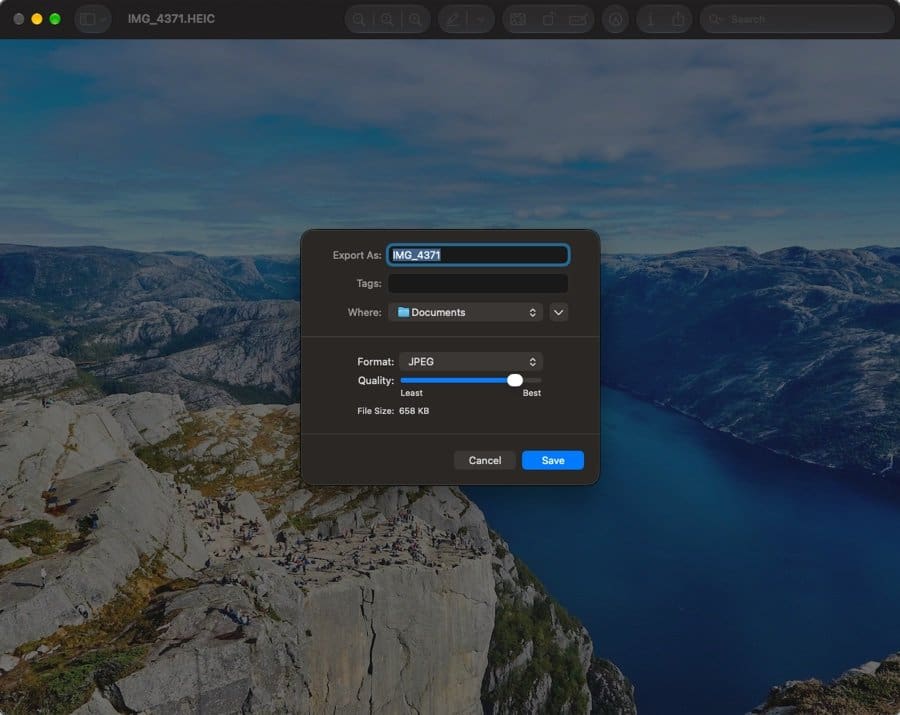
A Mac opens HEIC files without any extra software, and Preview can convert them for you.
Open the photo in Preview. To convert a whole set, open them all and select every thumbnail in the sidebar.
Click “File,” then “Export” (or “Export Selected Images” for several).
Set the format to “JPEG” and click “Save.”
Open HEIC Photos: Add HEIC Support to Windows
Windows 10 and 11 can display HEIC photos once you install Microsoft’s HEIF image extension from the Microsoft Store. If HEIC files reach you every week, learning how to batch convert HEIC images will walk you through the setup process step by step to handle large folder conversions quickly.
Open HEIC Photos: Use a Standalone Converter
The extension isn’t always the answer. On a work laptop with locked-down software or on someone else’s computer, you may not be able to install it, and for a one-off batch it’s more setup than you need. Just be careful with the first site a search turns up. Many online converters upload your photos to their servers to do the work, which isn’t ideal for pictures of your kids or a scan of your passport.
If you can install an app, iMazing Converter is a free desktop program for Windows and Mac that turns HEIC files into JPEGs. If you can’t, UploadOff runs in the browser and converts the photos on your own computer, so they’re never sent anywhere. You can drop a whole folder onto it and save the JPGs as one ZIP file, and the date each photo was taken carries over, so they still sort correctly afterward.
Whichever route you take, hang on to the original HEIC files. They’re smaller, and they’re the best copy to send back to anyone with an iPhone.
AppleToolBox is tech resource website that delivers informative content related to everything Apple. We’re one of the leading voices in providing insightful and authoritative how-tos, news, reviews and tips to Apple aficionados worldwide.














Write a Comment