Have you got folders in your iCloud Drive that you want to share with someone? If they’re a Windows user and don’t have an Apple Account (previously called an Apple ID), they won’t be able to sign in to iCloud for Windows and access your files through the app.
Instead, you can create a sharing link that they can access from a browser. Here’s how.
Share iCloud Drive Folder With Windows User: Step-by-Step Guide
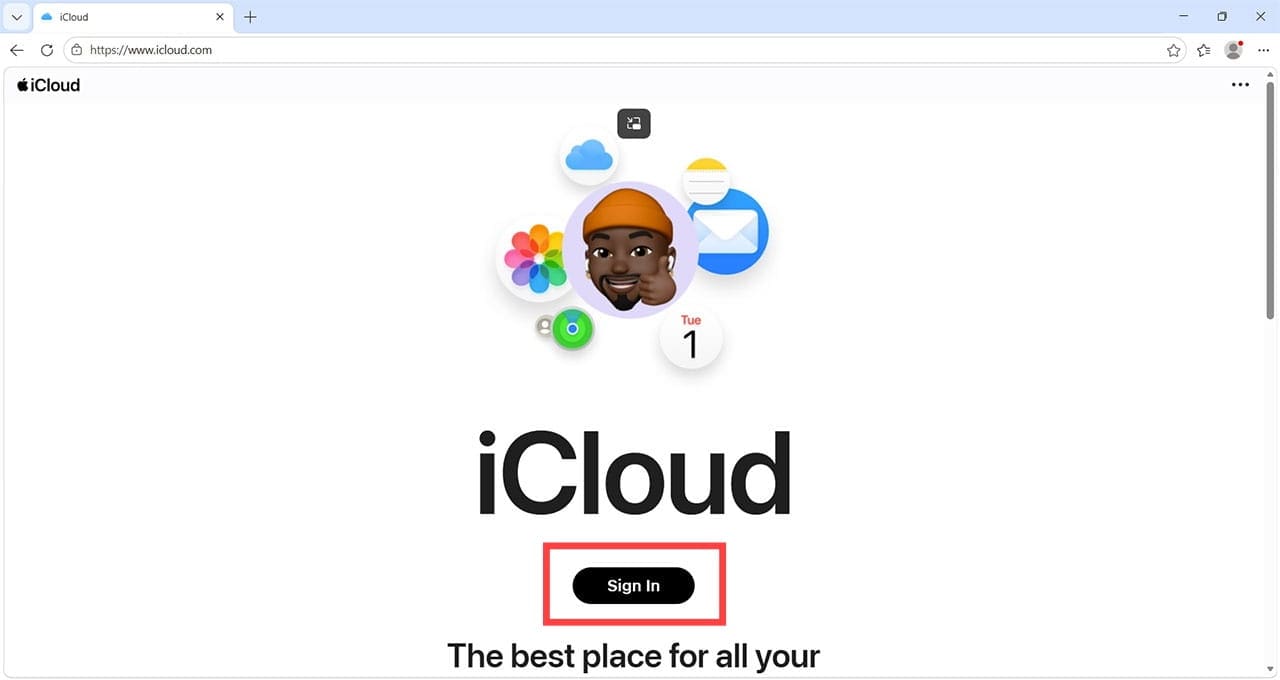
Step 1. Open a browser window on any device and head to iCloud.com.
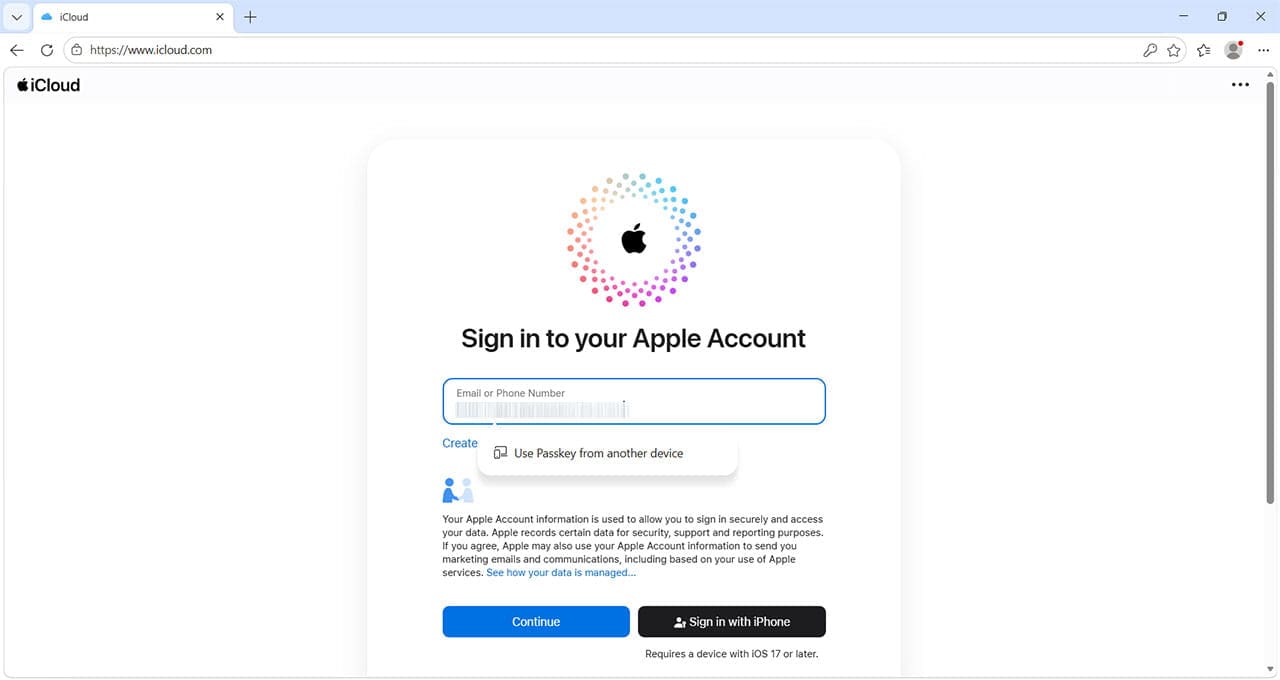
Step 2. Sign in with your Apple Account details.
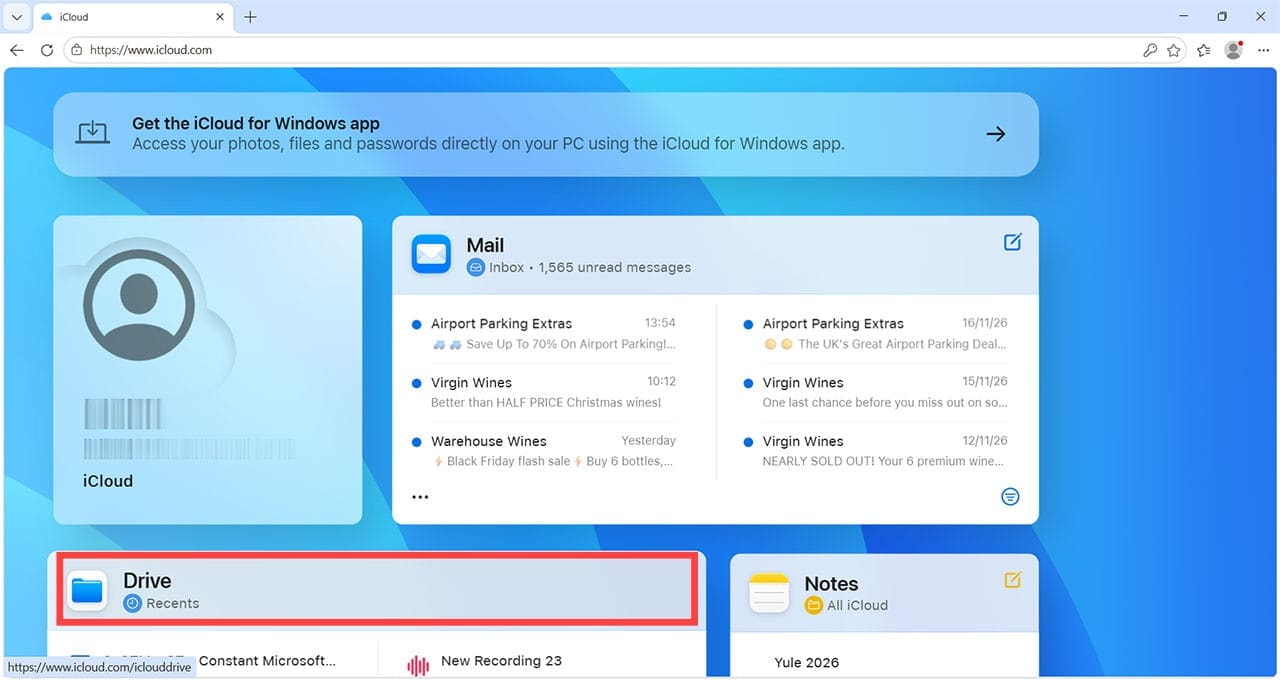
Step 3. Once you’ve successfully logged in, click “Drive.”
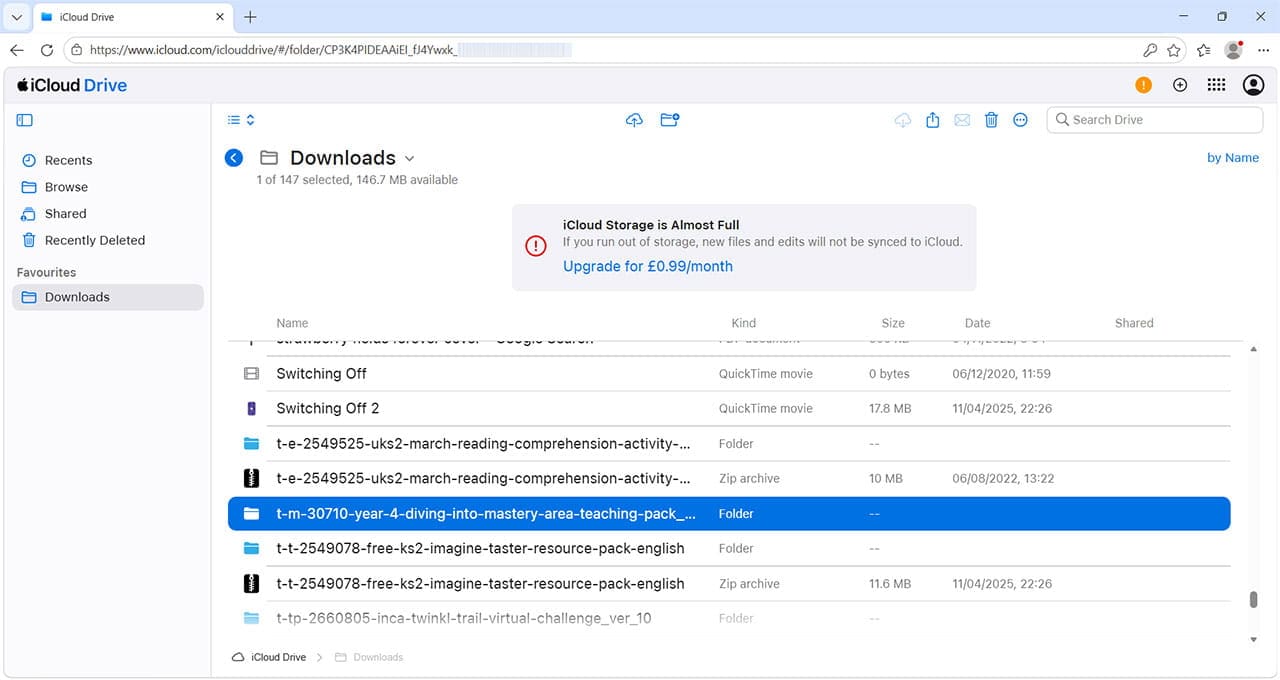
Step 4. Navigate to the folder you want to share. Use the menu on the left-hand side of the screen to browse your folders.
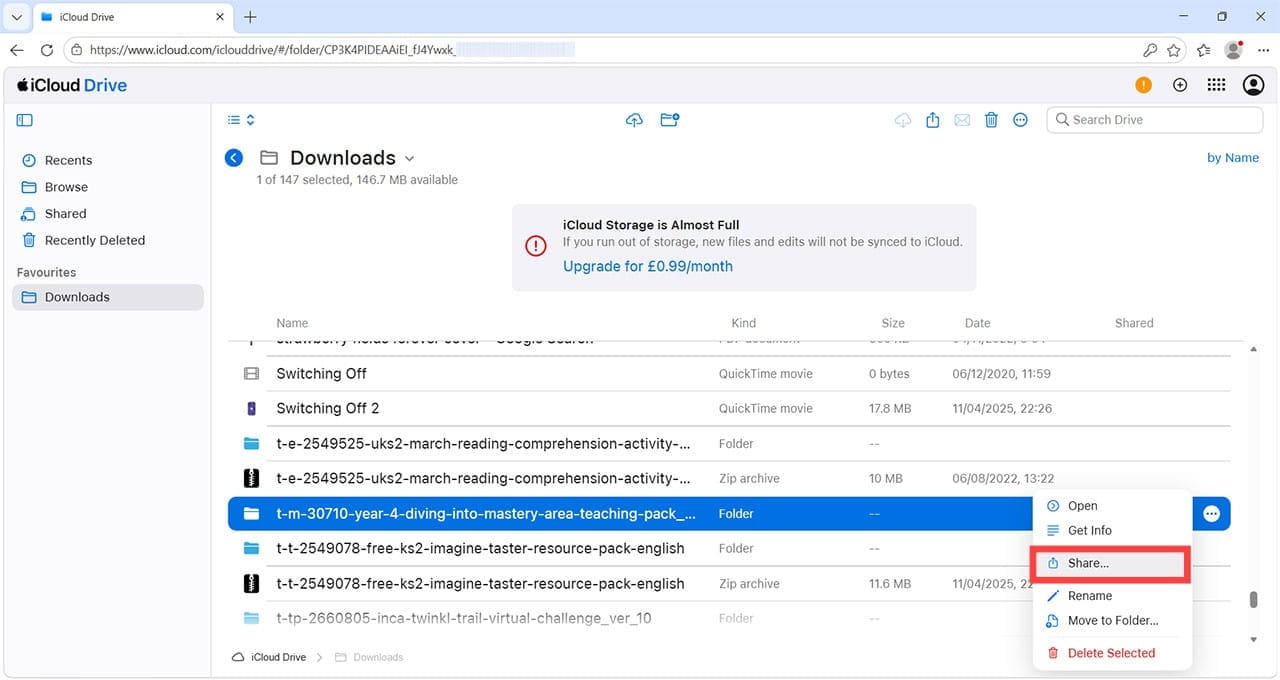
Step 5. If you hover over any folder (or file), you’ll see three dots appear. This is the folder’s menu button. Click here, then click “Share.”
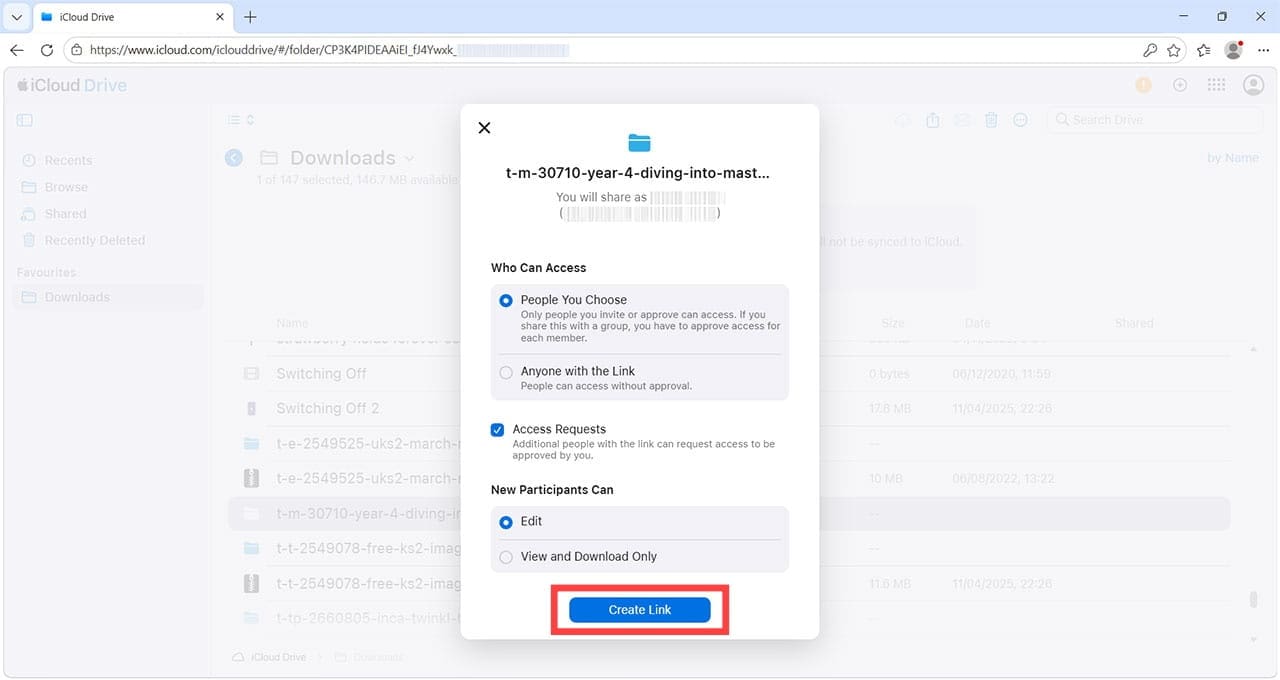
Step 6. You can now choose exactly what access your recipient has. Your options include:
Limiting the shared folder to certain people
Allowing anyone with the link to have access
Allowing others to request access via the link
Enabling recipients to edit the content of the folder
Limiting their access to View and Download Only
Once you’re happy with your selected options, click “Create Link.”
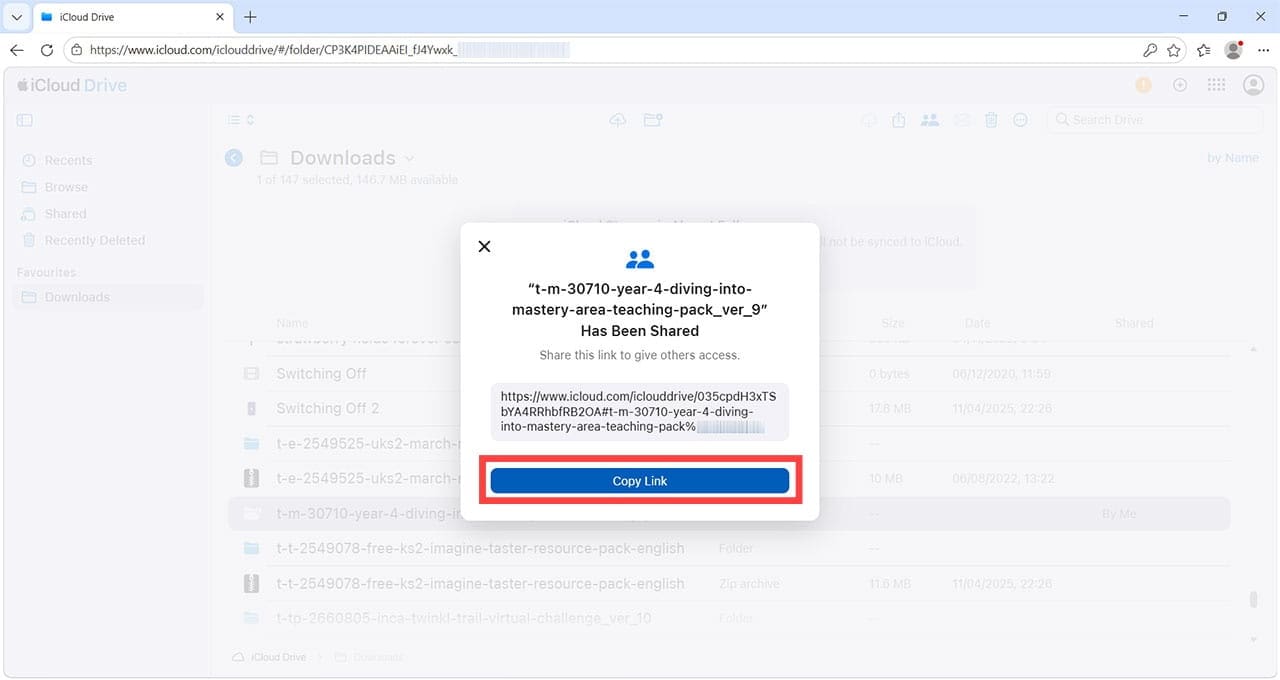
Step 7. Once the link has been created, click “Copy Link,” then you can use the messaging service of your choice to send it to your recipient.
Step 8. The Windows user should copy the link into an internet browser window once they receive it. They will gain instant access (with your limitations) to the contents of the folder, but they won’t be able to access anything else in your iCloud Drive.
Other ways to create iCloud folder sharing with PC users include:
If the Windows user has an Apple Account, they can download iCloud for Windows, which allows iCloud Drive folders to be added directly to File Explorer.
You can also copy the contents of your iCloud Drive folder into another Windows-friendly file-sharing service, such as Dropbox or Google Drive.
If files or folders are small enough, you could send them by email.
You can also use an internet-based file-sharing service, such as WeTransfer, to send an entire folder of content, but remember these sharing links expire after a set period.
Alternatively, for offline cross-device transfers, you can use a sharing service like LocalSend, as long as you’ve downloaded the files you need to transfer to your Apple device.
As an avid gamer, I’ve run into my fair share of error codes and weird faults that have forced me to find fixes to problems I never anticipated. That gave me a passion for sharing those fixes with others so we can all game without feeling like our hardware is rebelling against us.













Write a Comment