Apple TV is a popular streaming service that allows you to watch plenty of TV and movies as long as you have a stable internet connection. However, you can also download TV shows to watch later, even when you don’t have access to Wi-Fi.
Learn how to find and watch Apple TV downloads on Windows when offline so you can view your favorites whenever you like.
Watch Apple TV Offline on PC: Step-by-Step Guide
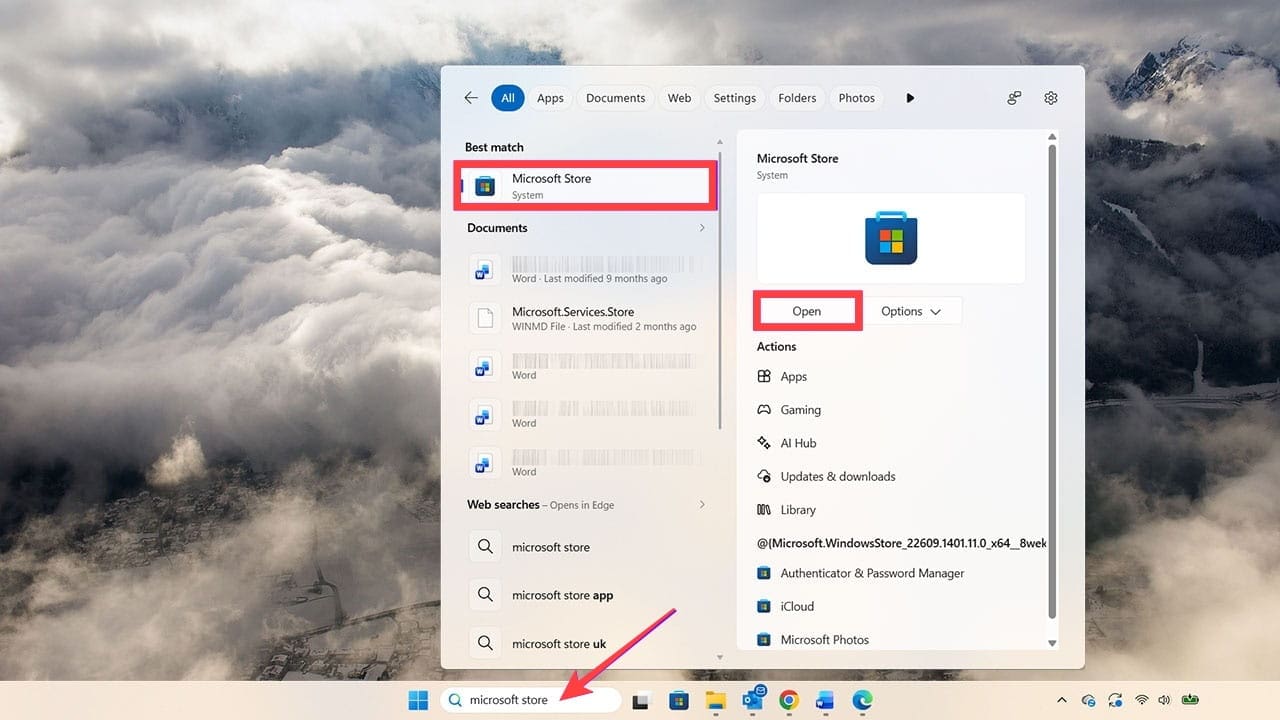
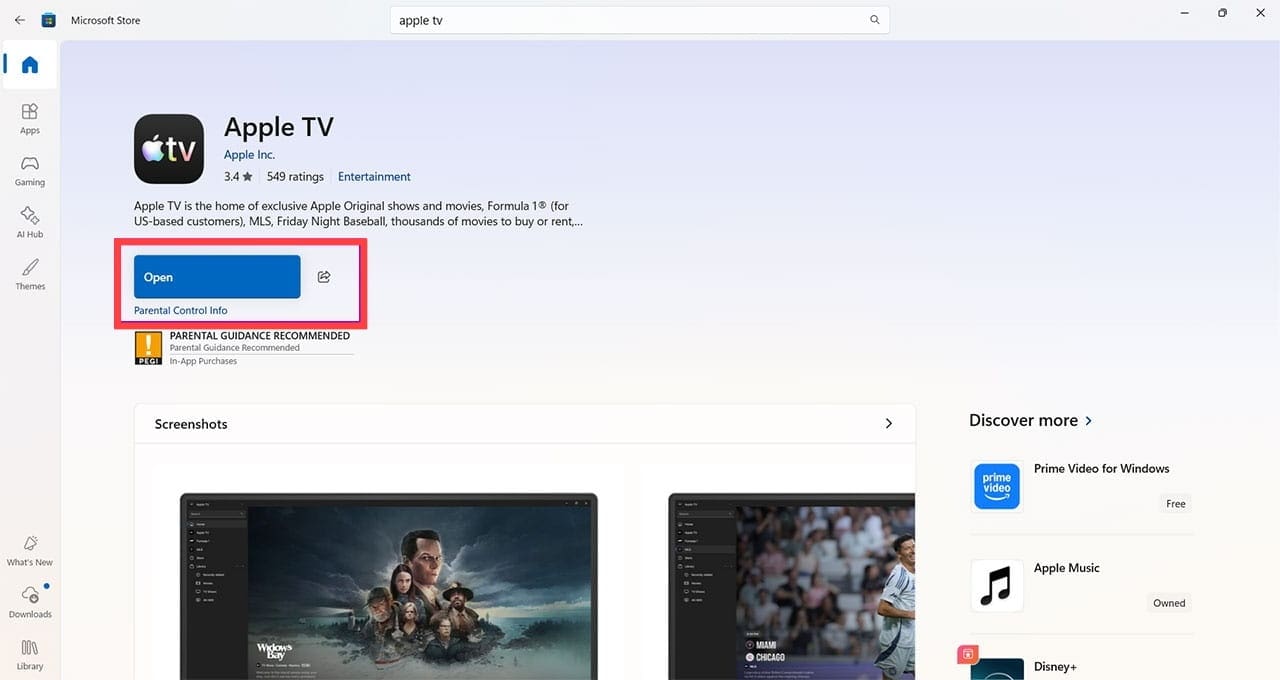
Step 1. Make sure you have the Apple TV app on your Windows PC. If you’re not sure, head to the Microsoft Store by searching for it from your desktop.
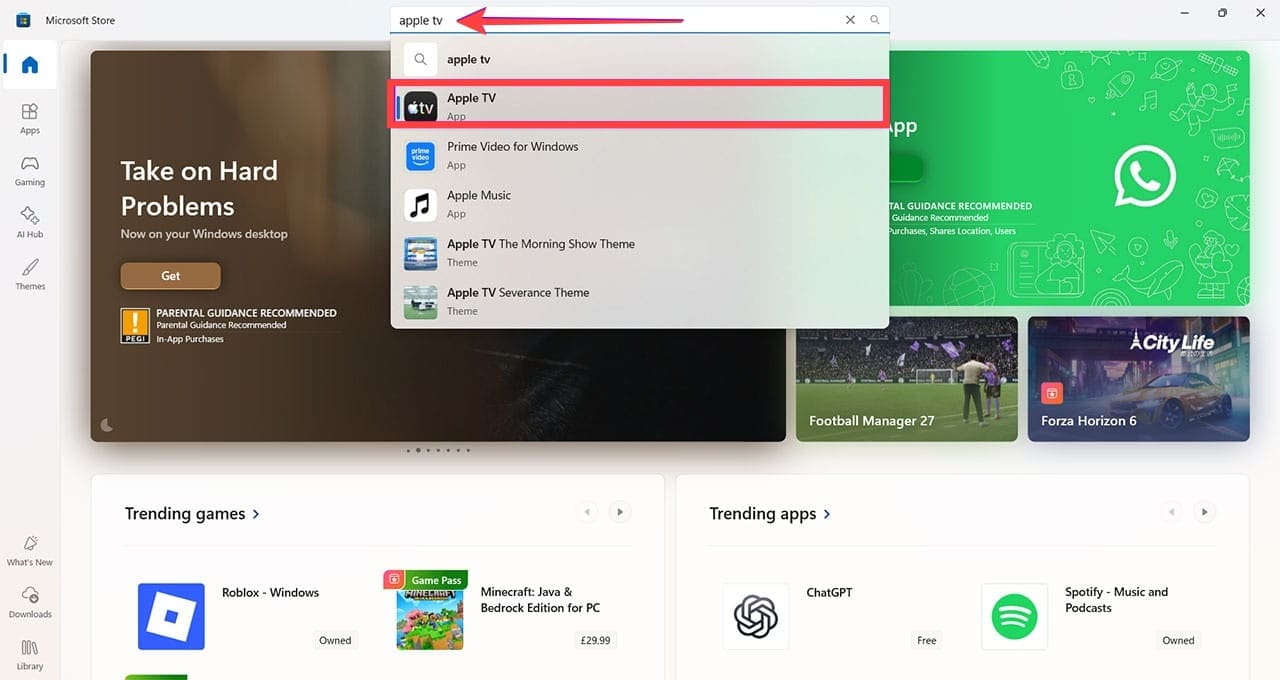
Step 2. Search for Apple TV in the Store.
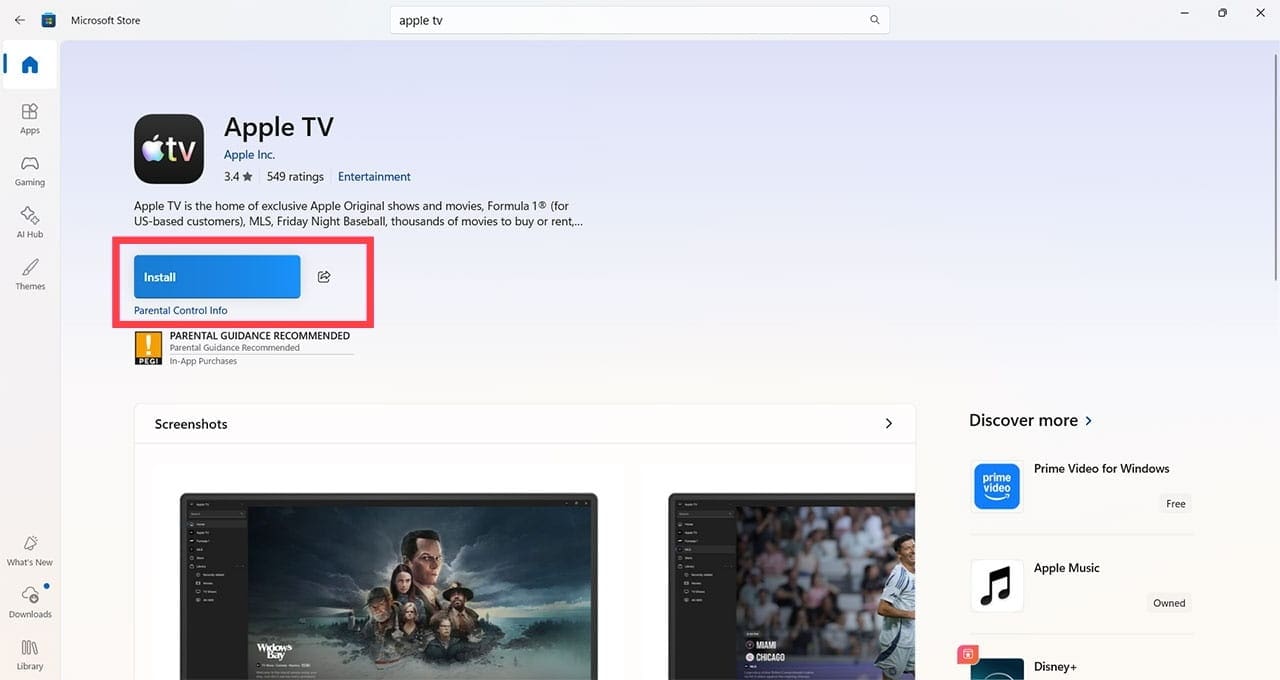
Step 3. If you don’t have the app, you’ll see a blue Install button. Click here and follow the on-screen prompts.
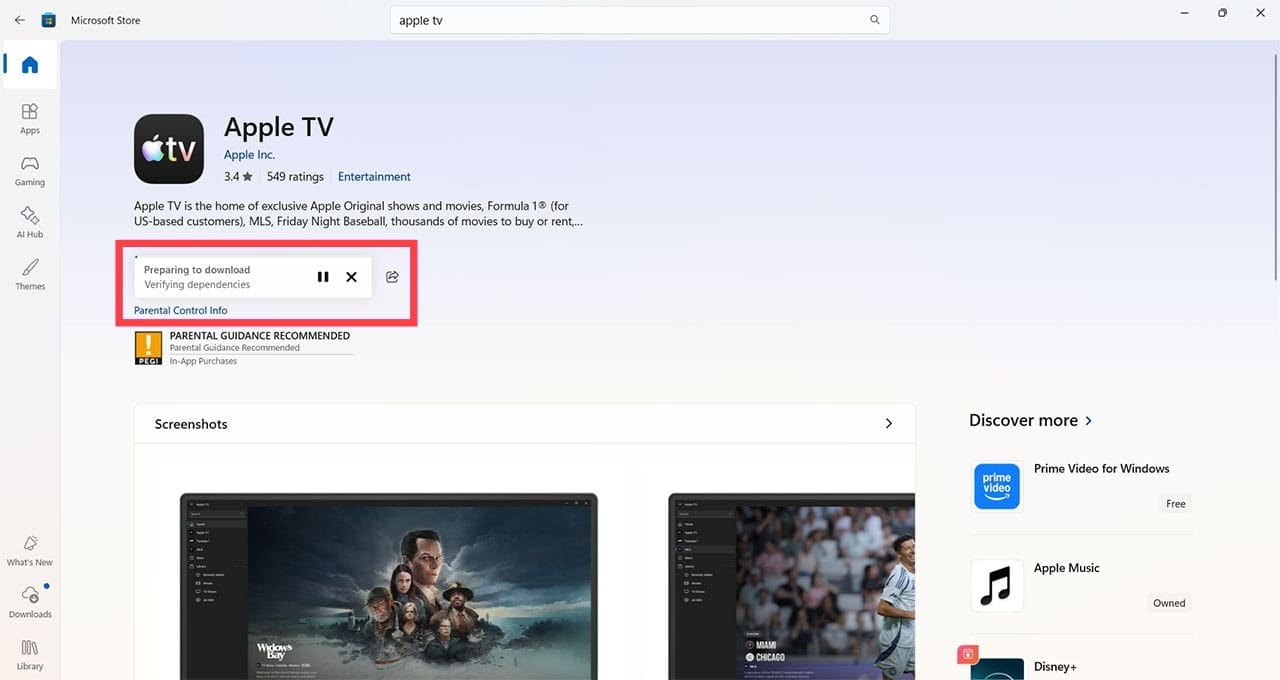
Downloading and installation can take a few minutes. Windows will keep you updated.
Step 4. Click the blue Open button to start the Apple TV app. You may need to agree to terms and conditions in a separate window.
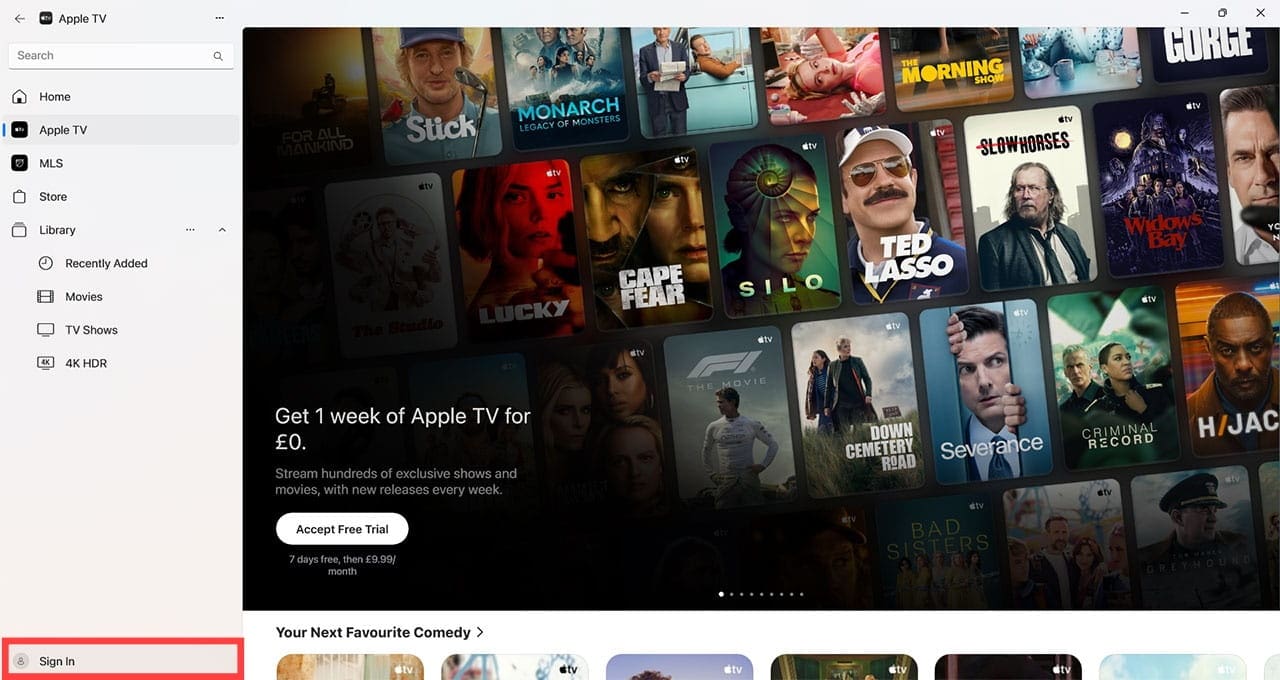
Step 5. Look for the Sign In button in the bottom-left of the app screen.
Step 6. Sign in, making sure you use the details associated with the Apple TV account you want to link to your Windows PC.
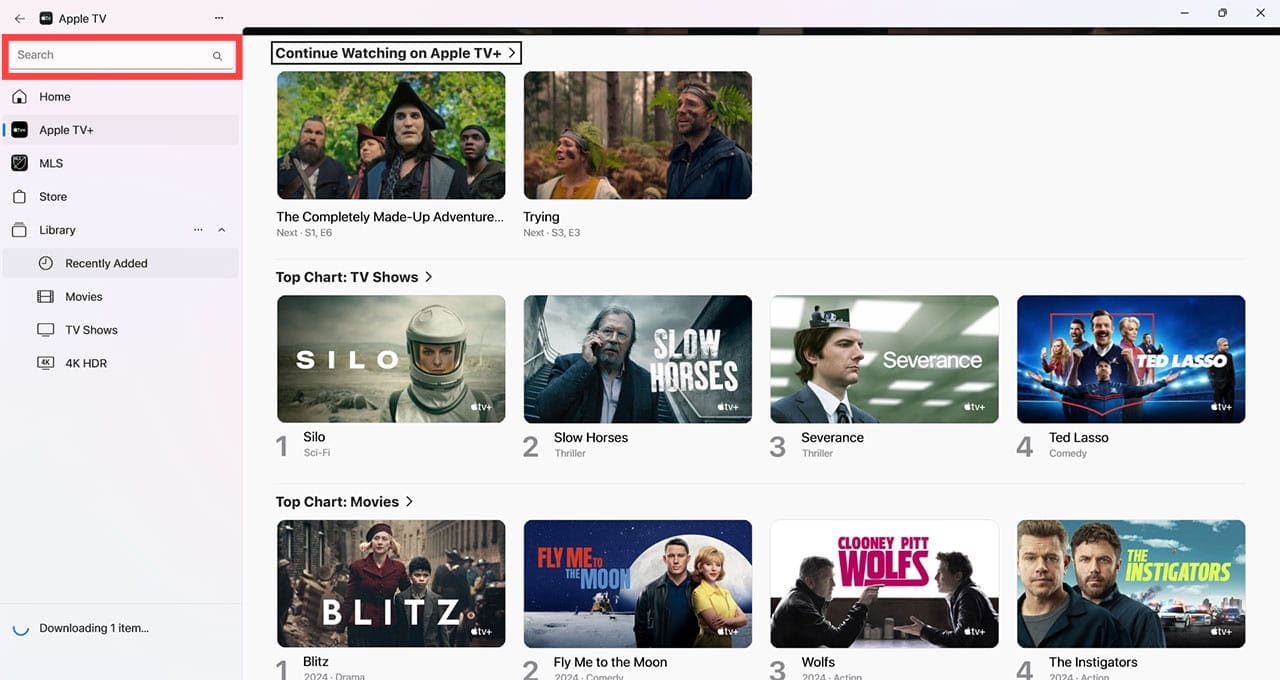
Step 7. Use the search function to find the TV shows you want to download to Windows. You can also use the options on the left-hand menu such as Recently Added or 4K HDR to find specific groups of shows.
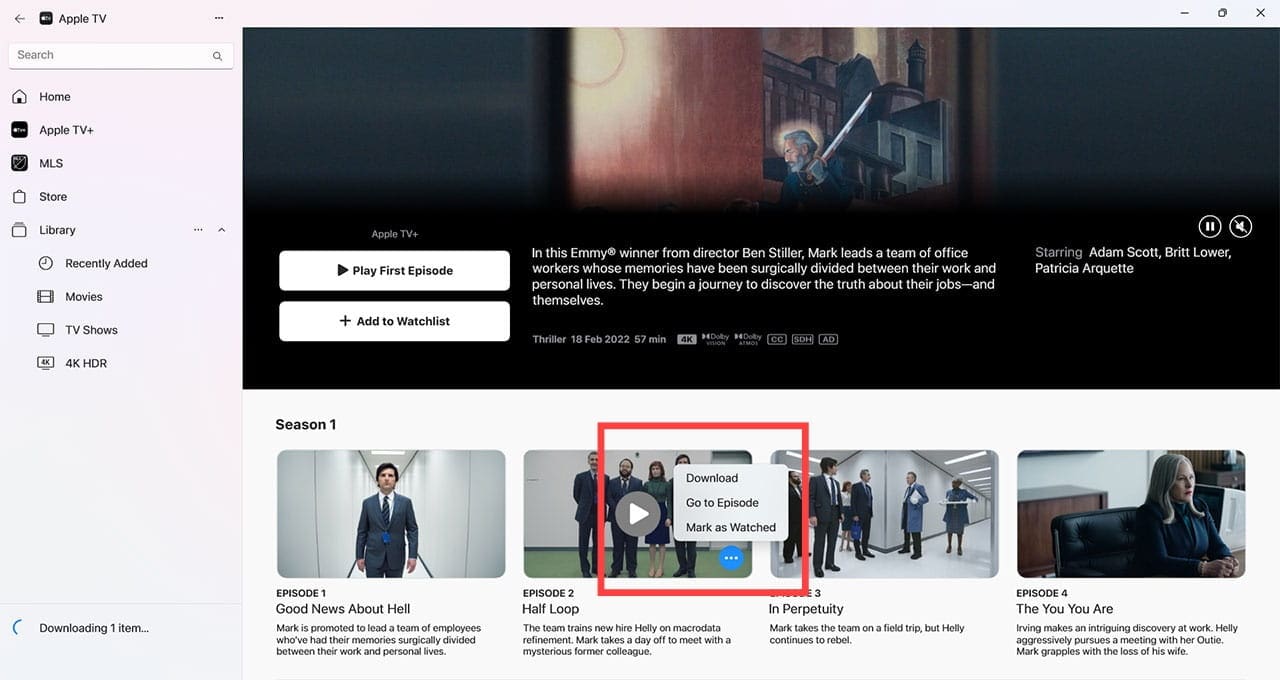
Step 8. Once you’ve found a show you want to watch, click on it. You’ll see an overview of the show and previews of individual episodes. Make sure you click the three dots on the episode you want to watch later, then click Download.
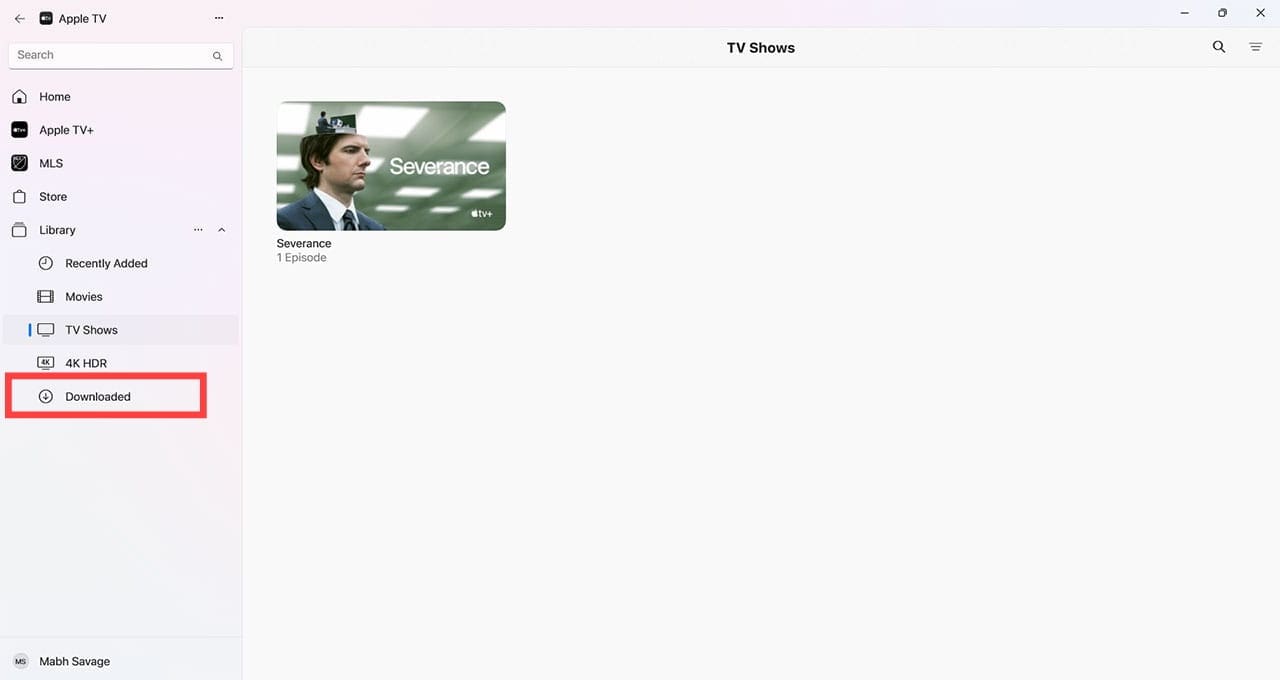
Step 9. To watch Apple TV downloads on Windows when offline, go back to the Library menu on the left-hand side. You can find your downloads under Downloaded. If this option isn’t visible in the Library sidebar, click the More button, select Edit Library Sidebar, and turn on Downloaded. You can simply click on the one you want to watch, and it will work perfectly, regardless of the status of your internet connection.
Troubleshooting
If the download fails, you may have exceeded the download limit. These change between channels/shows, so the best advice is to download one or two episodes at a time, watch those, delete them, then download more.
You may also have a poor internet connection. Ensure the connection is stable and try again.
If you can’t log in to Apple TV, check that you’re using the right Apple Account credentials. If they’re correct, try uninstalling and reinstalling the Apple TV app on Windows.
As an avid gamer, I’ve run into my fair share of error codes and weird faults that have forced me to find fixes to problems I never anticipated. That gave me a passion for sharing those fixes with others so we can all game without feeling like our hardware is rebelling against us.













Write a Comment