• Skip to primary navigation
  • Skip to main content
  • Skip to primary sidebar
  • Skip to footer

AppleToolBox

Tools and Fixes for Mac, iPad, iPhone & iWatch

Search posts

  • About
  • Contact

CONNECT WITH US

CATEGORIES

  • iPhone
  • iPad
  • iPod
  • Apple Watch
  • Mac/MacBook
  • AirPods
  • Apple TV
  • News
  • Apple Services
  • HomePod
  • Reviews

SITE

  • Home
  • About Us
  • Contact
  • Advertise

Search posts

You are here: Home / Apple Services / How to Fix iCloud Drive Files That Won’t Download on Windows

How to Fix iCloud Drive Files That Won’t Download on Windows

By Louis Roundtree 0 comments Last updated November 6, 2026

Things to Know
  • You can use iCloud for Windows to sync iCloud Drive files with your PC.
  • When iCloud Drive files won’t download, Windows may be having a problem connecting to Apple’s servers, usually fixed with a restart.
  • You may also need to clear space in your iCloud Drive or double-check your account details.

Being able to access all your files across multiple devices is very convenient. If you create content on your iPhone, iPad, or Mac, but also use a Windows PC, it makes sense to sync your iCloud Drive files so that they appear on your Windows computer as well.

Unfortunately, some users have experienced iCloud Drive Windows sync problems. Follow the steps below to troubleshoot these issues.

Contents

  • Fix iCloud Drive Windows Sync Problems: Ensure You Have iCloud for Windows Installed
  • iCloud Drive Files Won’t Download Windows Fix 1: Sign Out and Back In
  • iCloud Drive Files Won’t Download Windows Fix 2: Set iCloud Services to Run at Startup

Fix iCloud Drive Windows Sync Problems: Ensure You Have iCloud for Windows Installed

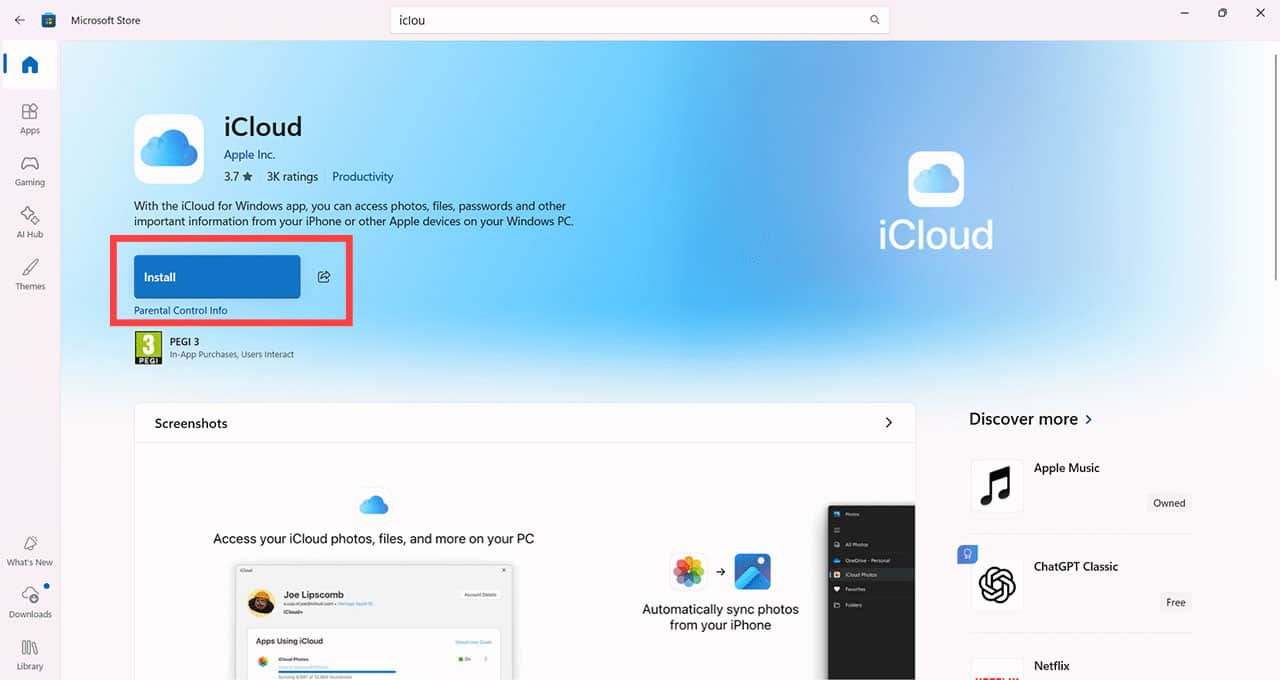
Step 1. Check whether you have iCloud for Windows installed by opening the Microsoft Store. You can find the Microsoft Store using the Windows search bar.

How to Fix iCloud Drive Files That Won't Download on Windows 1

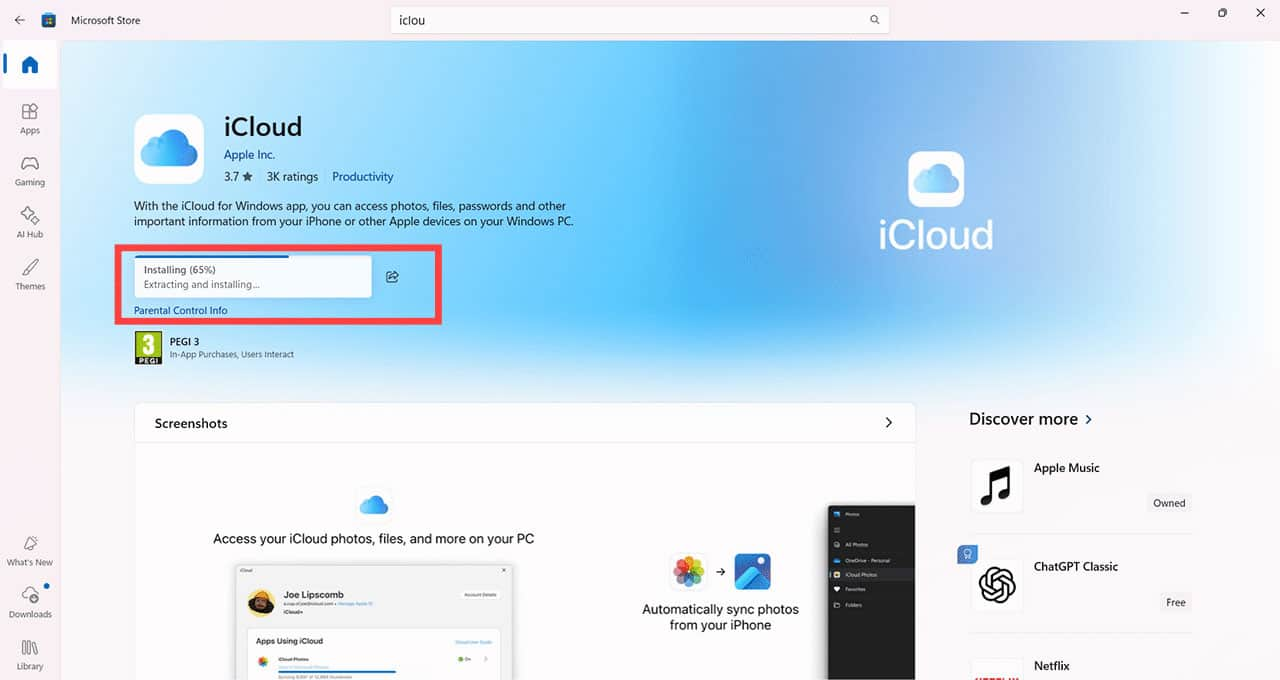
Step 2. Search for iCloud by Apple Inc. If you can see a blue Install button, click it and follow the on-screen prompts.

How to Fix iCloud Drive Files That Won't Download on Windows 2

Alternatively, if you see it, click “Open” to run the app.

How to Fix iCloud Drive Files That Won't Download on Windows 3

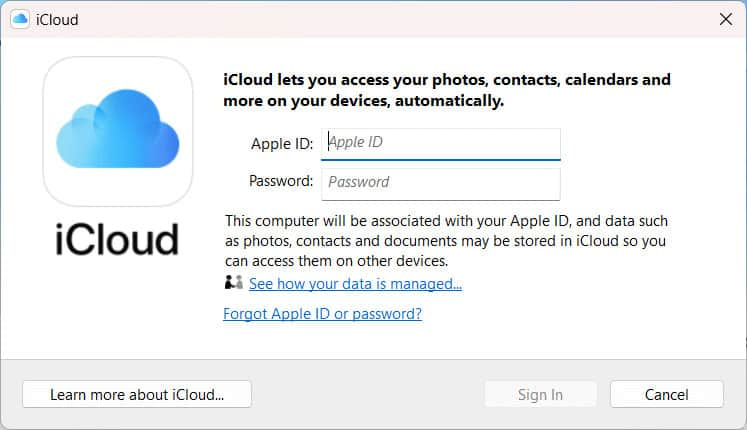
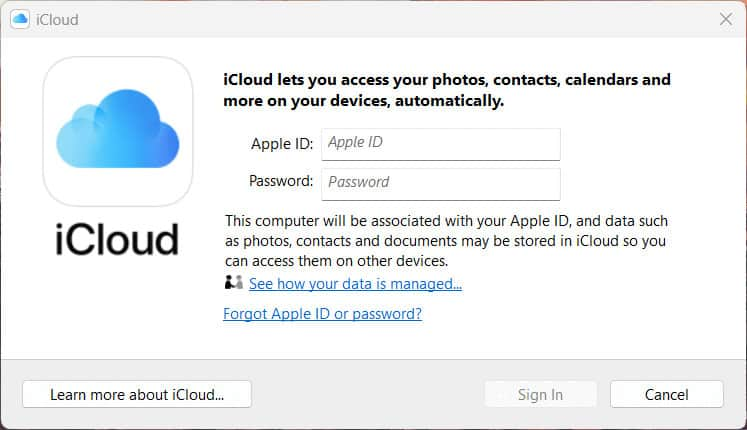
Step 3. You may be prompted to enter your Apple Account details (previously Apple ID). Ensure you use the same login details that you use on your Mac, iPhone, or iPad where the files are that you want to access.

How to Fix iCloud Drive Files That Won't Download on Windows 4

Step 4. In iCloud for Windows, find iCloud Drive and make sure it is turned on. Depending on your version of the app, you may need to click the box next to iCloud Drive to access its settings. Click “Apply” to save your changes.

How to Fix iCloud Drive Files That Won't Download on Windows 5

Step 5. Open Windows Explorer to check that the sync has worked. You should see “iCloud Drive” in the left-hand menu, and you can access any files from here.

How to Fix iCloud Drive Files That Won't Download on Windows 6

iCloud Drive Files Won’t Download Windows Fix 1: Sign Out and Back In

Step 1. If you’ve followed the above setup process and still can’t download or access files, try logging out of your Apple Account on Windows and logging back in. Open iCloud for Windows and click “Sign out” in the bottom-left corner.

How to Fix iCloud Drive Files That Won't Download on Windows 7

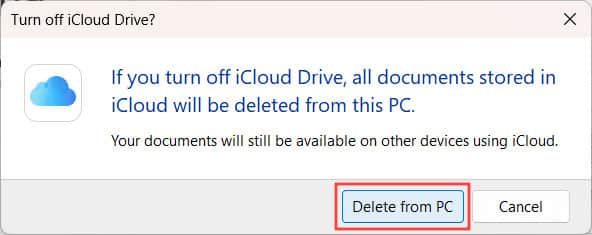
Step 2. You’ll be warned that this will delete all iCloud files from your PC. This is okay, as you can’t access them anyway. Before continuing, make sure you have copies of any important local files and that your changes have finished syncing.

How to Fix iCloud Drive Files That Won't Download on Windows 8

Step 3. Follow the prompt to log back in, which should refresh your connection to the server and allow you to access your files. This fix often works if you’ve recently changed your password or added an extra security layer like 2FA.

How to Fix iCloud Drive Files That Won't Download on Windows 9

iCloud Drive Files Won’t Download Windows Fix 2: Set iCloud Services to Run at Startup

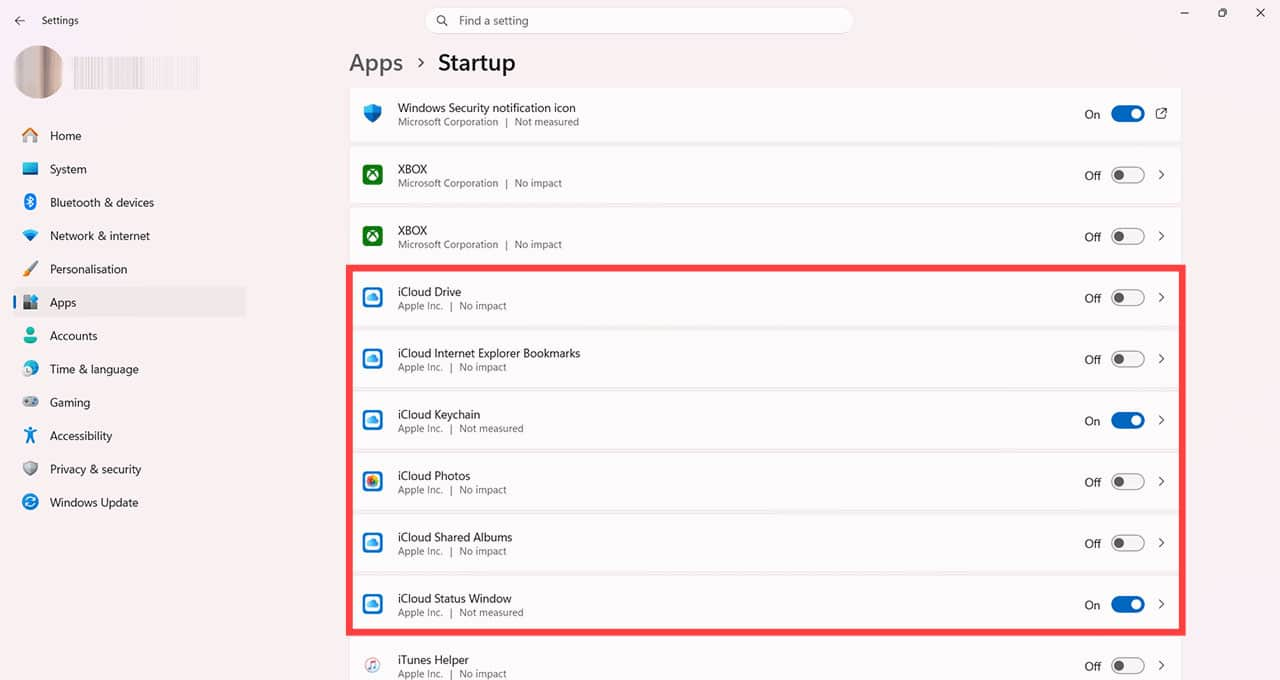
Step 1. Sometimes, running an app at startup can ensure it connects to the correct servers and services. Start by heading to Settings > Apps > Startup.

How to Fix iCloud Drive Files That Won't Download on Windows 10

Step 2. Scroll to find iCloud Drive and any other iCloud services. If the button is grey, they won’t run automatically when you turn your PC on.

How to Fix iCloud Drive Files That Won't Download on Windows 11

Step 3. Switch the buttons to on and restart your computer. You should find that this prompts Windows to connect correctly to the Apple servers so you can access your files.

How to Fix iCloud Drive Files That Won't Download on Windows 12

Related Posts:

  • 2023 Mac Studio lifestyle - 1
    macOS Could Not Be Installed, How-To Fix
  • sidecar on iPadOS and macOS
    Sidecar not working in iPadOS and macOS? How to fix…
  • 2022 Mac Mini with Studio Display and Accessories
    Mac Tips For New Users In 2023
  • pexels-jess-bailey-designs-810079
    How To Run Linux On Mac: A Step-by-Step Guide
  • Update Apple ID settings on your iPhone, iPad, or Mac after changing your password
    Getting a Message to Update Apple ID Settings on…
  • pexels-tranmautritam-326508
    The Best Apple Ecosystem Features
  • pexels-tima-miroshnichenko-6860464
    How To Start Using Regex With The Shortcuts App
  • How to Fix Verifying Microsoft Outlook Mac Stuck Error 11 Best Methods
    How to Fix Verifying Microsoft Outlook Mac Stuck…
  • pexels-designecologist-1779487
    The Best iPhone And Mac Shortcuts For Beginners
Louis Roundtree
Louis Roundtree

As an avid gamer, I’ve run into my fair share of error codes and weird faults that have forced me to find fixes to problems I never anticipated. That gave me a passion for sharing those fixes with others so we can all game without feeling like our hardware is rebelling against us.

Reader Interactions

Write a Comment Cancel reply

Primary Sidebar

Recent Posts

  • How to Fix iCloud Drive Files That Won’t Download on Windows
  • How to Open HEIC Photos Someone Sent You From an iPhone
  • How To Hide Your IP Address On iPhone And Mac (4 Easy Ways)
  • Where To Buy An iTunes Gift Card Online: Payment Methods And Redemption Guide
  • How to Convert M4A Audio Files to MP3 on Mac and PC
  • How to Export iCloud Keychain Passwords to a Windows Password Manager

Connect with us

Footer

ABOUT

  • About Us
  • Contact us
  • Advertise
  • Privacy
  • Terms of Use

GUIDES

  • iOS & iPadOS
  • Apple ID
  • iCloud
  • App Store
  • iTunes
  • FaceTime
  • iMessage
  • Siri
  • Books and iBooks
  • Game Center
  • AirPlay

CONNECT

  • Facebook
  • Twitter
  • FeedBurner
  • YouTube

© Copyright 2010-2024 Guiding Tech Media · All Rights Reserved

This site and its content are in no way affiliated or endorsed by Apple, Inc. · Reproduction without explicit permission is prohibited

Last Updated on November 9, 2026 by Louis Roundtree