Everyone has a preferred device and accounts they like to access on it. You might have a blog reader you only use on your iPhone, or you might buy your concert or travel tickets via apps you have downloaded on your smart device. This is handy, right up until the moment you need to access those same accounts on your Windows computer.
You head to the same provider on a Windows browser, only to realize you can’t remember the password. You never need to remember it on your iPhone, because it’s saved in the system. It may seem like the only option is to run the “Forgot Password” process, but before you do that, you should know that it is not only possible but very simple to transfer Apple passwords to PC password manager.
You don’t need to transfer a CSV file or do anything complicated, other than knowing the login details for your Apple Account (previously Apple ID). Follow the steps below to export iCloud Keychain passwords to Windows and securely sync your accounts.
Transfer Apple Passwords to PC Password Manager: Step-by-Step Guide
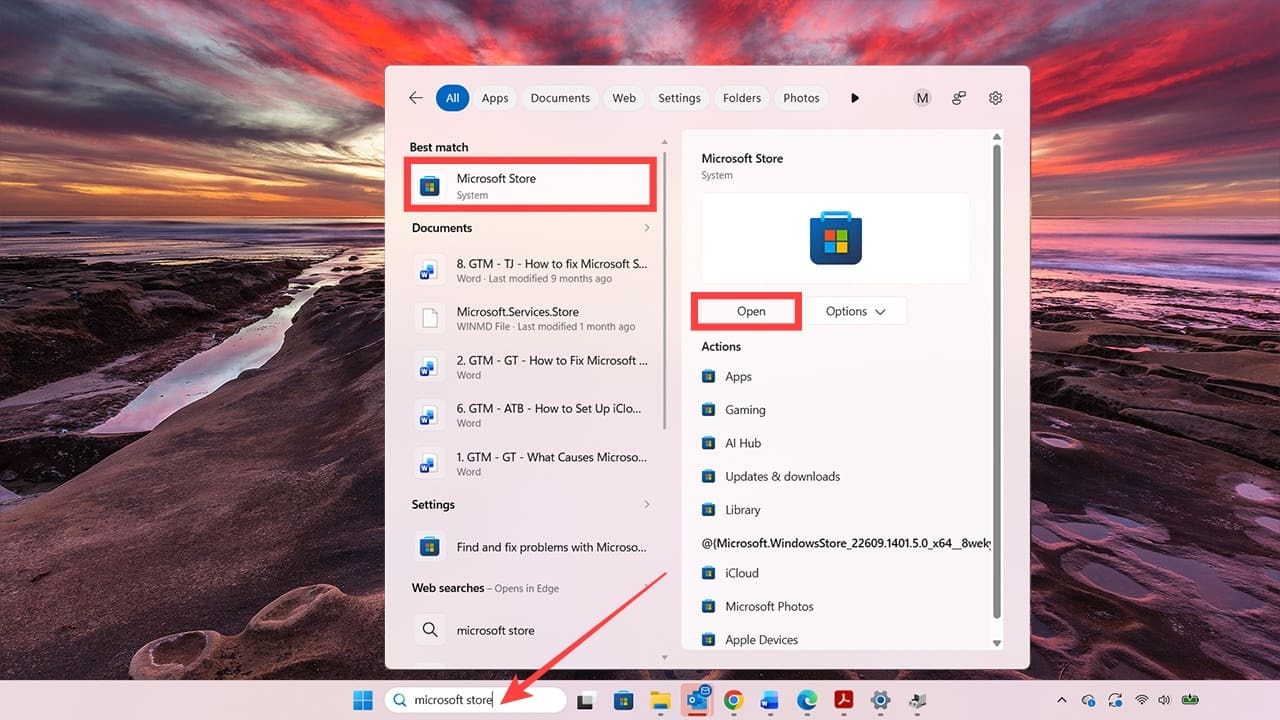
Step 1. Download iCloud for Windows from the Microsoft Store. Find the Store by searching for it using the search bar at the bottom of your Windows screen.
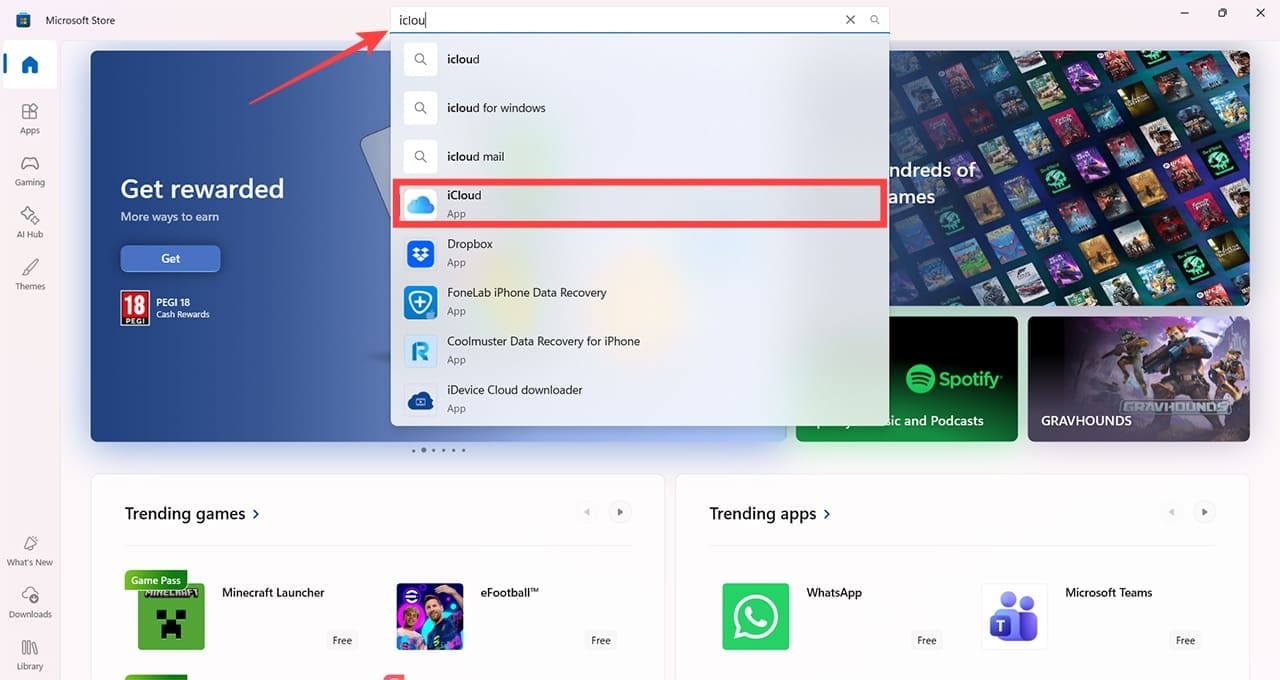
Step 2. Open the Store and search for “iCloud.”
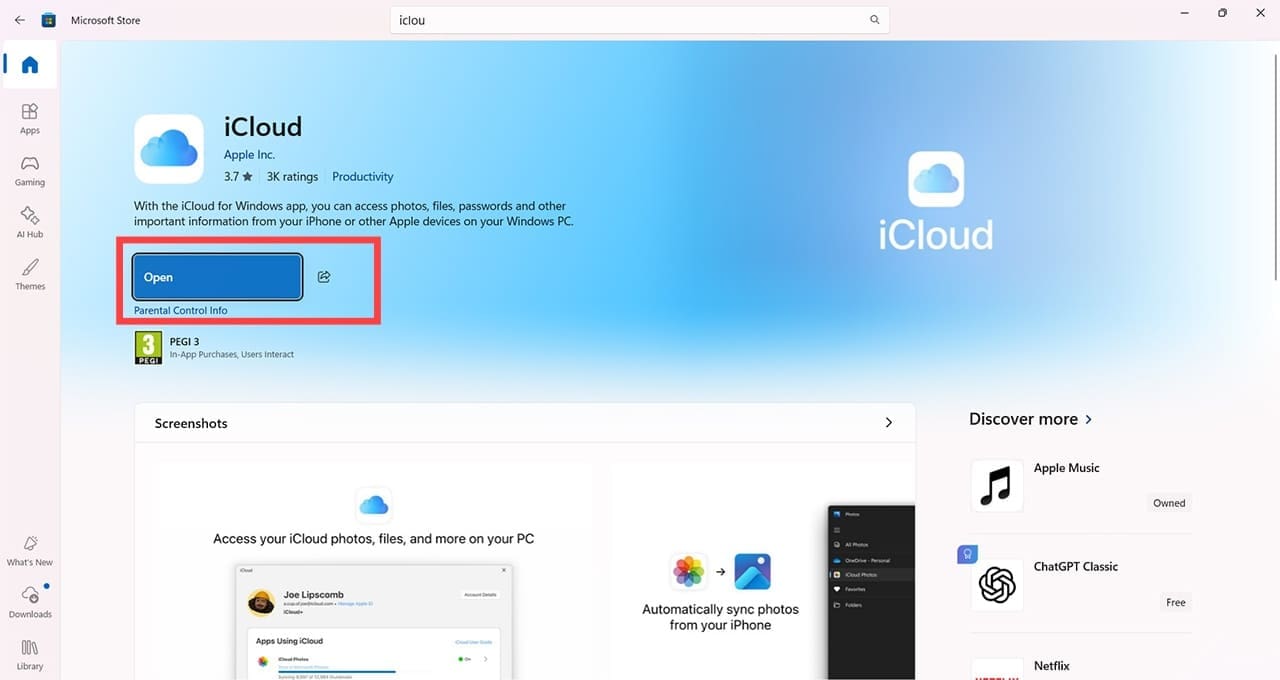
Step 3. Check that you have the correct app by confirming the developer is Apple Inc. Then, click the “Install” button.
The installation process can take a few minutes, but you will see a progress bar.
Step 4. Once the installation is finished, click “Open.”
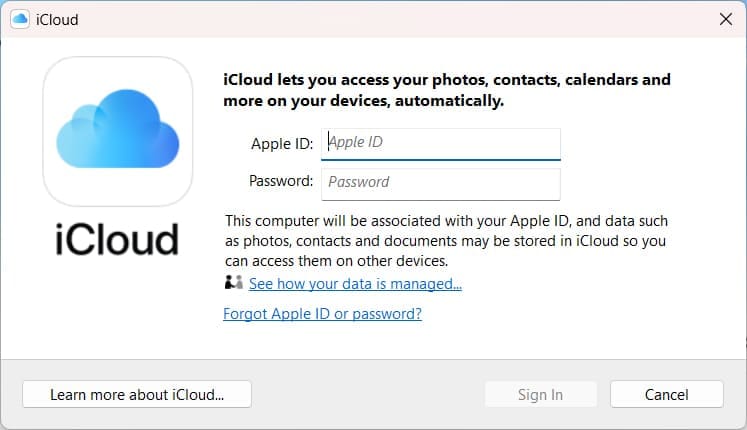
Step 5. If prompted, confirm that you want to allow the app to make changes on your computer. Next, sign in using the Apple account associated with the passwords saved on your iPhone, iPad, or Mac.
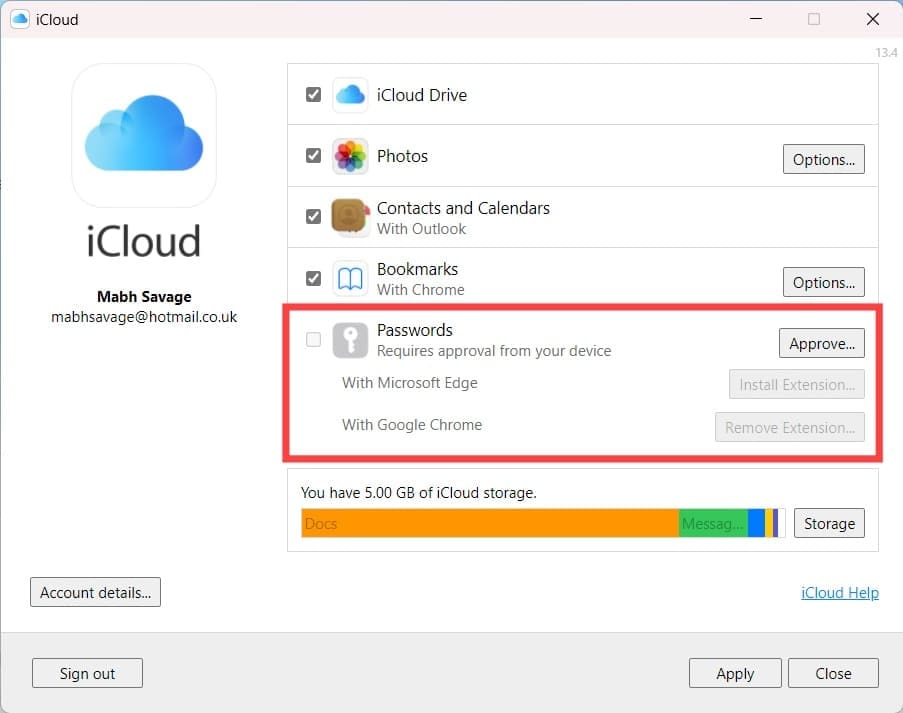
Step 6. You’ll now see options for syncing bookmarks, photos, and other iCloud content with Windows. To sync your passwords, find “Passwords and Keychain” and click “Approve” if prompted.
Step 7. If prompted, enter the verification code sent to your trusted Apple device or phone number. Once “Passwords and Keychain” is enabled, you can install the iCloud Passwords extension for your browser to access your saved passwords and use autofill.
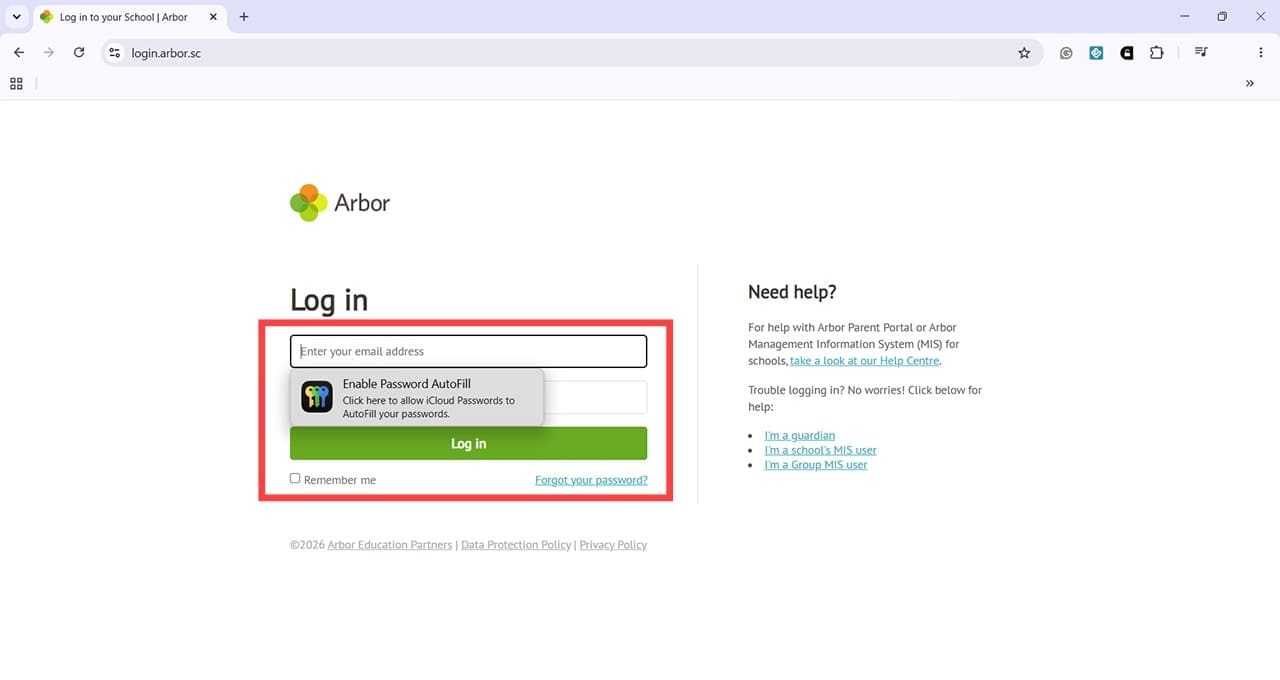
Step 8. To use your saved passwords in a web browser, open iCloud for Windows and click the arrow next to “Passwords and Keychain.” Find your browser in the list and click “Install Extension.” Follow the on-screen instructions to install the iCloud Passwords extension, then click “Done.”
Step 9. Open your browser and click the iCloud Passwords extension icon. You’ll see a six-digit verification code. Enter it in the dialog box to enable the extension. Now, you can visit websites with saved login details and select the account you want to use. iCloud Passwords will automatically fill in the username and password. If you have passwords saved on several devices, you’ll be able to choose which account you want to use. You can also save new passwords, and they’ll sync with your Apple devices that have iCloud Keychain enabled.
As an avid gamer, I’ve run into my fair share of error codes and weird faults that have forced me to find fixes to problems I never anticipated. That gave me a passion for sharing those fixes with others so we can all game without feeling like our hardware is rebelling against us.













Write a Comment