• Skip to primary navigation
  • Skip to main content
  • Skip to primary sidebar
  • Skip to footer

AppleToolBox

Tools and Fixes for Mac, iPad, iPhone & iWatch

Search posts

  • About
  • Contact

CONNECT WITH US

CATEGORIES

  • iPhone
  • iPad
  • iPod
  • Apple Watch
  • Mac/MacBook
  • AirPods
  • Apple TV
  • News
  • Apple Services
  • HomePod
  • Reviews

SITE

  • Home
  • About Us
  • Contact
  • Advertise

Search posts

You are here: Home / Apple Services / How to Add and Manage iCloud Email Account in Outlook for Windows

How to Add and Manage iCloud Email Account in Outlook for Windows

By Louis Roundtree 0 comments Last updated November 11, 2026

Things to Know
  • You can add just about any email account to Outlook as long as you have the right credentials and settings.
  • To add iCloud email to Outlook, Windows requires you to connect your Apple Account credentials.
  • You can also add your iCloud calendar to completely sync organizational tasks between your Apple and Microsoft devices.

Wouldn’t it be handy if your emails and appointments just automatically synced between all your devices? Well, it turns out it’s not all that difficult to achieve this. For example, if you want to add your iCloud email from your iPhone, iPad, or Mac to Outlook on your Windows device, all you really need is your Apple Account details and, in some cases, an app-specific password. You can sync your iCloud calendar, too. In classic Outlook, this requires the iCloud for Windows app, while new Outlook has built-in support for iCloud calendars.

Read on to learn how to add iCloud email to Outlook Windows desktop edition and sync your calendar across multiple devices.

Your iCloud Mail Outlook Setup Guide

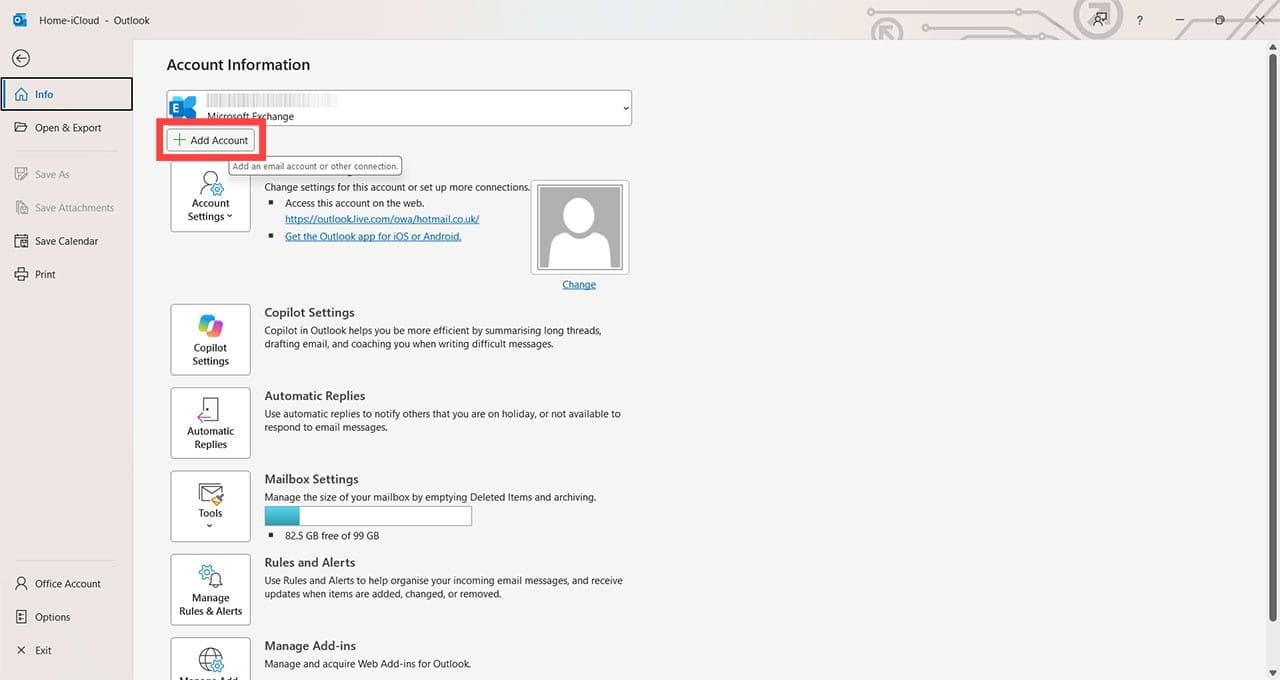
Step 1. Open classic Outlook on your Windows computer. Click “File” at the top, then select “Add Account.”

How to Add and Manage iCloud Email Account in Outlook for Windows 1

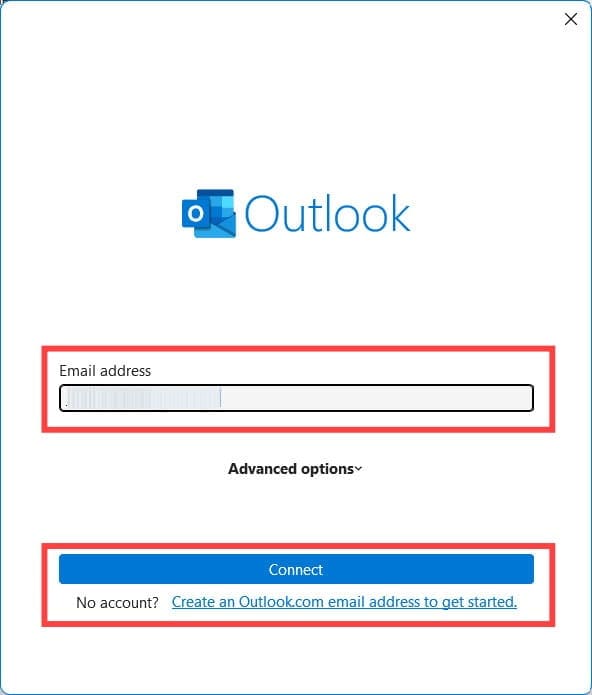
Step 2. Enter your iCloud email address and the password for your Apple Account (previously Apple ID).

How to Add and Manage iCloud Email Account in Outlook for Windows 2

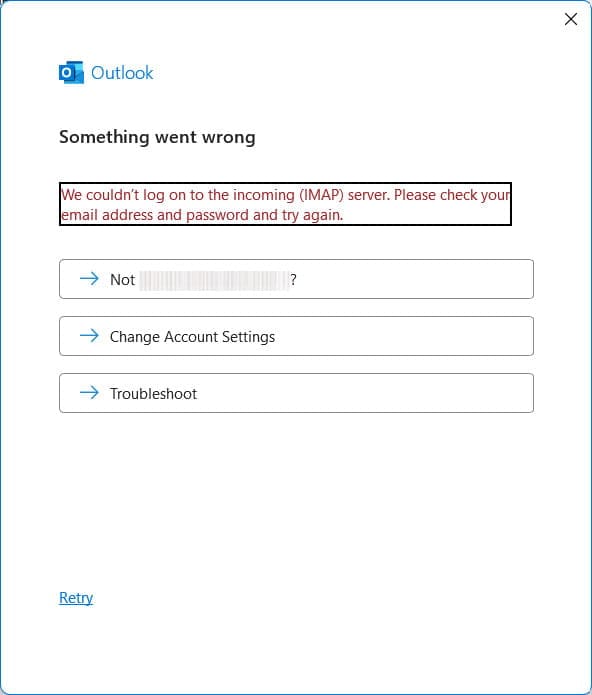
Step 3. Click “Connect,” and you will either find the email address added with no issue, or you will see an error message stating that the login was unsuccessful.

How to Add and Manage iCloud Email Account in Outlook for Windows 3

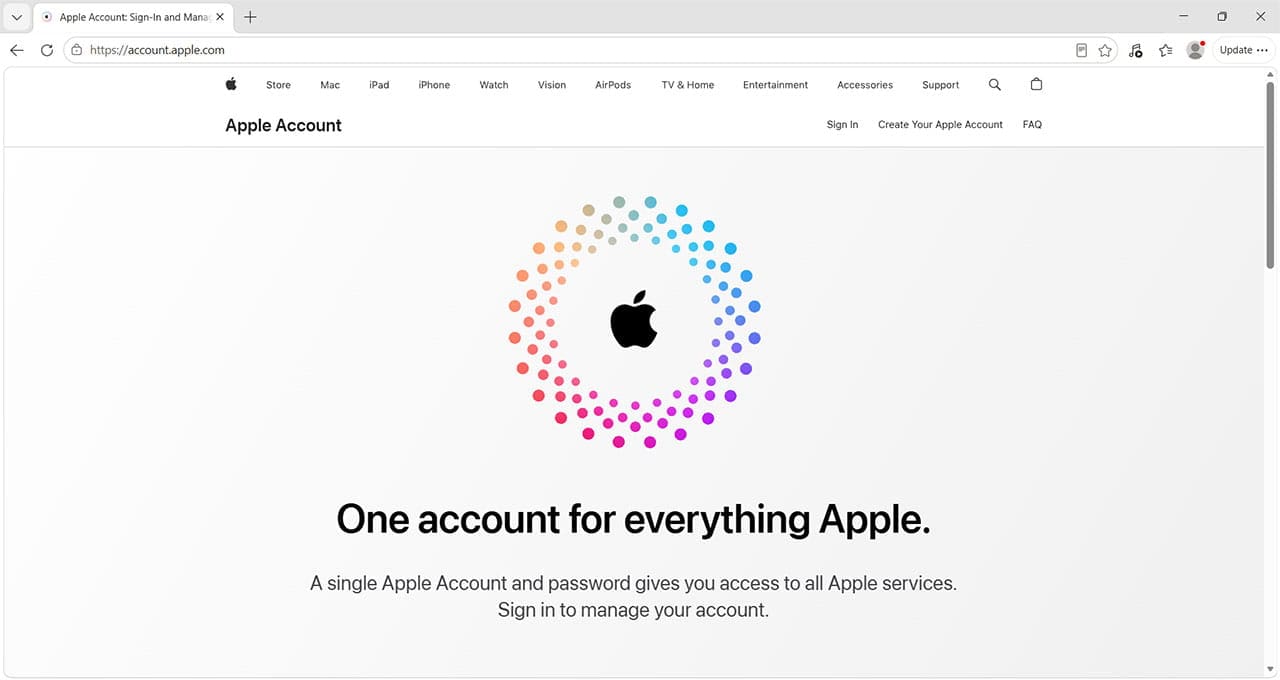
Step 4. If Outlook doesn’t accept your regular Apple Account password, it may be due to a clash with Apple’s two-factor authentication (2FA) process, and you may need an app-specific password. Open a browser window and go to https://account.apple.com/.

How to Add and Manage iCloud Email Account in Outlook for Windows 4

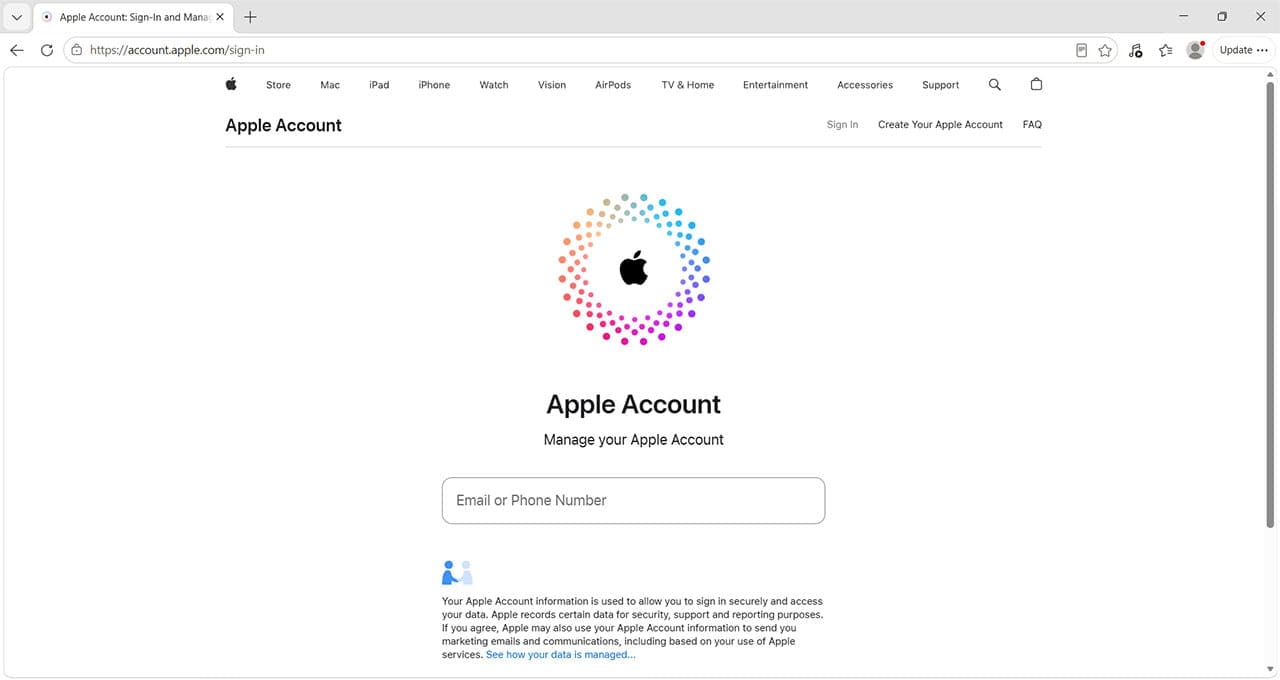
Step 5. Press “Sign in” and enter your Apple Account credentials.

How to Add and Manage iCloud Email Account in Outlook for Windows 5

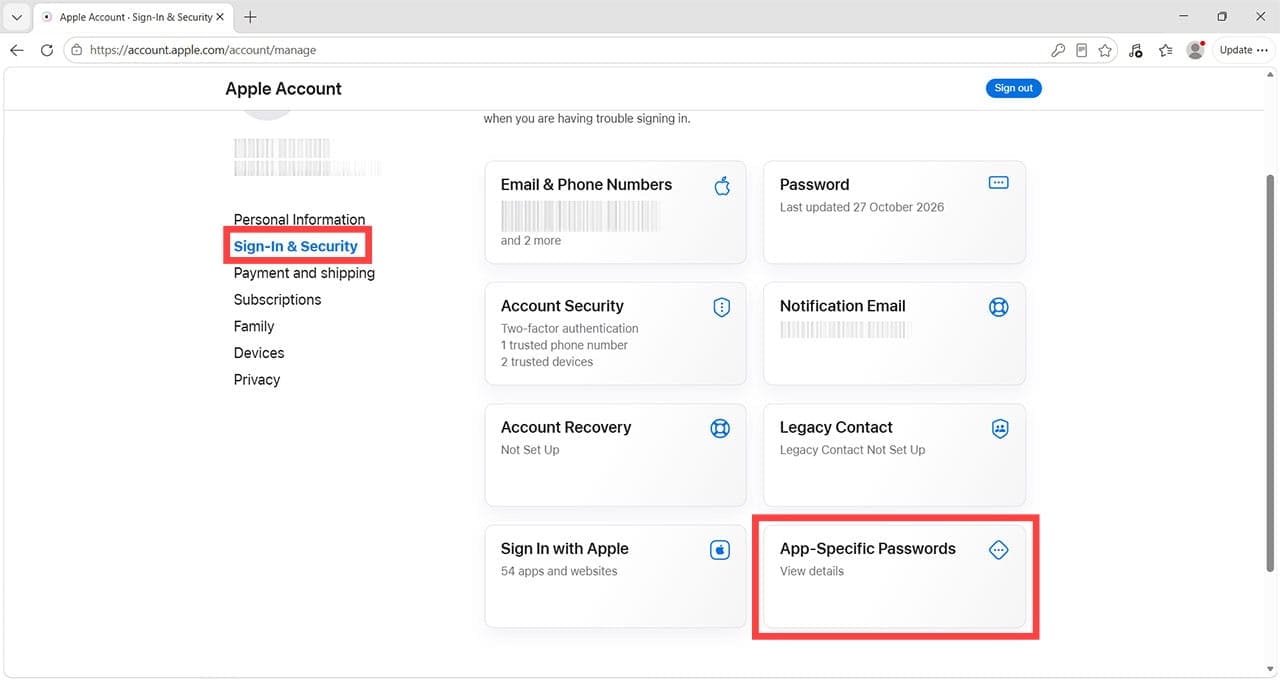
Step 6. Head to “Sign-In Security” and click on “App-Specific Passwords.”

How to Add and Manage iCloud Email Account in Outlook for Windows 6

Step 7. Select “Generate an app-specific password.”

How to Add and Manage iCloud Email Account in Outlook for Windows 7

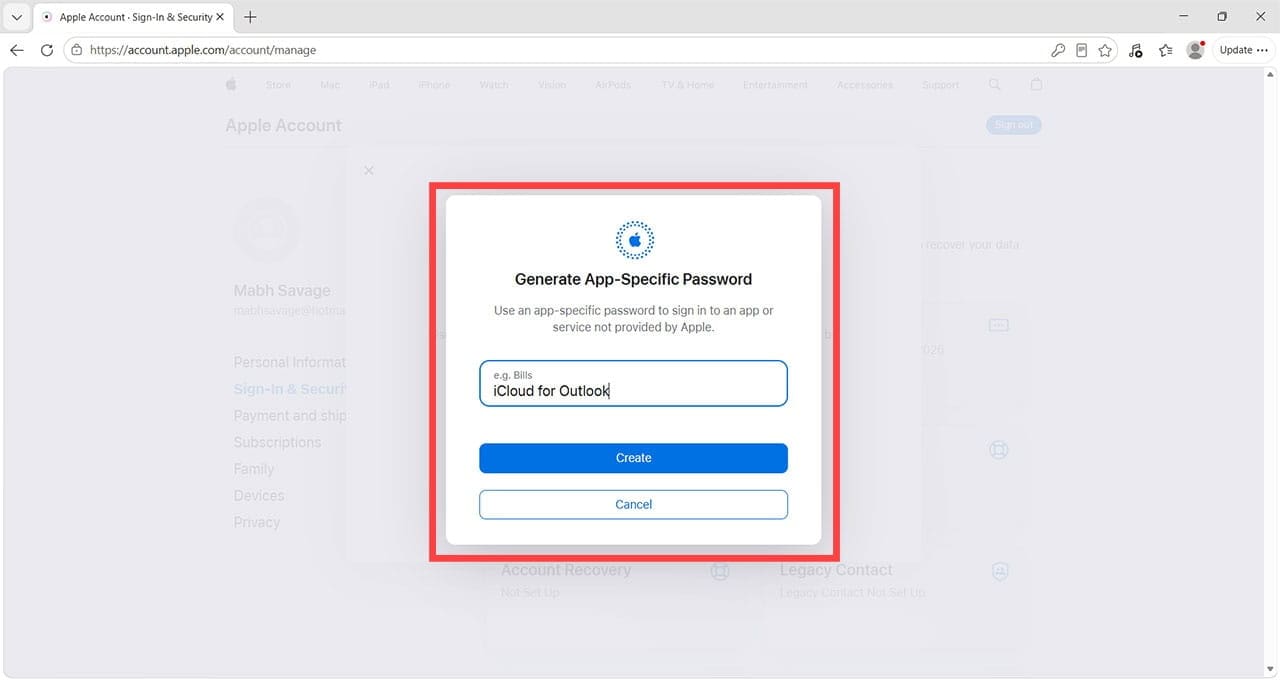
Step 8. Type a name for your password that you’ll remember. This is only to identify what this password is for. Click “Create.”

How to Add and Manage iCloud Email Account in Outlook for Windows 8

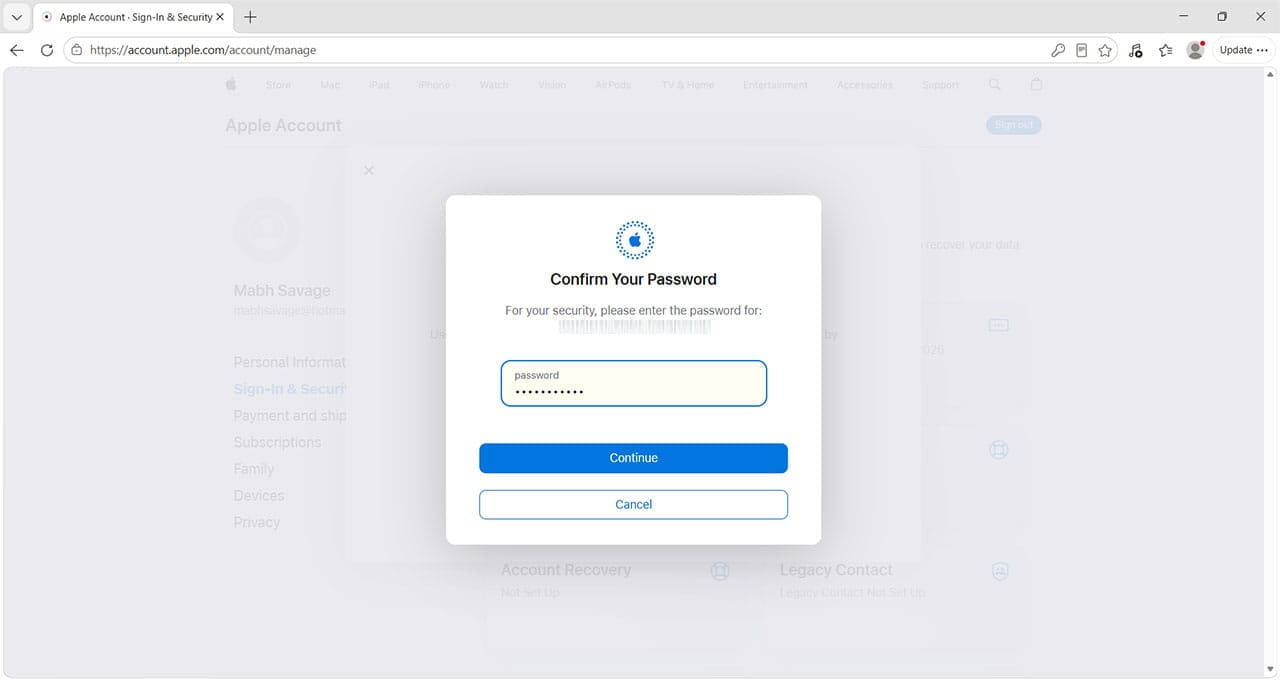
Step 9. Confirm your Apple Account password when prompted.

How to Add and Manage iCloud Email Account in Outlook for Windows 9

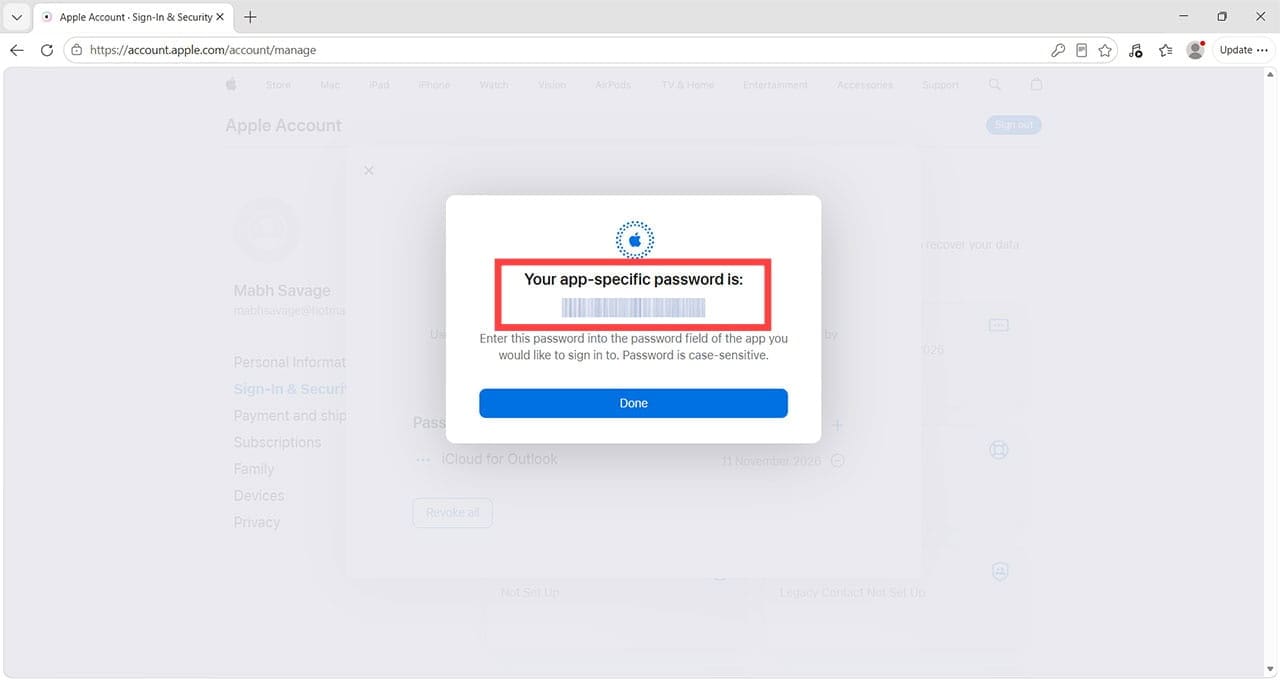
Step 10. Apple will generate an app-specific password. Make a note of this, as you’ll need to use it in Outlook.

How to Add and Manage iCloud Email Account in Outlook for Windows 10

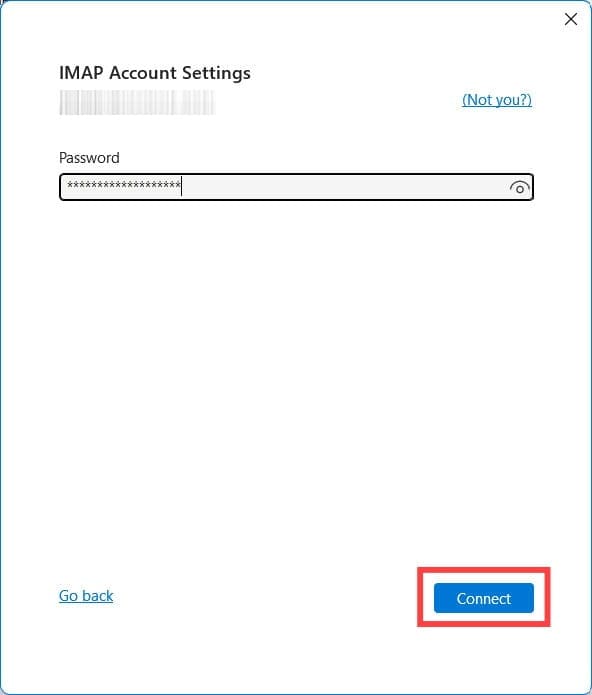
Step 11. Return to Outlook on Windows. Follow the account setup steps again, this time entering the new password that was just generated before clicking “Connect.”

How to Add and Manage iCloud Email Account in Outlook for Windows 11

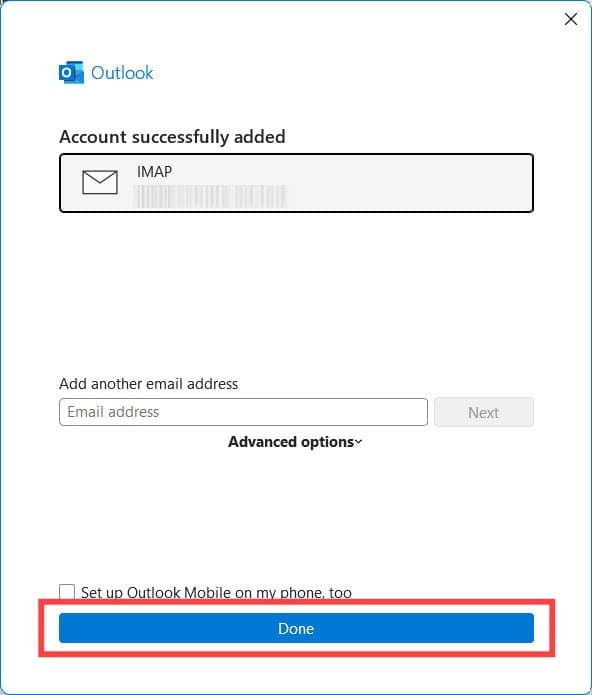
You will now find that the iCloud email account has been successfully set up, and you can send and receive emails from your iCloud account using Outlook.

How to Add and Manage iCloud Email Account in Outlook for Windows 12

Add iCloud Email to Outlook Windows With Calendar Sync

Step 1. Adding iCloud email to classic Outlook won’t automatically sync to your iCloud calendar appointments. To do this, open the iCloud for Windows app. If you don’t have it, it’s a free download from the Microsoft Store. Press the blue “Get Started” button.

How to Add and Manage iCloud Email Account in Outlook for Windows 13

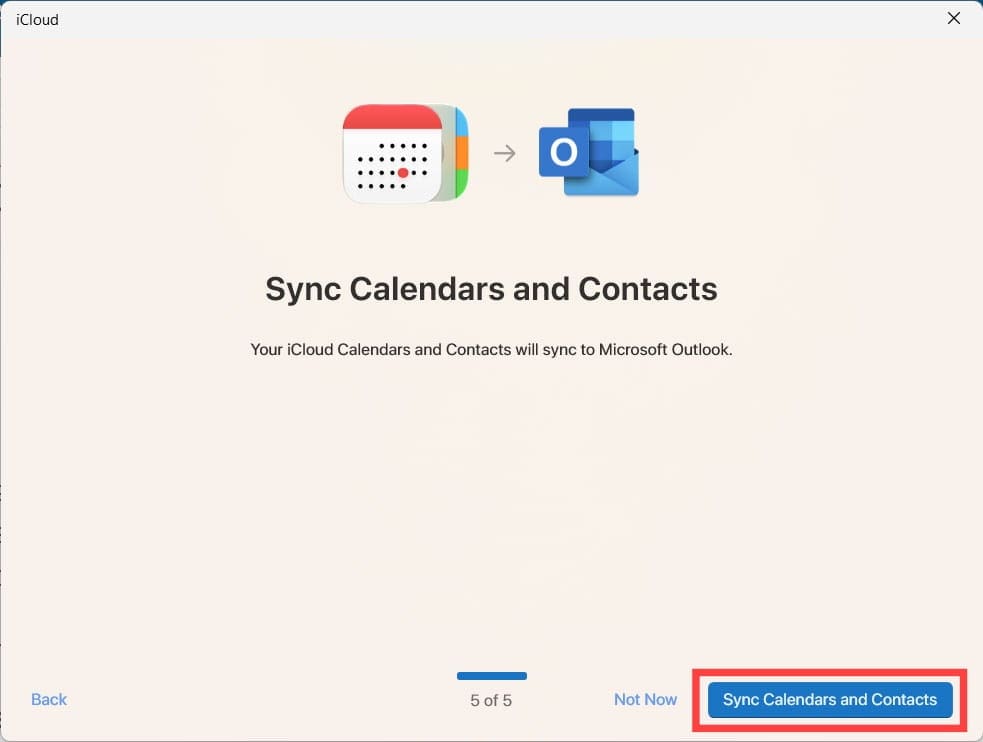
Step 2. Enter your Apple Account (previously Apple ID) credentials exactly as you entered them during the email setup. When prompted, click the blue “Sync Calendars and Contacts” button.

How to Add and Manage iCloud Email Account in Outlook for Windows 14

Step 3. You’ll be prompted to close Outlook. Click “Close Outlook and continue.”

How to Add and Manage iCloud Email Account in Outlook for Windows 15

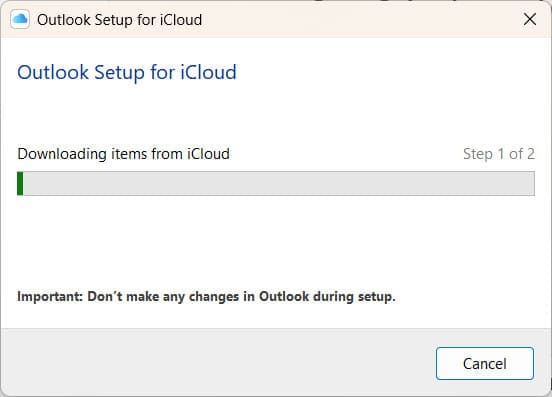
You’ll have to wait a few minutes while the sync to your iCloud calendar and contacts completes.

How to Add and Manage iCloud Email Account in Outlook for Windows 16

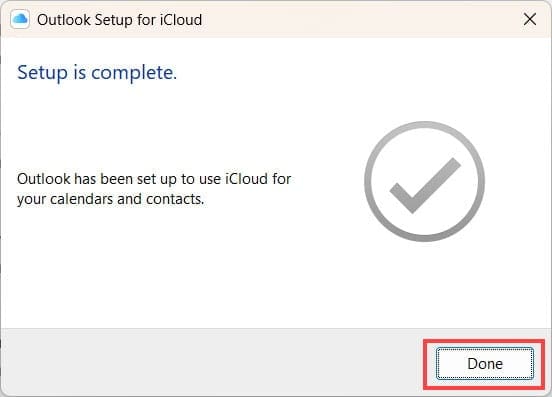
Step 4. Once complete, you’ll see a confirmation pop-up window. Click “Done.”

How to Add and Manage iCloud Email Account in Outlook for Windows 17

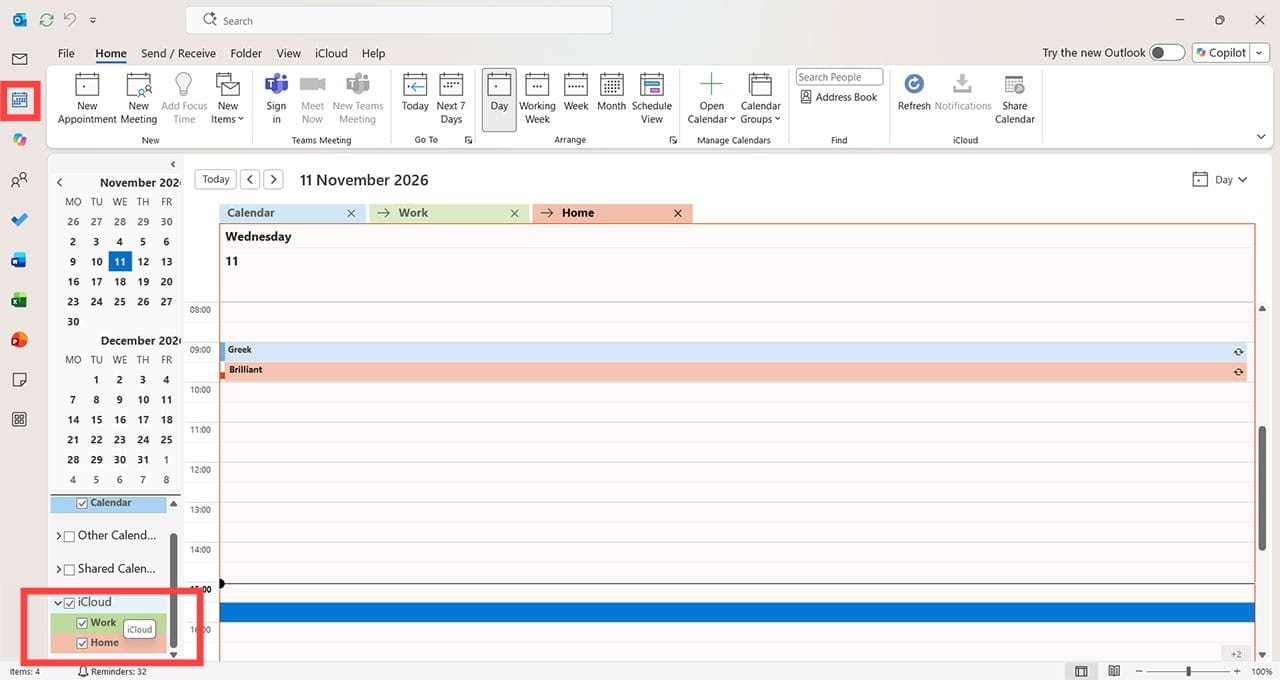
Step 5. Open Outlook to confirm the changes have been processed correctly. Click on the Calendar tab on the left-hand side, and you’ll see that iCloud is now listed as a calendar option, with any sub-calendars available to add. If you don’t see your iCloud calendar appointments, make sure any boxes under iCloud in the bottom left are checked.

How to Add and Manage iCloud Email Account in Outlook for Windows 18

Related Posts:

  • Missing Holidays on iPhone Calendar? How-to Fix Hero
    How To Duplicate and Copy Calendar Events in iOS and…
  • pexels-anna-shvets-4226356
    How To Use Calendar On Mac | Step-By-Step User Guide
  • New Outlook for Mac 7 Best Features You Should Know
    New Outlook for Mac: 7 Best Features You Should Know
  • How to Fix Attachments Not Showing in Outlook for Mac
    How to Fix Attachments Not Showing in Outlook for Mac
  • sidecar on iPadOS and macOS
    Sidecar not working in iPadOS and macOS? How to fix…
  • Update Apple ID settings on your iPhone, iPad, or Mac after changing your password
    Getting a Message to Update Apple ID Settings on…
  • 2023 Mac Studio lifestyle - 1
    macOS Could Not Be Installed, How-To Fix
  • How to Switch From New Outlook to Old on Mac 4 Best Steps
    How to Switch from New Outlook to Old on Mac: 4 Steps
  • pexels-pixabay-39578
    The Best Mac Calendar Apps
Louis Roundtree
Louis Roundtree

As an avid gamer, I’ve run into my fair share of error codes and weird faults that have forced me to find fixes to problems I never anticipated. That gave me a passion for sharing those fixes with others so we can all game without feeling like our hardware is rebelling against us.

Reader Interactions

Write a Comment Cancel reply

Primary Sidebar

Recent Posts

  • How to Add and Manage iCloud Email Account in Outlook for Windows
  • How to Fix iCloud Drive Files That Won’t Download on Windows
  • How to Open HEIC Photos Someone Sent You From an iPhone
  • How To Hide Your IP Address On iPhone And Mac (4 Easy Ways)
  • Where To Buy An iTunes Gift Card Online: Payment Methods And Redemption Guide
  • How to Convert M4A Audio Files to MP3 on Mac and PC

Connect with us

Footer

ABOUT

  • About Us
  • Contact us
  • Advertise
  • Privacy
  • Terms of Use

GUIDES

  • iOS & iPadOS
  • Apple ID
  • iCloud
  • App Store
  • iTunes
  • FaceTime
  • iMessage
  • Siri
  • Books and iBooks
  • Game Center
  • AirPlay

CONNECT

  • Facebook
  • Twitter
  • FeedBurner
  • YouTube

© Copyright 2010-2024 Guiding Tech Media · All Rights Reserved

This site and its content are in no way affiliated or endorsed by Apple, Inc. · Reproduction without explicit permission is prohibited

Last Updated on November 12, 2026 by Louis Roundtree