Have you got PDFs and eBooks on your Windows computer that you’d like to read on your iPhone or iPad? Thanks to the Apple Books app, you can read most PDF and ePUB files as long as you can transfer them securely to your Apple device.
There are two main ways to do this. Some files can be transferred using the Apple Devices app, or you can save files to a file-sharing solution that has an app that you can download from the App Store onto your iPhone or iPad. Let’s take a closer look at how to transfer PDF from Windows to Apple Books.
Import eBooks to iPad Windows Guide
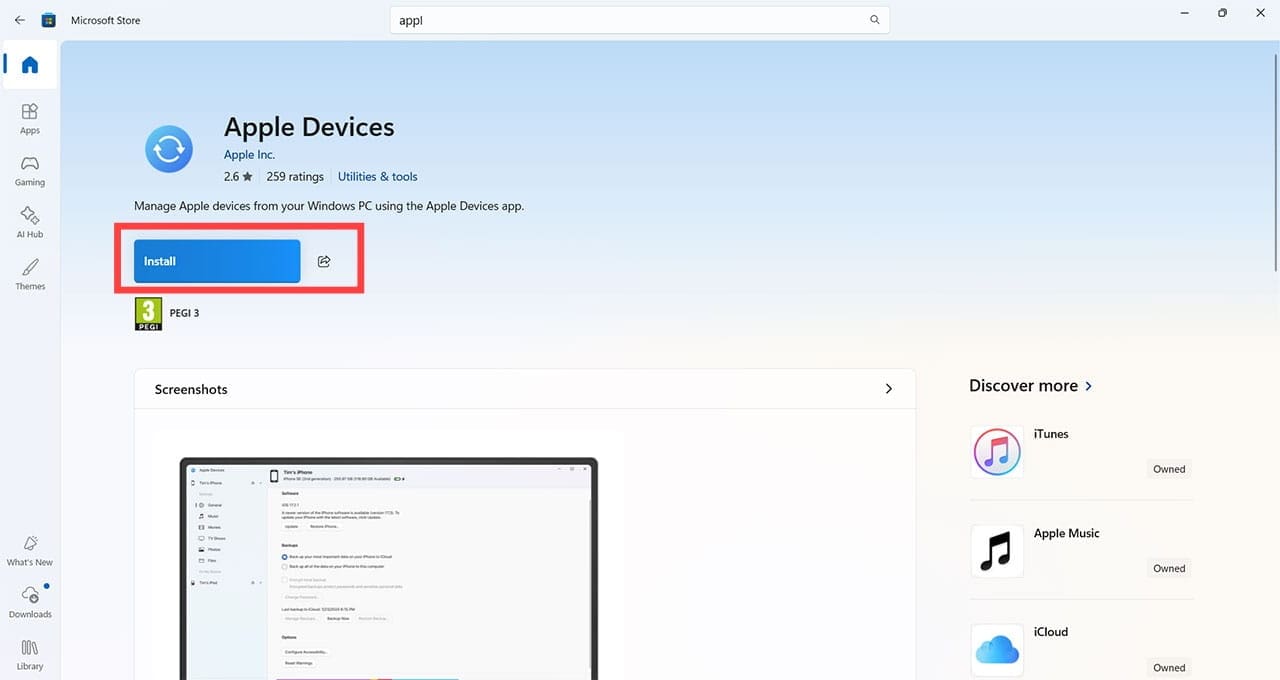
Step 1. Make sure the Apple Devices app is installed on your Windows computer. If not, head to the Microsoft Store and install it. It’s free of charge.
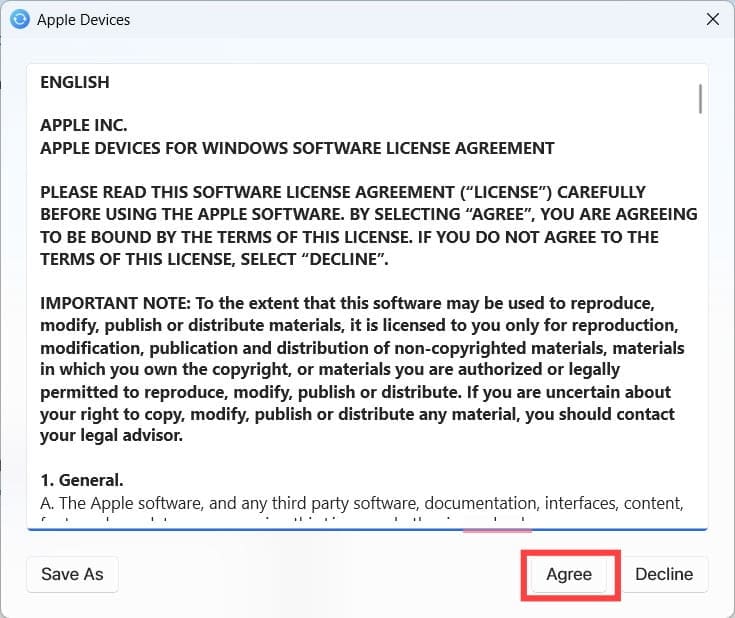
Step 2. Open “Apple Devices.” If it’s the first time you’ve used it, you may need to accept the terms and conditions.
Step 3. Connect your iPad or iPhone to your Windows computer using a compatible USB or USB-C cable.
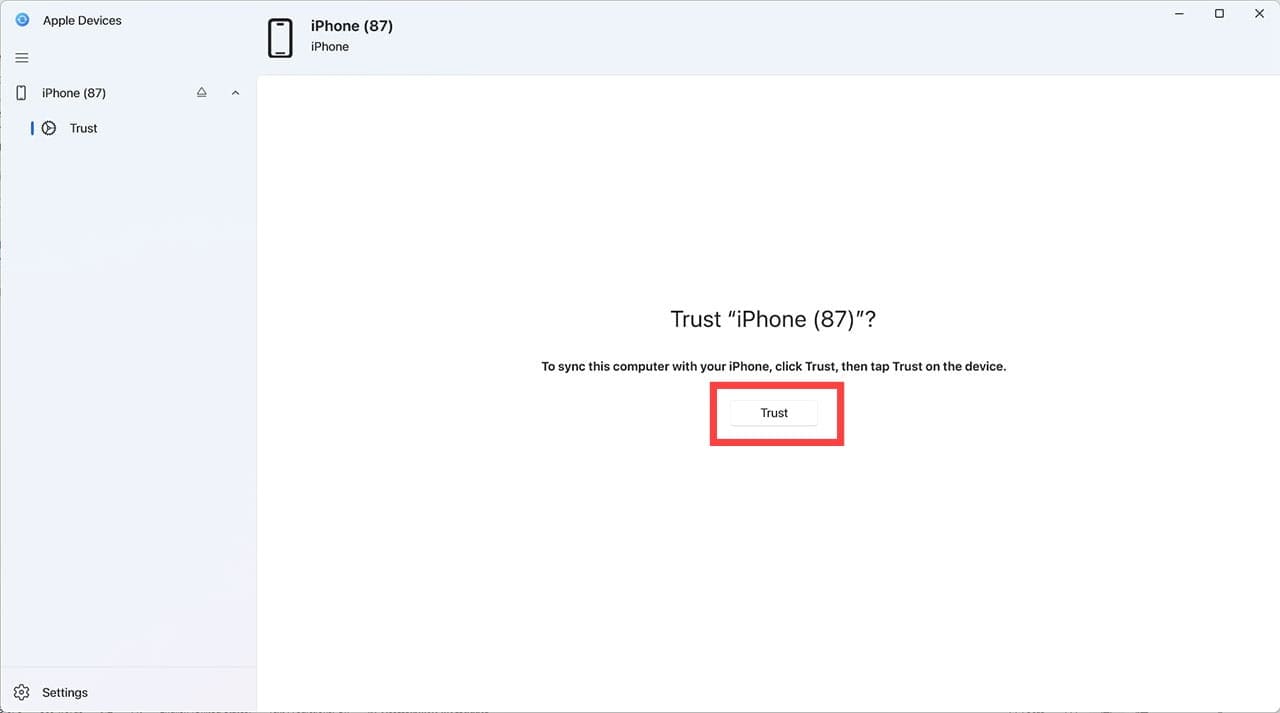
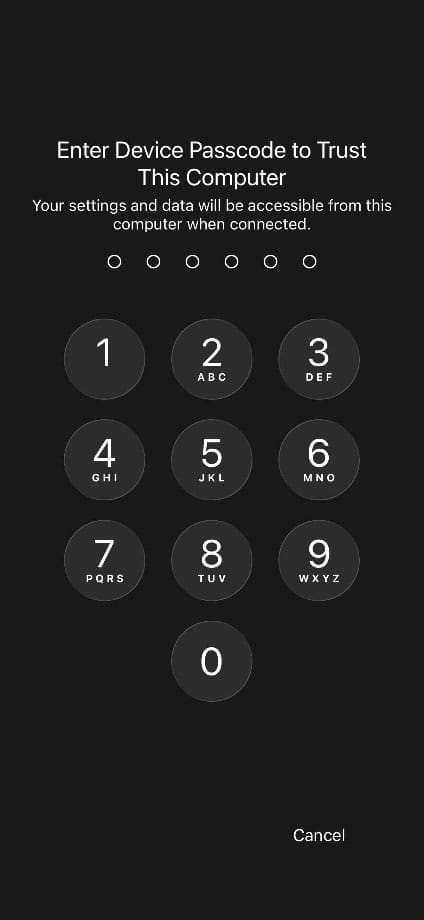
Step 4. Confirm on both devices that you trust the device you’ve connected. Press “Trust on Apple devices,” then unlock your iPad/iPhone and click “Trust.”
You may have to enter your passcode on your Apple device at this stage.
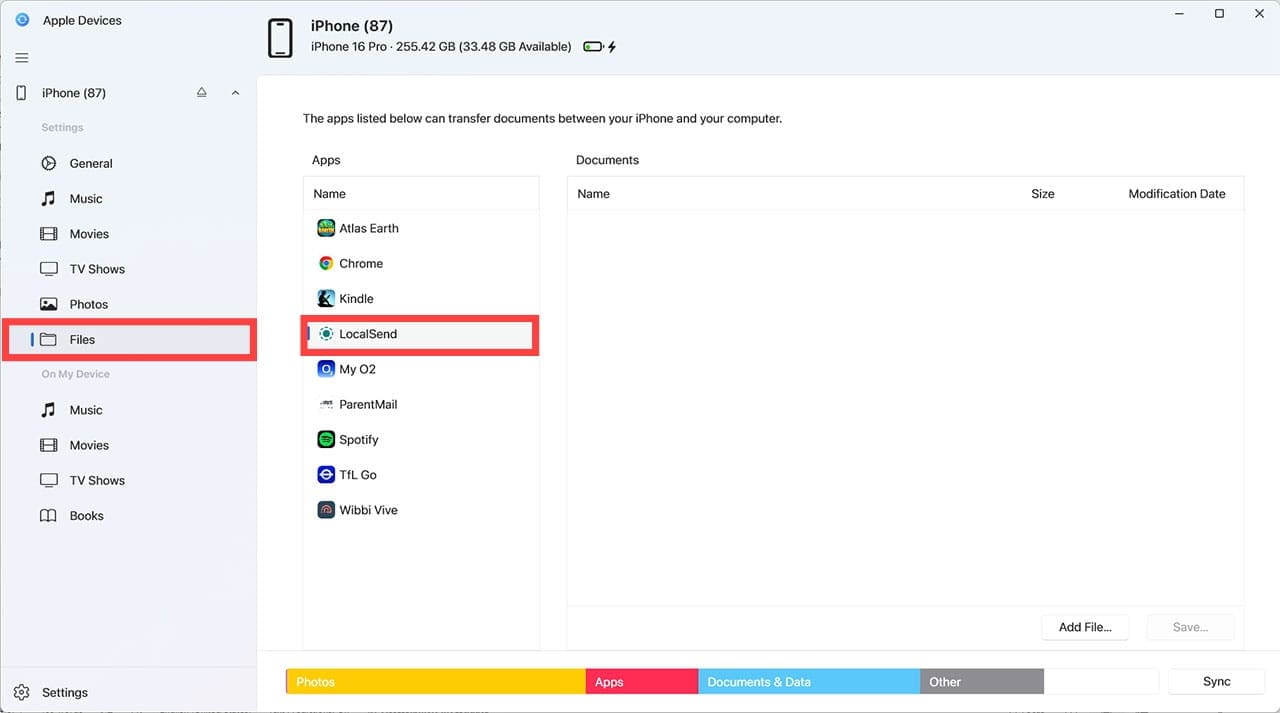
Step 5. On Apple devices, on the Windows computer, click on “Files.” You will see a list of apps that support file sharing between Windows and Apple devices. Select an app that will allow you to open a file and share it to a different app, for example, LocalSend. Note: If you don’t see anything in the Apps list, it means you don’t have an app capable of file sharing between Windows and iPhone/iPad.
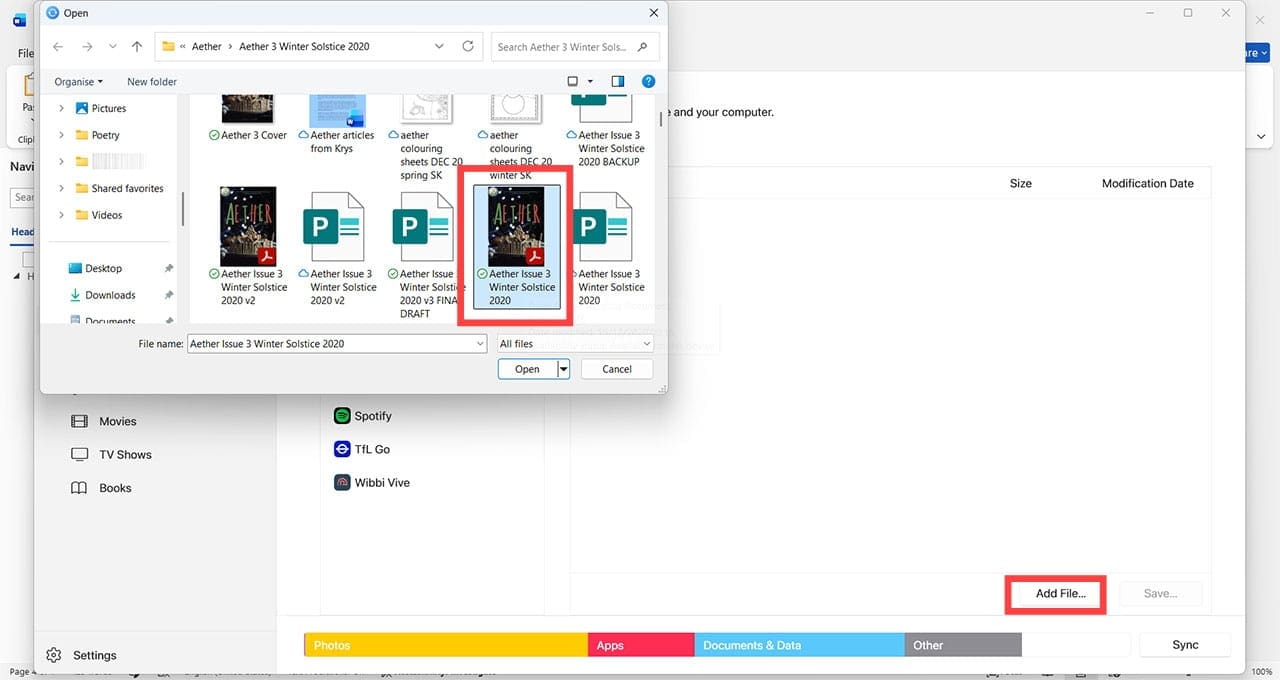
Step 6. Click “Add File,” navigate to the file you want to transfer, select it, and click “Add.”
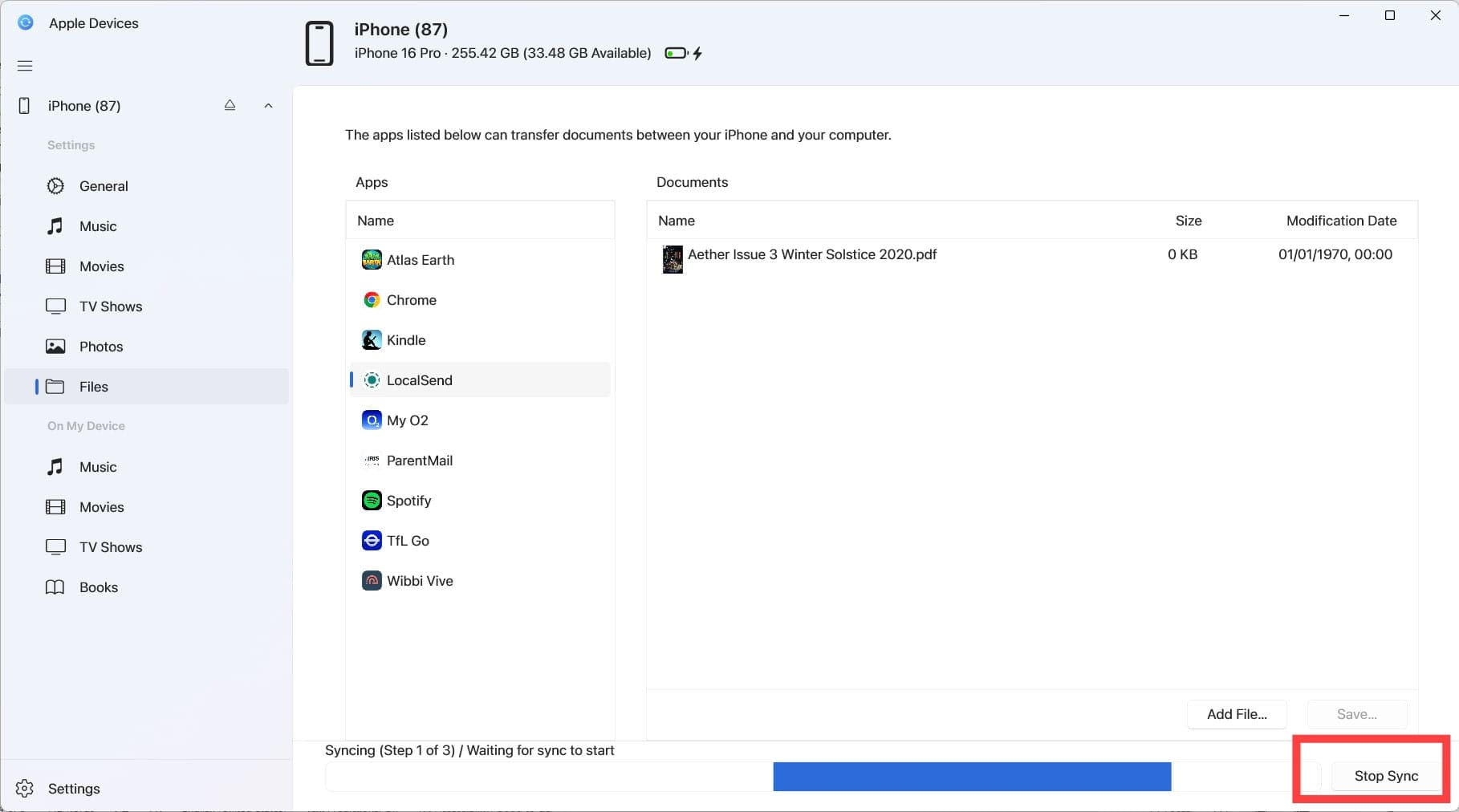
Step 7. Once you can see the file in the Documents section on the Apple Devices app, click “Sync.”
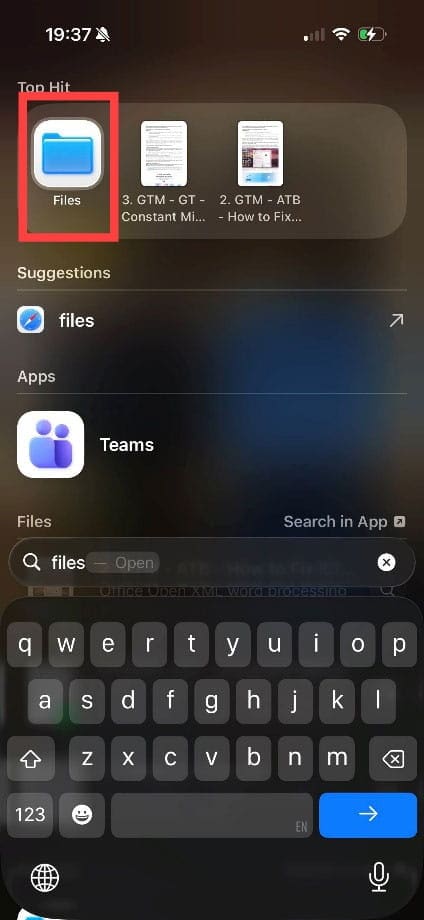
Step 8. Wait for the sync to complete, then open your iPhone/iPad and navigate to “Files.”
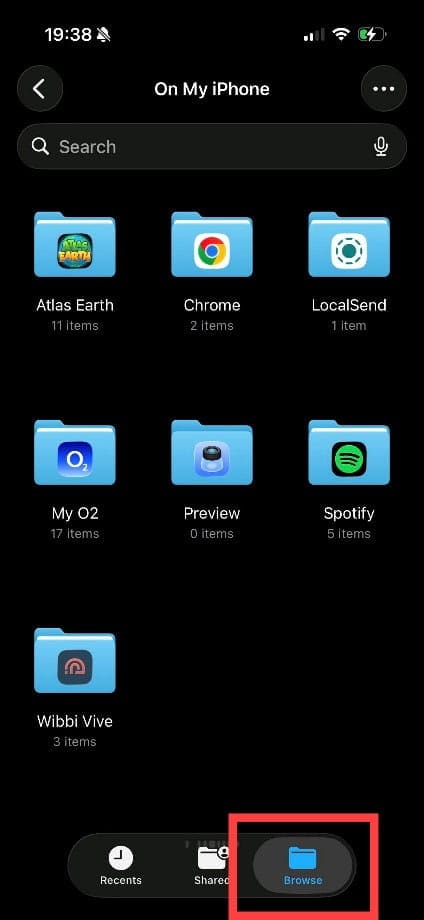
Step 9. Tap “Browse,” then open the folder for the app you selected before syncing your file(s).
Step 10. Tap the relevant file.
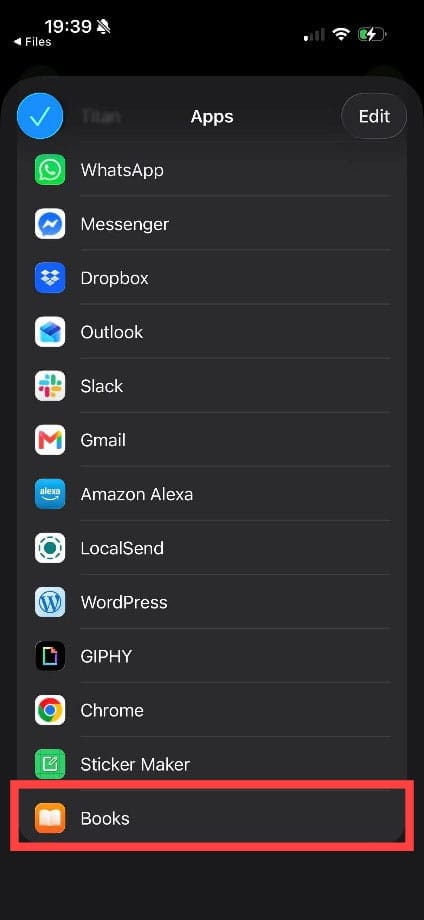
Step 11. Tap the share button, tap “More,” and choose “Books” from the list of apps available to open the PDF.
The document will open in Apple Books and be accessible here from this point on.
Transfer PDF From Windows to Apple Books: Use Cloud-Based File-Sharing Apps
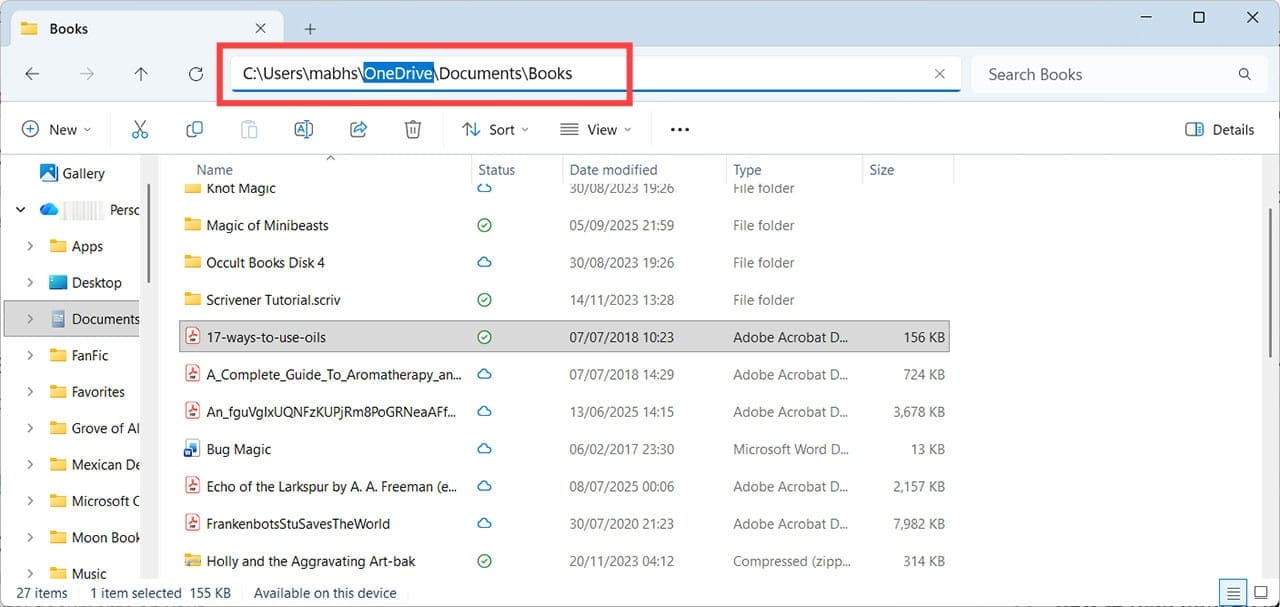
Step 1. An arguably easier way to sync PDFs or ePUB files to Apple Books is to use a file-sharing app, such as OneDrive. Simply save or copy the document you want to transfer to a folder in OneDrive on your Windows machine.
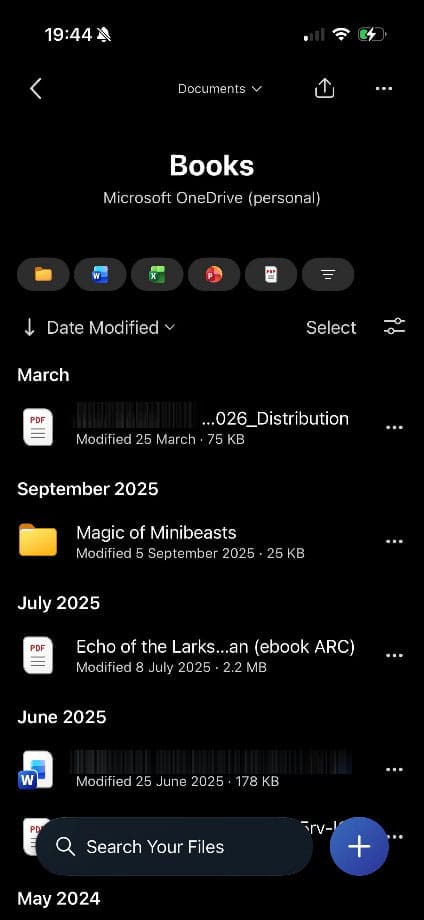
Step 2. Open OneDrive on your iPhone or iPad and navigate to the same folder.
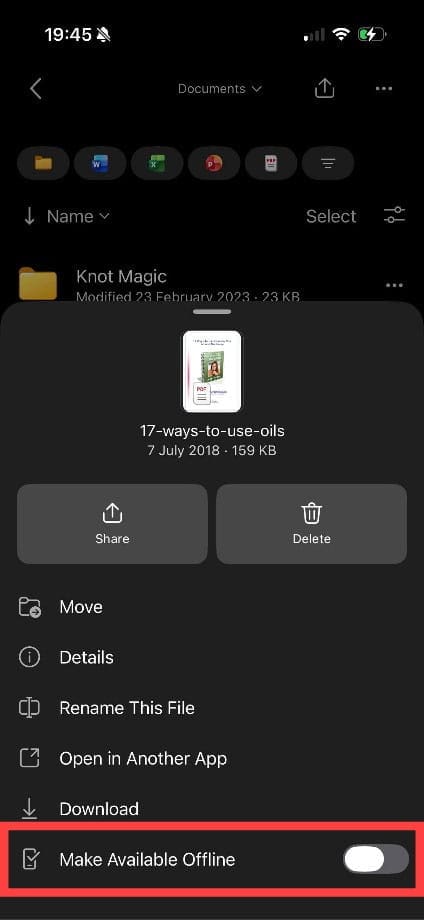
Step 3. Locate the file you saved, tap the three dots, and press the toggle button for “Make Available Offline” (it should turn from gray to blue).
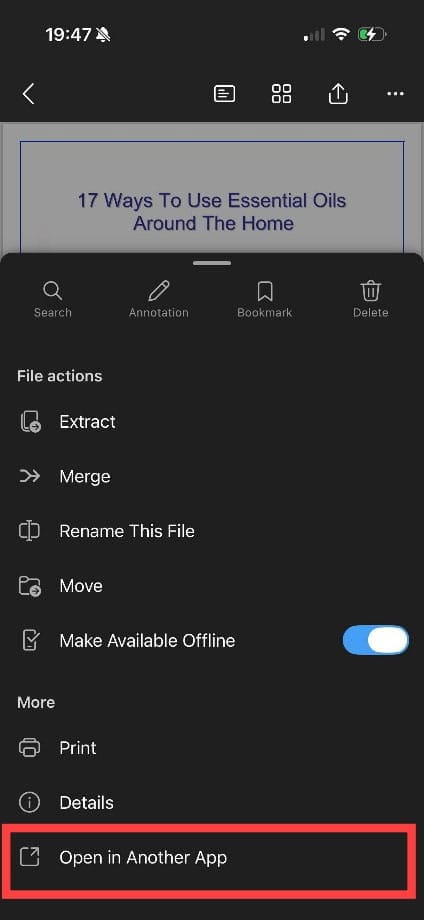
Step 4. Tap the document to open it, press the three dots again, and choose “Open in Another App.”
Tap on “Books,” and your document will open in Apple Books; just like before, you can always access it from this location thereafter.
You can follow a similar process using Google Docs, Dropbox, or any file-sharing service that has apps for both Windows and iPhone/iPad.
As an avid gamer, I’ve run into my fair share of error codes and weird faults that have forced me to find fixes to problems I never anticipated. That gave me a passion for sharing those fixes with others so we can all game without feeling like our hardware is rebelling against us.
















Write a Comment