• Skip to primary navigation
  • Skip to main content
  • Skip to primary sidebar
  • Skip to footer

AppleToolBox

Tools and Fixes for Mac, iPad, iPhone & iWatch

Search posts

  • About
  • Contact

CONNECT WITH US

CATEGORIES

  • iPhone
  • iPad
  • iPod
  • Apple Watch
  • Mac/MacBook
  • AirPods
  • Apple TV
  • News
  • Apple Services
  • HomePod
  • Reviews

SITE

  • Home
  • About Us
  • Contact
  • Advertise

Search posts

You are here: Home / iPhone / HEIC Photos From iPhone Don’t Open on Windows – What to Do

HEIC Photos From iPhone Don’t Open on Windows – What to Do

By Louis Roundtree 0 comments Last updated October 17, 2025

Things to Know
  • The HEIC image format is Apple’s way of capturing high-quality photos while cutting down on file size.
  • Windows 10 and 11 include HEIC support codecs by default, but sometimes errors happen.
  • You can install the image extension yourself, or convert existing and new image files into a format readable by Windows.

Apple puts quality first when it comes to its media capture and storage. While there is always the loss of some image quality in all formats, the High Efficiency Image Container (HEIC) format is Apple’s way of capturing quality image files while not devouring too much of your storage.

Like most Apple formats, HEIC has gained mainstream acceptance from other tech platforms, like Windows, to the point where most include the codecs needed to view and edit these files by default. But what happens when your PC doesn’t want to cooperate?

In this article, we’ll be showing you a few workarounds.

Contents

  • Photos Does It All
  • HEIC Photos Don’t Open on Windows – Different Solutions to the Same Problem
    • Add the Extension from Microsoft Store
    • Save Your Photos in a Different Format
    • Convert Your HEIC Images

Photos Does It All

Viewing HEIC files has become much easier since the later versions of Windows 10 and Windows 11. HEIC and HEVC can now be installed on Windows, but the user needs to install both the free HEIF Image Extension and the HEVC Video Extension, or they can be easily used through apps like Photos. They even allow for editing and viewing as thumbnails in Explorer. Before attempting any other workaround, confirm that your Apple images do not open in Photos.

HEIC Photos Don’t Open on Windows – Different Solutions to the Same Problem

The primary reason your PC won’t open HEIC files has to do with codecs. We have a few solutions to this problem, ranging from installing them to bypassing the format entirely. Let’s get started:

Add the Extension from Microsoft Store

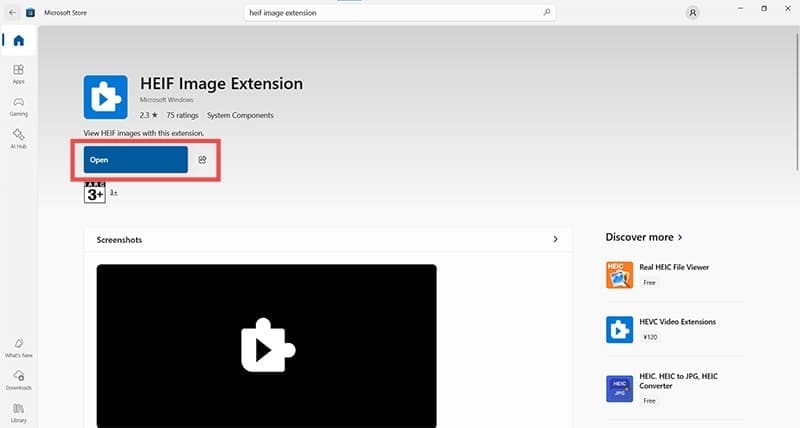
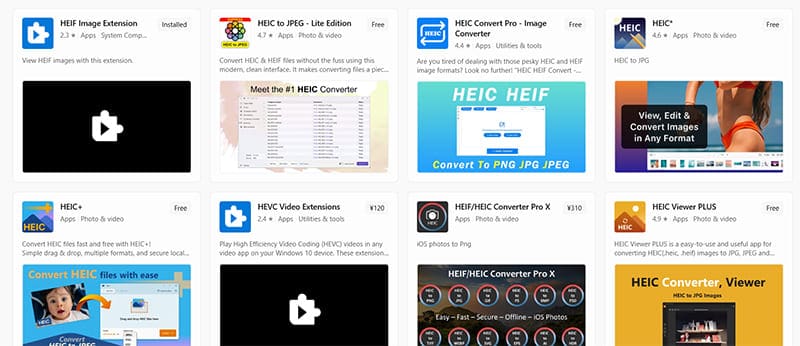
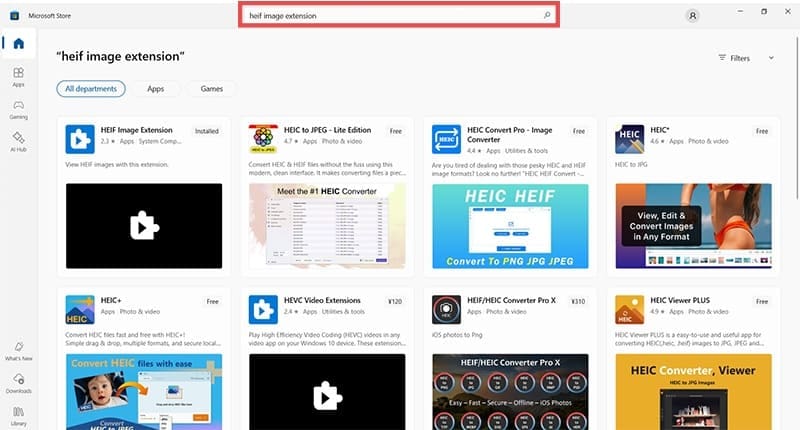
Microsoft offers users the “HEIF Image Extension” as a free download to enable PCs and their applications to read these files. It’s a very simple, quick process and quite quick. Here’s what to do:

Step 1. Open Microsoft Store from the search bar.

Step 2. Type “HEIF Image Extension” into the search bar.

HEIC Photos From iPhone Don’t Open on Windows – What to Do 1

Step 3. Click the “Download” button and wait for the extension to install. The “Open” button will appear once the process is done.

Step 4. You should now be able to view and edit HEIC image files in Microsoft apps like Photos and view them in Windows Explorer.

Save Your Photos in a Different Format

Your iPhone takes photos and stores them in an HEIC image format by default. If your PC is still giving you trouble with HEIC files, why not change the format of your photos to JPEG? Here’s what to do.

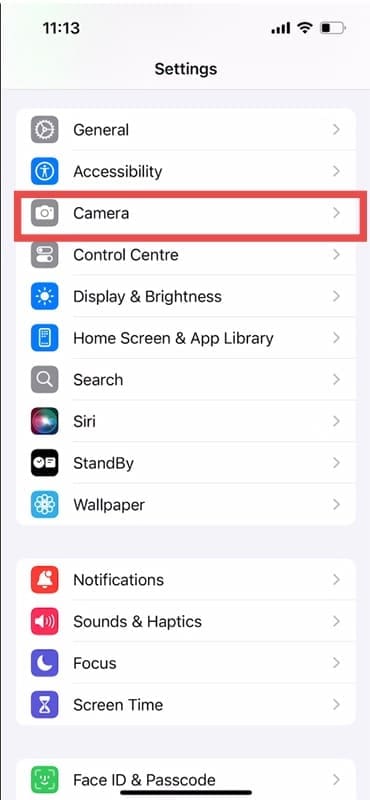
Step 1. On your iPhone, open Settings and navigate down to “Camera.”

HEIC Photos From iPhone Don’t Open on Windows – What to Do 3

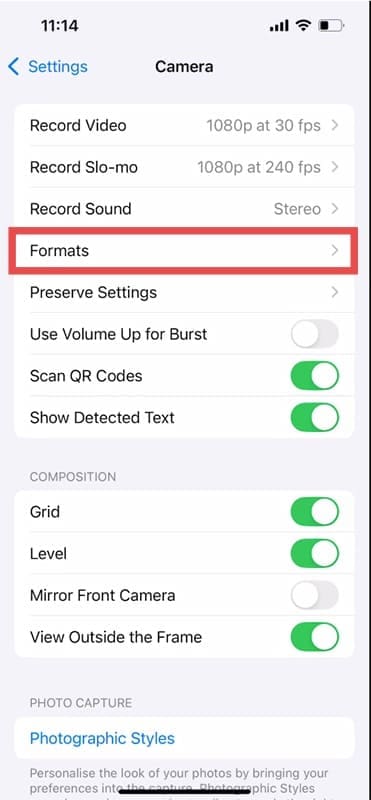
Step 2. Tap “Formats.”

HEIC Photos From iPhone Don’t Open on Windows – What to Do 4

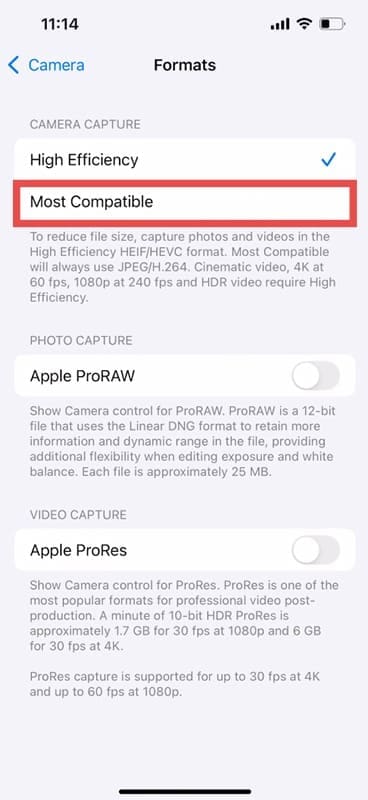
Step 3. Under the “Camera Capture” subheader, choose “Most Compatible” instead of “High Efficiency.”

HEIC Photos From iPhone Don’t Open on Windows – What to Do 5

Step 4. Your photos will now automatically be saved as JPEGs on your phone.

Convert Your HEIC Images

HEIC Photos From iPhone Don’t Open on Windows – What to Do 6

Another workaround is to convert your existing HEIC images on your PC to a different format. There are plenty of third-party apps in the Microsoft Store that can handle the challenge. Even photo editing apps like GIMP can help read, edit, and convert image files without needing to rely on Windows apps themselves.

Other picture viewers like XnView MP can provide a more versatile way to view multiple picture formats, including HEIC, without the need to download additional codecs. Third-party solutions are your friend, and many are free to use.

Related Posts:

  • 0E4A6A0B-65E8-4184-B0C9-16C2179A1256
    The Best Weight Loss Apps For iPhone In 2021
  • prores and proraw files on windows
    How to Open ProRes and ProRAW Files on Windows
  • An iPhone, Mac, and MacBook on a table
    How to Transfer Your Photos from iCloud Photos to…
  • pexels-marc-mueller-380769
    macOS vs Linux: An In-depth Comparison
  • 2022 Mac Mini with Studio Display and Accessories
    Mac Tips For New Users In 2023
  • pexels-cottonbro-4705628
    The Best NAS Drives For Mac
  • WWDC 2021 Hero
    WWDC21 Recap: Everything You Missed In Apple's 2-Hour Event
  • How to connect AirPods to Nintendo Switch 7
    How to Use iPad as a Monitor for Your Nintendo Switch
  • pexels-cottonbro-5082579
    Getting Started With iOS 15: Everything Good And Bad
Louis Roundtree
Louis Roundtree

As an avid gamer, I’ve run into my fair share of error codes and weird faults that have forced me to find fixes to problems I never anticipated. That gave me a passion for sharing those fixes with others so we can all game without feeling like our hardware is rebelling against us.

Reader Interactions

Write a Comment Cancel reply

Primary Sidebar

Recent Posts

  • How to Hide Username and Photo on the Mac Lock Screen
  • Microsoft Resume vs. Apple Handoff – Which Wins for Cross-Device Work?
  • How to Export iTunes Library to New Computer
  • What the Gemini Desktop App Will Bring to Mac
  • What to Do When Windows 11 Won’t Detect Your iPad
  • Outlook Outage 2026: iPhone Fixes for Sign-In Chaos

Connect with us

Footer

ABOUT

  • About Us
  • Contact us
  • Advertise
  • Privacy
  • Terms of Use

GUIDES

  • iOS & iPadOS
  • Apple ID
  • iCloud
  • App Store
  • iTunes
  • FaceTime
  • iMessage
  • Siri
  • Books and iBooks
  • Game Center
  • AirPlay

CONNECT

  • Facebook
  • Twitter
  • FeedBurner
  • YouTube

© Copyright 2010-2024 Guiding Tech Media · All Rights Reserved

This site and its content are in no way affiliated or endorsed by Apple, Inc. · Reproduction without explicit permission is prohibited

Last Updated on October 17, 2025 by Louis Roundtree