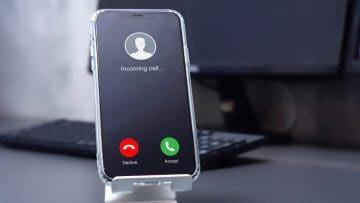
Isn’t it annoying when your phone rings, but it’s just someone you’d rather not talk to? Sales calls, surveys, and even bogus scammers can all call you anytime, but thanks to iOS 26, you do have some control over how your device deals with unknown callers.
The iPhone call screening feature allows you to either send all calls from unknown numbers to voicemail, or ask the caller for more information. This is a handy way to root out bot callers, as many won’t be able to respond to the request for more details.
Read on to learn how to use call screening in iPhone iOS 26.
Setting Up Your iPhone Call Screening Feature
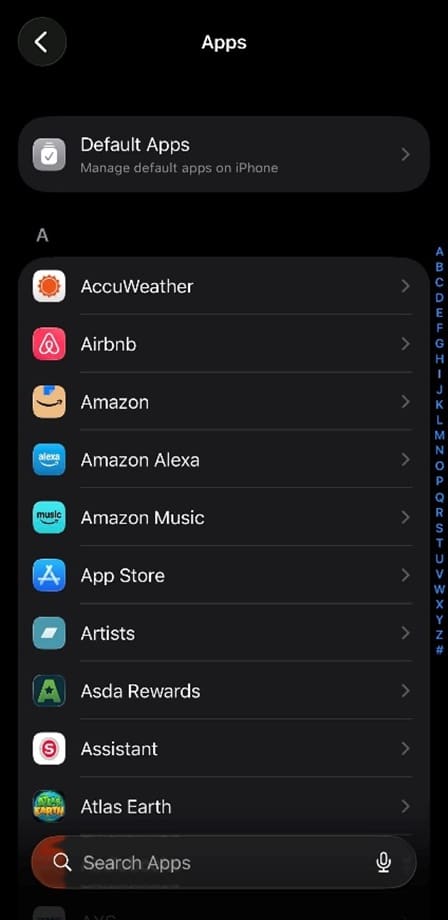
Step 1. Go to Settings > Apps.
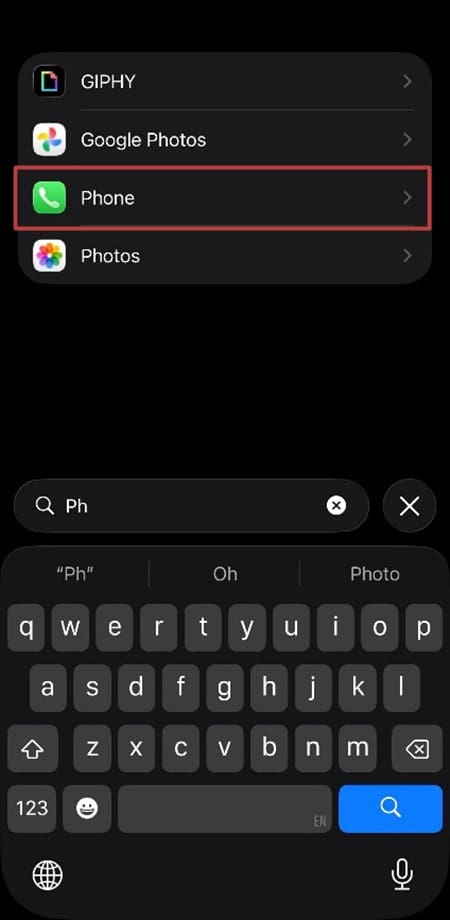
Step 2. Use the Search function to find the Phone app. As soon as you type “ph,” you should see the Phone app appear. Alternatively, you can scroll through your apps to find it. The default setting lists them in alphabetical order.
Step 3. Tap on the Phone app.
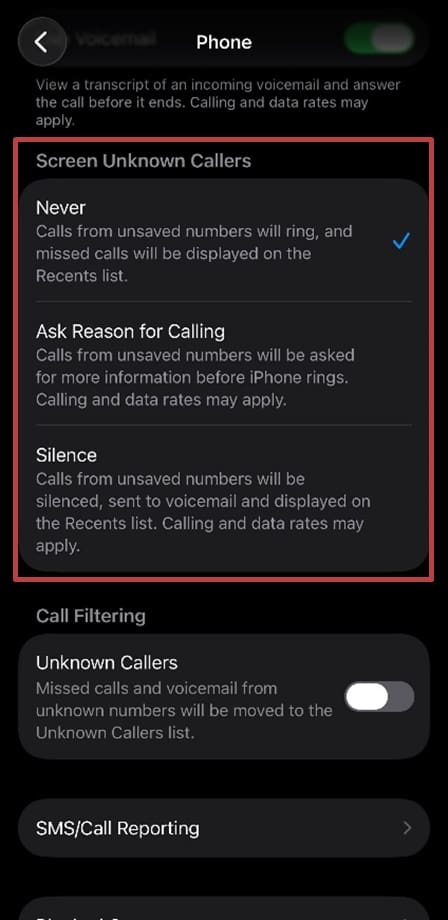
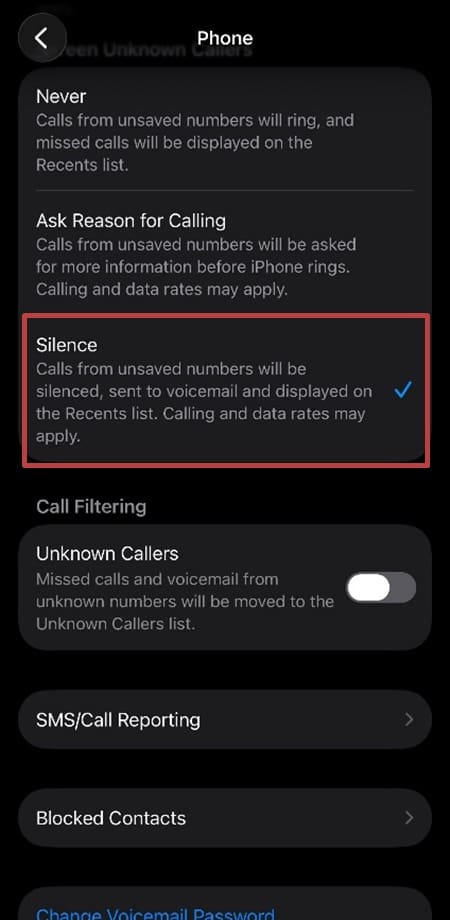
Step 4. Scroll down and look for “Screen Unknown Callers.” You’ll see three options: “Never,” “Ask Reason for Calling,” and “Silence.” “Never” turns Call Screening off, so calls from unsaved numbers ring normally and will be displayed in the Recents list. You can still decline calls from unknown numbers or send them to voicemail individually.
Step 5. To ensure all unknown numbers are routed to voicemail, choose the “Silence” option. This literally silences unknown callers by ensuring that you never have to deal with them. The idea is that a genuine caller will leave a voicemail message, and you can decide whether to call them back or not.
Step 6. Alternatively, you choose “Ask Reason for Calling.” Your iPhone automatically answers calls from unknown numbers and asks the caller for their name and reason for calling. Your iPhone then rings and shows you the caller’s response, letting you decide if you want to answer.
One example message shown on the Apple demonstration video says, “Hi, if you record your name and the reason for calling, I’ll see if this person is available.” As the iPhone user, you’ll see a notification telling you that the call is being screened. Tap “View” to see what messages are being sent between your device and the caller.
If it’s clear that the caller is legitimate, you can answer the call at any time during this process. Alternatively, you can ignore the call or send a message yourself. There are some pre-typed options, such as “I can’t talk right now,” or you can type your own text.
You can change these settings at any time, so you control what happens when you get calls from unknown numbers.
As an avid gamer, I’ve run into my fair share of error codes and weird faults that have forced me to find fixes to problems I never anticipated. That gave me a passion for sharing those fixes with others so we can all game without feeling like our hardware is rebelling against us.












Write a Comment