If you’re out and about, you might not always be able to pick up your phone straight away. Your device might be in your pocket, or you may not hear it until late. With that in mind, it’s understandable if you’ve thought about whether you can change the number of rings before your iPhone goes to voicemail.
Can I Change the Number of Rings Before My iPhone Goes to Voicemail?
You cannot change the specific number of rings before your iPhone goes to voicemail. But while you’re unable to adjust this feature, you *might* have some luck in altering how many seconds pass before your device redirects the caller to voicemail.
The amount of time before your device redirects a caller to voicemail depends on your network carrier rather than the iPhone model you have.
How to Change the Number of Rings Before Your iPhone Goes to Voicemail
If you want to try and change how long your iPhone rings before going to voicemail, you unfortunately don’t have a huge number of options. Nonetheless, it’s worth exploring the main different options if this is something that you genuinely wish to change.
The first thing you should try is contacting your network provider or visiting your account online. Here, you may have the choice to customize how many seconds pass before your iPhone goes to voicemail. AT&T is one provider that offers this option.
If you can’t find the choice to change the number of rings before your iPhone goes to voicemail via your account, try contacting the carrier’s customer support team.
Another Potential Option…
Some users have found success in using the Phone app to change the number of seconds before their iPhone goes to voicemail. Not everyone has been able to get the results they desire with this method, but it’s still worth exploring if you were unsuccessful in trying to change the ring duration with your carrier.
Here’s how to use the Phone app to change the number of rings before your device goes to voicemail:
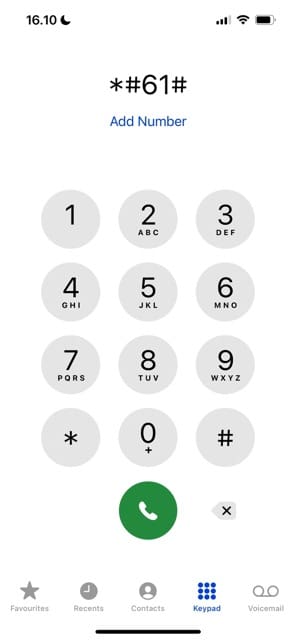
Open the Phone app and type *#61# on your keyboard without calling.
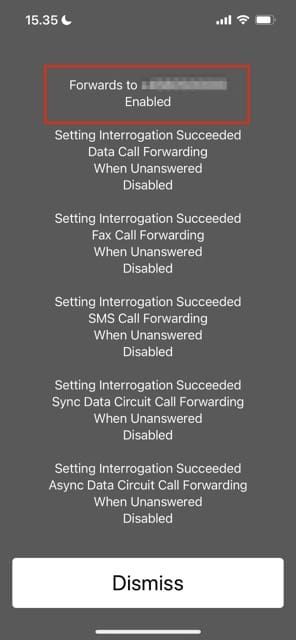
When the next window appears, make a note of the phone number associated with your call forwarding. It will be different from your normal number and is close to the top of the screen. You can screenshot the window if needed.
Press Dismiss once you’ve written down the number. Then, close and reopen the Phone app.
Once you’ve followed the above steps, you should then go ahead with the instructions below.
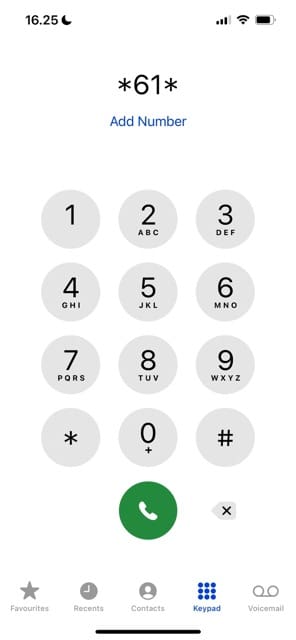
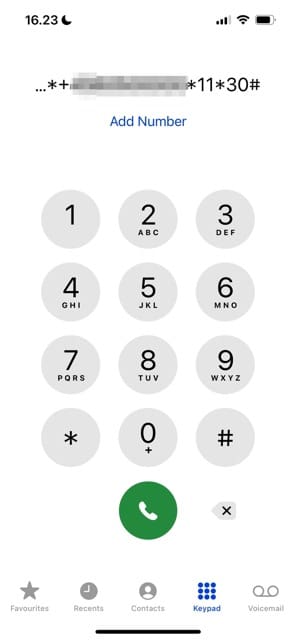
Reopen the Phone app and type *61*, followed by the number your voicemail is normally forwarded to. Make sure there are no spaces and that you include the area code at the beginning.
After entering *61* and your forwarding number, write *11*[number of seconds]* and a # key, before hitting the green phone button.
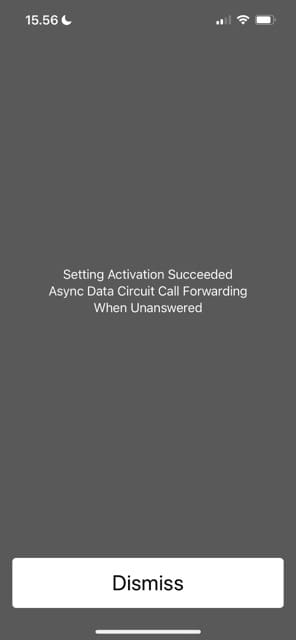
You’ll know if this method was successful because if it was, you should see a message that mentions how long it’ll be prior to a user getting redirected to voicemail. You may see a message that says Setting Activation Succeeded or something similar instead.
Customize Your iPhone Ringtone Length and Don’t Miss Important Calls
It’s quite difficult sometimes to change the duration your iPhone waits before your device switches to voicemail. You’ve also only got a couple of options, meaning that doing so is far from ideal for many users. But before you give up hope, it’s worth exploring what you can potentially do to prolong the time it takes for your iPhone to go to voicemail.
Hopefully, after reading this guide, you’re now able to change the ringtone duration on your iPhone. We hope that Apple introduces a feature that lets you adjust this directly from your smartphone in the future, but that would be quite complicated to implement. So, in the meantime, what you see in this guide are your best choices.
Danny has been a professional writer since graduating from university in 2016, but he’s been writing online for over a decade. He has been intrigued by Apple products ever since getting an iPod Shuffle in 2008 and particularly enjoys writing about iPhones and iPads. Danny prides himself on making complex topics easy to understand. In his spare time, he’s a keen photographer.
3 rings equals three seconds to locate your iPhone, I.e. to pull it out of a pocket or out of the blankets on your bed, and then see who’s calling and then decide whether or not you want to take the call. Basically, once the iPhone screen is in your hand and the screen is visible, you have about 1/2 second to decide whether not you’re being spammed, or if your best friend is calling. To not be able to vary the number of rings you can tolerate would make Steve Jobs rotate in his grave.
I recently had an iPad Pro 12.9, still under warranty, have the screen freeze up, and the brightness level locked (True Tone locked up the screen), when a certain obscure command was entered, giving the on-screen message of a red warning triangle preceding the phrase “Brightness limited to High Ambient Temperature” inside any air conditioned building. The error locks True Tone control and the brightness level cannot be adjusted in the onscreen slide controls, or anywhere else. It’s so dim, the screen is virtually invisible in daylight. The geniuses and techs at the only Apple Store in my state couldn’t figure out the problem, and 4 days later they presented me with a brand new iPad Pro 12.9. When the contents of the old one were transferred to the new one in the store by an Apple employee, the software glitch came along to torment me. I pointed this out to customer Service in The Infinite Loop, but they had no procedure for sending glitch notices or fixes to the technical people out there. Rather than read my fix, Apple will waste hundreds of thousand of dollars replacing perfectly good iPads instead of fixing the software. My iPad was using IOS 17.4, and when it was updated later that day to IOS 17.4.1 the error message was still there, caused by the same virtually hidden control, but it now displays the error message in a different menu block under the Display & Brightness sub-menu.
PS – my 38 year old daughter was with me when we picked up the new iPad Pro, which had the same problem. She works in the computer industry on Microsoft-based machines. When the same error popped up on the new iPad with my transferred data, she identified and fixed the error in 2 minutes, I.e. before we had left the store with the new machine. Apple didn’t want to know the fix, so good luck to them.









3 rings equals three seconds to locate your iPhone, I.e. to pull it out of a pocket or out of the blankets on your bed, and then see who’s calling and then decide whether or not you want to take the call. Basically, once the iPhone screen is in your hand and the screen is visible, you have about 1/2 second to decide whether not you’re being spammed, or if your best friend is calling. To not be able to vary the number of rings you can tolerate would make Steve Jobs rotate in his grave.
I recently had an iPad Pro 12.9, still under warranty, have the screen freeze up, and the brightness level locked (True Tone locked up the screen), when a certain obscure command was entered, giving the on-screen message of a red warning triangle preceding the phrase “Brightness limited to High Ambient Temperature” inside any air conditioned building. The error locks True Tone control and the brightness level cannot be adjusted in the onscreen slide controls, or anywhere else. It’s so dim, the screen is virtually invisible in daylight. The geniuses and techs at the only Apple Store in my state couldn’t figure out the problem, and 4 days later they presented me with a brand new iPad Pro 12.9. When the contents of the old one were transferred to the new one in the store by an Apple employee, the software glitch came along to torment me. I pointed this out to customer Service in The Infinite Loop, but they had no procedure for sending glitch notices or fixes to the technical people out there. Rather than read my fix, Apple will waste hundreds of thousand of dollars replacing perfectly good iPads instead of fixing the software. My iPad was using IOS 17.4, and when it was updated later that day to IOS 17.4.1 the error message was still there, caused by the same virtually hidden control, but it now displays the error message in a different menu block under the Display & Brightness sub-menu.
PS – my 38 year old daughter was with me when we picked up the new iPad Pro, which had the same problem. She works in the computer industry on Microsoft-based machines. When the same error popped up on the new iPad with my transferred data, she identified and fixed the error in 2 minutes, I.e. before we had left the store with the new machine. Apple didn’t want to know the fix, so good luck to them.
It didnt work. *61* then no number came to top of screen. Tried other methods found online. Voicemail still cuts in straight away