Working next to another Mac or an iPad and watching your cursor slide off the edge of your own screen onto the other one is disorienting the first time it happens. If you don’t want to move pointer from Mac to iPad constantly, all you need is to adjust a few settings. Here’s what’s causing it and how to disable it.
The feature responsible is Universal Control, which lets you use a single keyboard, mouse, or trackpad to control your Mac and up to two nearby Apple devices.
Once you move the pointer past the edge of your screen in the direction of another compatible device, it will be “pushed” through onto that device’s screen, letting you drag files, type, and copy content between them without any cables.
This only works between devices signed in to the same Apple Account, within about 30 feet of each other, with Wi-Fi, Bluetooth, and Handoff turned on.
Fix 1: Turn Off Universal Control Completely
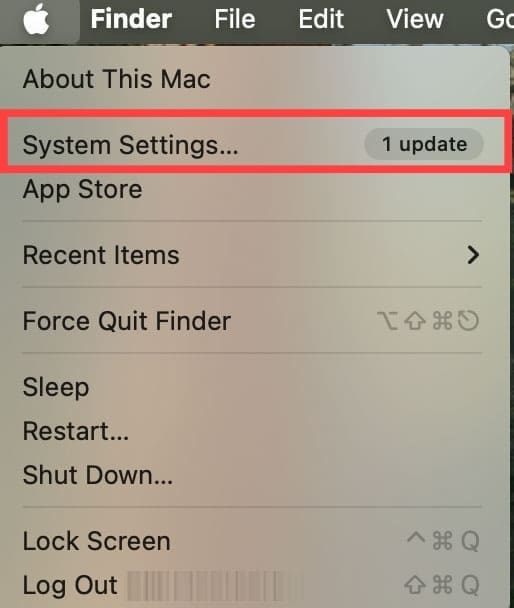
Step 1. Click the “Apple menu” and select “System Settings.”
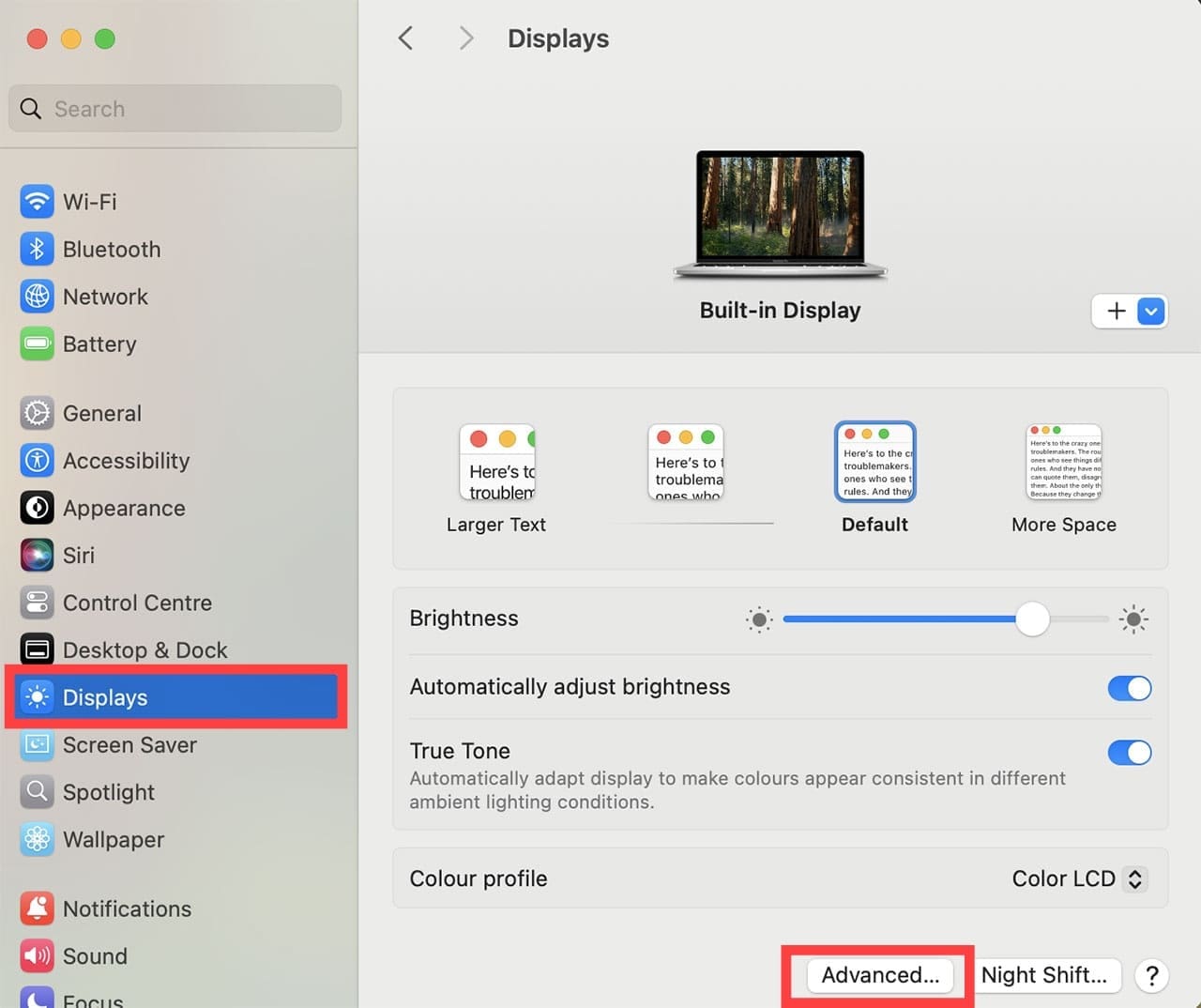
Step 2. Choose the “Displays” sidebar, then go to “Advanced” at the bottom of the settings window.
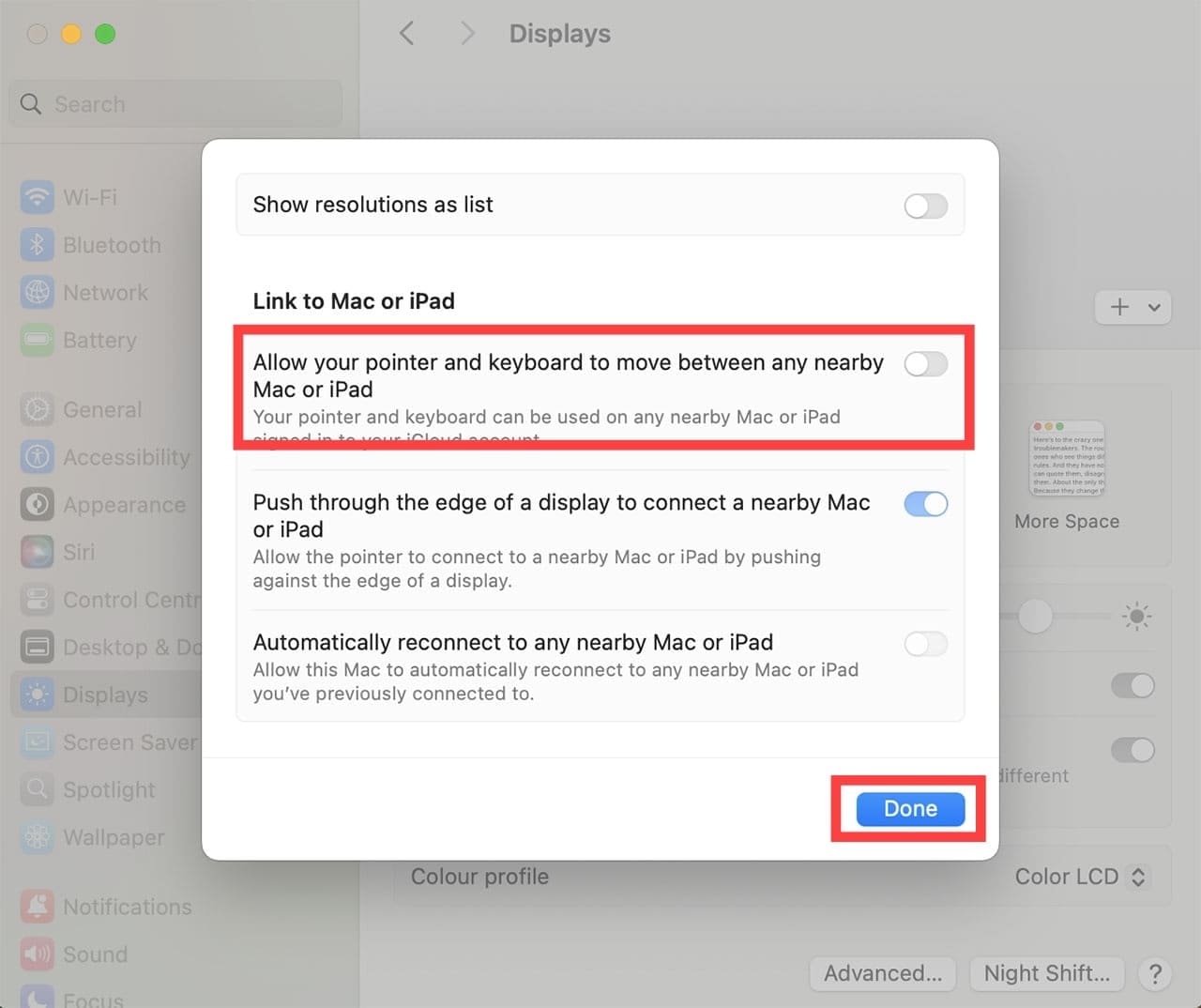
Step 3. Turn off “Allow your pointer and keyboard to move between any nearby Mac or iPad,” then click “Done.”
You’ll need to turn this back on if you ever want to use Universal Control again.
Fix 2: Stop Accidentally Moving the Pointer
If you still want to use Universal Control intentionally, you can make Universal Control connect manually rather than automatically.
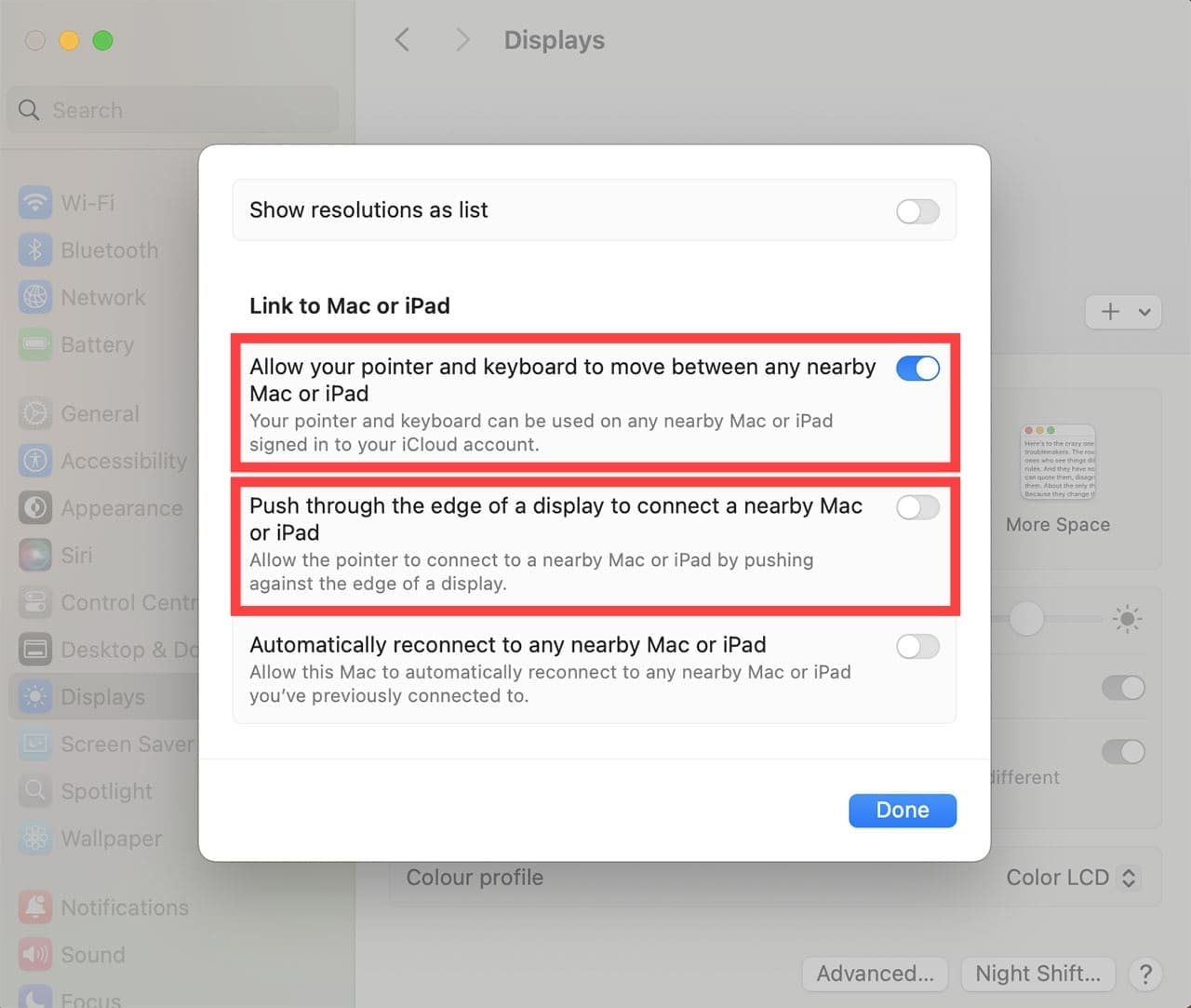
Step 1. Go to Display settings for Universal Control as in Fix 1.
Step 2. Leave “Allow your pointer and keyboard to move between any nearby Mac or iPad” turned on, but turn off “Push through the edge of a display to connect a nearby Mac or iPad.”
With this off, bumping your pointer against the edge of the screen won’t move pointer from Mac to iPad automatically. You can still connect deliberately anytime by clicking the “Display” icon in the menu bar and choosing the device to go to.
Fix 3: Disconnect a Device Temporarily
If you just want your pointer back without changing any settings, disconnecting is arguably the fastest method.
From Control Center: Open Control Center (fn + C), then click the blue display icon for the connected device. Once it turns gray, you’re disconnected.
From the menu bar: Click the Display icon in the menu bar, then click the connected device listed under “Link keyboard and mouse to” so it’s deselected.
Note that if “Automatically reconnect to any nearby Mac or iPad” is turned on, the two devices may reconnect on their own the next time they’re near each other and unlocked. You can also turn that option off in the same window.
Fix 4: Prevent Having to Move Cursor From Mac to iPad on the iPad
If the connection you want to stop involves an iPad, you can block it from that end as well.
Step 1. Open the Settings app on the iPad.
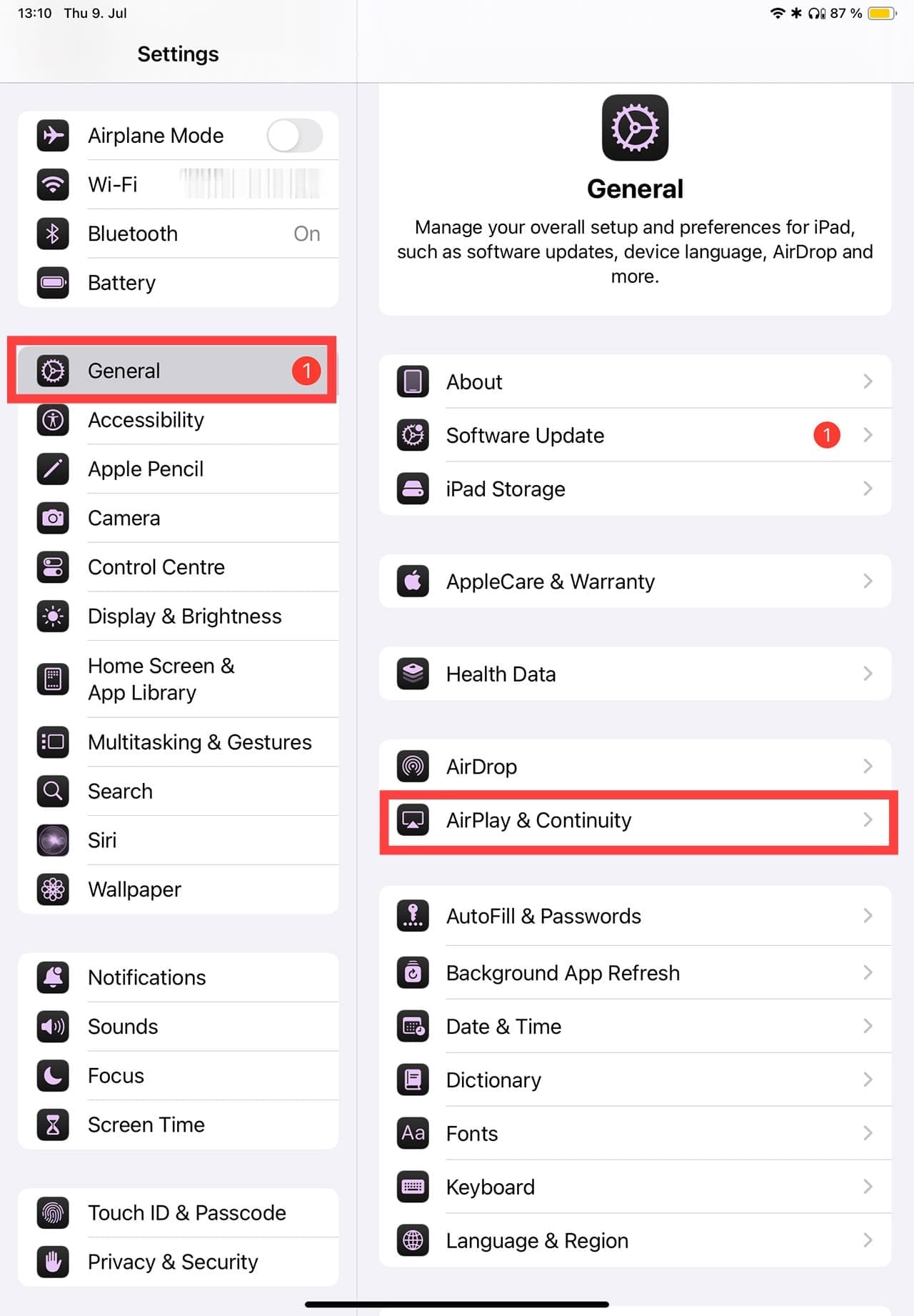
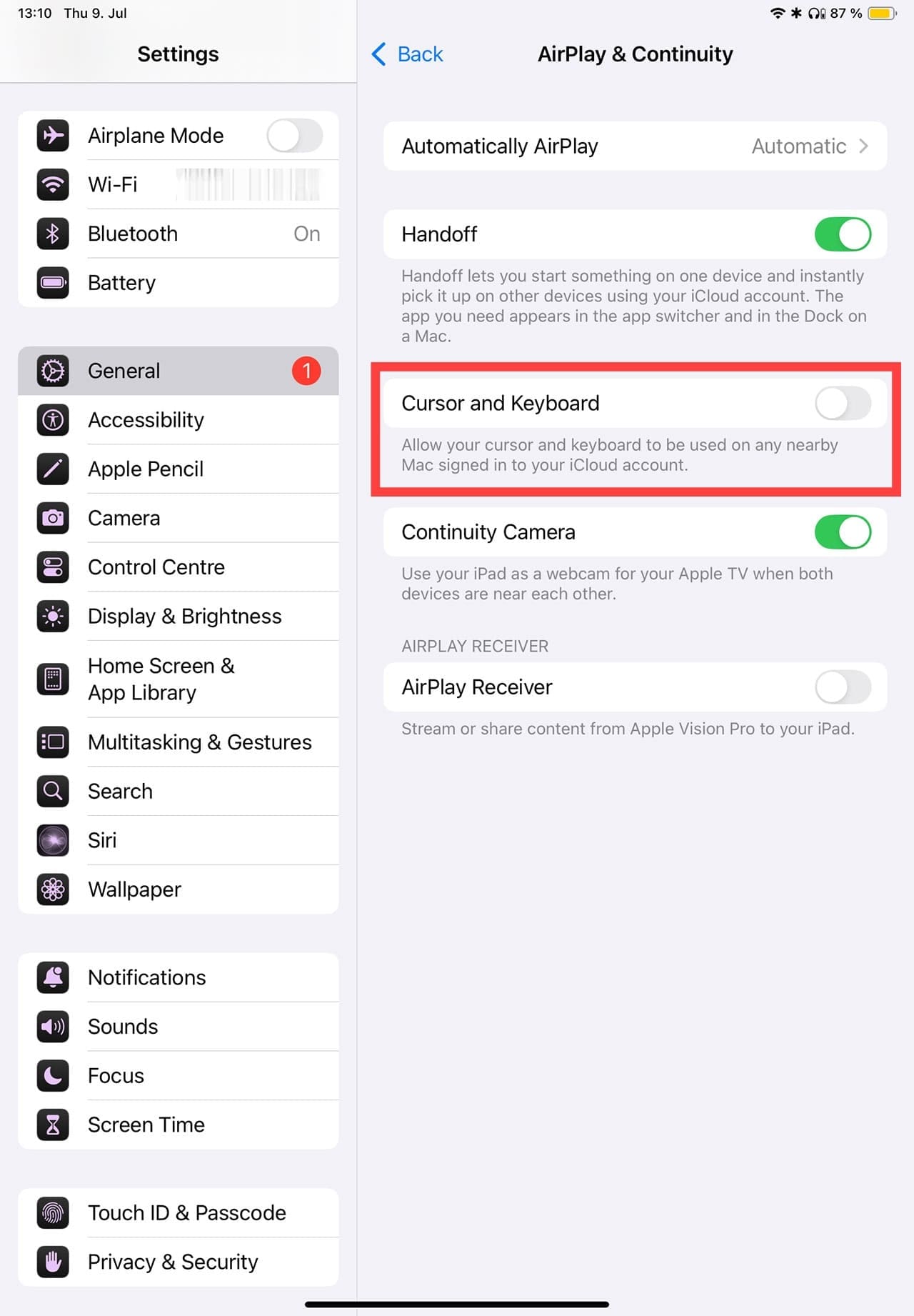
Step 2. Tap on “General,” then go to “AirPlay & Continuity.”
Step 3. Turn off the switch for “Cursor and Keyboard.”
Fix 5: Turn Off Handoff
Universal Control depends on Handoff, so if pointer sharing keeps happening even after you’ve taken the steps above, turning Handoff off on one of the devices will stop it as well.
This is a broader switch than the Universal Control settings above, since it also affects other continuity features, so it will disable the rest of them, too.
As an avid gamer, I’ve run into my fair share of error codes and weird faults that have forced me to find fixes to problems I never anticipated. That gave me a passion for sharing those fixes with others so we can all game without feeling like our hardware is rebelling against us.










Write a Comment