• Skip to primary navigation
  • Skip to main content
  • Skip to primary sidebar
  • Skip to footer

AppleToolBox

Tools and Fixes for Mac, iPad, iPhone & iWatch

Search posts

  • About
  • Contact

CONNECT WITH US

CATEGORIES

  • iPhone
  • iPad
  • iPod
  • Apple Watch
  • Mac/MacBook
  • AirPods
  • Apple TV
  • News
  • Apple Services
  • HomePod
  • Reviews

SITE

  • Home
  • About Us
  • Contact
  • Advertise

Search posts

You are here: Home / iPhone / How to Troubleshoot a SIM That Won’t Work With Your iPhone

How to Troubleshoot a SIM That Won’t Work With Your iPhone

By Louis Roundtree 0 comments Last updated August 5, 2026

Things to Know
  • If your SIM won’t work in new iPhone, it may not have been activated by the provider.
  • You can try removing and replacing the SIM, or restarting your device.
  • If the SIM is definitely active and inserted correctly, it could indicate a problem with the iPhone itself.

A SIM card is the piece of technology that provides your iPhone with a cellular signal so you can make calls, send SMS, and connect to cellular data when you’re out and about. Without a SIM, your iPhone will still work, but only when there’s a Wi-Fi signal available.

Sometimes you may get a message that says, “No SIM Available” or “SIM Failure.” Other times, you may not get an error message, but you might have no phone signal while others do.

Follow this troubleshooting guide to figure out why your SIM won’t work in iPhone devices and what you can do about it.

SIM Won’t Work in New iPhone: Basic Checks

Before starting troubleshooting, there are a few basic checks you should do:

  • Check with your cell phone operator that the SIM is active.
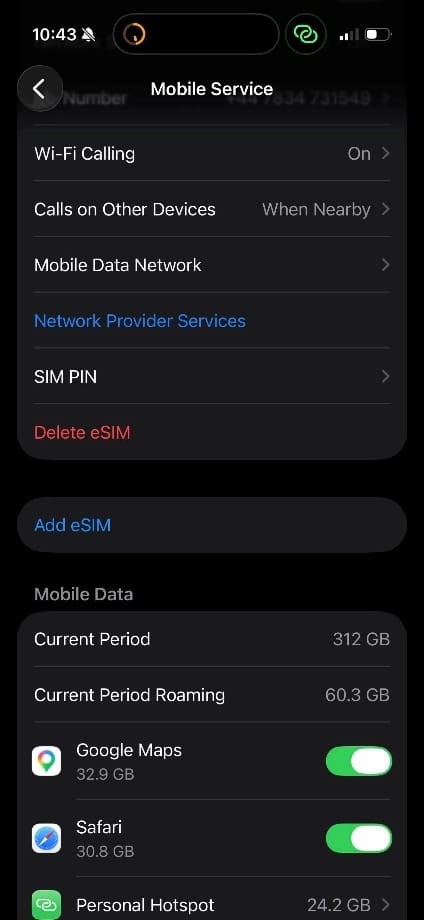
  • Some operators send a physical SIM but then set up what’s called an eSIM, rendering the physical SIM useless. You can check whether your iPhone is using an eSIM by contacting your carrier. Don’t delete an eSIM as a troubleshooting step unless your carrier recommends it. Don’t press this, but this is a clear indicator that your phone already has a virtual SIM and inserting a physical SIM will not work.

How to Troubleshoot a SIM That Won’t Work With Your iPhone 1

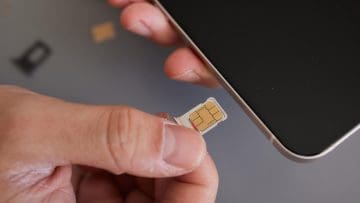
  • Make sure the SIM is inserted correctly. It should be in the SIM tray, with the angled corner of the SIM card lined up with the same shape in the tray. When you insert the SIM tray back into the iPhone, make sure you hear a click, as this ensures it’s properly inserted.

SIM Won’t Work in iPhone: Troubleshooting Steps

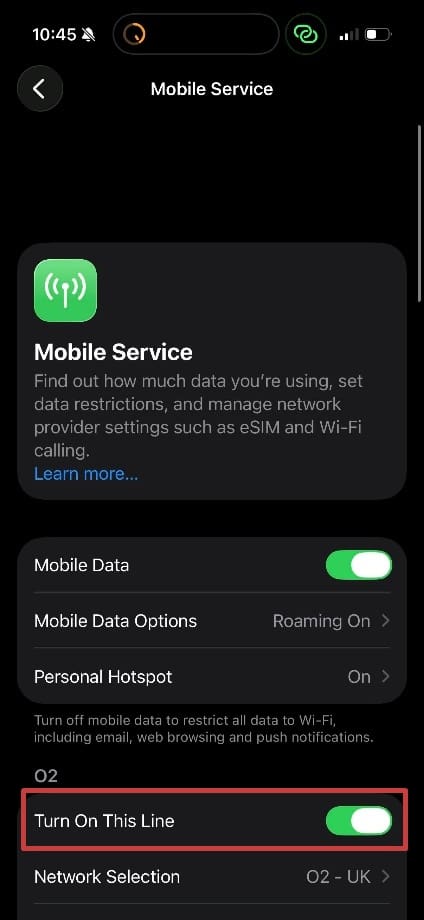
Step 1. Take the SIM out, wait for a minute, then reinsert it. If you don’t get a signal after a minute or two, try heading to Settings > Mobile Service and check that “Turn On This Line” is green. You can also try restarting your iPhone.

How to Troubleshoot a SIM That Won’t Work With Your iPhone 2

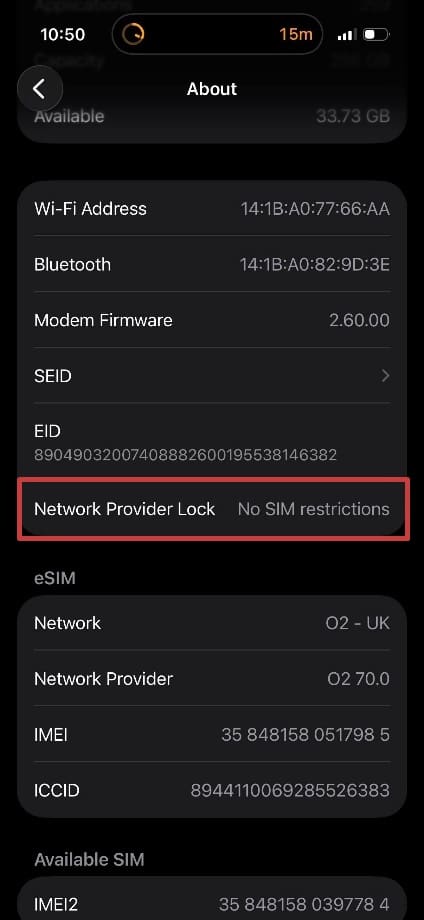
Step 2. Check if your iPhone is restricted to one particular network. Go to Settings > General > About and look for Network Provider Lock or Carrier Lock. Ideally, you want to see “No SIM restrictions” here. If there are restrictions, contact the relevant cellular provider to discuss getting your iPhone unlocked. You’ll need the IMEI of the device, found on the same settings page.

How to Troubleshoot a SIM That Won’t Work With Your iPhone 3

Step 3. Test another SIM card in your iPhone. If the other SIM works, contact your carrier to let them know that your SIM is faulty and you need a new one. But if the other SIM doesn’t work, it could indicate that there’s a physical fault with the iPhone itself. Follow the usual warranty process or contact the retailer for more advice.

Related Posts:

  • pexels-mart-production-7163066
    Apple Card Review: Let's Compare It To The Competition
  • Photo of an iPhone being taken out of its box
    How To Use Dual SIM and eSIM on Your iPhone
  • iPhone with No SIM Card Installed message
    Why does my iPhone say No SIM and what can I do to fix it?
  • 2023 Mac Studio lifestyle - 1
    macOS Could Not Be Installed, How-To Fix
  • sidecar on iPadOS and macOS
    Sidecar not working in iPadOS and macOS? How to fix…
  • iOS 16 Unsend Messages on Your On Your iPhone
    No Text or Message Notification Alerts or Sounds on…
  • Update Apple ID settings on your iPhone, iPad, or Mac after changing your password
    Getting a Message to Update Apple ID Settings on…
  • pexels-designecologist-1779487
    The Best iPhone And Mac Shortcuts For Beginners
  • iPhone 15 Pro unboxing
    How To Extend Your iPhone Battery Life
Louis Roundtree
Louis Roundtree

As an avid gamer, I’ve run into my fair share of error codes and weird faults that have forced me to find fixes to problems I never anticipated. That gave me a passion for sharing those fixes with others so we can all game without feeling like our hardware is rebelling against us.
Reader Interactions

Write a Comment Cancel reply

Primary Sidebar

Recent Posts

  • How to Troubleshoot a SIM That Won’t Work With Your iPhone
  • How to Share Safari and Edge Bookmarks Between Mac and Windows
  • What to Do if Your Apple Device Won’t Connect to Another
  • Is Siri AI Safe Privacy-Wise?
  • How to Know if Dead iPhone Is Charging or Not
  • What to Do if You Forgot Your iPhone Password

Connect with us

Footer

ABOUT

  • About Us
  • Contact us
  • Advertise
  • Privacy
  • Terms of Use

GUIDES

  • iOS & iPadOS
  • Apple ID
  • iCloud
  • App Store
  • iTunes
  • FaceTime
  • iMessage
  • Siri
  • Books and iBooks
  • Game Center
  • AirPlay

CONNECT

  • Facebook
  • Twitter
  • FeedBurner
  • YouTube

© Copyright 2010-2024 Guiding Tech Media · All Rights Reserved

This site and its content are in no way affiliated or endorsed by Apple, Inc. · Reproduction without explicit permission is prohibited

Last Updated on August 7, 2026 by Louis Roundtree