After the 2025 update to iOS 18.5, some iPhone and iPad users have reported problems with Face ID. It either won’t recognize the user’s face or doesn’t activate at all, requiring the passcode instead.
Follow these steps if you’re experiencing Face ID not working after iOS 18.5 update, or at any time when the function doesn’t work properly.
Steps to Fix Face ID Not Working After iOS 18.5 Update
Step 1. Check there are no obstructions in front of the front-facing camera. These can range from a smudge that you can wipe away to a crack in a screen protector. If you have put a new screen protector on that covers the front-facing camera, even partially, this could be the problem. Ideally, iPhone screen protectors should make sure nothing is covering the TrueDepth camera lens, including dirt, a case, or a screen protector. If you recently applied a screen protector, make sure it is compatible with Face ID.
Step 2. Restart your iPhone or iPad. The exact process will depend on the model of your device. On newer iPhones and iPads, press and hold the side button and either of the volume buttons until the power-off slider appears. On other models, the procedure varies. For devices with a home button, simply hold the power button until you see the slider.
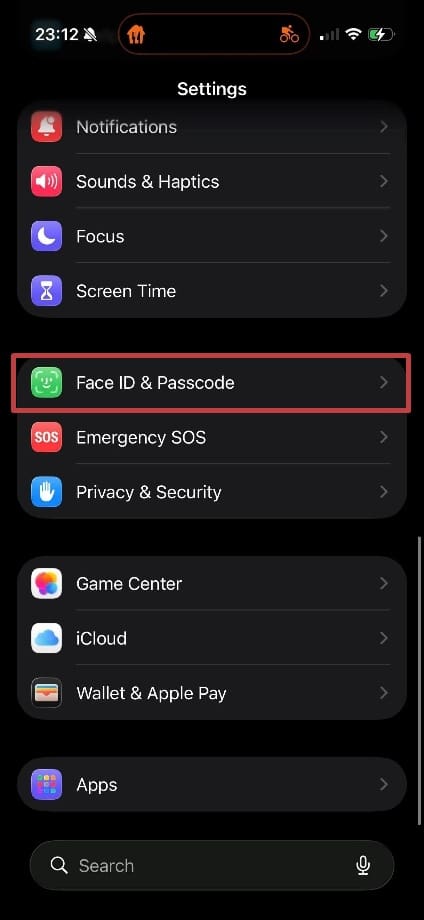
Step 3. Reset your Face ID settings. If Face ID still isn’t working, you can reset your Face ID configuration and set it up again. Head to Settings > Face ID & Passcode:
You’ll be prompted to enter your passcode.
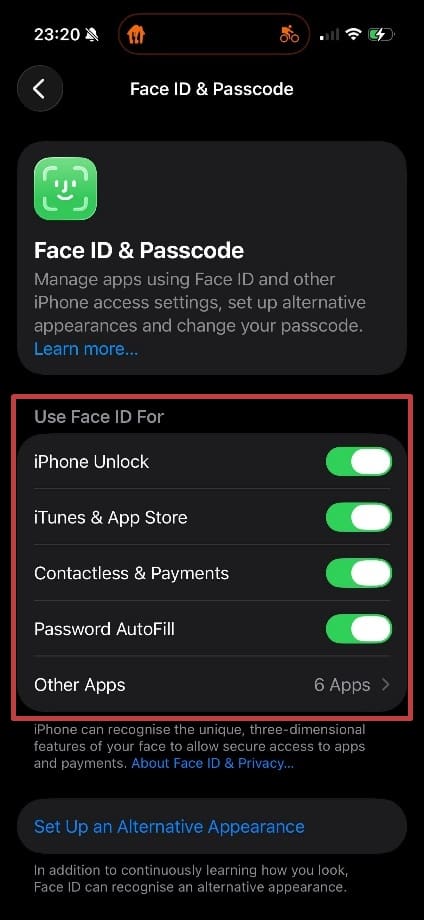
Once you’ve done this, you’ll see the Face ID settings page. Check that the Face ID options you want are “On,” such as iPhone Unlock and Password Autofill. You can also click on Other Apps to see what else is currently using Face ID.
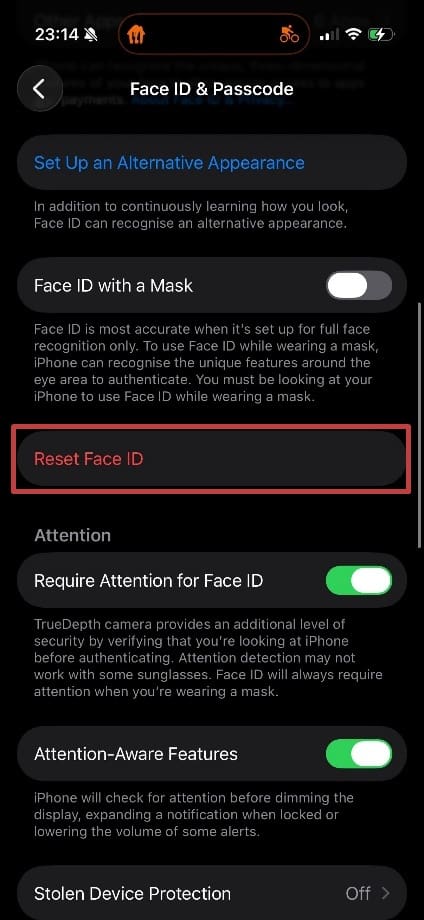
Scroll down and look for Reset Face ID. Tap here and follow the onscreen prompts. Once complete, you should find that your Face ID works as expected.
Other things to check:
Are you wearing a mask or other facial covering while using your iPhone or iPad? Check whether your device supports Face ID with Mask and whether the feature is enabled. Even a partial covering can stop Face ID from working.
Things that change your face, such as glasses (including sunglasses), facial hair, a new hairdo, or extreme makeup, can also confuse your iOS device.
Check if there’s another software update that needs to be downloaded and installed. Sometimes, an update can be launched with a bug that affects one or more features. To see if a patch (a newer update) has been added, go to Settings > General > Software update and, if you see a newer update, click Install. This may take several minutes, and your phone won’t be usable. It’s also a good idea to make sure your phone is fully charged during this time. If an iOS device dies during a software update, it can cause corruption, which could impact multiple features.
If you perform all these checks and Face ID still isn’t working, it may indicate that your front-facing camera is faulty. Contact Apple or the retailer you bought your device from.
As an avid gamer, I’ve run into my fair share of error codes and weird faults that have forced me to find fixes to problems I never anticipated. That gave me a passion for sharing those fixes with others so we can all game without feeling like our hardware is rebelling against us.













Write a Comment