• Skip to primary navigation
  • Skip to main content
  • Skip to primary sidebar
  • Skip to footer

AppleToolBox

Tools and Fixes for Mac, iPad, iPhone & iWatch

Search posts

  • About
  • Contact

CONNECT WITH US

CATEGORIES

  • iPhone
  • iPad
  • iPod
  • Apple Watch
  • Mac/MacBook
  • AirPods
  • Apple TV
  • News
  • Apple Services
  • HomePod
  • Reviews

SITE

  • Home
  • About Us
  • Contact
  • Advertise

Search posts

You are here: Home / iPhone / How to Transfer iPhone Passwords to an Android Device

How to Transfer iPhone Passwords to an Android Device

By Louis Roundtree 0 comments Last updated February 28, 2025

Things to Know
  • iPhone passwords can’t be transferred directly to Android.
  • You can copy and transfer passwords one by one via iPhone settings.
  • A Mac lets you export all passwords as a CSV for easy import.

Transferring your passwords between two iPhone devices is as simple as it gets. Apple’s password management system iCloud Keychain is all you need. However, this system isn’t available on Android devices. This makes a password transfer from an iPhone to an Android more challenging. Challenging, but not impossible. Here’s how to transfer iPhone passwords to Android devices.

How to Transfer iPhone Passwords to Android Using an iPhone

Currently, you can’t transfer all your iPhone passwords directly to an Android device using your iPhone. You can only transfer them one by one.

This method will work for you if you don’t have too many passwords. It’s also more practical and faster than using an entirely different device.

Step 1: Launch the “Settings” app.

How to Transfer iPhone Passwords to an Android Device 1

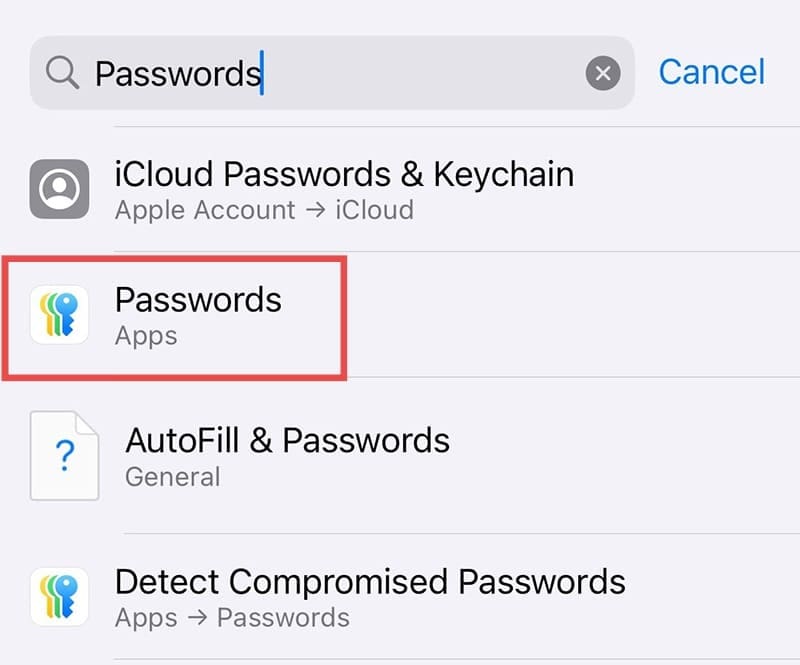
Step 2: Type “Passwords” in the search bar at the top and tap the button of the same name when it appears.

How to Transfer iPhone Passwords to an Android Device 2

Step 3: Scroll all the way down to “Open Passwords.”

How to Transfer iPhone Passwords to an Android Device 3

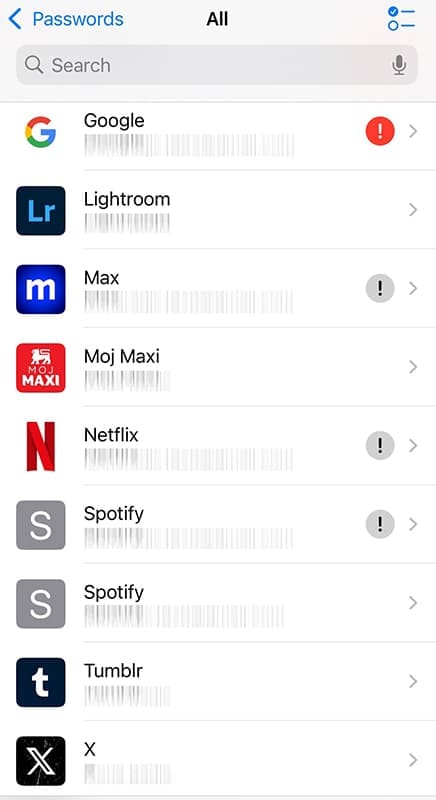
Step 4: Find the one you want to share in the list of passwords.

How to Transfer iPhone Passwords to an Android Device 4

Step 5: Tap and hold the website in question and select “Copy Password.”

How to Transfer iPhone Passwords to an Android Device 5

Once you copy your iPhone password, you can transfer it to the Android device in several ways. Emailing it might be the quickest. But remember – your passwords will be completely exposed. So, if you own both the iPhone and the Android, it might be best to transfer the passwords manually.

How to Transfer iPhone Passwords to Android Using a Mac

The only way to transfer all your iPhone passwords to an Android device is by using a Mac computer. If you have a Mac, follow these steps:

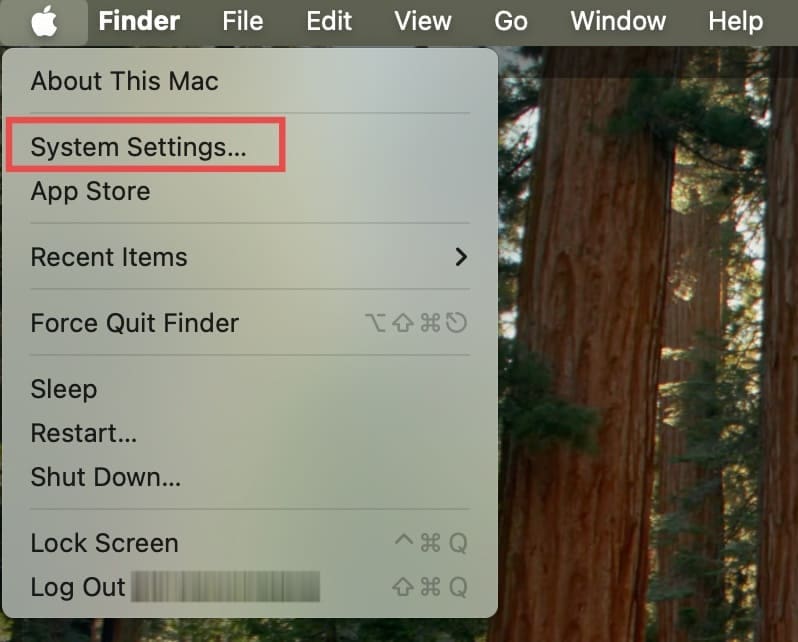
Step 1: Click on the Apple logo in the upper-left corner of your screen.

Step 2: Select “System Settings.” For this transfer to work, your Mac must be logged into the same iCloud account as your iPhone.

How to Transfer iPhone Passwords to an Android Device 6

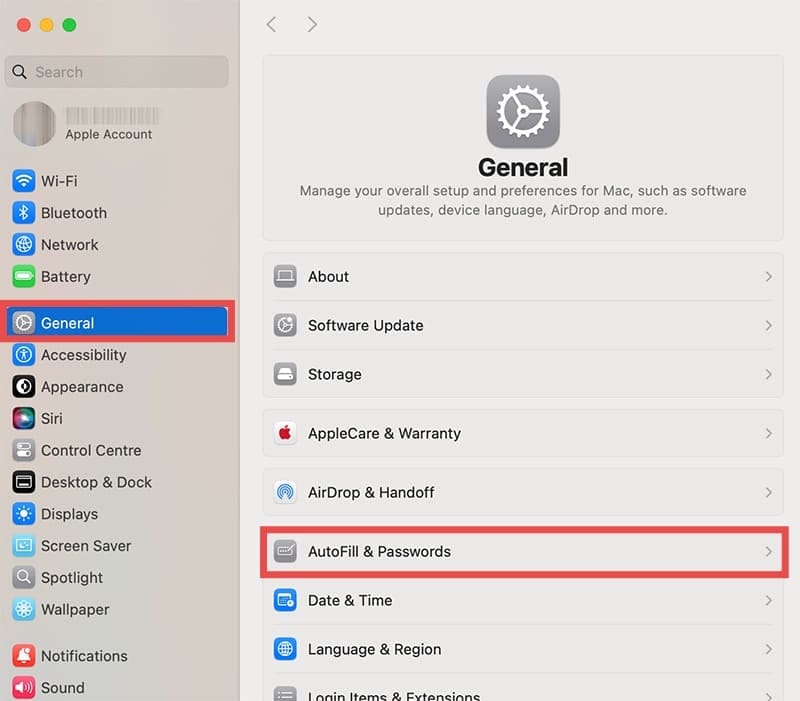
Step 3: Go to the “General” tab on the left pane and then click on “AutoFill & Passwords.”

How to Transfer iPhone Passwords to an Android Device 7

Step 4: Under “All of Your Passwords in One Place,” click on “Open Passwords.”

How to Transfer iPhone Passwords to an Android Device 7

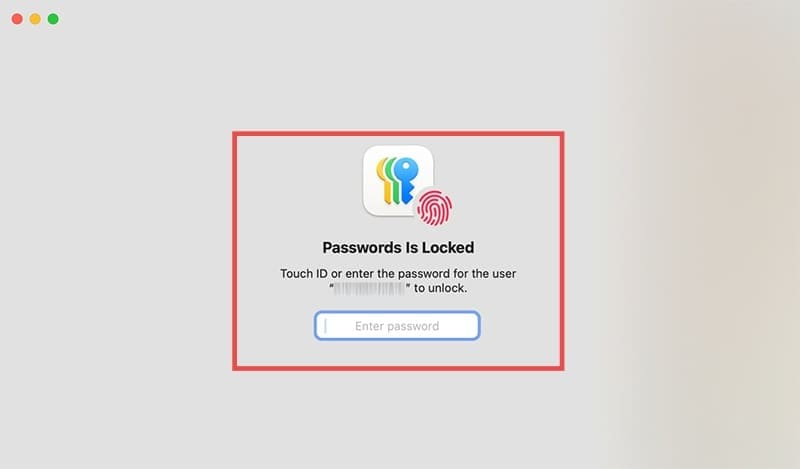
Step 5: When prompted, enter your Mac login password.

How to Transfer iPhone Passwords to an Android Device 9

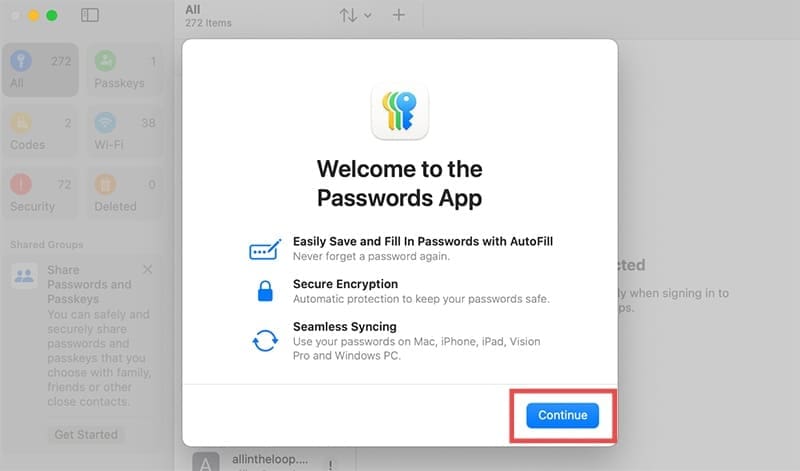
Step 6: Click “Continue.”

How to Transfer iPhone Passwords to an Android Device 10

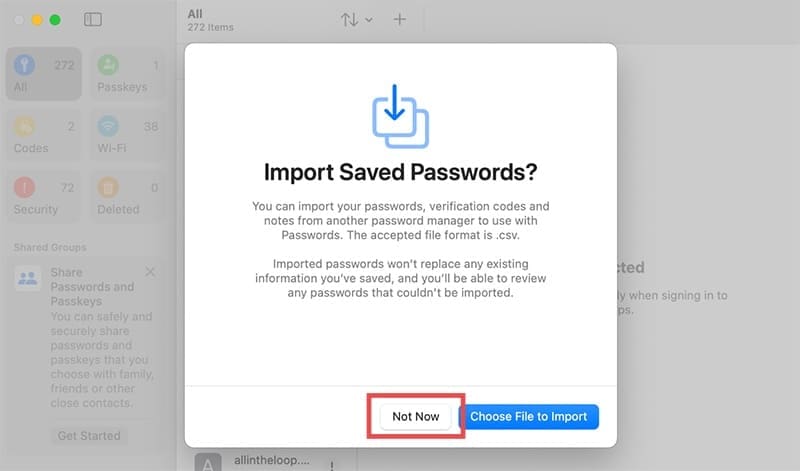
Step 7: You will be now prompted to import saved passwords. Just click “Not Now.”

How to Transfer iPhone Passwords to an Android Device 11

Step 8: If you are prompted to install Chrome extension, click on “Not Now” and then “Continue.”

How to Transfer iPhone Passwords to an Android Device 12

Step 9: Select passwords you want to export, then click on “File” and “Export Selected Passwords…”

How to Transfer iPhone Passwords to an Android Device 13

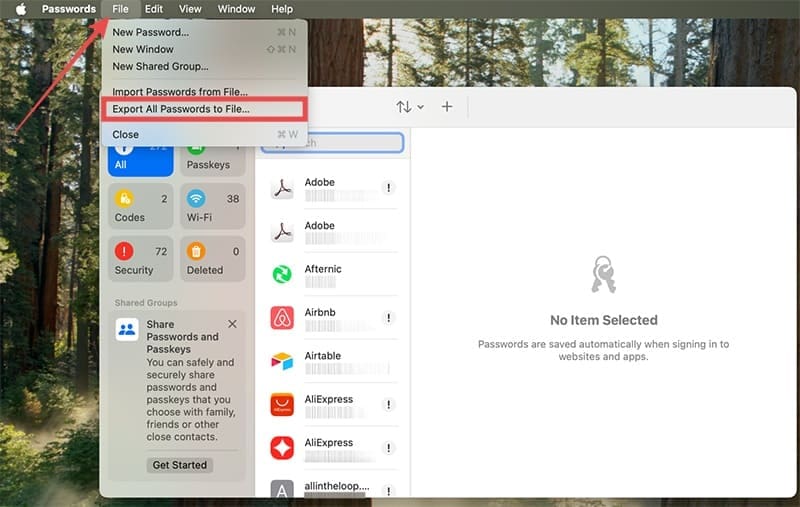
Step 10: If you want to export all passwords, choose the “Export All Passwords to File” option.

How to Transfer iPhone Passwords to an Android Device 14

Step 11: Save the CSV file with all the passwords to your computer.

How to Transfer iPhone Passwords to an Android Device 15

The CSV file is essentially a text file that any Google account or password manager can read. Here’s how to get this file to them.

Step 1: Launch the Google Account page on your Mac.

How to Transfer iPhone Passwords to an Android Device 16

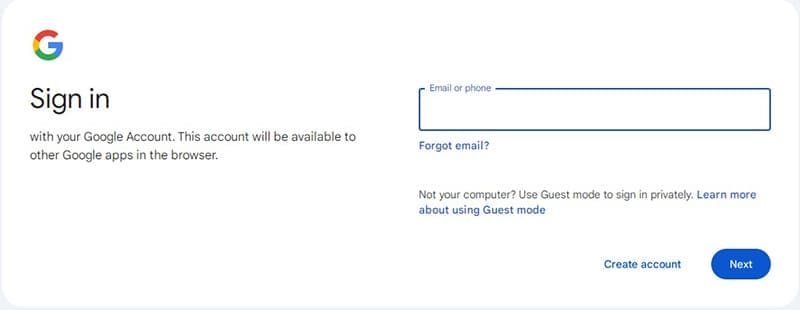
Step 2: Sign in to the Google account the Android device uses.

How to Transfer iPhone Passwords to an Android Device 17

Step 3: Click on the “Security” tab on the right pane.

Step 4: Scroll down to the Password Manager section.

Step 5: Go to “Manage passwords.”

How to Transfer iPhone Passwords to an Android Device 18

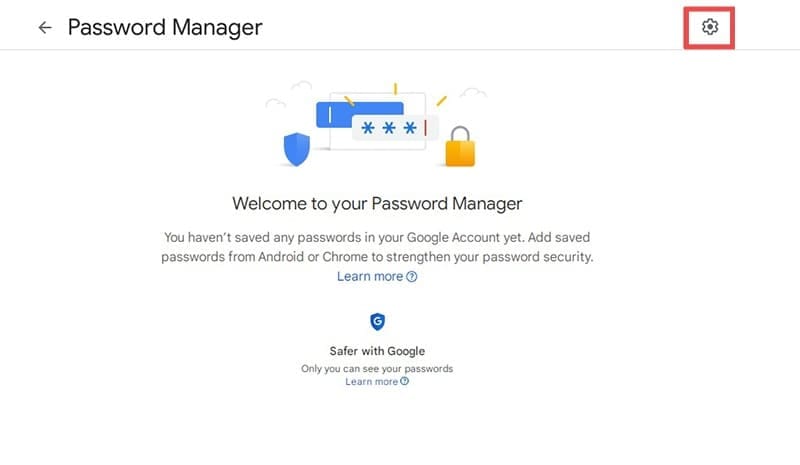
Step 6: Click on the gear icon in the top-right corner.

How to Transfer iPhone Passwords to an Android Device 19

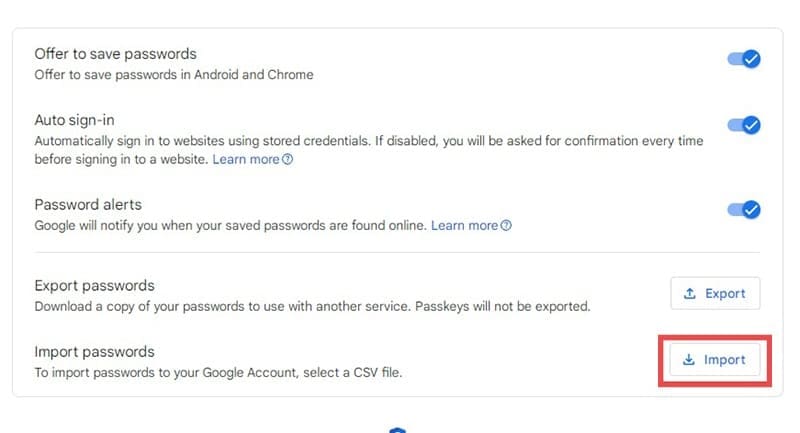
Step 7: Press the “Import” button next to “Import passwords.”

How to Transfer iPhone Passwords to an Android Device 20

Step 8: Click on “Select file” and upload the CSV file with your iPhone passwords.

How to Transfer iPhone Passwords to an Android Device 21

And that’s it. Your Android device can now access all your iPhone passwords.

Related Posts:

  • How To Add Notes to iCloud Keychain Passwords
    How To Manage Your Passwords with Keychain
  • Apple Unleashed Hero
    Error Occurred During Activation for iMessage or…
  • Update Apple ID settings on your iPhone, iPad, or Mac after changing your password
    Getting a Message to Update Apple ID Settings on…
  • pexels-tranmautritam-696899
    iPhone Tips for New Users In 2023
  • photo of an iphone with ios 16 downloaded on it
    iOS 16 Tips and Tricks: The Definitive List
  • pexels-tranmautritam-326508
    The Best Apple Ecosystem Features
  • iPhone 15 Pro unboxing
    How To Extend Your iPhone Battery Life
  • sidecar on iPadOS and macOS
    Sidecar not working in iPadOS and macOS? How to fix…
  • 2022 Mac Mini with Studio Display and Accessories
    Mac Tips For New Users In 2023
Louis Roundtree
Louis Roundtree

As an avid gamer, I’ve run into my fair share of error codes and weird faults that have forced me to find fixes to problems I never anticipated. That gave me a passion for sharing those fixes with others so we can all game without feeling like our hardware is rebelling against us.

Reader Interactions

Write a Comment Cancel reply

Primary Sidebar

Recent Posts

  • Are Apple’s Safety Precautions Enough for AirTags?
  • How to Hide Username and Photo on the Mac Lock Screen
  • Microsoft Resume vs. Apple Handoff – Which Wins for Cross-Device Work?
  • How to Export iTunes Library to New Computer
  • What the Gemini Desktop App Will Bring to Mac
  • What to Do When Windows 11 Won’t Detect Your iPad

Connect with us

Footer

ABOUT

  • About Us
  • Contact us
  • Advertise
  • Privacy
  • Terms of Use

GUIDES

  • iOS & iPadOS
  • Apple ID
  • iCloud
  • App Store
  • iTunes
  • FaceTime
  • iMessage
  • Siri
  • Books and iBooks
  • Game Center
  • AirPlay

CONNECT

  • Facebook
  • Twitter
  • FeedBurner
  • YouTube

© Copyright 2010-2024 Guiding Tech Media · All Rights Reserved

This site and its content are in no way affiliated or endorsed by Apple, Inc. · Reproduction without explicit permission is prohibited

Last Updated on February 28, 2025 by Louis Roundtree