• Skip to primary navigation
  • Skip to main content
  • Skip to primary sidebar
  • Skip to footer

AppleToolBox

Tools and Fixes for Mac, iPad, iPhone & iWatch

Search posts

  • About
  • Contact

CONNECT WITH US

CATEGORIES

  • iPhone
  • iPad
  • iPod
  • Apple Watch
  • Mac/MacBook
  • AirPods
  • Apple TV
  • News
  • Apple Services
  • HomePod
  • Reviews

SITE

  • Home
  • About Us
  • Contact
  • Advertise

Search posts

You are here: Home / Apple Services / How to Get Native Multi-Touch Gestures on Windows 11 Using Apple’s Magic Trackpad

How to Get Native Multi-Touch Gestures on Windows 11 Using Apple’s Magic Trackpad

By Louis Roundtree 0 comments Last updated August 26, 2026

Things to Know
  • The Apple Magic Trackpad allows Mac users to scroll and use gestures with a larger, dynamically sensitive pad.
  • The Trackpad will connect to Windows machines via Bluetooth, but won’t support gestures without additional support.
  • You can download third-party drivers and utilities that transform the Apple Magic Trackpad on Windows into a gesture-based device.

Many Mac users love the Apple Magic Trackpad as it gives them a much larger surface to use than a mouse or standard trackpad, which responds to gestures and dynamic pressure. Gestures include the single-finger click, the two-finger click that mimics a standard right-click on a mouse button, and using two fingers to scroll through text. Other gestures can be used for navigation and switching between virtual desktops.

If you think those gestures would be useful to use on your Windows PC, you’re not alone. But just connecting the Trackpad doesn’t provide this functionality. Read on to learn what you can do with an Apple Magic Trackpad on Windows computers, and how to get it working.

Why Use an Apple Magic Trackpad With Windows?

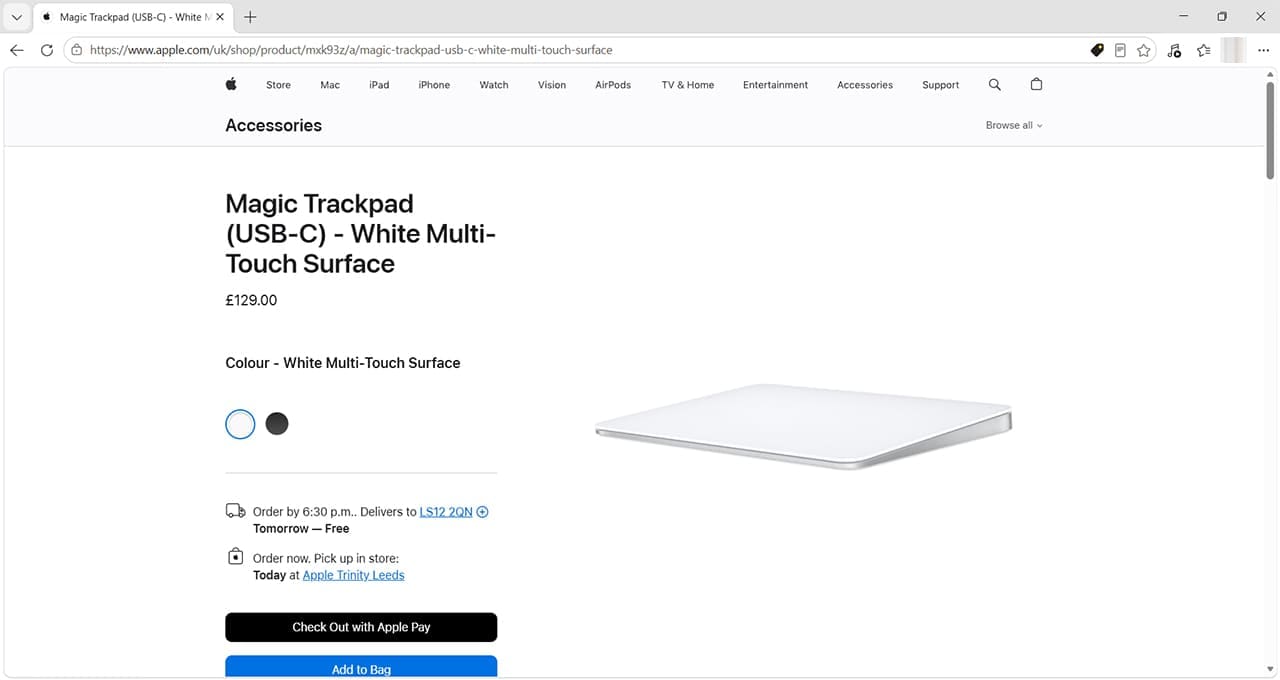
The Apple Magic Trackpad is only available directly from Apple, Apple retailers, or second-hand.

How to Get Native Multi-Touch Gestures on Windows 11 Using Apple’s Magic Trackpad 1

You might want to use the Apple Magic Trackpad for Windows because it helps you use gestures to:

  • Quickly swap between applications or virtual desktops.
  • Scroll and zoom on web pages or e-books with ease using supported gestures and controls.
  • Use primary and secondary clicks without moving your hand.

Windows users also love the fact that the battery lasts for about a month, and the device itself is tough and reliable.

How to Make Apple Magic Trackpad for Windows Gesture Compatible

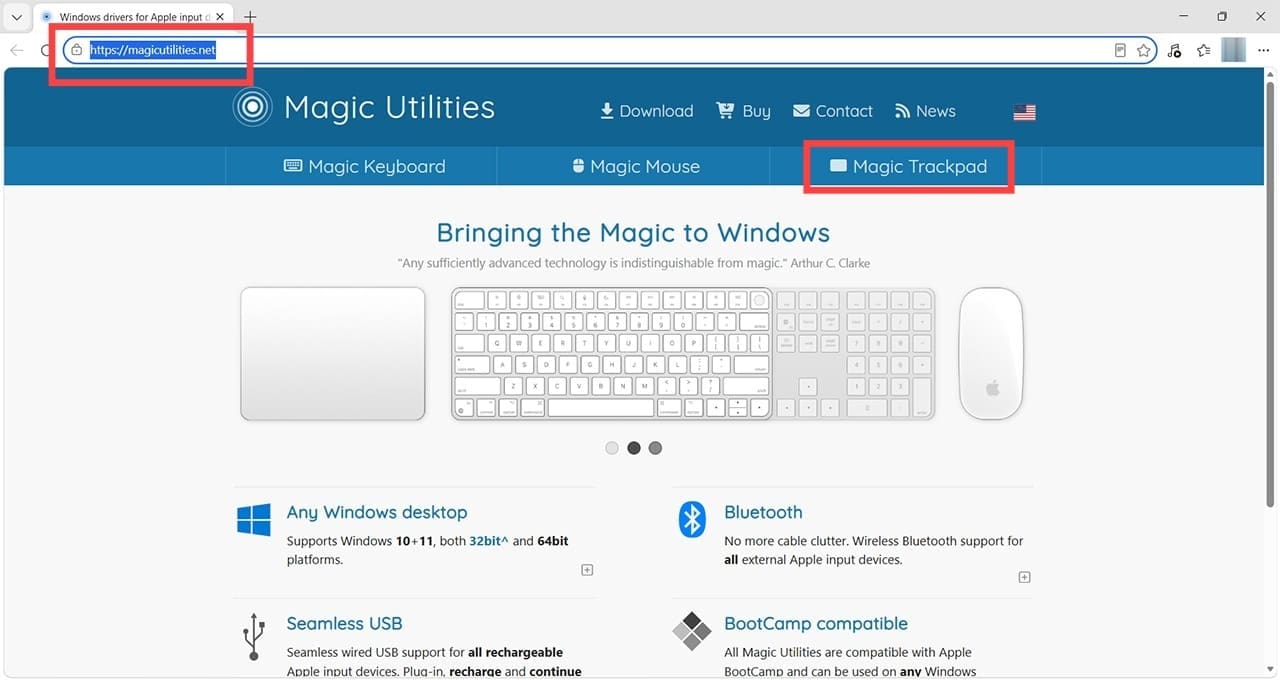
Step 1. You need to find a third-party driver that adds gesture support to Windows. One service recommended by some Windows users is Magic Utilities. To download the relevant drivers, start by heading to https://magicutilities.net/.

How to Get Native Multi-Touch Gestures on Windows 11 Using Apple’s Magic Trackpad 2

Step 2. Click on the Magic Trackpad tab, which will immediately show you the gestures this utility supports.

How to Get Native Multi-Touch Gestures on Windows 11 Using Apple’s Magic Trackpad 3

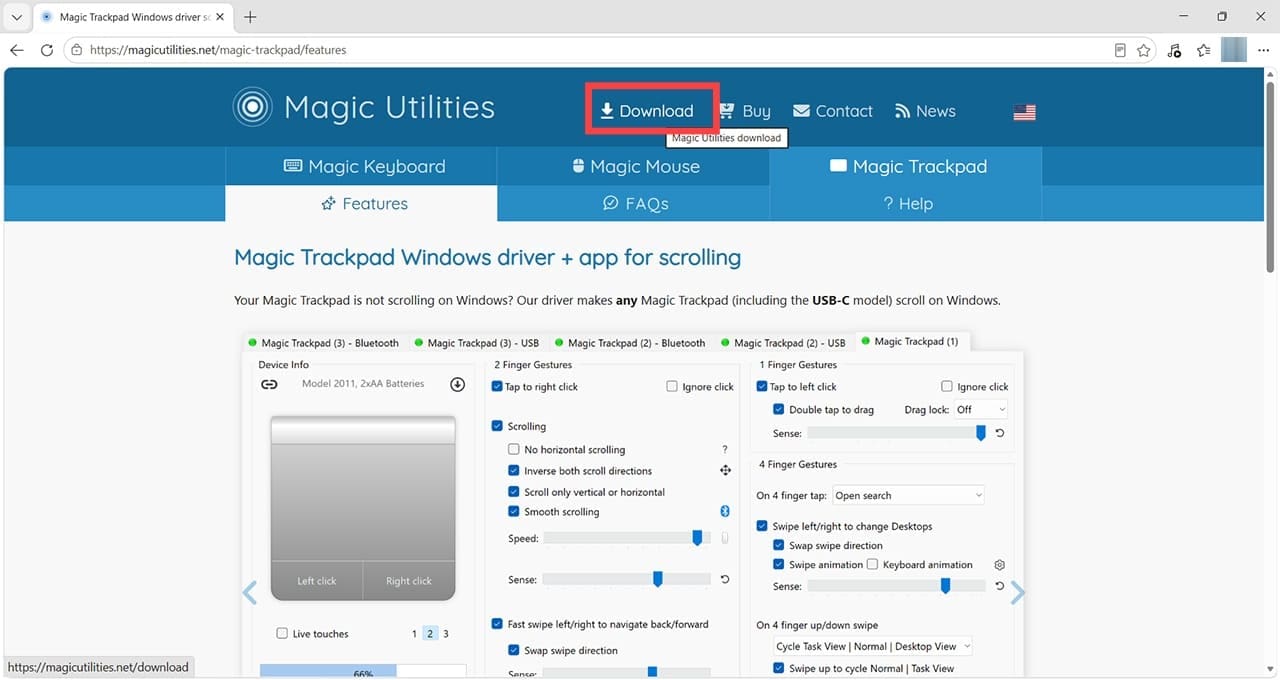
Step 3. Click the Download button at the top of the screen.

How to Get Native Multi-Touch Gestures on Windows 11 Using Apple’s Magic Trackpad 4

Step 4. Click on the Magic Utilities Setup link to start your download. Note: This is a free 28-day trial period, after which you will need to purchase a license to keep using the supported features. Other third-party options may be available.

How to Get Native Multi-Touch Gestures on Windows 11 Using Apple’s Magic Trackpad 5

If you decide to purchase the utility, you can click the “Buy” button on the website to view prices, which are based on your local region and currency. Magic Utilities offers one- and two-year licenses, with discounts available for longer licenses and multiple devices. You make the purchase in the utility itself, after you’ve downloaded the free trial version.

How to Get Native Multi-Touch Gestures on Windows 11 Using Apple’s Magic Trackpad 6

Step 5. Once you’ve downloaded the free trial, you’ll be prompted to work through a setup wizard.

How to Get Native Multi-Touch Gestures on Windows 11 Using Apple’s Magic Trackpad 7

Follow the on-screen prompts to accept the license agreement and choose which utilities you want. Make sure the Magic Trackpad Utilities box is ticked.

How to Get Native Multi-Touch Gestures on Windows 11 Using Apple’s Magic Trackpad 8

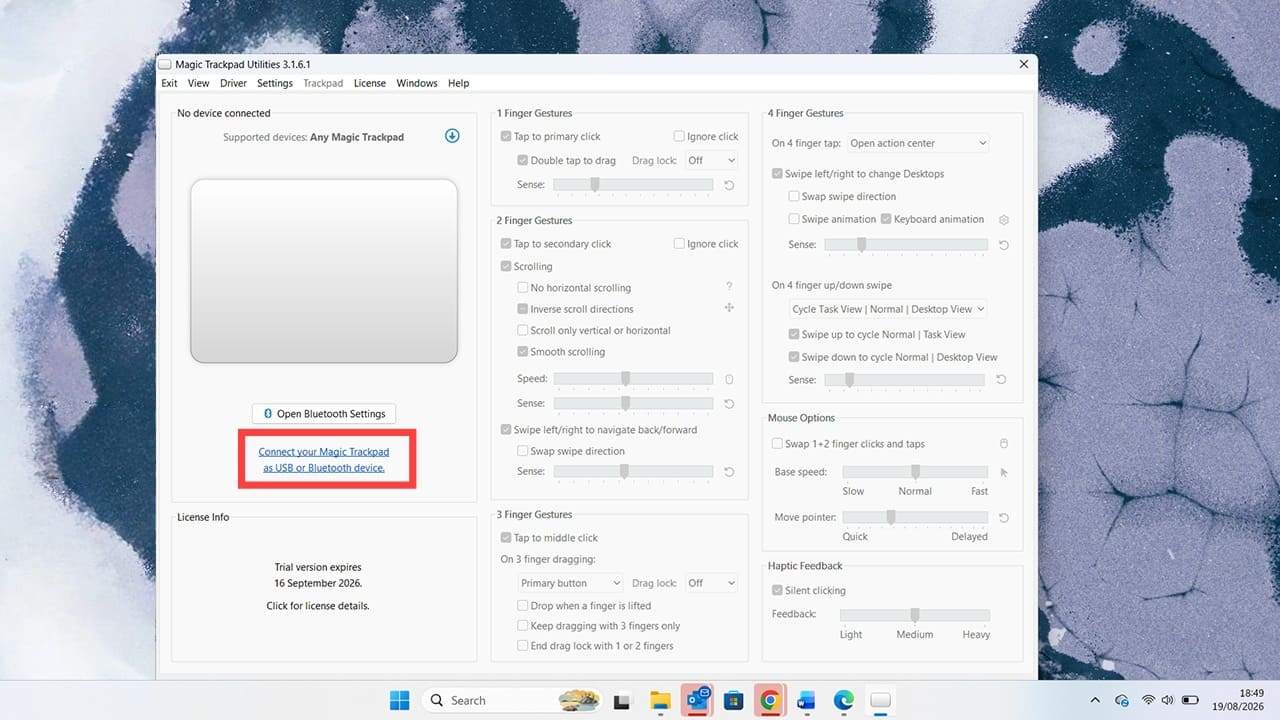
Step 6. Once the installation is complete, run the utility, and you’ll see an interface where you can adjust the gestures supported for your trackpad. To get started from here, simply click on “Connect your Magic Trackpad as USB or Bluetooth device,” and once connected, the gestures you’ve chosen in the interface will work.

How to Get Native Multi-Touch Gestures on Windows 11 Using Apple’s Magic Trackpad 9

Related Posts:

  • 2022 Mac Mini with Studio Display and Accessories
    Mac Tips For New Users In 2023
  • iPhone 15 event - iPhone 15 Pro and iPhone 15 Pro Max A17 Pro Video Recording Promo
    iPhone 14 vs. iPhone 15: Should You Upgrade?
  • How to Install Windows 11 on Mac
    How to Install Windows 11 on Mac
  • sidecar on iPadOS and macOS
    Sidecar not working in iPadOS and macOS? How to fix…
  • pexels-tima-miroshnichenko-6860464
    How To Start Using Regex With The Shortcuts App
  • pexels-cottonbro-4709285
    How To Learn Swift On Mac And iPad
  • how to connect apple magic mouse on windows
    How to Connect Apple Magic Mouse on Windows 10 and 11
  • 2022 Mac Mini Lifestyle
    Best Accessories for M2 Mac Mini
  • Screen Shot 2021-07-12 at 4.52.12 AM
    AirPods Max Review: How They Look Six Months Later
Louis Roundtree
Louis Roundtree

As an avid gamer, I’ve run into my fair share of error codes and weird faults that have forced me to find fixes to problems I never anticipated. That gave me a passion for sharing those fixes with others so we can all game without feeling like our hardware is rebelling against us.

Reader Interactions

Write a Comment Cancel reply

Primary Sidebar

Recent Posts

  • How to Get Native Multi-Touch Gestures on Windows 11 Using Apple’s Magic Trackpad
  • LocalSend Guide: The Best Open-Source AirDrop Alternative for iPhone and Windows
  • How to Create iPhone Shortcuts Using Apple Intelligence Prompts
  • How to Sync Apple Passkeys & iCloud Keychain With Windows 11
  • How to Use iPhone Call Screening in iOS 26
  • Face ID Not Working After 18.5 Update? Here’s What to Do

Connect with us

Footer

ABOUT

  • About Us
  • Contact us
  • Advertise
  • Privacy
  • Terms of Use

GUIDES

  • iOS & iPadOS
  • Apple ID
  • iCloud
  • App Store
  • iTunes
  • FaceTime
  • iMessage
  • Siri
  • Books and iBooks
  • Game Center
  • AirPlay

CONNECT

  • Facebook
  • Twitter
  • FeedBurner
  • YouTube

© Copyright 2010-2024 Guiding Tech Media · All Rights Reserved

This site and its content are in no way affiliated or endorsed by Apple, Inc. · Reproduction without explicit permission is prohibited

Last Updated on August 27, 2026 by Louis Roundtree