• Skip to primary navigation
  • Skip to main content
  • Skip to primary sidebar
  • Skip to footer

AppleToolBox

Tools and Fixes for Mac, iPad, iPhone & iWatch

Search posts

  • About
  • Contact

CONNECT WITH US

CATEGORIES

  • iPhone
  • iPad
  • iPod
  • Apple Watch
  • Mac/MacBook
  • AirPods
  • Apple TV
  • News
  • Apple Services
  • HomePod
  • Reviews

SITE

  • Home
  • About Us
  • Contact
  • Advertise

Search posts

You are here: Home / iPhone / How to Create iPhone Shortcuts Using Apple Intelligence Prompts

How to Create iPhone Shortcuts Using Apple Intelligence Prompts

By Louis Roundtree 0 comments Last updated August 19, 2026

Things to Know
  • Apple Intelligence might not be available for all iPhone models, but it does provide a range of AI-powered features to those that have it.
  • Creating shortcuts is one such feature and can be done on-device, through Cloud Compute, or externally through an AI extension.
  • Using the Shortcuts app, you can use Apple Intelligence prompts for shortcuts.
  • You can also use the Follow Up feature to further refine or edit the shortcut.

Apple Intelligence is now available on compatible iPhones around the world, and while every device won’t be able to handle the demanding system requirements needed to run this powerful AI tool, those that can have a wealth of handy features available to them.

In this article, we’ll be looking at one such example: the ability to create iPhone shortcuts using Apple Intelligence Prompts and make your life easier.

Contents

  • The Many Ways to Make a Shortcut
  • Create iPhone Shortcuts Using Apple Intelligence Prompts
  • Refining Your Generated Shortcut

The Many Ways to Make a Shortcut

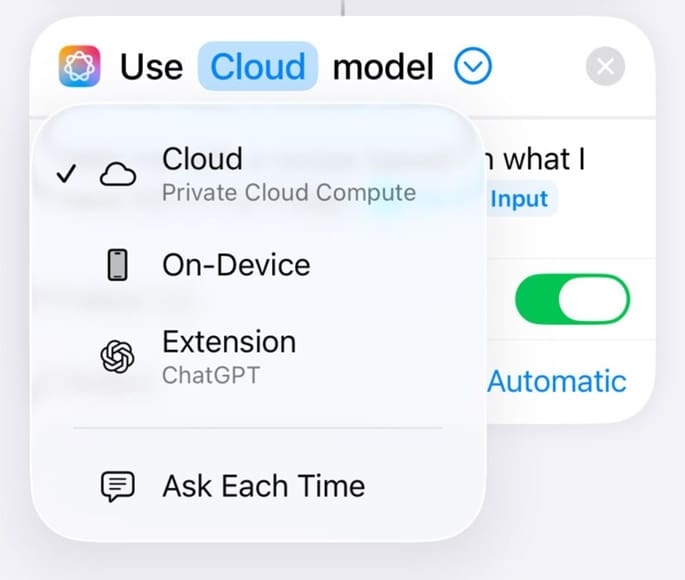
Apple Intelligence can process requests on-device or through Apple’s Private Cloud Compute, while Shortcuts also supports an external Extension Model:

  • The first level uses the Apple device to process the request. Information stays on your iPhone or iPad.
  • The second level will send your data to Apple’s Private Cloud Compute, a secure server, unreadable even to Apple.
  • Shortcuts can also use Apple Intelligence models on the device, through Private Cloud Compute, or an external AI extension.

In much the same way, shortcuts can use three model options: On-Device, Private Cloud Compute, or an Extension Model such as ChatGPT.

Create iPhone Shortcuts Using Apple Intelligence Prompts

Creating a shortcut is made much easier with Apple Intelligence cutting out all the busywork. Here’s how to create Apple shortcuts:

Step 1. Open the Shortcuts app.

How to Create iPhone Shortcuts Using Apple Intelligence Prompts 1

Step 2. Tap the “Create Shortcut” button in the center of your screen.

Step 3. Find the action that you want your shortcut to perform and tap it to add it to your shortcut. You may also be required to grant Shortcuts Location Access, based on your shortcut.

Step 4. Find the “Use Model” action and choose which model you want to use: On-Device, Private Cloud Compute, or an Extension Model.

How to Create iPhone Shortcuts Using Apple Intelligence Prompts 2

Step 5. An input will then appear. You can either type or speak your prompt.

Step 6. Run the shortcut and wait for the model to process your request. The response can then be passed to the next action in your shortcut.

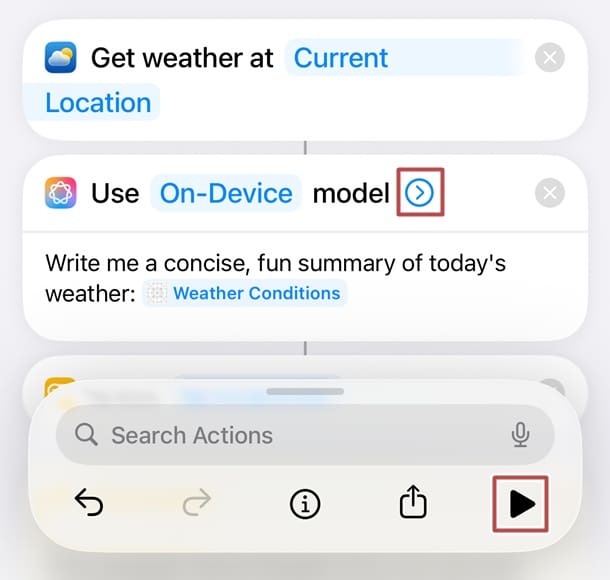
Step 7. Hit the Play button to test your new shortcut.

Refining Your Generated Shortcut

As with many AI prompts, sometimes a few more passes are required before you achieve your desired results. Thankfully, Apple Intelligence makes this easy to do too:

Step 1. Tap the arrow next to “Use Model” and then the “Follow Up” checkbox.

How to Create iPhone Shortcuts Using Apple Intelligence Prompts 3

Step 2. You can then search for another action to add to the list if something is missing or not quite right.

Step 3. You can also ask Apple Intelligence for another pass by providing more information through another prompt.

Step 4. Once done, press the “Play” button to test the revised shortcut and repeat the process if necessary.

Related Posts:

  • pexels-designecologist-1779487
    The Best iPhone And Mac Shortcuts For Beginners
  • iPhone 15 Pro Max - 1
    10 Handy Apple Shortcuts You Can Use Every Day
  • Photo of person sleeping after saving so much time with the best Automator routines for Mac
    The Best iPhone Shortcuts (2021 Edition)
  • iPhone 15 Pro Max - 4
    Best iPhone Lock Screen Widgets for iOS 17
  • IMG_2654
    How To Start Using The iPhone Shortcuts App
  • MacBook Pro 2021 iPad Mini iPhone 13 Pro AirPods 3 Beats Fit Pro iPad Pro Best Apple Products - 2
    The Best Apps and Games Of 2022, According to Apple
  • 14 Best Mac Cloud Storage for Home, Work, and School in 2023
    14 Best Mac Cloud Storage for Home, Work, and School in 2023
  • iPhone 15 Pro unboxing
    How To Extend Your iPhone Battery Life
  • How to use ChatGPT on iPhone and iPad - Hero
    How to Use ChatGPT on iPhone and iPad
Louis Roundtree
Louis Roundtree

As an avid gamer, I’ve run into my fair share of error codes and weird faults that have forced me to find fixes to problems I never anticipated. That gave me a passion for sharing those fixes with others so we can all game without feeling like our hardware is rebelling against us.


Reader Interactions

Write a Comment Cancel reply

Primary Sidebar

Recent Posts

  • How to Create iPhone Shortcuts Using Apple Intelligence Prompts
  • How to Sync Apple Passkeys & iCloud Keychain With Windows 11
  • How to Use iPhone Call Screening in iOS 26
  • Face ID Not Working After 18.5 Update? Here’s What to Do
  • How to Troubleshoot a SIM That Won’t Work With Your iPhone
  • How to Share Safari and Edge Bookmarks Between Mac and Windows

Connect with us

Footer

ABOUT

  • About Us
  • Contact us
  • Advertise
  • Privacy
  • Terms of Use

GUIDES

  • iOS & iPadOS
  • Apple ID
  • iCloud
  • App Store
  • iTunes
  • FaceTime
  • iMessage
  • Siri
  • Books and iBooks
  • Game Center
  • AirPlay

CONNECT

  • Facebook
  • Twitter
  • FeedBurner
  • YouTube

© Copyright 2010-2024 Guiding Tech Media · All Rights Reserved

This site and its content are in no way affiliated or endorsed by Apple, Inc. · Reproduction without explicit permission is prohibited

Last Updated on August 20, 2026 by Louis Roundtree