Bookmarks are an essential aspect of internet browsing. You can save your favorite sites and even sort them into categories, so you can get back to them with just a couple of clicks. The only issue is, if you’re saving all your bookmarks on Safari on your Mac, how do you then get these onto the Edge browser on your Windows PC?
Thankfully, most modern browsers allow you to import bookmarks from just about any account or device. Follow these steps to learn how to share Safari and Edge bookmarks between Mac and Windows, to make browsing even more intuitive.
Sync Edge and Safari Bookmarks: Safari to Edge Process
Step 1. If you have most of your favorite bookmarks on Safari, start on your Mac. Open Safari, and click File.
Step 2. Click “Export Bookmarks.”
Step 3. Choose a location to save the exported file. If you don’t change the name, the default file name should be Safari Bookmarks.html. Either save this file in cloud storage that you can access from your Windows PC, or email it to yourself on an account you can access from your Windows computer.
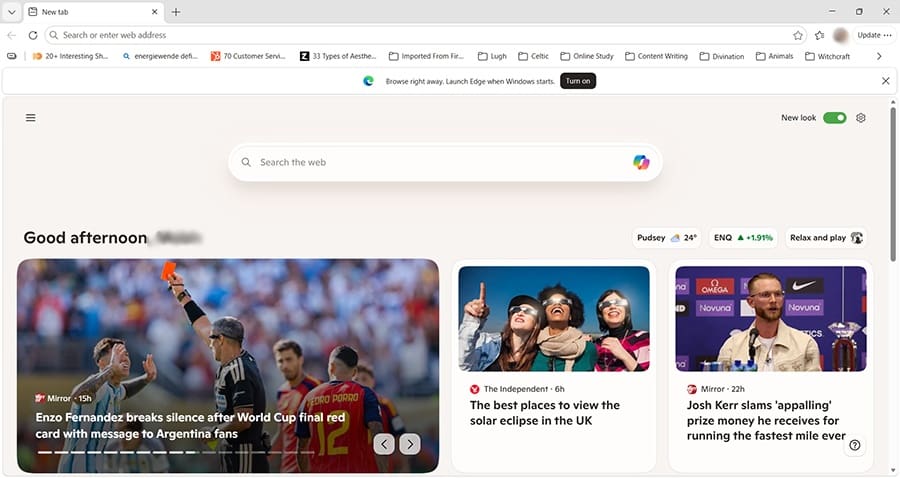
Step 4. On your Windows PC, open the Edge browser.
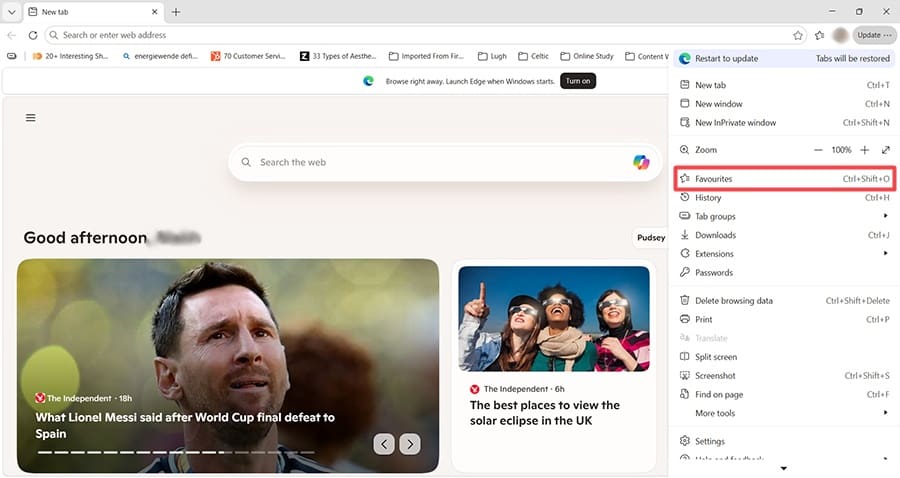
Step 5. Click the three dots (menu button) in the top right corner, and look for “Favorites.” This is Microsoft’s term for “Bookmarks.”
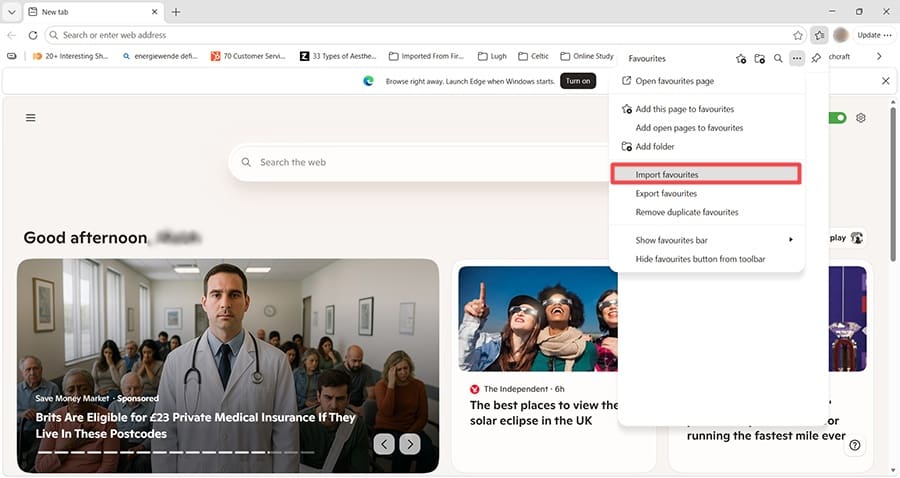
Step 6. Click “Favorites,” then the menu button, then “Import Favorites.”
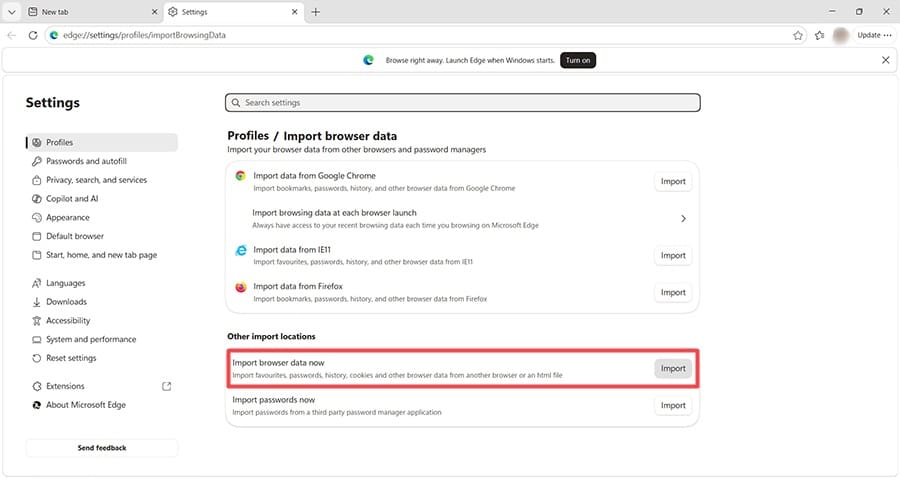
Step 7. In the new window/tab that opens, look under “Other import locations.” Choose the option for “Import browser data now.”
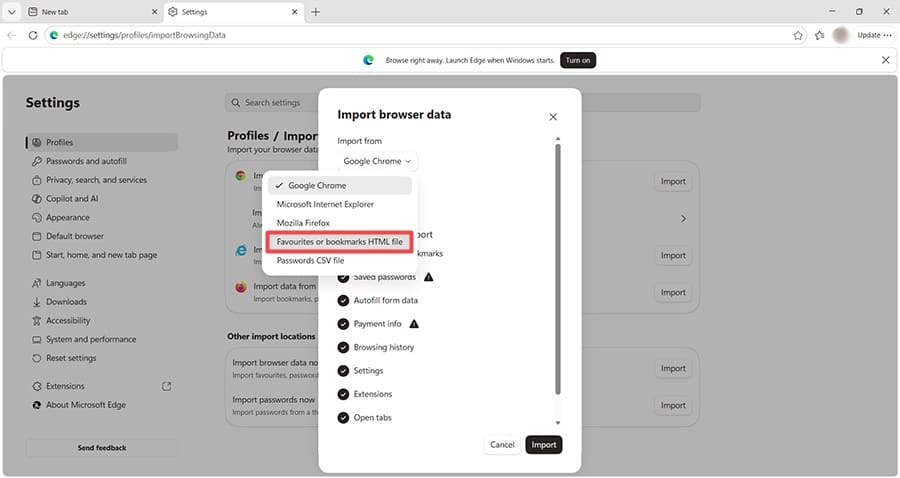
Step 8. Click the dropdown menu and choose “Favorites or bookmarks HTML file.”
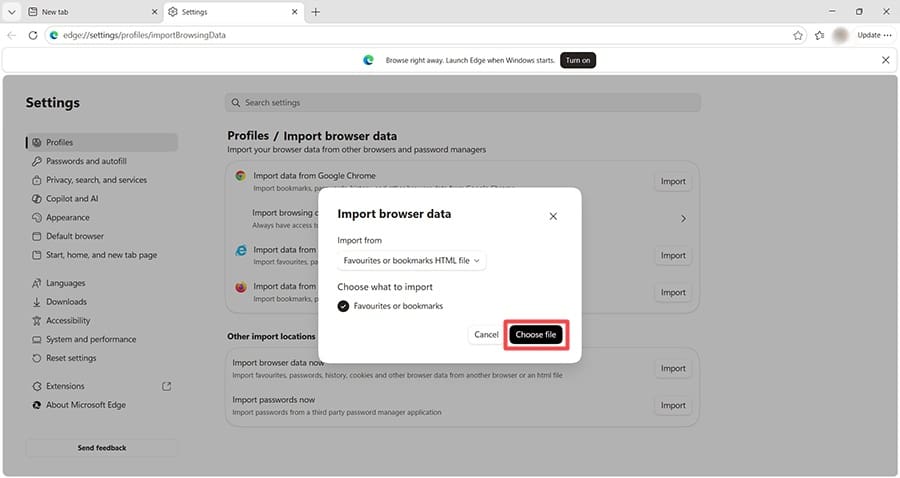
Step 9. Click “Choose file.”
Navigate to the file you transferred from your Mac via cloud storage or email, double-click it, and follow the onscreen prompts to complete the process.
How to Sync Bookmarks Between Edge and Safari: Step-by-Step Guide
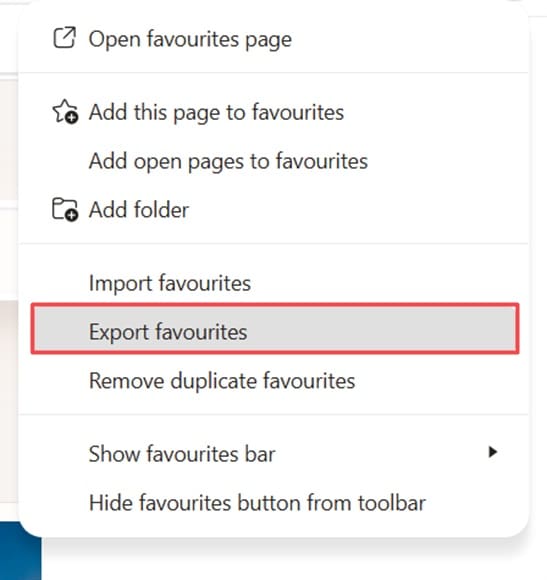
Step 1. Learning how to sync bookmarks between Edge and Safari is basically the reverse of the above process. You just need to remember that bookmarks in Edge are called “Favorites.” Start by opening Edge, clicking the menu button, and navigating to “Favorites,” and clicking the menu button. This time, choose “Export favorites.”
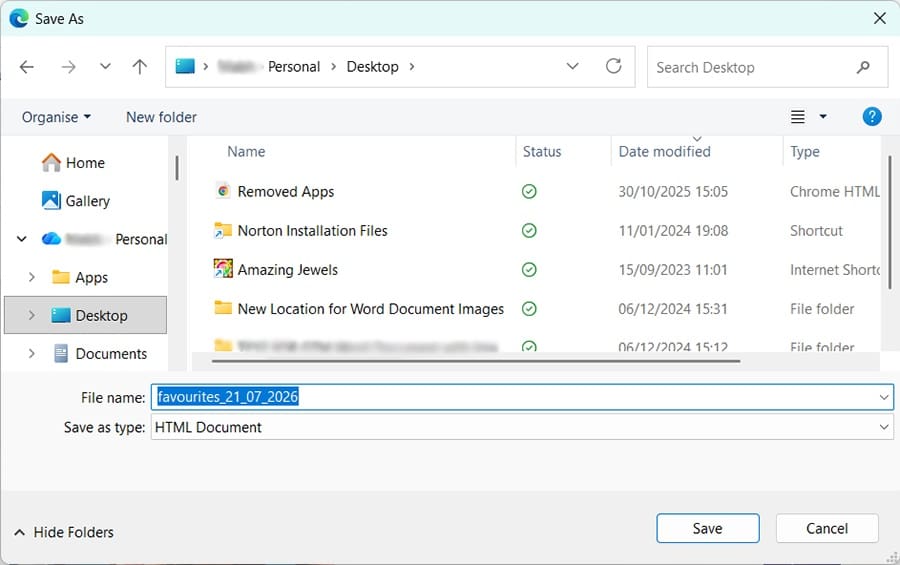
Step 2. Edge exports your favorites as an HTML file. Save it somewhere your Mac can access, for example, in OneDrive or Dropbox.
Step 3. On your Mac, open Safari and choose File > Import From > Bookmarks HTML File, then select the exported Edge HTML file.
Step 4. When prompted, navigate to the location you stored your Edge Favorites. Double-click this HTML file and confirm you want to complete the process. You can now access all your Microsoft Edge Favorites as bookmarks on your Mac.
As an avid gamer, I’ve run into my fair share of error codes and weird faults that have forced me to find fixes to problems I never anticipated. That gave me a passion for sharing those fixes with others so we can all game without feeling like our hardware is rebelling against us.












Write a Comment