• Skip to primary navigation
  • Skip to main content
  • Skip to primary sidebar
  • Skip to footer

AppleToolBox

Tools and Fixes for Mac, iPad, iPhone & iWatch

Search posts

  • About
  • Contact

CONNECT WITH US

CATEGORIES

  • iPhone
  • iPad
  • iPod
  • Apple Watch
  • Mac/MacBook
  • AirPods
  • Apple TV
  • News
  • Apple Services
  • HomePod
  • Reviews

SITE

  • Home
  • About Us
  • Contact
  • Advertise

Search posts

You are here: Home / Apple Services / Windows 11 Doesn’t Recognize My Apple Device – Three Fixes

Windows 11 Doesn’t Recognize My Apple Device – Three Fixes

By Louis Roundtree 0 comments Last updated February 21, 2025

Things to Know
  • Your Windows PC should recognize your iPhone or iPad as soon as you plug it in. If it doesn’t, that could indicate either a hardware or software fault.
  • The first thing to check is your cable — try a spare cable if you have one or borrow one from a friend, family member, or colleague.
  • If the cable is fine, you may need to search for the device in Windows File Explorer or reinstall the Apple Devices App.

Contents

  • Fix 1: Windows Doesn’t Recognize Apple Device Due to Cable Issues
  • Fix 2: Check Windows File Explorer
  • Fix 3: Uninstall and Reinstall Apple Devices

Fix 1: Windows Doesn’t Recognize Apple Device Due to Cable Issues

Step 1. Plug your iPhone or iPad into your computer. You should hear a chime or notice a brief vibration from your Apple device. If connected successfully, you will see a popup asking what you want to do with the device.

Windows 11 Doesn’t Recognize My Apple Device 1

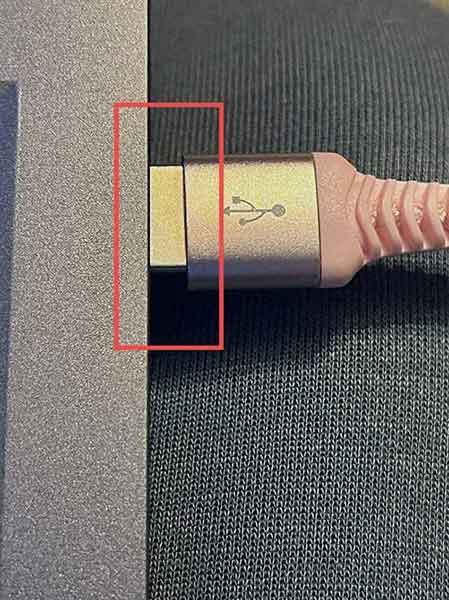
Step 2. If this doesn’t happen, the most likely cause is a faulty or incorrectly inserted cable. Check that the cable is properly inserted at both ends. This is particularly crucial with USB-A cables, as they can be trickier to insert than either USB-C or Lightning connectors. If it looks like this:

Windows 11 Doesn’t Recognize My Apple Device 2

Step 3. Push it in gently until it looks like this.

Windows 11 Doesn’t Recognize My Apple Device 3

Step 4. If your Windows 11 still doesn’t recognize your Apple device, try a spare cable if you have one, or borrow one from a friend or colleague that you know definitely works.

Fix 2: Check Windows File Explorer

Step 1. You might think your computer hasn’t recognized your Apple Device when it actually has. To check, open your File Explorer.

Windows 11 Doesn’t Recognize My Apple Device 4

Step 2. Select This PC from the left-hand menu. If you can see Apple iPhone/iPad in the main window, you are successfully connected.

Windows 11 Doesn’t Recognize My Apple Device 5

Fix 3: Uninstall and Reinstall Apple Devices

Step 1. Sometimes Windows doesn’t recognize Apple devices because the correct apps aren’t installed, or they have glitched. You may also find that even when you can see your iPhone or iPad in Windows Explorer, it still won’t show in the Apple Devices app. To remedy this, you’ll need to uninstall and reinstall the app. Start by heading to settings. You can either press the Windows key with I, or search for settings on the taskbar, as shown.

Windows 11 Doesn’t Recognize My Apple Device 6

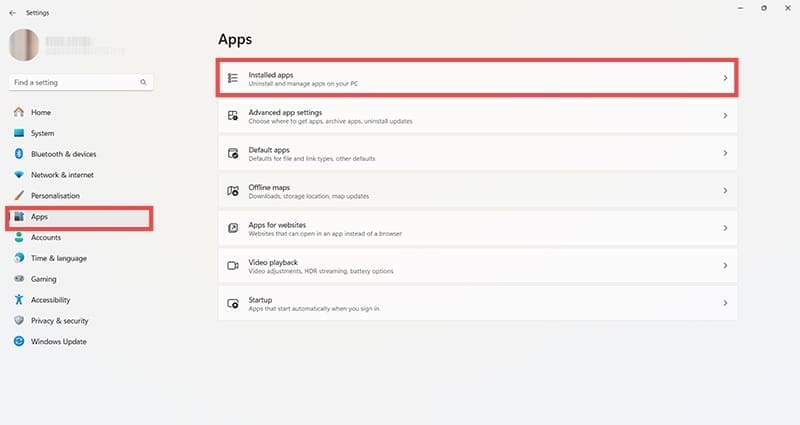
Step 2. In settings, click on Apps on the left-hand side followed by Installed apps.

Windows 11 Doesn’t Recognize My Apple Device 7

Step 3. Scroll until you see Apple Devices, and click the three dots — this is the More Options button.

Windows 11 Doesn’t Recognize My Apple Device 8

Step 4. Click on Uninstall to start removing the app from your computer.

Windows 11 Doesn’t Recognize My Apple Device 9

Step 5. Once the app has disappeared from the app list, open the Microsoft Store. You can search for “Store” using the search function in the taskbar if you don’t have a shortcut.

Windows 11 Doesn’t Recognize My Apple Device 10

Step 6. Search for Apple Devices, and when you find the app, click “Get” or “Install”. Follow the onscreen prompts, then click “Open” when the option becomes available.

Windows 11 Doesn’t Recognize My Apple Device 11

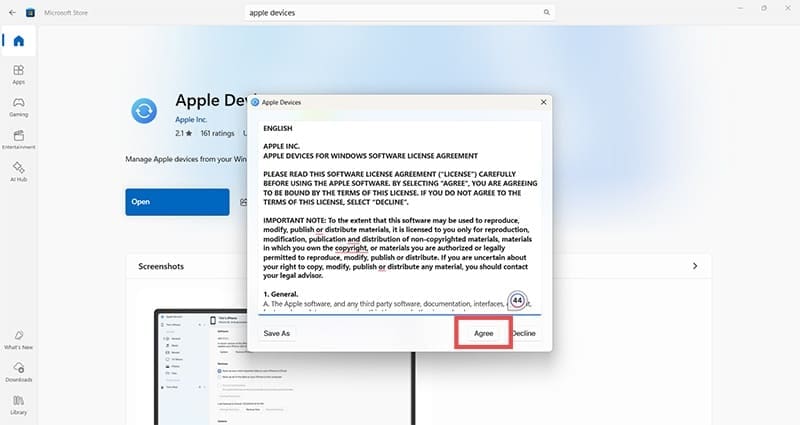
Step 7. Follow any onscreen prompts including accepting the licensing agreement.

Windows 11 Doesn’t Recognize My Apple Device 12

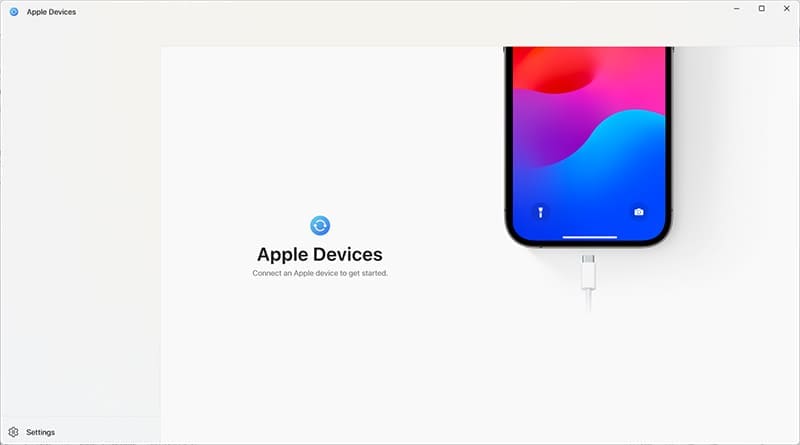
Step 8. When prompted, connect your Apple device to your Windows machine.

Windows 11 Doesn’t Recognize My Apple Device 13

Step 9. You should now see that your iPhone or iPad is recognized by Apple Devices and ready to use. If you’re prompted to “Trust this device,” make sure you agree in order to maintain the connection between your devices.

Windows 11 Doesn’t Recognize My Apple Device 14

Related Posts:

  • iPhone 15 event - iPhone 15 and iPhone 15 Plus FineWoven Accessories
    Best Lightning to USB-C Adapters for iPhone 15
  • pexels-stanley-ng-4387770
    Is A USB C iPhone On The Way?
  • iPad mini showing battery icon on screen.
    What to Do if Your iPad Mini Is Not Charging or…
  • two iphones standing up
    Best iPhone 14 Accessories
  • 2023 Mac Studio lifestyle - 1
    macOS Could Not Be Installed, How-To Fix
  • sidecar on iPadOS and macOS
    Sidecar not working in iPadOS and macOS? How to fix…
  • Best iPhone 13 Accessories Hero
    Best iPhone 13 Accessories To Make The Most Out Of…
  • How to fix iPhone stuck in headphones mode
    How to Fix iPhone Stuck in Headphones Mode, Speaker…
  • Update Apple ID settings on your iPhone, iPad, or Mac after changing your password
    Getting a Message to Update Apple ID Settings on…
Louis Roundtree
Louis Roundtree

As an avid gamer, I’ve run into my fair share of error codes and weird faults that have forced me to find fixes to problems I never anticipated. That gave me a passion for sharing those fixes with others so we can all game without feeling like our hardware is rebelling against us.

Reader Interactions

Write a Comment Cancel reply

Primary Sidebar

Recent Posts

  • How to Disable Predictive Text in iOS 26
  • How to Stop Sharing Analytics in iOS 26
  • How to Manage Your iPhone Call Log
  • Are Apple’s Safety Precautions Enough for AirTags?
  • How to Hide Username and Photo on the Mac Lock Screen
  • Microsoft Resume vs. Apple Handoff – Which Wins for Cross-Device Work?

Connect with us

Footer

ABOUT

  • About Us
  • Contact us
  • Advertise
  • Privacy
  • Terms of Use

GUIDES

  • iOS & iPadOS
  • Apple ID
  • iCloud
  • App Store
  • iTunes
  • FaceTime
  • iMessage
  • Siri
  • Books and iBooks
  • Game Center
  • AirPlay

CONNECT

  • Facebook
  • Twitter
  • FeedBurner
  • YouTube

© Copyright 2010-2024 Guiding Tech Media · All Rights Reserved

This site and its content are in no way affiliated or endorsed by Apple, Inc. · Reproduction without explicit permission is prohibited

Last Updated on February 21, 2025 by Louis Roundtree