Transferring files between devices should be simple. However, figuring out how to access iPhone files from Windows isn’t always clear, especially if you don’t want to use iTunes or the Apple Devices app.
Use the methods below to transfer a range of file types from your iPhone to a Windows computer.
How to Access iPhone Files From Windows Using Windows Explorer
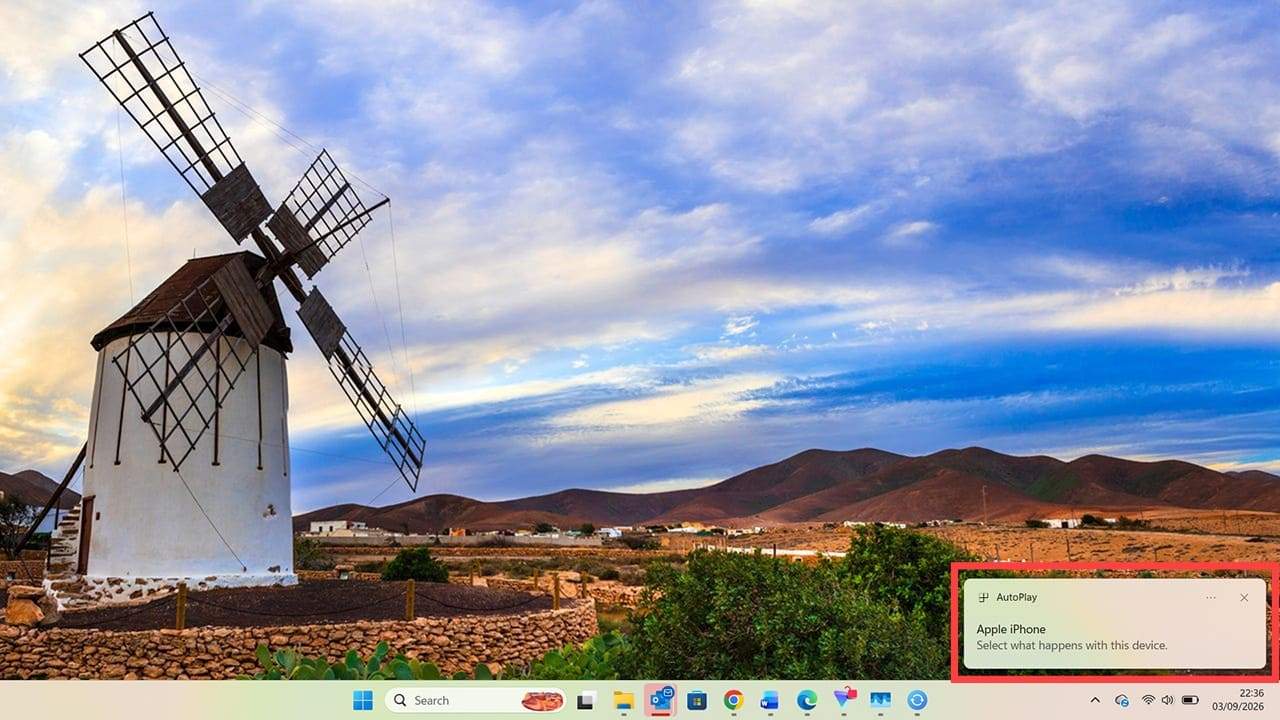
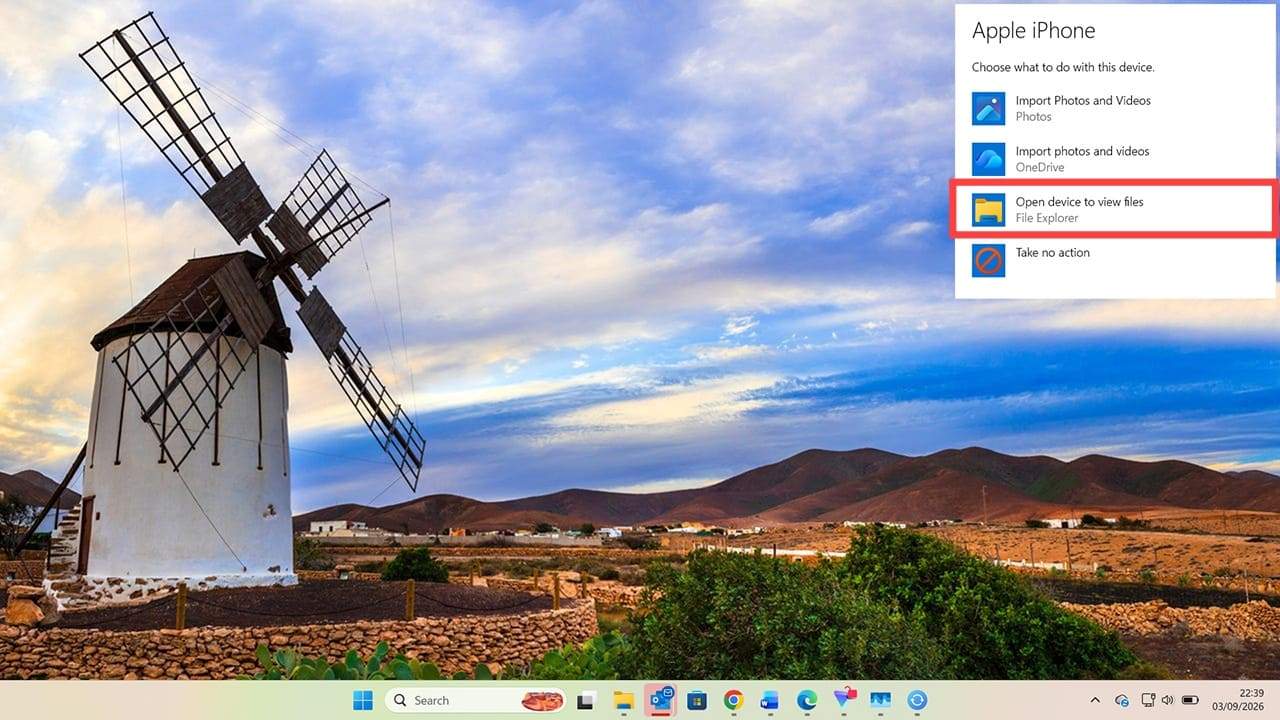
Step 1. This method only works to access photos and videos from your iPhone on your Windows machine. Plug your iPhone into your Windows computer using the relevant cable (USB-C or Lightning). You’ll see a message asking you to select what happens with this device.
Step 2. Click on the message box and choose “Open device” to view files.
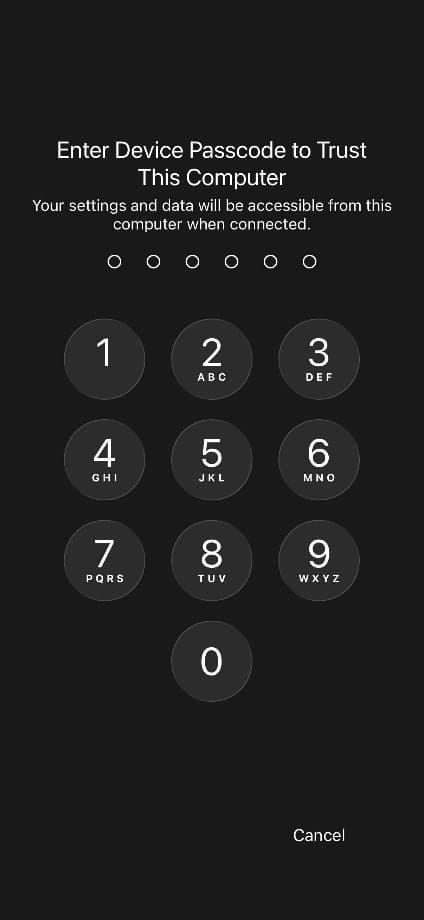
Step 3. You may see a message on your iPhone asking you to trust the computer. Tap “Trust,” then enter your passcode if prompted.
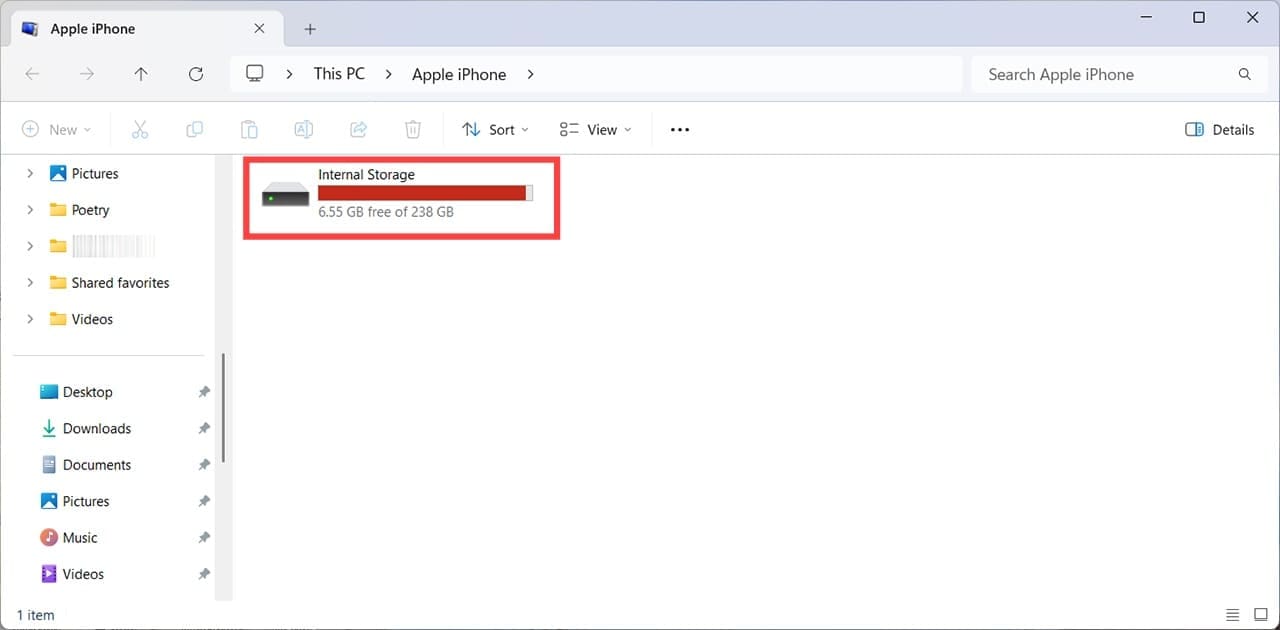
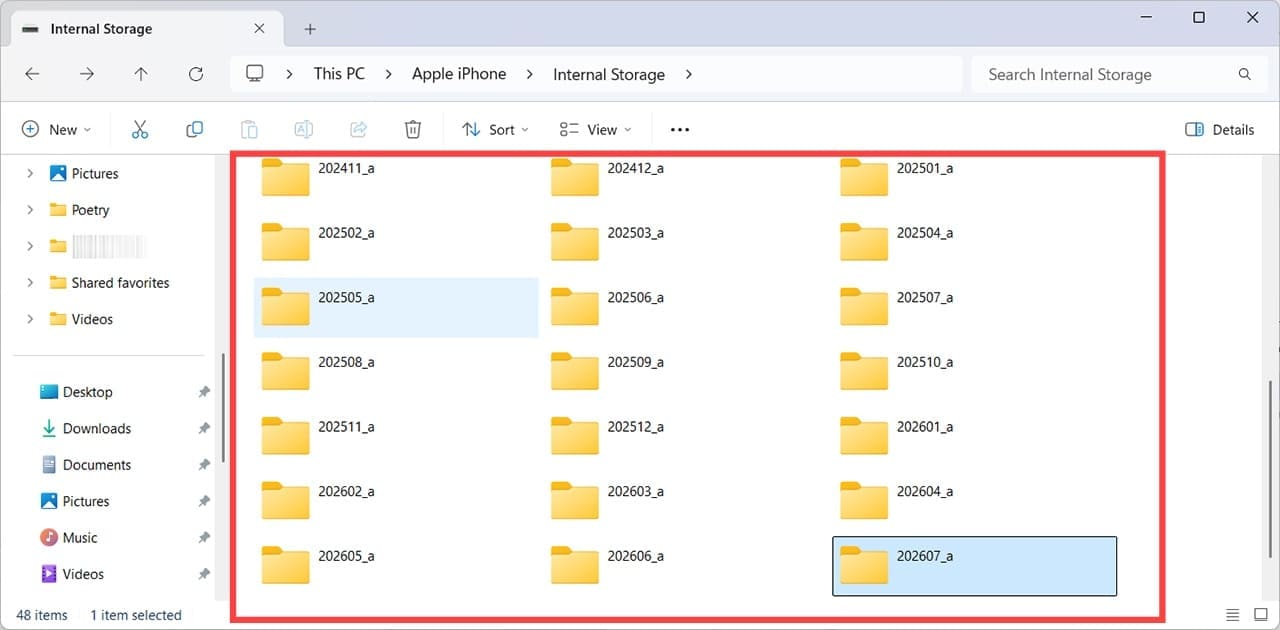
Step 4. On the Windows machine, you should now see an open Windows Explorer window, titled Apple iPhone. There will be a single drive named Internal Storage. Double-click on this to proceed.
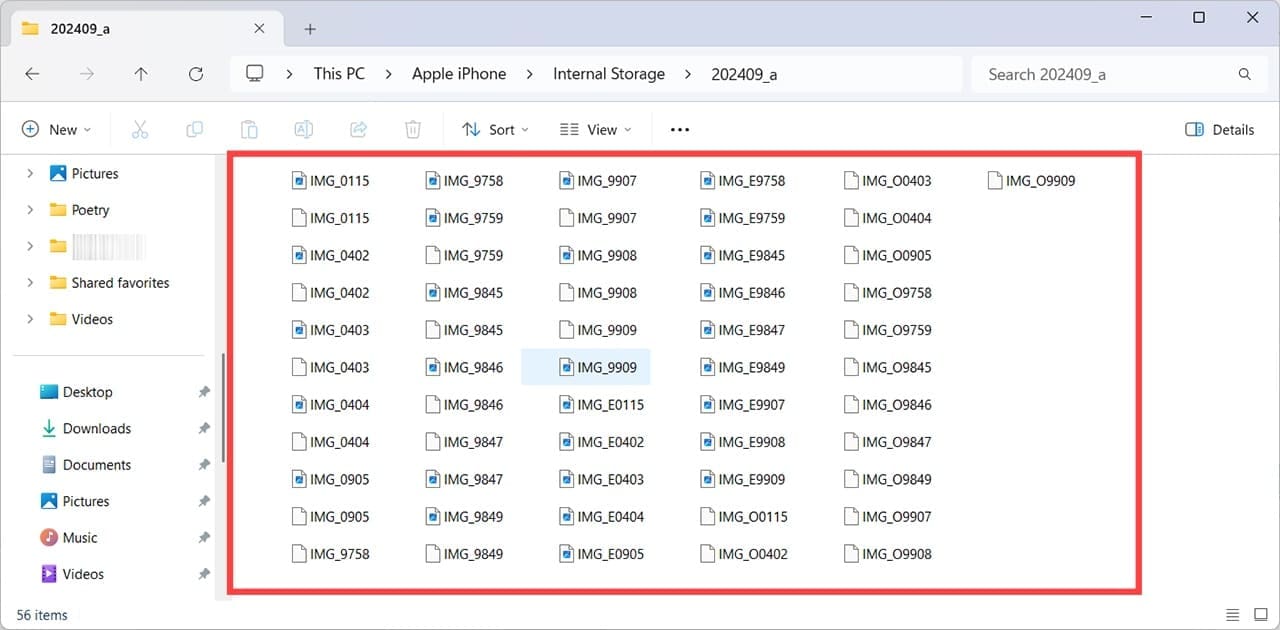
Step 5. You’ll now see a list of folders with years and months on, and when you double-click into a folder, you’ll see all the media files created using your iPhone that month. Simply drag and drop the files you need to a location on your Windows device.
How to Access iPhone Files From Windows Using iCloud
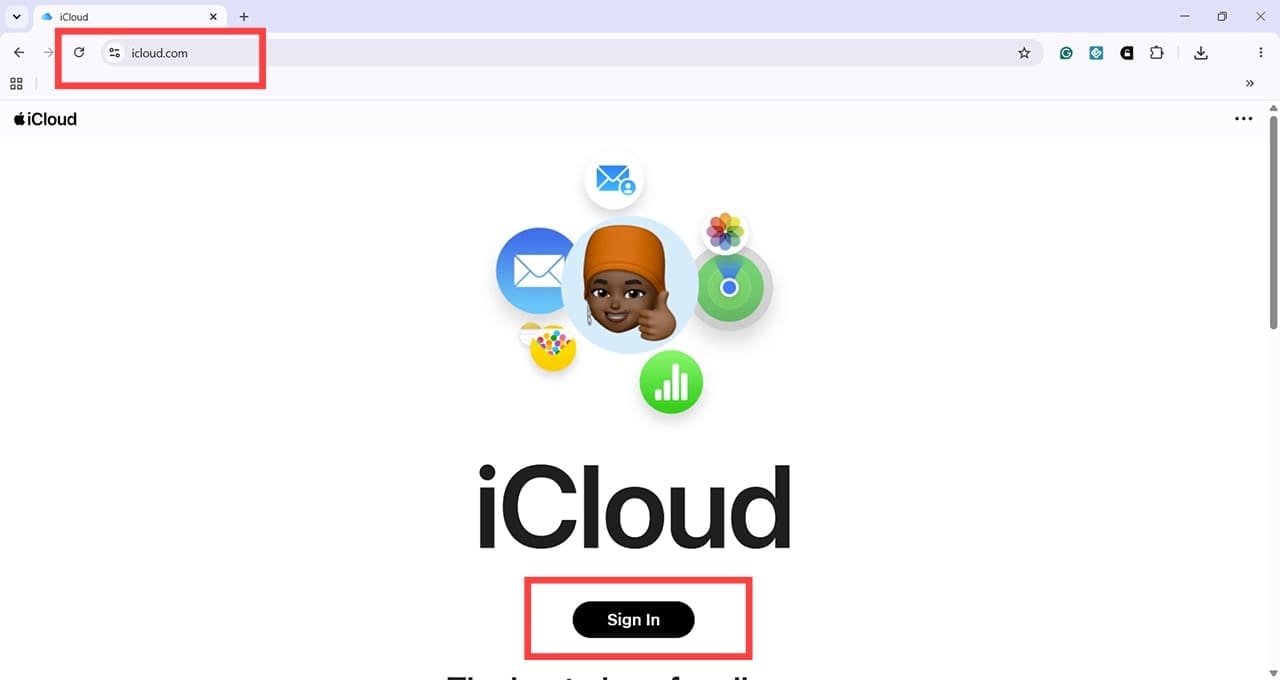
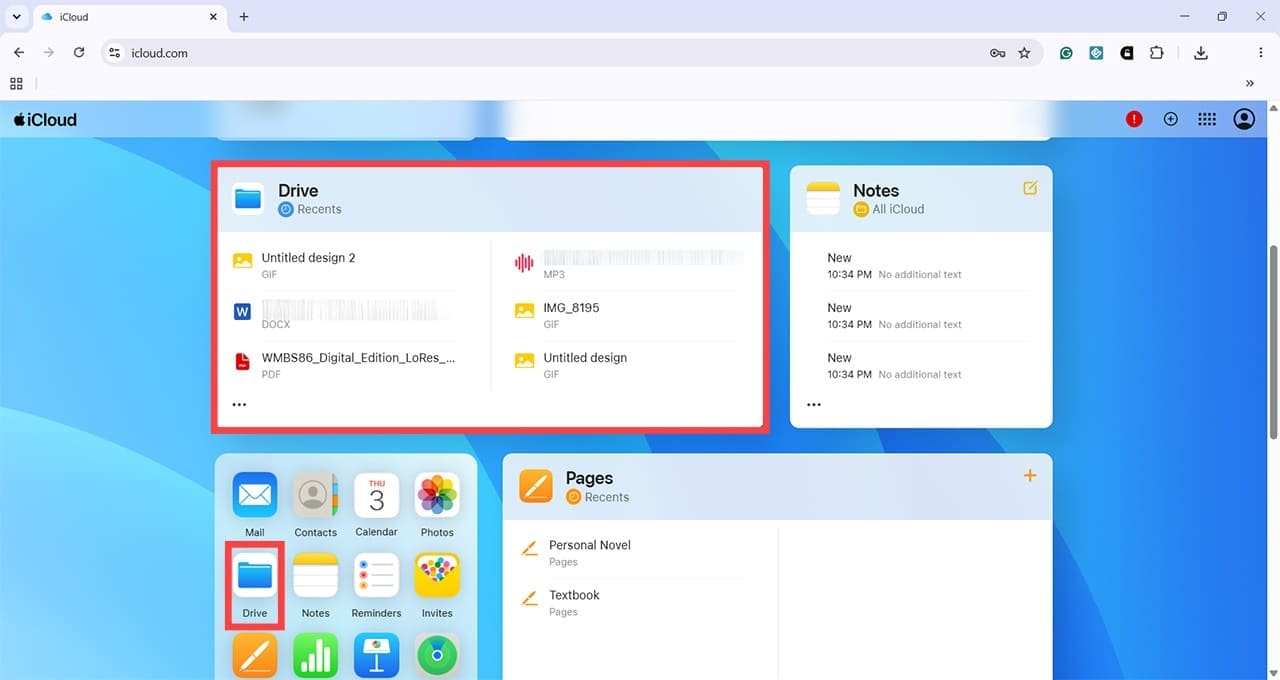
Step 1. To access files saved in your iCloud Drive, you can open any browser on your Windows computer and navigate to iCloud.com.
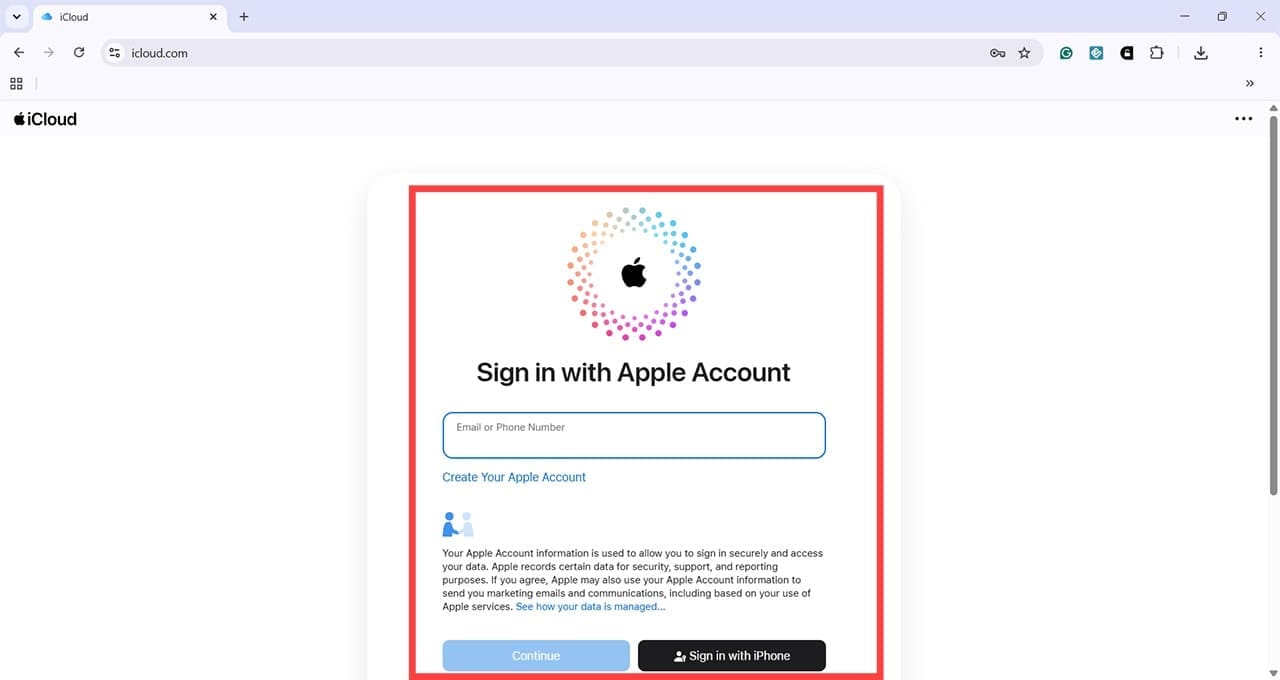
Step 2. Enter your Apple Account credentials (previously known as Apple ID). Make sure you use the same login details as you use on the iPhone you’re trying to transfer files from.
Step 3. Files stored in your iCloud Drive should be visible here..
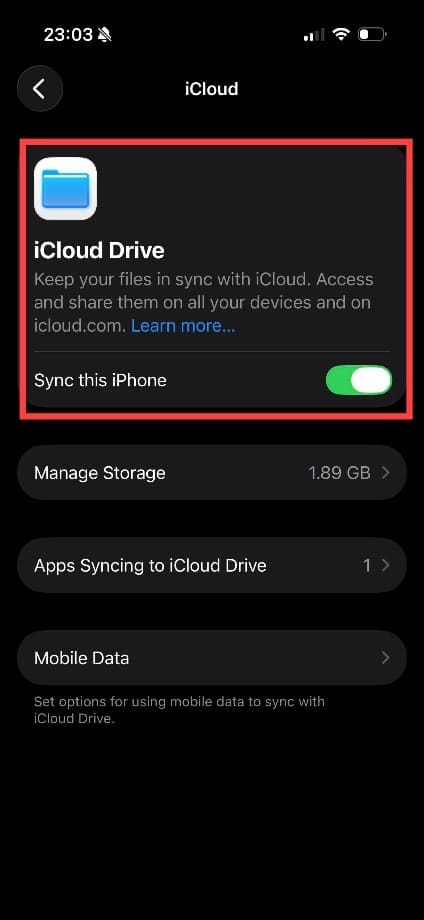
If you don’t see the files you were working on, go back to your iPhone and head to Settings > Apple Account > iCloud > Drive and check that Sync this iPhone is on. The button should be positioned to the right and be green and white.
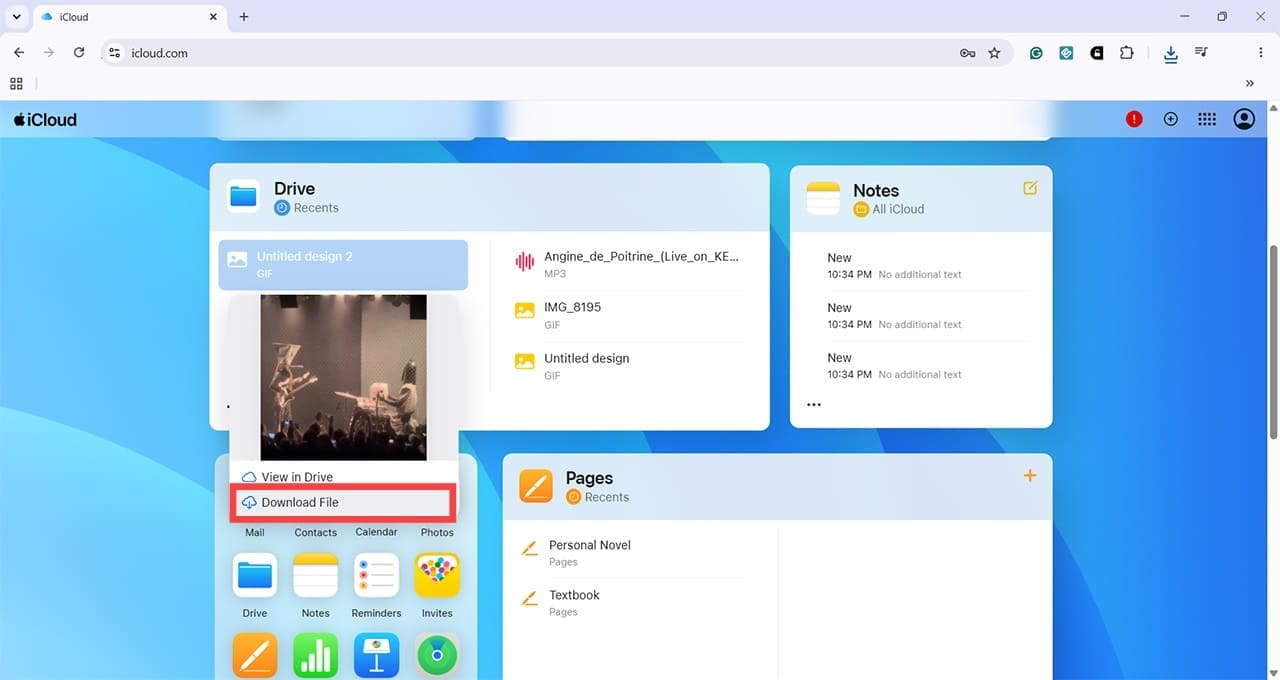
Step 4. On iCloud on the Windows computer, click on the file you want to transfer. You will see two options: “View in Drive” or “Download File.” Click on “Download File,” and the file begins downloading. Once complete, you can find it in your usual Downloads folder.
Other ways to transfer files from iPhones to Windows computers:
Email a file to yourself from your iPhone and open it on your Windows computer.
Use a cross-platform file sharing app like LocalSend.
Use an online file transfer solution, such as WeTransfer.
For the latter option, watch out for hidden charges and time limits, as some services only allow you to download your files for a few hours or days.
As an avid gamer, I’ve run into my fair share of error codes and weird faults that have forced me to find fixes to problems I never anticipated. That gave me a passion for sharing those fixes with others so we can all game without feeling like our hardware is rebelling against us.













Write a Comment