• Skip to primary navigation
  • Skip to main content
  • Skip to primary sidebar
  • Skip to footer

AppleToolBox

Tools and Fixes for Mac, iPad, iPhone & iWatch

Search posts

  • About
  • Contact

CONNECT WITH US

CATEGORIES

  • iPhone
  • iPad
  • iPod
  • Apple Watch
  • Mac/MacBook
  • AirPods
  • Apple TV
  • News
  • Apple Services
  • HomePod
  • Reviews

SITE

  • Home
  • About Us
  • Contact
  • Advertise

Search posts

You are here: Home / iPhone / How to Know if Dead iPhone Is Charging or Not

How to Know if Dead iPhone Is Charging or Not

By Louis Roundtree 0 comments Last updated July 22, 2026

Things to Know
  • When your iPhone is completely dead, the screen will go black.
  • For a few minutes after plugging a drained iPhone into a charger, the screen may remain black, but eventually a battery symbol should appear.
  • If the battery symbol does not appear and the device won’t switch on, it may indicate a more significant issue than a drained battery.

Why do smartphones always run out of battery at the most inopportune times? No matter how organized you are, it’s easy to accidentally let your device run low on juice, leading to it “dying.” Not only is this annoying, but it’s actually bad for your phone in the long run. For maximum long-term battery health, lithium-ion batteries generally last longer when they spend less time fully charged or completely discharged.

One problem that often crops up is how to know if dead iPhone is charging or not. The screen is completely black, so how do you know power is actually trickling into the device?

This guide explains how to know the answer to: “Dead iPhone – charging or not?” and what to do if it’s not charging at all.

How to Know if Dead iPhone Is Charging or Not: First Checks

Step 1. Check that your iPhone charging cable works. If it’s a USB-C charger, test it on any other USB-C compatible device. If it’s the older Lightning cable, try it with a different Apple device, if possible.

Step 2. After connecting the charger, hold the Side (or Power) button for several seconds to see if the Apple logo appears.

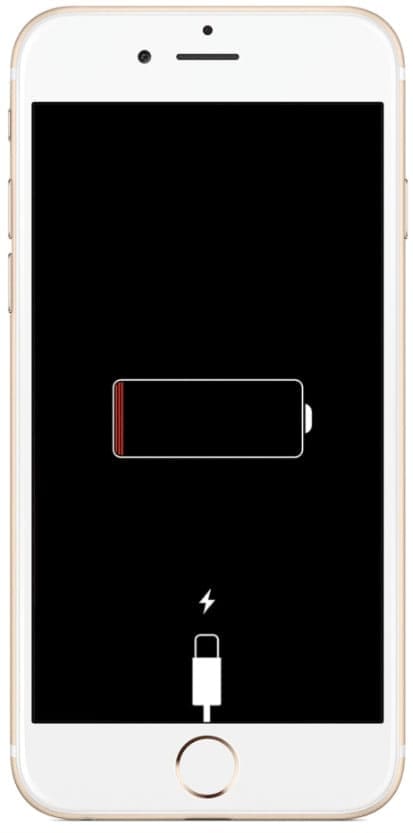
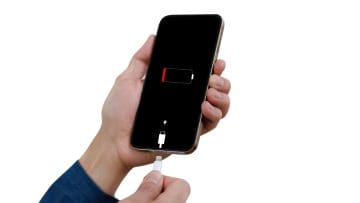
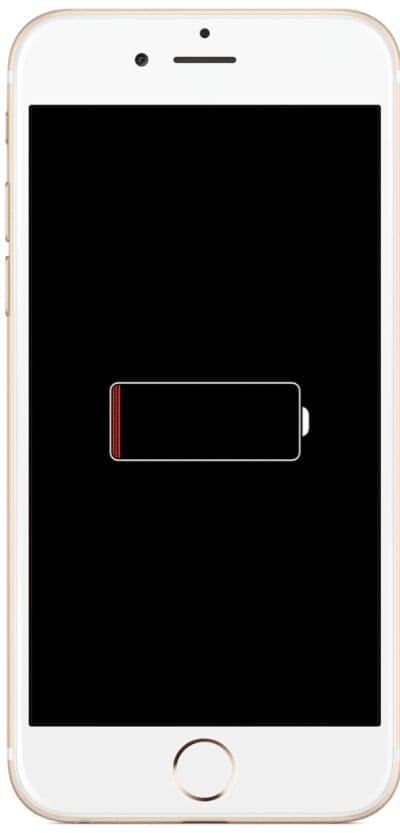
Step 3. Plug the device into a working charger and wait several minutes. You should see either a lightning bolt or a symbol showing a battery with a red line.

How to Know if Dead iPhone Is Charging or Not 1

Dead iPhone Charging or Not: Solutions

Tips for ensuring your iPhone is charging correctly and what to do if it’s not:

  • If you see a battery symbol with an indicator showing a cable going toward it, it usually indicates whether your dead iPhone is charging or not due to not having enough power. Try another charger, cable, or power adapter.

How to Know if Dead iPhone Is Charging or Not 2

  • If the screen remains black, unplug the iPhone from the charger, plug it back in, and wait for 10 minutes. You may find that restarting the charging process prompts the charger to start working.
  • Change power source. Try a wall socket instead of a laptop, or change the wall socket.
  • In situations where the phone will persistently not charge, try placing it into recovery mode:
    • iPhone 8 and newer: Tap Volume Up, then Volume Down, then hold the power button until you’re prompted to connect the device to a computer.
    • iPhone 7 and older: Press and hold the side button and Volume Down button together until you see the same prompt. Follow the instructions to restore the device.
    • iPhone 6 and earlier: Press and hold the Home button and the Top (or Side) button together.

If you’ve tried these steps and nothing works, you may have a physical problem with your device. Contact Apple or the retailer where you purchased your phone for further advice.

Related Posts:

  • iPhone 15 Pro unboxing
    How To Extend Your iPhone Battery Life
  • pexels-joão-jesus-4929241
    How To Replace A MacBook Battery
  • iphone organization apps
    5 Great Apps for Staying Organized on Your iPhone
  • iPad mini showing battery icon on screen.
    What to Do if Your iPad Mini Is Not Charging or…
  • iPhone-12-Pro-Max-Battery-Capacity-Degrading
    Why Is My iPhone 12 Pro Max Battery Degrading So Fast?
  • Person holding an iPad over a desk.
    What to Do If Your iPad Battery Jumps From a High to…
  • 0E4A6A0B-65E8-4184-B0C9-16C2179A1256
    The Best Weight Loss Apps For iPhone In 2021
  • Screen Shot 2021-10-24 at 3.08.11 AM
    The 2021 iMac Review: The Future Of Computing
  • pexels-rfstudio-3825585
    How To Pick A Repair Shop For Apple Devices
Louis Roundtree
Louis Roundtree

As an avid gamer, I’ve run into my fair share of error codes and weird faults that have forced me to find fixes to problems I never anticipated. That gave me a passion for sharing those fixes with others so we can all game without feeling like our hardware is rebelling against us.
Reader Interactions

Write a Comment Cancel reply

Primary Sidebar

Recent Posts

  • How to Know if Dead iPhone Is Charging or Not
  • What to Do if You Forgot Your iPhone Password
  • How to Create Custom Wallpapers in iOS 27
  • How to Stop Your Pointer From Moving to Other Macs and Apple Devices
  • What Will Siri AI Bring to Apple Devices?
  • How to Check if Your Device Is Compatible With Siri AI

Connect with us

Footer

ABOUT

  • About Us
  • Contact us
  • Advertise
  • Privacy
  • Terms of Use

GUIDES

  • iOS & iPadOS
  • Apple ID
  • iCloud
  • App Store
  • iTunes
  • FaceTime
  • iMessage
  • Siri
  • Books and iBooks
  • Game Center
  • AirPlay

CONNECT

  • Facebook
  • Twitter
  • FeedBurner
  • YouTube

© Copyright 2010-2024 Guiding Tech Media · All Rights Reserved

This site and its content are in no way affiliated or endorsed by Apple, Inc. · Reproduction without explicit permission is prohibited

Last Updated on July 23, 2026 by Louis Roundtree