• Skip to primary navigation
  • Skip to main content
  • Skip to primary sidebar
  • Skip to footer

AppleToolBox

Tools and Fixes for Mac, iPad, iPhone & iWatch

Search posts

  • About
  • Contact

CONNECT WITH US

CATEGORIES

  • iPhone
  • iPad
  • iPod
  • Apple Watch
  • Mac/MacBook
  • AirPods
  • Apple TV
  • News
  • Apple Services
  • HomePod
  • Reviews

SITE

  • Home
  • About Us
  • Contact
  • Advertise

Search posts

You are here: Home / Apple Services / How to Fix the iPhone Image Import “Something Went Wrong” Error in Windows 10 & 11

How to Fix the iPhone Image Import “Something Went Wrong” Error in Windows 10 & 11

By Louis Roundtree 0 comments Last updated October 21, 2026

Things to Know
  • The Microsoft Photos app has an import function that allows you to bring photos in from just about any location.
  • Some users are finding that they can’t import iPhone images to PC, and they receive a “Something Went Wrong” message when they try.
  • You can use a USB connection and File Explorer to transfer your photos manually, or set up iCloud for Windows to access iCloud Photos in the Microsoft Photos app.

Microsoft Photos is an app that allows you to gather all your photos in one place. Unfortunately, some users are finding that they can’t import iPhone images to PC using the app. They get a “Something Went Wrong” message, with very little detail to help them fix the issue.

Thankfully, there is a Something Went Wrong error fix, or rather, there are several, and we’ve listed step-by-step instructions for the two most likely to work. You can either use File Explorer to manually shift your photos to your Windows PC, or try connecting your entire iCloud account to Microsoft Photos.

Something Went Wrong Error Fix for Importing iPhone Photos: Fix #1

Step 1. Start by connecting your iPhone to your Windows 10 or 11 PC with a USB cable that supports data transfer. Unlock your iPhone. You may see a prompt asking whether to allow the connected computer to access your photos and videos, or you may find that File Explorer displays your iPhone under “This PC.”

How to Fix the iPhone Image Import “Something Went Wrong” Error in Windows 10 & 11 1

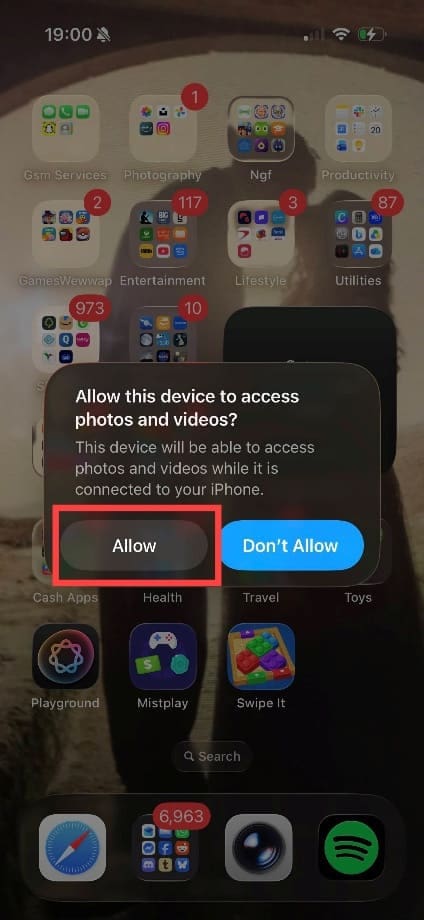
Step 2. Check your iPhone for a prompt asking whether to allow the connected computer to access your photos and videos. If it appears, tap “Allow.” If your iPhone instead displays a “Trust This Computer?” prompt, tap “Trust.”

How to Fix the iPhone Image Import “Something Went Wrong” Error in Windows 10 & 11 2

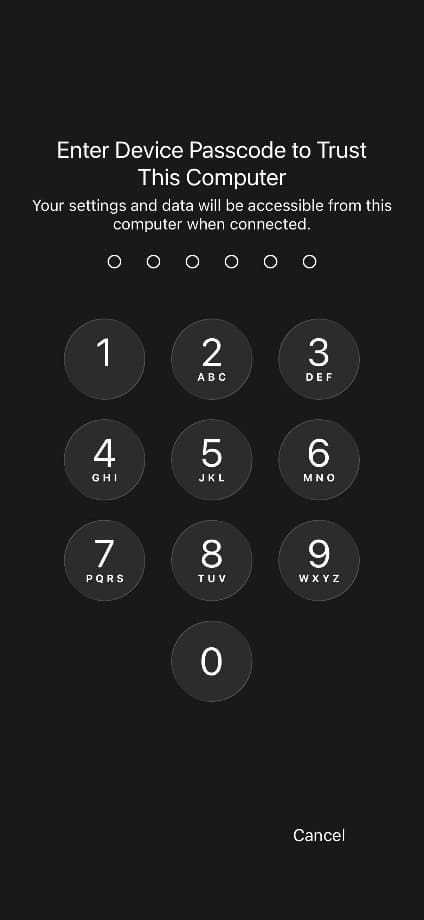
Step 3. Enter your passcode to confirm you want to allow this.

How to Fix the iPhone Image Import “Something Went Wrong” Error in Windows 10 & 11 3

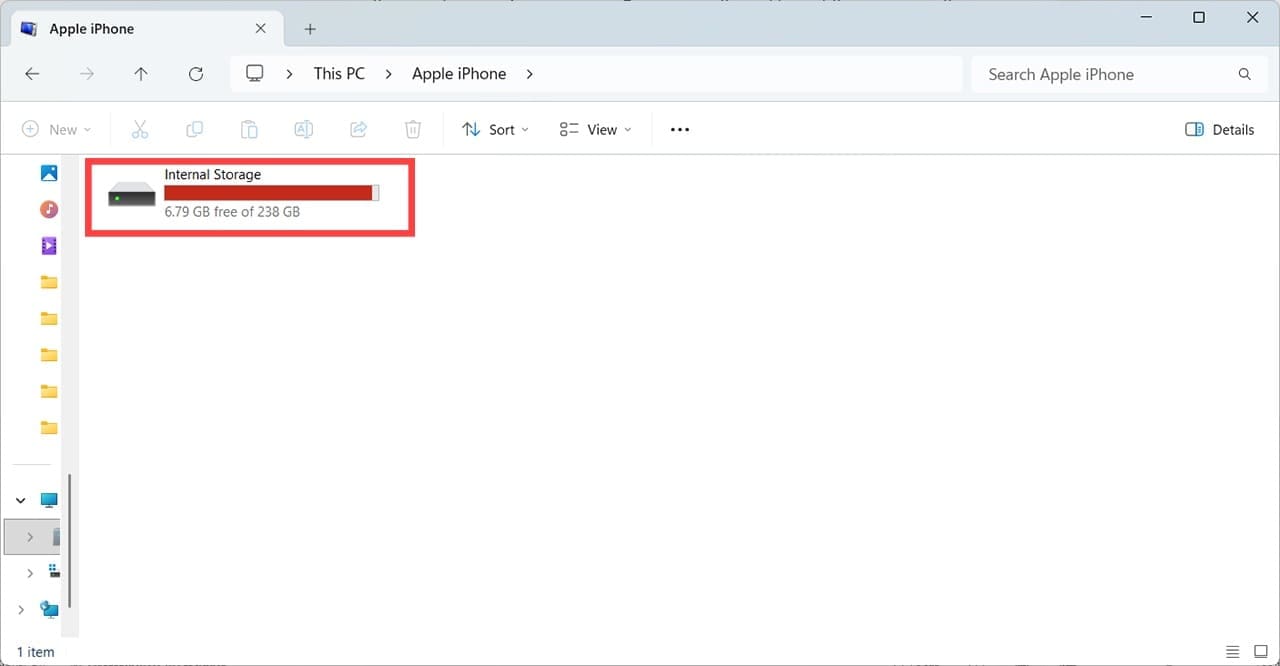
Step 4. Return to your Windows PC and open File Explorer. Under “This PC,” select your iPhone, then open “Internal Storage” and the DCIM folder. You should see folders containing your photos and videos. Open a folder to find the files you want, then copy and paste them into a folder on your PC. You can also select multiple files and copy them together.

How to Fix the iPhone Image Import “Something Went Wrong” Error in Windows 10 & 11 4

Alternatively, you can open a folder and select individual or groups of images, and copy and paste them wherever you like.

How to Fix the iPhone Image Import “Something Went Wrong” Error in Windows 10 & 11 5

Something Went Wrong Error Fix for Importing iPhone Photos: Fix No. 2

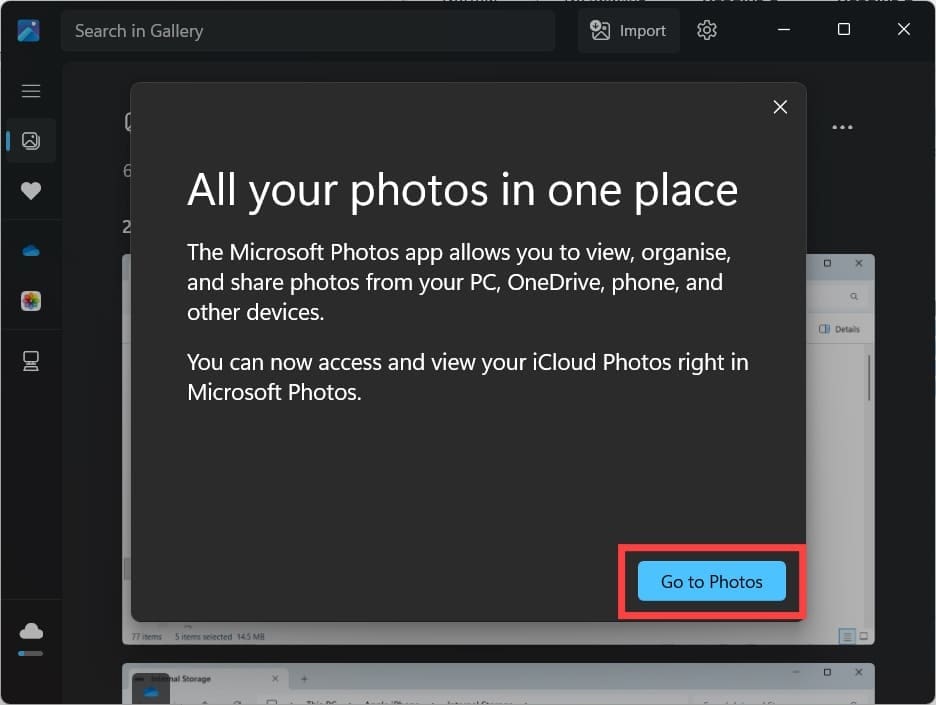
Step 1. Microsoft Photos can display photos from iCloud, so you don’t have to use the import feature to access photos stored there.

How to Fix the iPhone Image Import “Something Went Wrong” Error in Windows 10 & 11 6

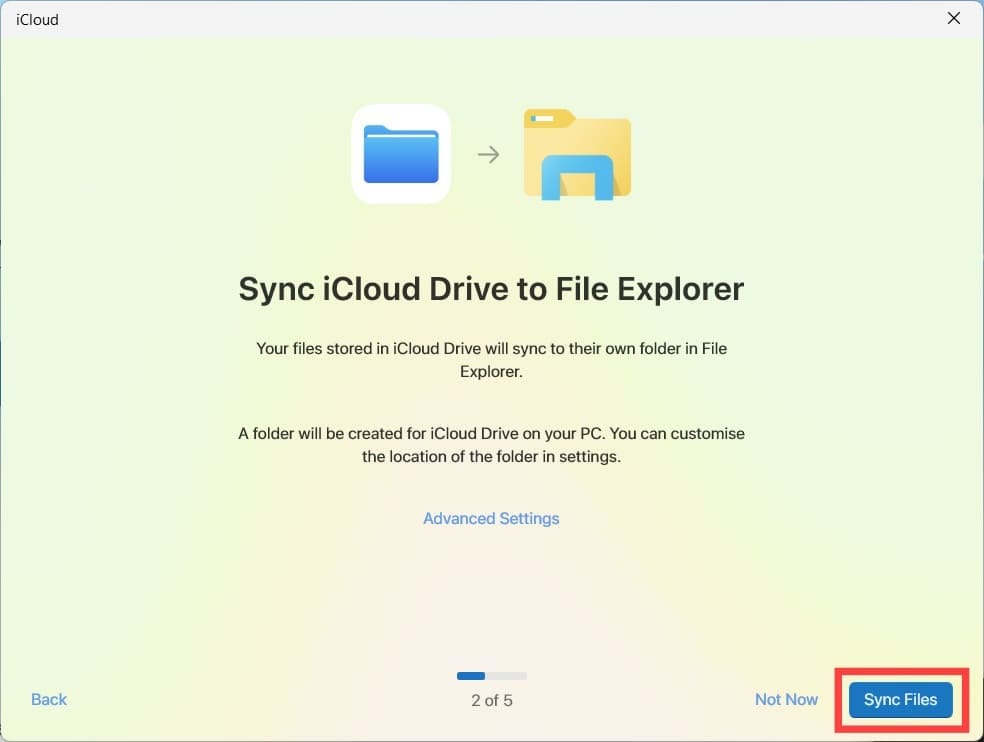
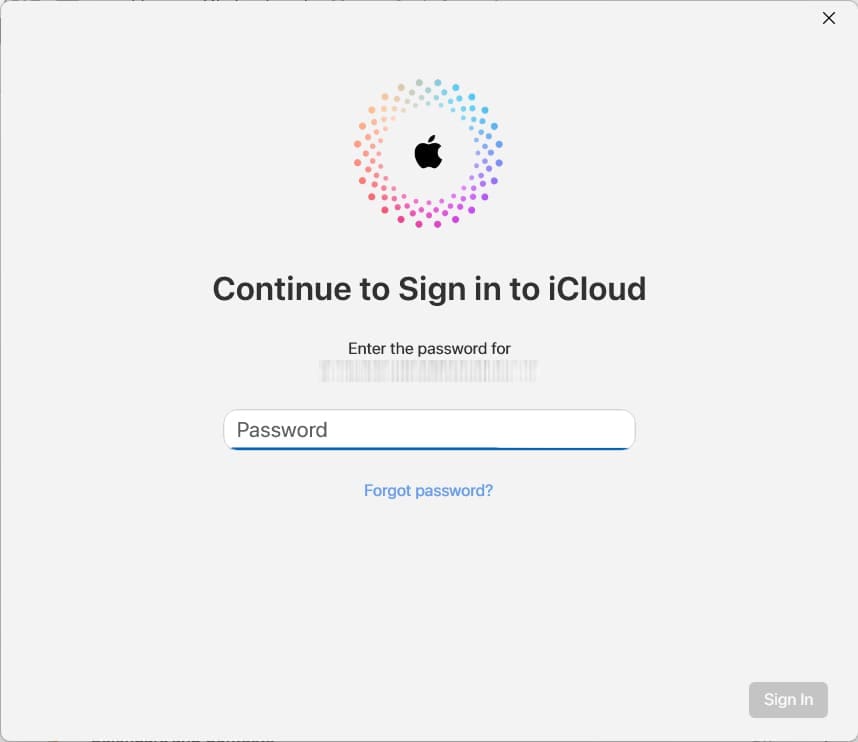
To set this up, download iCloud for Windows from the Microsoft Store if you haven’t already installed it. Open the app and sign in with your Apple Account. Then select “Photos” in iCloud for Windows and follow the on-screen instructions to enable iCloud Photos.

How to Fix the iPhone Image Import “Something Went Wrong” Error in Windows 10 & 11 7

Step 2. Complete the setup in iCloud for Windows. Once iCloud Photos is enabled, return to Microsoft Photos and look for iCloud Photos in the left-hand navigation pane.

How to Fix the iPhone Image Import “Something Went Wrong” Error in Windows 10 & 11 8

Step 3. Open Microsoft Photos, and you will see an option for iCloud Photos on the left-hand side. To finish the setup, click the blue “Open iCloud for Windows” button.

How to Fix the iPhone Image Import “Something Went Wrong” Error in Windows 10 & 11 9

Step 4. Follow the on-screen instructions, including signing in with the same Apple Account you use on your iPhone. Once this is complete, you’ll be able to access all your iPhone’s photos through Microsoft Photos, without having to use the import feature.

How to Fix the iPhone Image Import “Something Went Wrong” Error in Windows 10 & 11 10

Related Posts:

  • how to access iphone files from windows
    How to Access iPhone Files Directly From Windows…
  • 2023 Mac Studio lifestyle - 1
    macOS Could Not Be Installed, How-To Fix
  • Windows computer
    How to AirDrop from iPhone to Windows PC
  • import iphone photos to mac
    Different Ways to Import iPhone Photos to Mac
  • 2022 Mac Mini with Studio Display and Accessories
    Mac Tips For New Users In 2023
  • Photo of someone using Apple Music on their smartphone
    How to Fix Apple Music Not Working on iPhone / iPad
  • How to Install Windows 11 on Mac
    Want iMessage on Your Windows PC? How-To
  • pexels-designecologist-1779487
    The Best iPhone And Mac Shortcuts For Beginners
  • How to Fix Verifying Microsoft Outlook Mac Stuck Error 11 Best Methods
    How to Fix Verifying Microsoft Outlook Mac Stuck…
Louis Roundtree
Louis Roundtree

As an avid gamer, I’ve run into my fair share of error codes and weird faults that have forced me to find fixes to problems I never anticipated. That gave me a passion for sharing those fixes with others so we can all game without feeling like our hardware is rebelling against us.

Reader Interactions

Write a Comment Cancel reply

Primary Sidebar

Recent Posts

  • How to Batch Convert HEIC Images to JPEG Format in Windows
  • How to Fix the iPhone Image Import “Something Went Wrong” Error in Windows 10 & 11
  • How Students Can Use Universal Clipboard, AirDrop, and Handoff for Academic Work
  • How to Edit Apple Notes on a Windows PC
  • How to Transfer Voice Memos From an iPhone to a Windows PC
  • How to Get a Custom EQ for Your AirPods (iOS 27)

Connect with us

Footer

ABOUT

  • About Us
  • Contact us
  • Advertise
  • Privacy
  • Terms of Use

GUIDES

  • iOS & iPadOS
  • Apple ID
  • iCloud
  • App Store
  • iTunes
  • FaceTime
  • iMessage
  • Siri
  • Books and iBooks
  • Game Center
  • AirPlay

CONNECT

  • Facebook
  • Twitter
  • FeedBurner
  • YouTube

© Copyright 2010-2024 Guiding Tech Media · All Rights Reserved

This site and its content are in no way affiliated or endorsed by Apple, Inc. · Reproduction without explicit permission is prohibited

Last Updated on October 24, 2026 by Louis Roundtree