• Skip to primary navigation
  • Skip to main content
  • Skip to primary sidebar
  • Skip to footer

AppleToolBox

Tools and Fixes for Mac, iPad, iPhone & iWatch

Search posts

  • About
  • Contact

CONNECT WITH US

CATEGORIES

  • iPhone
  • iPad
  • iPod
  • Apple Watch
  • Mac/MacBook
  • AirPods
  • Apple TV
  • News
  • Apple Services
  • HomePod
  • Reviews

SITE

  • Home
  • About Us
  • Contact
  • Advertise

Search posts

You are here: Home / Apple Services / How to Sync Apple Calendar With Outlook on Windows

How to Sync Apple Calendar With Outlook on Windows

By Louis Roundtree 0 comments Last updated October 30, 2026

Things to Know
  • Outlook no longer has a dedicated sync feature, so external calendars must be added individually.
  • The iCloud for Windows app allows you to sync your iCloud calendars and contacts with classic Outlook.
  • You must make sure you log in with the same Apple Account details you use on your Mac, iPhone, or iPad.

Do you use the calendar app on your Mac, iPhone, or iPad? Would it be nice to see those events and appointments in your Outlook app on Windows? Outlook doesn’t have a dedicated sync feature, but thanks to the iCloud for Windows app, it’s easier than you might think to sync Apple Calendar with Outlook. You can sync calendars with Outlook from any of your Apple devices as long as you remember to always sign in with the same Apple Account (previously Apple ID) details.

Follow the steps below to sync calendars between Apple and Windows devices.

Sync Calendars Mac and PC: Step-by-Step Guide

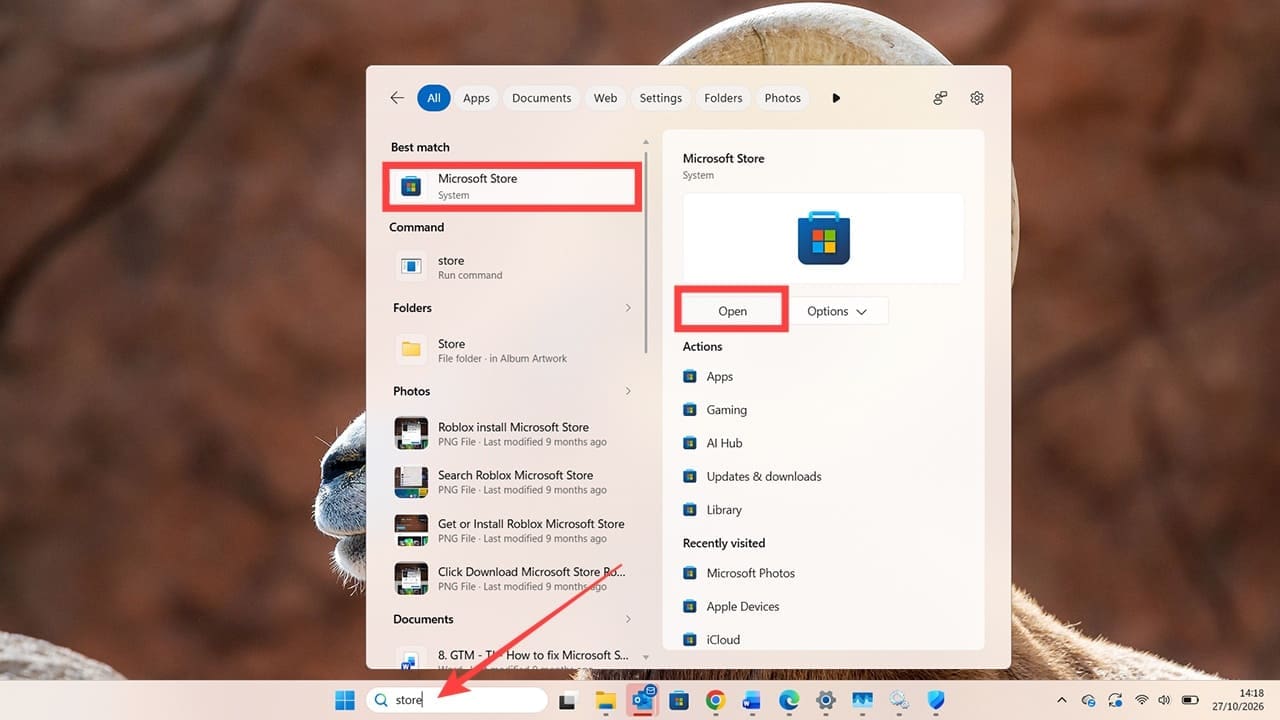
Step 1. Head to the Microsoft Store. You can find this by searching for Store in your Start menu on your Windows PC.

How to Sync Apple Calendar With Outlook on Windows 1

Step 2. Use the search bar to find the iCloud app.

How to Sync Apple Calendar With Outlook on Windows 2

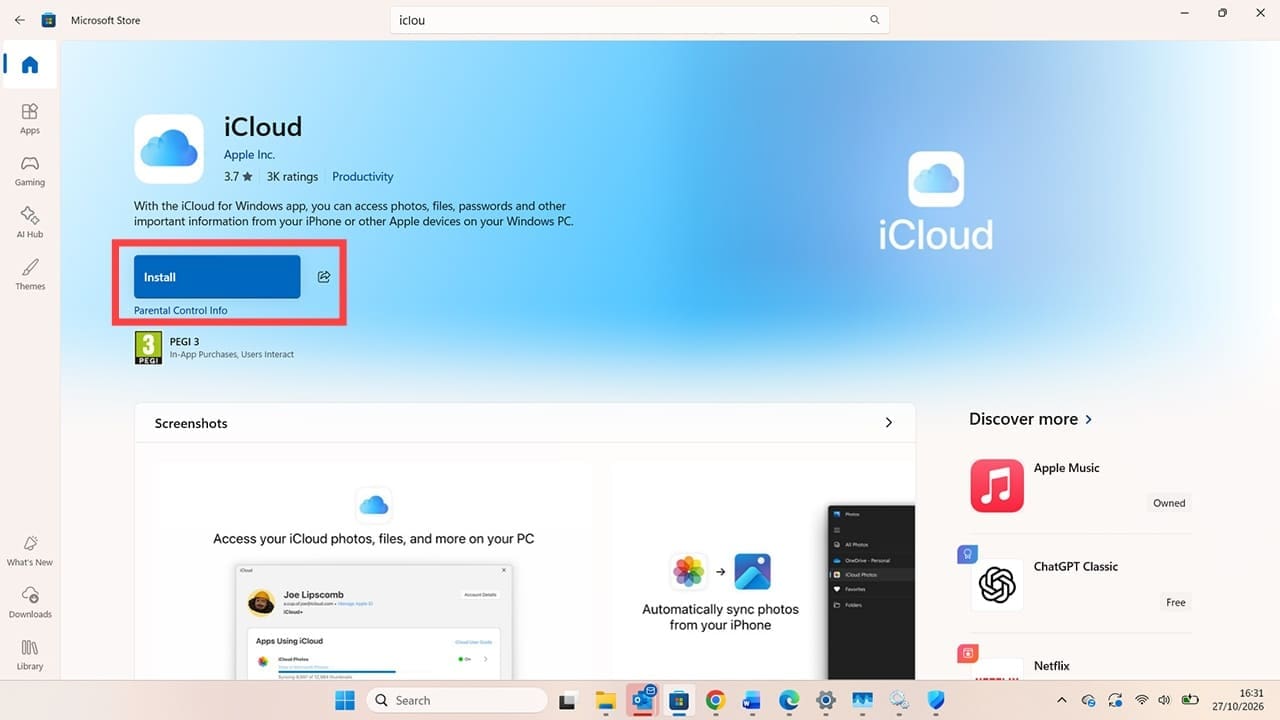
Step 3. Click the blue “Install” button. Depending on your internet connection, it may take a few minutes to download and install the app.

How to Sync Apple Calendar With Outlook on Windows 3

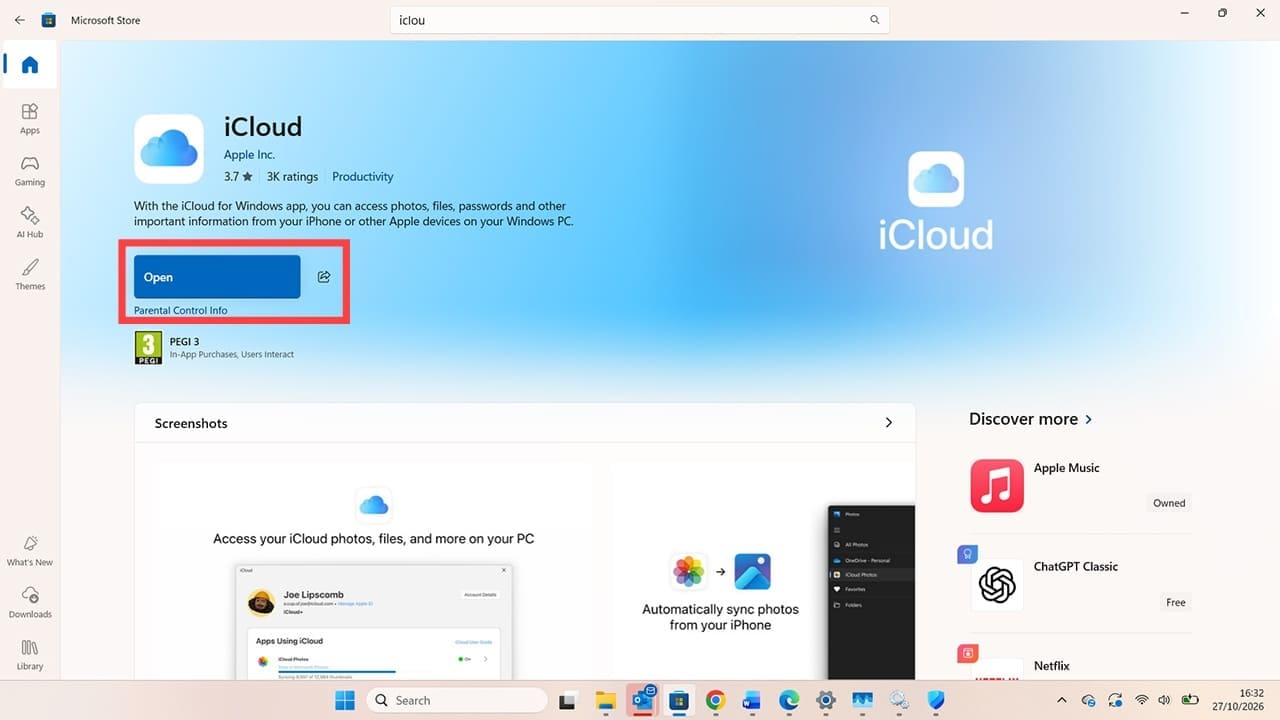
Step 4. You’ll know the installation is complete when you see the blue “Open” button. Click here to open the iCloud for Windows app. You may see a “Getting things ready” message for a minute or so. This is completely normal.

How to Sync Apple Calendar With Outlook on Windows 4

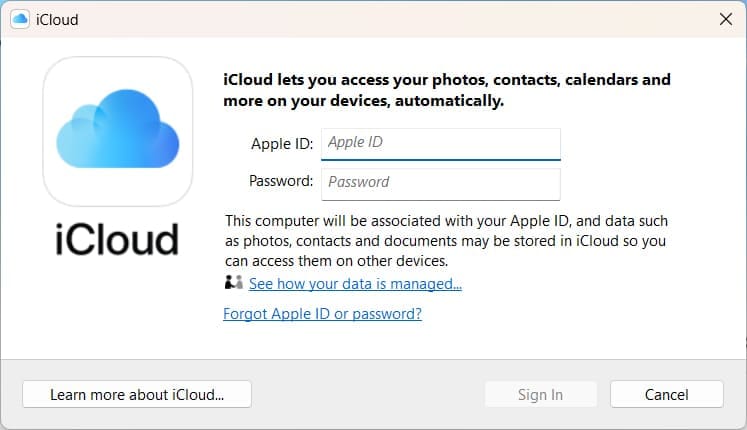
Step 5. The iCloud app will open a pop-up window prompting you to enter your Apple Account details. This must be the same Apple Account email address and password you use on your Mac, iPhone, or iPad. Whichever device has your Apple calendar that you want to sync, use that account.

If you need to change or reset your password, you can do so on a trusted Apple device or through Apple’s account-recovery options. The steps available may vary depending on your account and device. On an iPhone or iPad, you can change your password via Settings > Apple Account > Sign-In & Security.

Don’t try to reset your password using your Windows machine, as it will not give you the correct options and will take you through a convoluted security process. You can reset your password on any Apple device via Settings > Apple Account > Sign-In & Security.

How to Sync Apple Calendar With Outlook on Windows 5

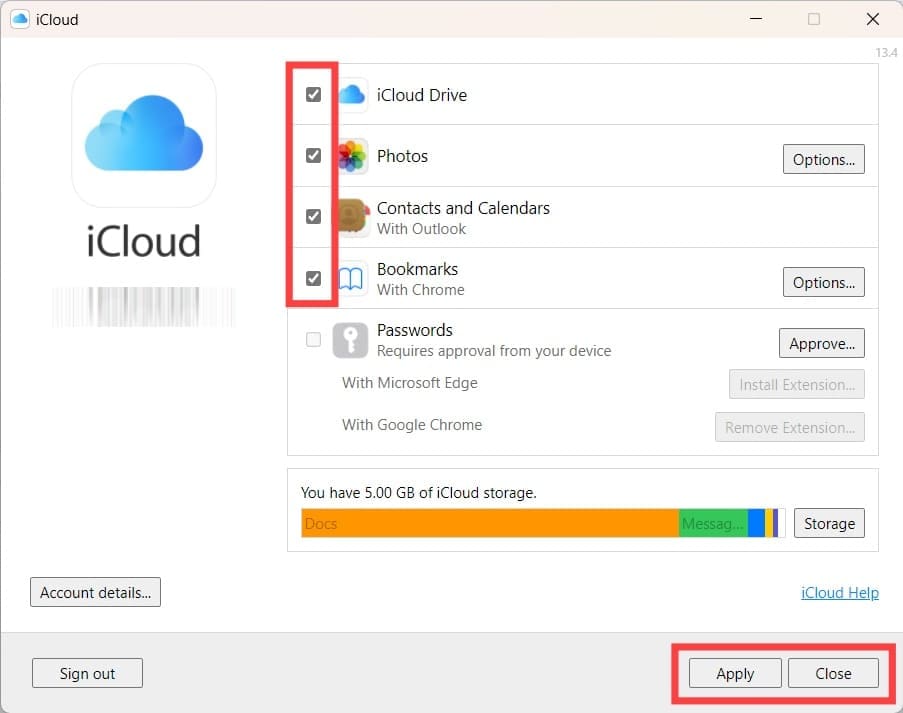
Step 6. You will now be presented with various options to sync from Apple to Windows. Make sure the option for “Contacts and Calendars” is ticked. You can also choose to sync bookmarks, photos, and your iCloud Drive, if you wish. Click “Apply” and then click “Close.”

How to Sync Apple Calendar With Outlook on Windows 6

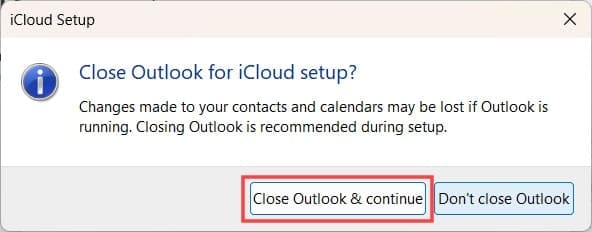
Step 7. You may be prompted to close Outlook to complete the setup process. Click “Close Outlook & continue.”

How to Sync Apple Calendar With Outlook on Windows 7

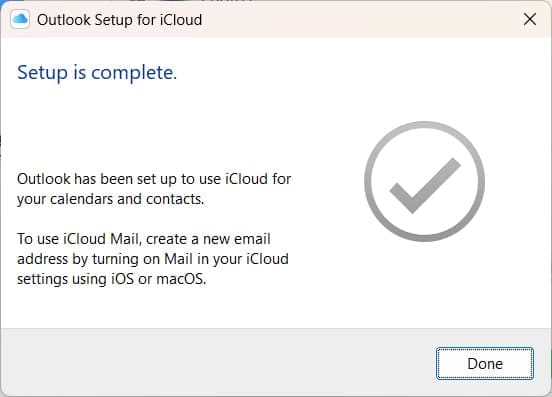
You will now see a confirmation window stating that Outlook will use iCloud calendars and contacts.

How to Sync Apple Calendar With Outlook on Windows 8

Restart Outlook and head to the calendar. You will now see that you have a new set of appointments/events that match what’s in your existing Apple calendar. Outlook will automatically put these events in a different color, which you can then adjust by right-clicking on the calendar’s name and selecting “Color.”

How to Sync Apple Calendar With Outlook on Windows 9

Related Posts:

  • Missing Holidays on iPhone Calendar? How-to Fix Hero
    How To Duplicate and Copy Calendar Events in iOS and…
  • New Outlook for Mac 7 Best Features You Should Know
    New Outlook for Mac: 7 Best Features You Should Know
  • pexels-anna-shvets-4226356
    How To Use Calendar On Mac | Step-By-Step User Guide
  • Update Apple ID settings on your iPhone, iPad, or Mac after changing your password
    Getting a Message to Update Apple ID Settings on…
  • How to Fix Attachments Not Showing in Outlook for Mac
    How to Fix Attachments Not Showing in Outlook for Mac
  • How to Use Facebook Messenger Rooms on Your iPhone or iPad
    How To Add Facebook Events to Your iPhone's or…
  • Photo of someone using Apple Music on their smartphone
    How to Fix Apple Music Not Working on iPhone / iPad
  • How to Switch From New Outlook to Old on Mac 4 Best Steps
    How to Switch from New Outlook to Old on Mac: 4 Steps
  • Apple Watch Ultra Tips and Tricks
    Apple Watch Tips and Tricks for 2023
Louis Roundtree
Louis Roundtree

As an avid gamer, I’ve run into my fair share of error codes and weird faults that have forced me to find fixes to problems I never anticipated. That gave me a passion for sharing those fixes with others so we can all game without feeling like our hardware is rebelling against us.

Reader Interactions

Write a Comment Cancel reply

Primary Sidebar

Recent Posts

  • How to Sync Apple Calendar With Outlook on Windows
  • How to Set an iPhone Photo as Your Computer Wallpaper
  • How to Prepare Your iPhone for International Travel: Essential Settings to Check
  • How to Batch Convert HEIC Images to JPEG Format in Windows
  • How to Fix the iPhone Image Import “Something Went Wrong” Error in Windows 10 & 11
  • How Students Can Use Universal Clipboard, AirDrop, and Handoff for Academic Work

Connect with us

Footer

ABOUT

  • About Us
  • Contact us
  • Advertise
  • Privacy
  • Terms of Use

GUIDES

  • iOS & iPadOS
  • Apple ID
  • iCloud
  • App Store
  • iTunes
  • FaceTime
  • iMessage
  • Siri
  • Books and iBooks
  • Game Center
  • AirPlay

CONNECT

  • Facebook
  • Twitter
  • FeedBurner
  • YouTube

© Copyright 2010-2024 Guiding Tech Media · All Rights Reserved

This site and its content are in no way affiliated or endorsed by Apple, Inc. · Reproduction without explicit permission is prohibited

Last Updated on October 30, 2026 by Louis Roundtree