Have you noticed that your Apple device won’t connect to another? That’s not unusual. Apple devices don’t transfer files using Bluetooth alone. Instead, AirDrop uses Bluetooth to discover nearby devices before transferring files over a secure Wi-Fi connection.
However, you can receive files via AirDrop, as long as you check the settings carefully. Follow the steps below to ensure you can send and receive files from other iPhones.
My Apple Device Won’t Connect to Another: AirDrop Issues
Step 1. AirDrop allows you to receive files from other iPhones and iPads using a wireless connection. If you’re not able to receive files, start with these checks:
Is the person sending the file in your contacts?
Are they nearby?
Do both devices have Wi-Fi and Bluetooth enabled?
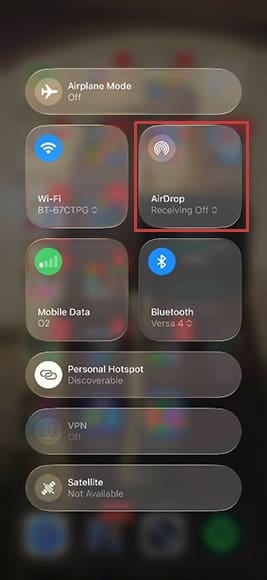
Step 2. Switch AirDrop on. Swipe down on your iPhone from the top right. If off, the AirDrop logo (a series of concentric, broken circles) will be gray.
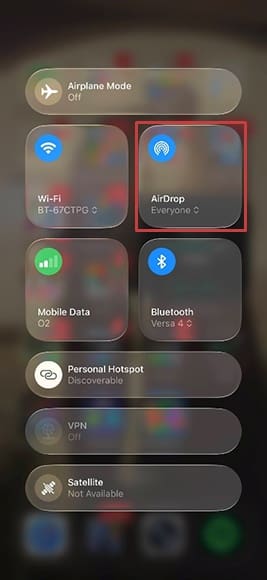
Step 3. Tap the AirDrop icon to make it blue. By default, this will allow you to receive files from everyone for 10 minutes.
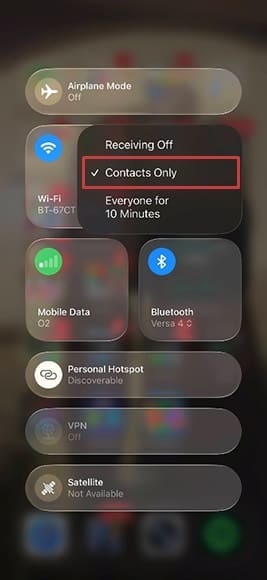
Step 4. For a more secure connection, tap where it says “Everyone” and change this to “Contacts Only.”
You will now be able to send and receive files from any Apple device that has also checked these settings are correct.
My iPhone Won’t Connect to Apple Devices App: Solutions
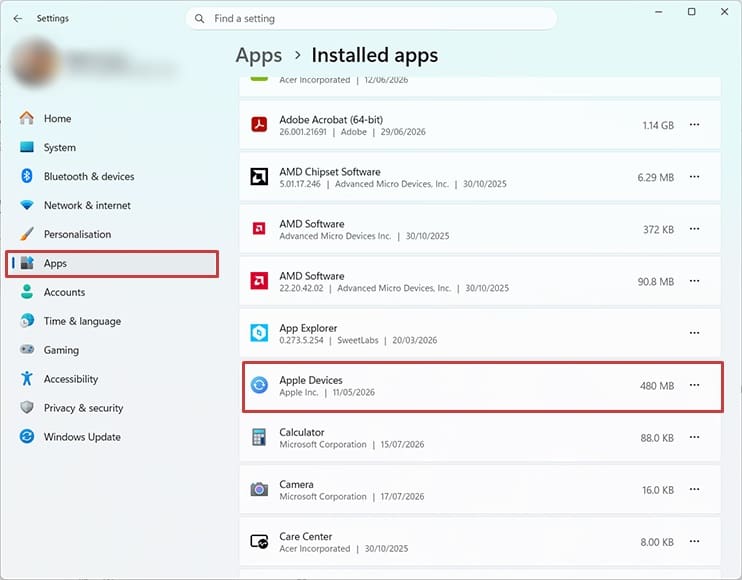
Step 1. In some instances, you may be unable to get your iPhone to connect to your Windows computer. One possible cause is that the Apple Devices app isn’t installed or configured correctly. When your iPhone won’t connect to the Apple Devices app, start by checking that it’s installed. You can use the search bar at the bottom of the screen, or go to Settings > Apps > Installed Apps.
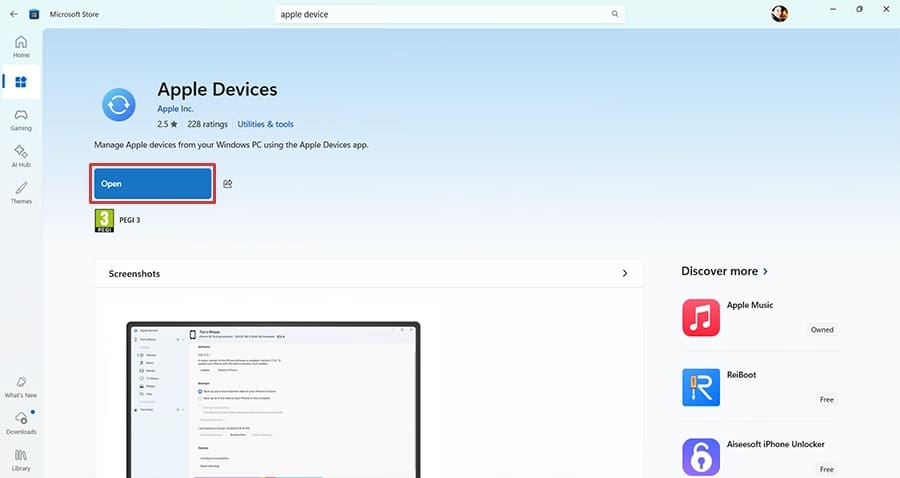
Step 2. If you don’t see Apple Devices in the Installed Apps list, open the Microsoft Store and download it from here. Follow all the onscreen prompts until the installation is complete, then open the app.
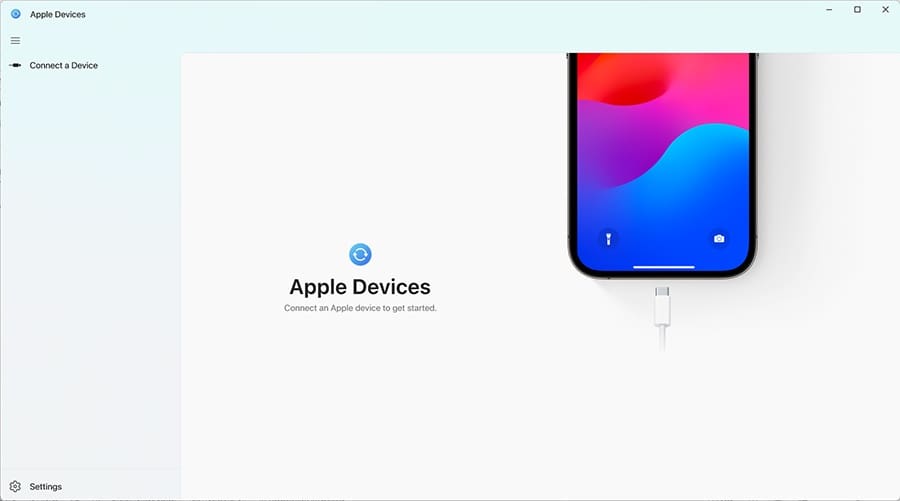
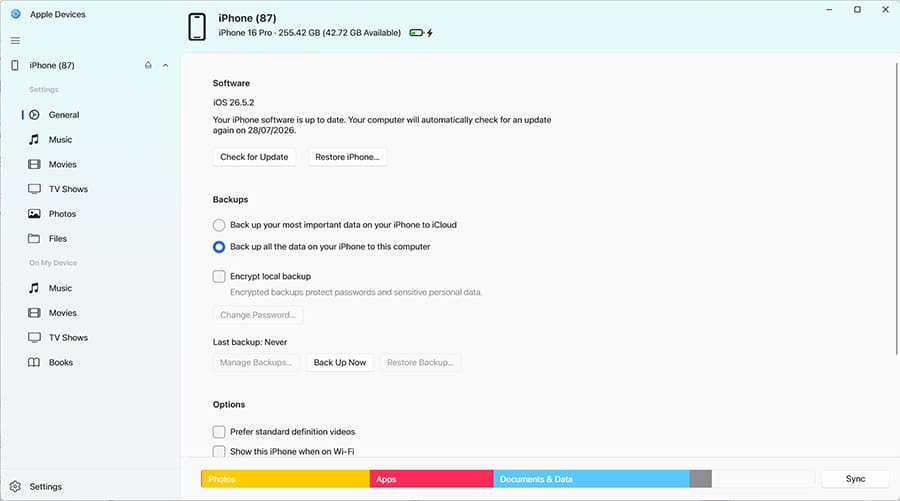
Step 3. You should see a screen prompting you to connect your Apple device to the computer.
Step 4. Plug your iPhone in with the appropriate cable. If nothing happens, try a different USB port on your computer. Other troubleshooting tips include:
Rebooting your iPhone
Restarting your computer
Trying a different cable
Checking your iPhone screen for alert messages, as you may need to enter your passkey
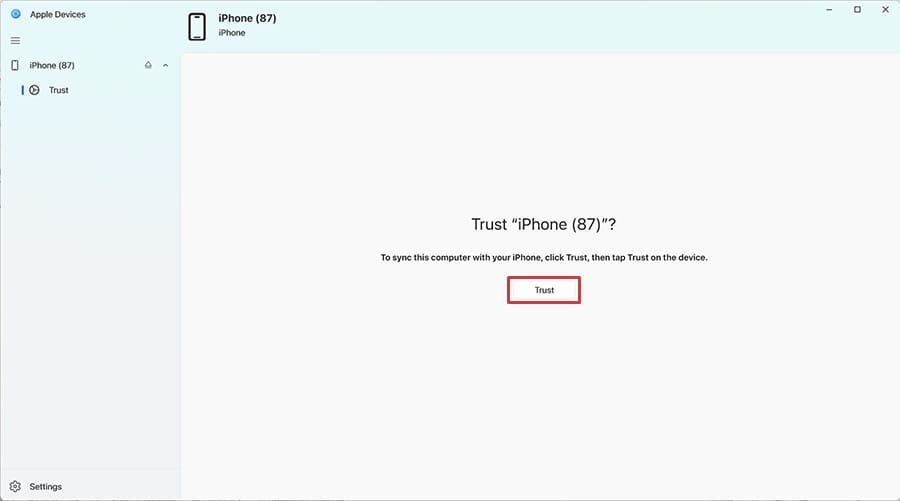
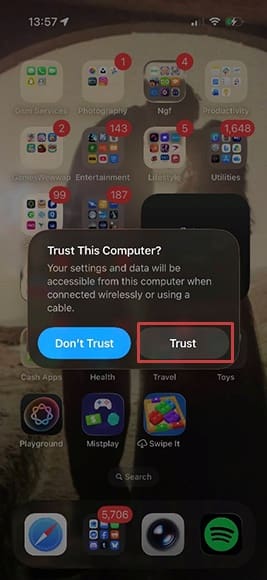
Once successfully connected, you should see a prompt on the Apple Devices app to “Trust” this device.
Step 5. Make sure you click “Trust…” on both the Apple Devices app and your iPhone, as this should prevent connection issues in the future.
If you follow these steps, you should always be able to connect your iPhone to your Windows computer via the Apple Devices app to see its contents, back it up, and sync media.
As an avid gamer, I’ve run into my fair share of error codes and weird faults that have forced me to find fixes to problems I never anticipated. That gave me a passion for sharing those fixes with others so we can all game without feeling like our hardware is rebelling against us.











Write a Comment