The ability to translate on the fly is one of the most useful features of modern smartphones. It makes travel easier, smooths business transactions, and even helps you better understand your favorite recipes from other countries.
If you have an iPhone, you’ll probably know that it has its own translation features via the Apple Translate app. However, Apple’s iPhone Default Translate app currently supports only 21 languages, with notable gaps in regional variations, such as Mexican Spanish and European Portuguese. Similarly, you can translate text into Brazilian Portuguese, but not Portuguese from Portugal, which can be a hindrance when traveling or working in Europe.
Thankfully, there are other translation tools available for your iPhone. Google Translate is probably one of the best-known and offers support for 249 languages, including Latin.
So, it makes sense to change your iPhone default translate app to Google Translate, and with this quick guide, it’s easier than you might think.
Changing Your iPhone Default Translate App: Step-by-Step Guide
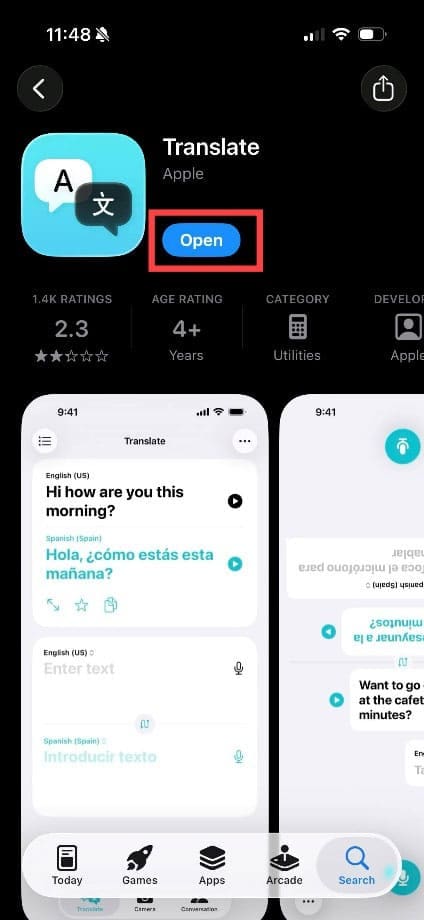
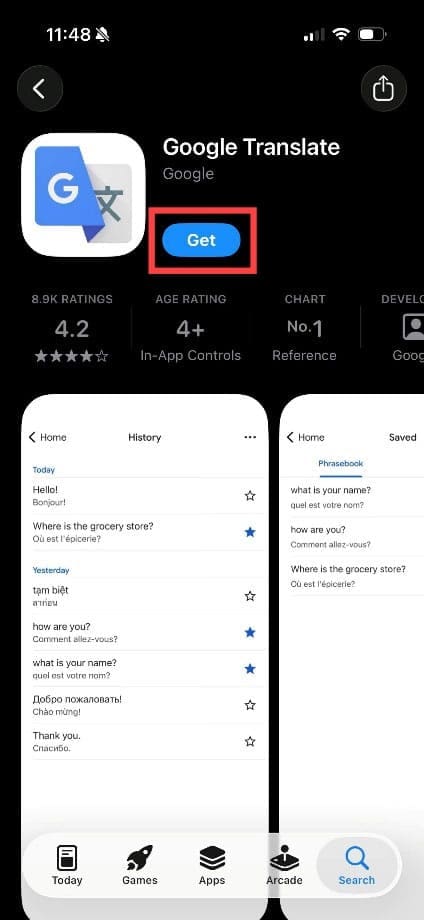
Step 1. For this change to work, make sure you have both Apple’s Translate app and Google Translate on your iPhone. If necessary, head to the App Store and search for either app.
If necessary, tap the blue “Get” button and follow the installation instructions. Both apps are free to download.
Step 2. Tap “Settings,” then tap “Apps.”
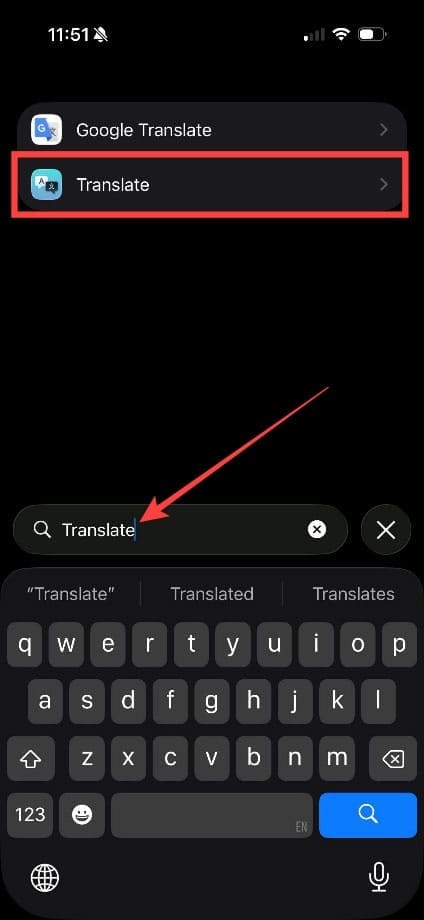
Step 3. Go to “Translate” (not Google Translate). Tip: If you have a lot of apps on your iPhone, use the search function to get here faster.
Step 4. In this menu, you can adjust various translation settings. Under “Default Translation App,” tap the option to choose your preferred translation app.
Step 5. By default, “Translate” will be ticked. You can tap on “Google Translate” to change Google to the default translation tool. It should now have a blue tick next to it.
Whenever you translate something using your iPhone now, you should find that you have access to Google’s 249 languages. You can use these translation tools when browsing the web, looking at documents, or even translating text in photos.
Give it a try by heading to a web page you know is in a different language.
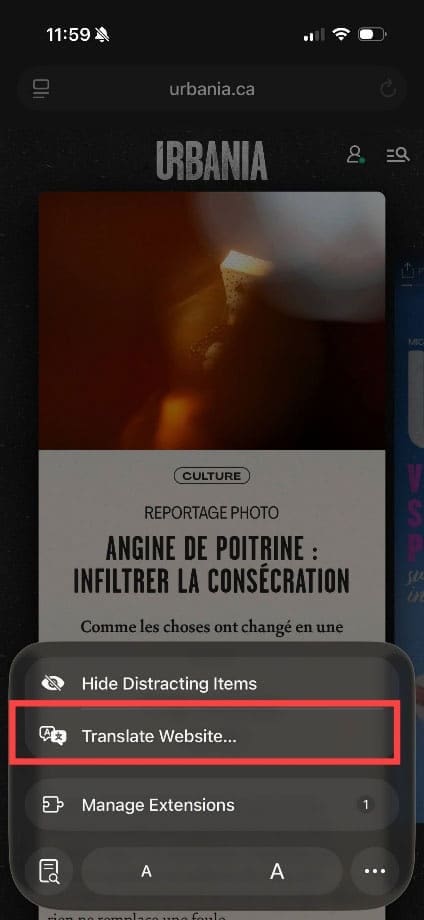
Step 1. Tap near the address bar, then tap the menu button in the top-left corner (a rectangle above two lines).
Step 2. Tap “Translate Website.”
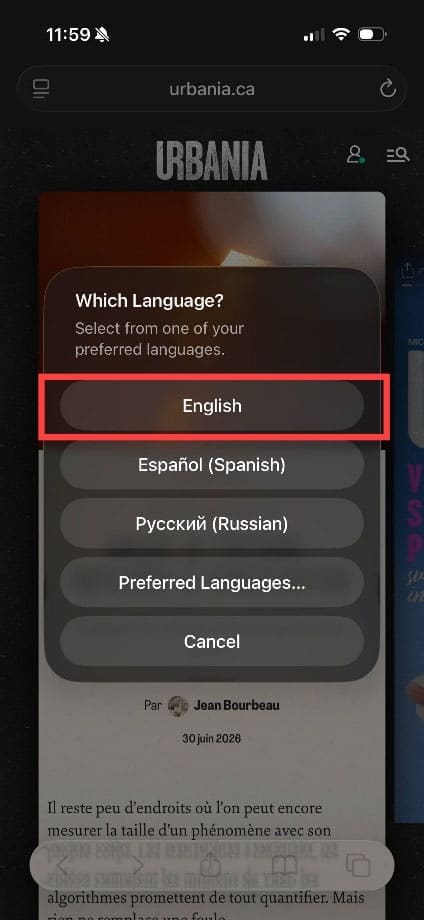
Step 3. Choose your language.
Step 4. You will now see a translated version of the page, and the blue and white Translate icon will appear in the top-left corner as a reminder that the page is being translated.
As an avid gamer, I’ve run into my fair share of error codes and weird faults that have forced me to find fixes to problems I never anticipated. That gave me a passion for sharing those fixes with others so we can all game without feeling like our hardware is rebelling against us.


















Write a Comment