• Skip to primary navigation
  • Skip to main content
  • Skip to primary sidebar
  • Skip to footer

AppleToolBox

Tools and Fixes for Mac, iPad, iPhone & iWatch

Search posts

  • About
  • Contact

CONNECT WITH US

CATEGORIES

  • iPhone
  • iPad
  • iPod
  • Apple Watch
  • Mac/MacBook
  • AirPods
  • Apple TV
  • News
  • Apple Services
  • HomePod
  • Reviews

SITE

  • Home
  • About Us
  • Contact
  • Advertise

Search posts

You are here: Home / AirPods / How to Get a Custom EQ for Your AirPods (iOS 27)

How to Get a Custom EQ for Your AirPods (iOS 27)

By Louis Roundtree 0 comments Last updated October 9, 2026

Things to Know
  • Until iOS 27, the only personalized EQ AirPods offered was a user-adjustable, three-band EQ for changing the sound profile directly.
  • When you update your iPhone or iPad to iOS 27 or iPadOS 27, you can use Custom EQ with compatible AirPods.
  • The Custom EQ AirPods settings are under Settings > [your AirPods] > Audio & Routing > Equalizer.

If you’re a big music fan, you probably love having your sound settings exactly to your preferences. Unfortunately, Apple hasn’t previously offered a user-adjustable EQ for AirPods. There have been automatic audio features that adjust the listening experience based on your environment or other factors, but they don’t give you direct control over the frequency bands.

With iOS 27 and iPadOS 27, Apple has introduced a custom EQ feature for compatible AirPods. This guide takes you through where to find the Custom EQ AirPods settings and how to check if your devices will work with this feature.

Contents

  • Custom EQ AirPods: Check if Your AirPods Are Compatible
  • Personalized EQ AirPods Settings: Getting Started
  • Personalized EQ AirPods Settings: Where to Find Them

Custom EQ AirPods: Check if Your AirPods Are Compatible

The new personalized EQ AirPods settings are only accessible on compatible devices. You will need an iPhone running iOS 27 or an iPad running iPadOS 27. You’ll also need a compatible AirPods model with the required firmware.

You also need to check that your listening gear is compatible with the new custom EQ feature. Here are the AirPods that should work with Custom EQ:

  • AirPods 4 or later
  • AirPods Pro 2 or later
  • AirPods Max 2

These AirPods models use Apple’s H2 chip, which enables the Custom EQ feature.

Personalized EQ AirPods Settings: Getting Started

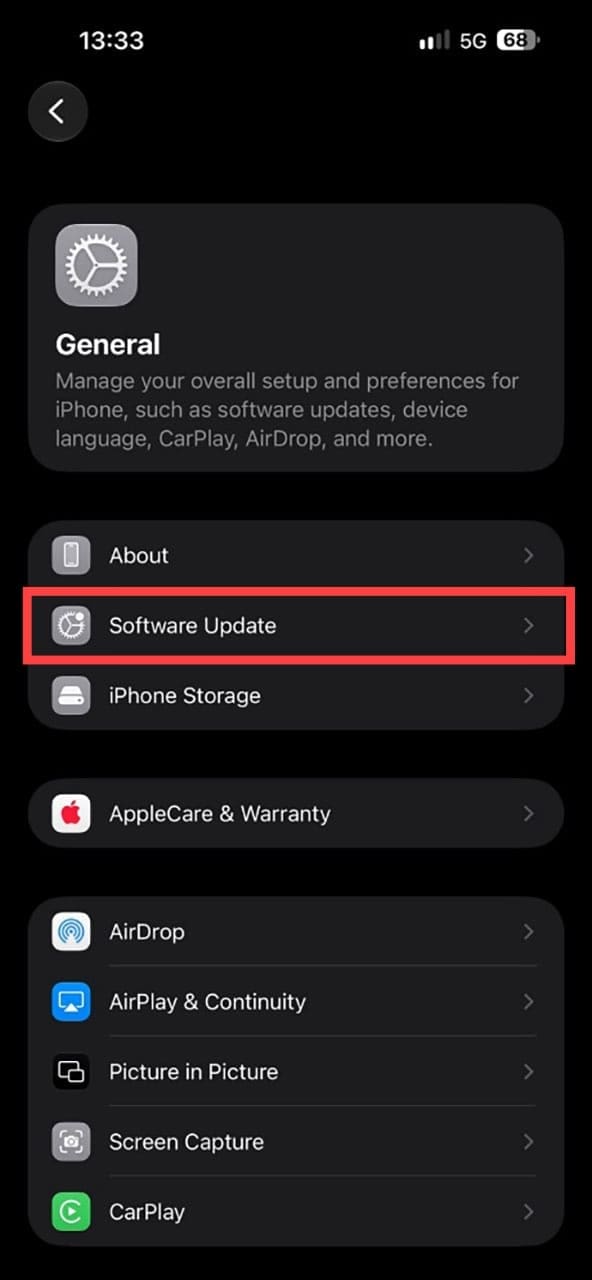
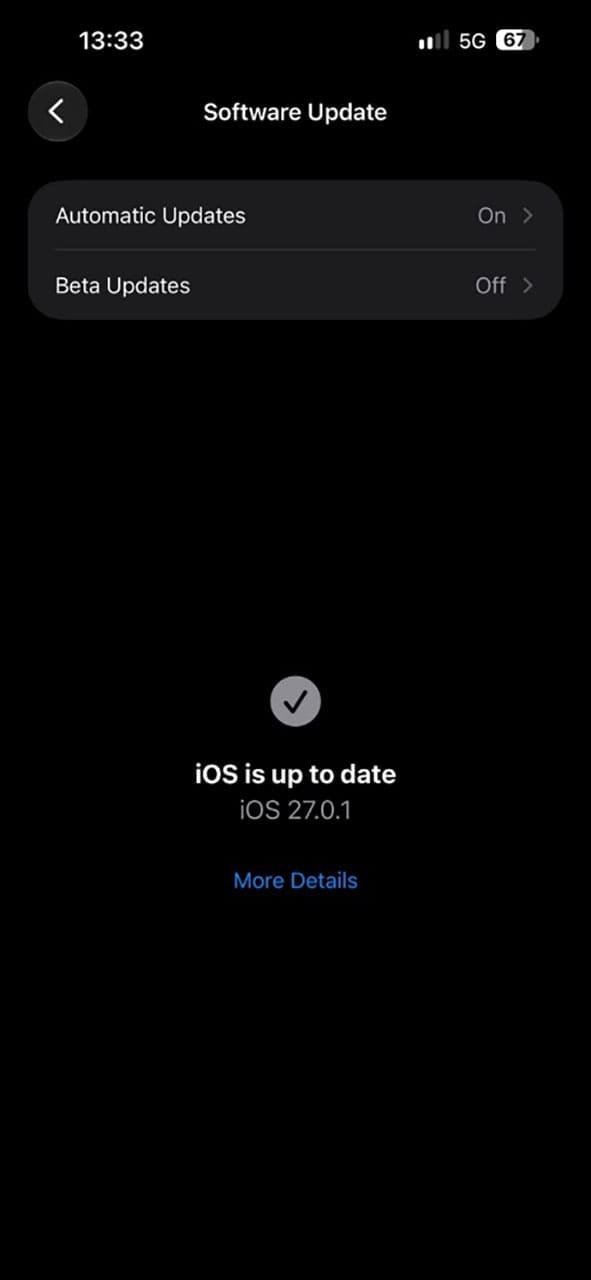
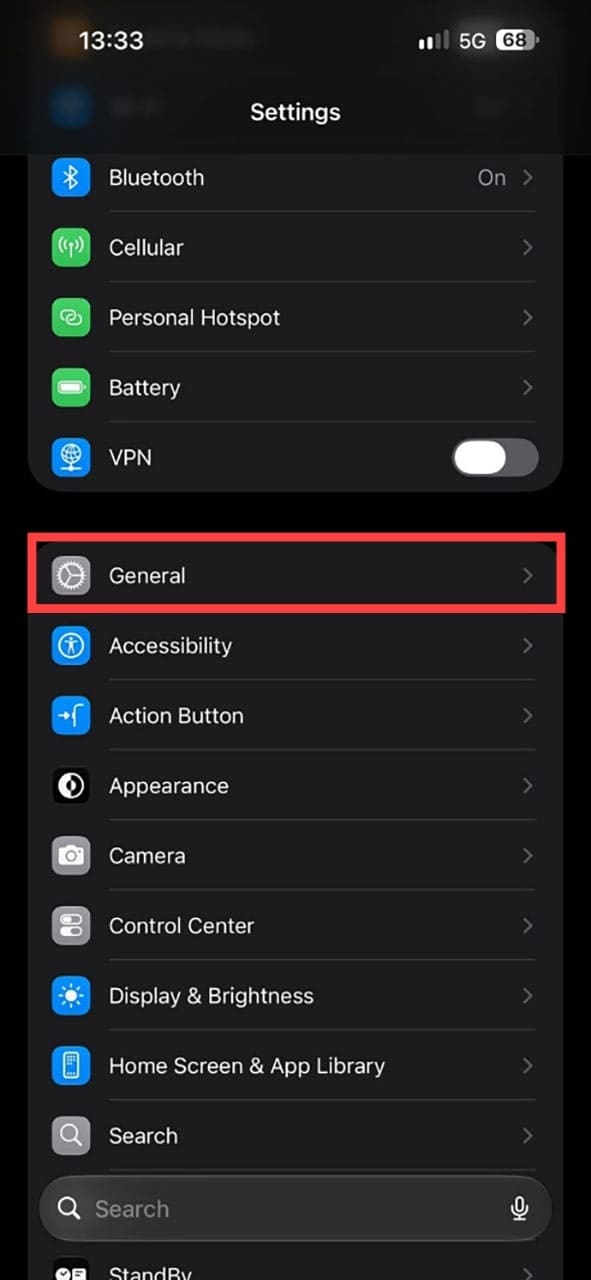
Step 1. Once you’ve checked that your AirPods are compatible, make sure your device’s software is up to date. On your iPhone or iPad, go to Settings > General > Software Update. If an update is available, follow the on-screen instructions to install it.

How to Get a Custom EQ for Your AirPods (iOS 27) 1 How to Get a Custom EQ for Your AirPods (iOS 27) 2 How to Get a Custom EQ for Your AirPods (iOS 27) 3

Step 2. Once the software update is complete, connect your AirPods to your iPhone or iPad. AirPods firmware updates are delivered automatically while the AirPods are charging and within Bluetooth range of your iPhone, iPad, or Mac.

How to Get a Custom EQ for Your AirPods (iOS 27) 4

AirPods firmware updates are installed automatically while your AirPods are charging and within Bluetooth range of your iPhone, iPad, or Mac.

Personalized EQ AirPods Settings: Where to Find Them

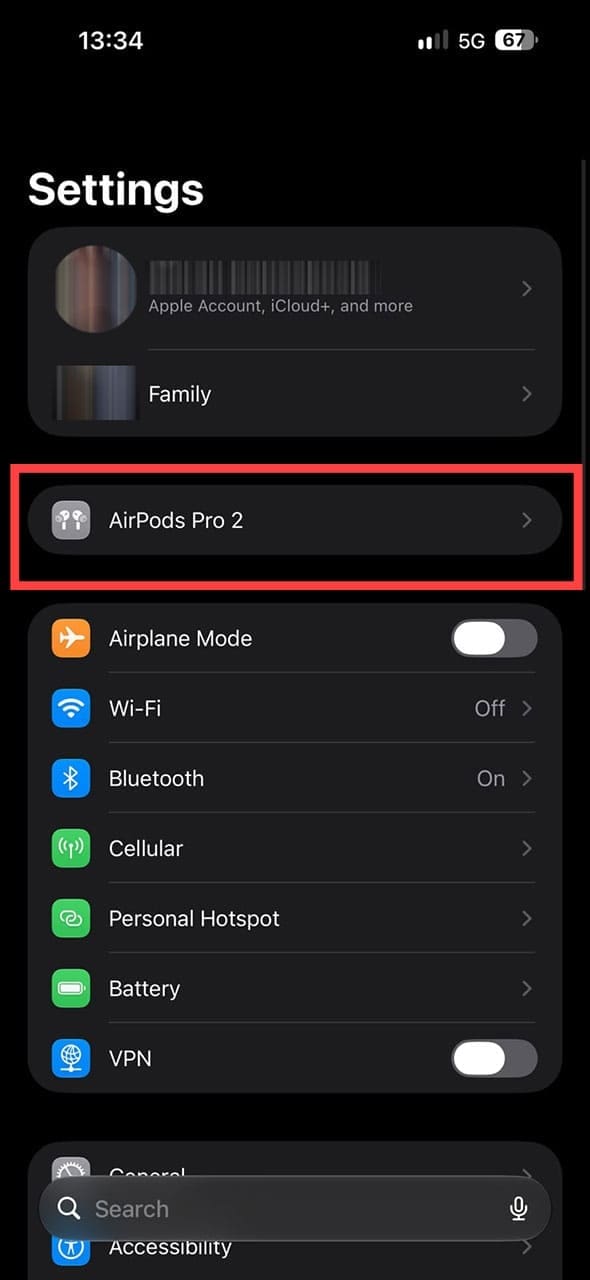
Step 1. Once your iPhone or iPad and AirPods are up to date, connect your AirPods and go to Settings > [your AirPods] > Audio & Routing.

How to Get a Custom EQ for Your AirPods (iOS 27) 5

Alternatively, you can go to Bluetooth, find your AirPods in the list of connected devices, and tap on the “i” next to them to access the same menu.

How to Get a Custom EQ for Your AirPods (iOS 27) 6

Step 2. Tap on Equalizer.

How to Get a Custom EQ for Your AirPods (iOS 27) 7

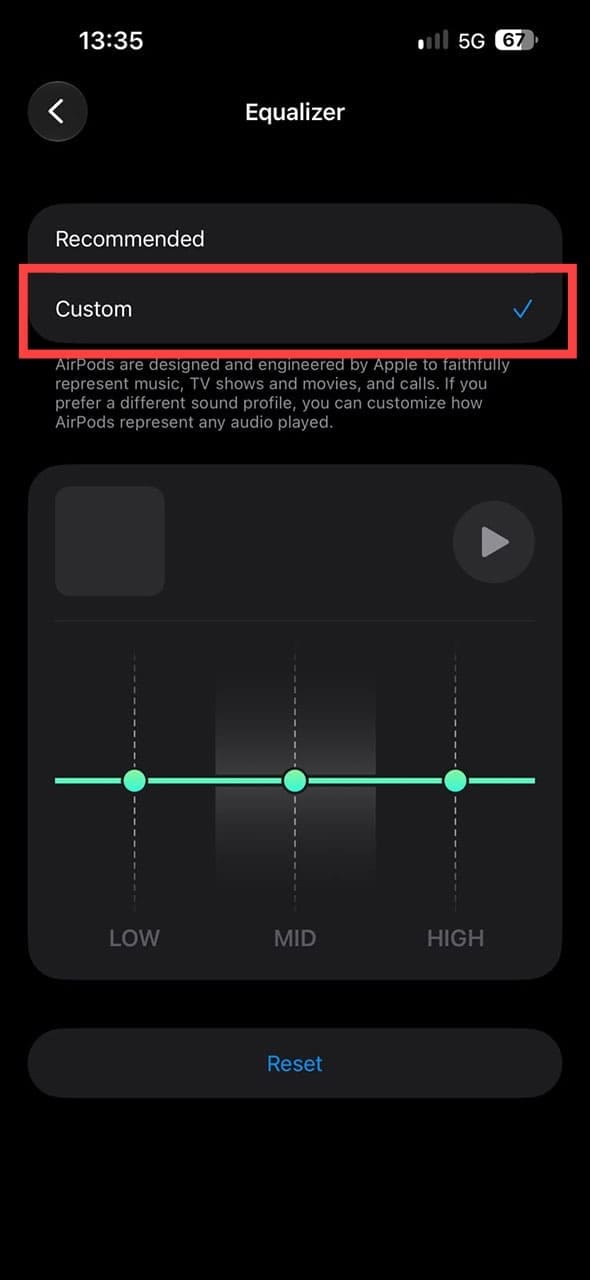
Step 3. Finally, press “Custom,” and you can adjust the low, mid, and high frequencies to your liking. Use the slider to drive up the low frequencies for a more bassy sound, or slide the trebles (high frequencies) down if the sound is too tinny or shrill.

How to Get a Custom EQ for Your AirPods (iOS 27) 8

The new Custom EQ is a three-band equalizer, so it offers broad adjustments rather than the fine-grained control of a multi-band or parametric EQ. Low frequencies primarily affect bass, Mid affects much of the vocal and instrumental range, and High affects treble and other higher-frequency detail.

Related Posts:

  • Photo of someone using Apple Music on their smartphone
    How to Fix Apple Music Not Working on iPhone / iPad
  • Screen Shot 2021-07-12 at 4.52.12 AM
    AirPods Max Review: How They Look Six Months Later
  • AirPods Pro 2 - 1
    AirPods Max vs AirPods Pro 2: Making The Right Purchase
  • How to Find Lost AirPods Pro 2 with Precision Finding - Locate earbud
    I Lost My AirPods! How To Find Your Lost AirPods or…
  • Mac Output Audio Header
    How to Control Individual Application Volume on Mac
  • pexels-kaboompics-com-6320
    Apple Music Lossless: Here's What It Means For You
  • Screen Shot 2022-04-29 at 11.38.06 PM
    Which Apple Watch Band Should You Choose?
  • MacBook Pro 2021 iPad Mini iPhone 13 Pro AirPods 3 Beats Fit Pro iPad Pro Best Apple Products - 3
    Spatial Audio Not Available on Mac: How-to Fix
  • pexels-cottonbro-5082579
    Getting Started With iOS 15: Everything Good And Bad
Louis Roundtree
Louis Roundtree

As an avid gamer, I’ve run into my fair share of error codes and weird faults that have forced me to find fixes to problems I never anticipated. That gave me a passion for sharing those fixes with others so we can all game without feeling like our hardware is rebelling against us.

Reader Interactions

Write a Comment Cancel reply

Primary Sidebar

Recent Posts

  • How to Get a Custom EQ for Your AirPods (iOS 27)
  • How to Run Two Apps Side-by-Side on iPhone
  • Can You Recover Permanently Deleted Files on a Mac?
  • How to Make Google Translate Your Default iPhone App
  • How to Add ChatGPT to Messages on iPhone
  • iPhone Not Working? You Can Still Put It in Recovery Mode

Connect with us

Footer

ABOUT

  • About Us
  • Contact us
  • Advertise
  • Privacy
  • Terms of Use

GUIDES

  • iOS & iPadOS
  • Apple ID
  • iCloud
  • App Store
  • iTunes
  • FaceTime
  • iMessage
  • Siri
  • Books and iBooks
  • Game Center
  • AirPlay

CONNECT

  • Facebook
  • Twitter
  • FeedBurner
  • YouTube

© Copyright 2010-2024 Guiding Tech Media · All Rights Reserved

This site and its content are in no way affiliated or endorsed by Apple, Inc. · Reproduction without explicit permission is prohibited

Last Updated on October 12, 2026 by Louis Roundtree