Voice Memos is a handy iPhone app that allows you to take quick verbal notes, record parts of lectures, or capture snippets of music so you can listen to them later. Mac users have the same app on their computers, and as long as they’re signed in to the same Apple Account on both devices and have Voice Memos enabled in iCloud, their recordings should appear on both.
Sadly, Windows users don’t have it that easy. But despite the lack of an automatic sync, there are several ways you can export Voice Memos to Windows so you can access iPhone recordings on Windows. This guide explores using iCloud Drive and email to achieve this.
Export Voice Memos to Windows: Method 1 – iCloud
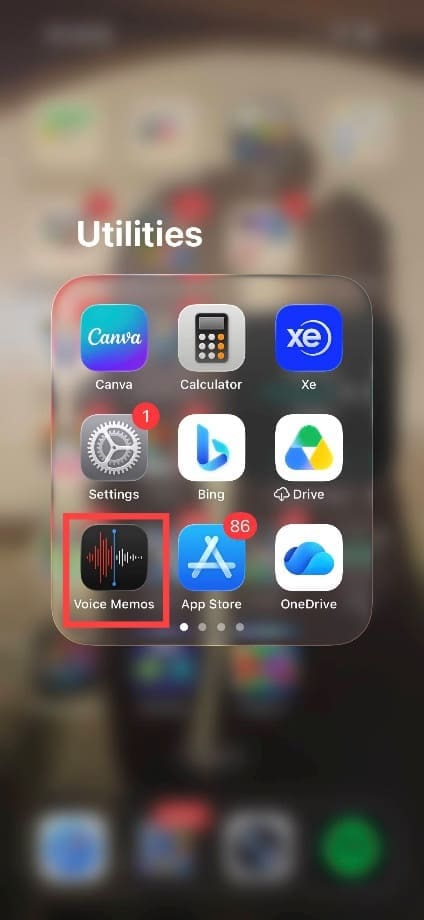
Step 1. Your iPhone is associated with an Apple Account (previously called an Apple ID), which can give you access to iCloud Drive. To save voice notes to iCloud Drive, start by opening the Voice Memos app. On many iPhones, you can find it in the Utilities folder in the App Library or on the Home Screen.
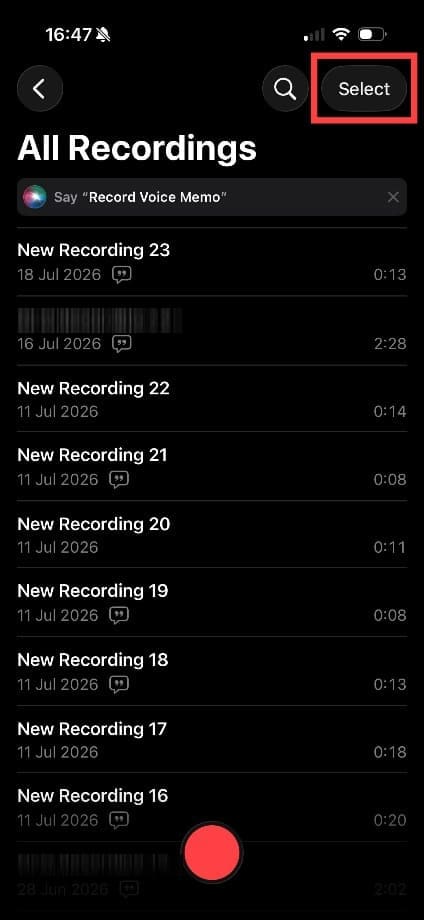
Step 2. In the Voice Memos app, tap “Select” above the list of recordings.
Step 3. An empty circle will appear next to each recording. Tap the circle next to each recording you want to share, then press the share button in the bottom left corner. It’s a square with an arrow pointing upward.
Step 4. From the share menu, tap “Save to Files. “You may need to press “View More” to see this.
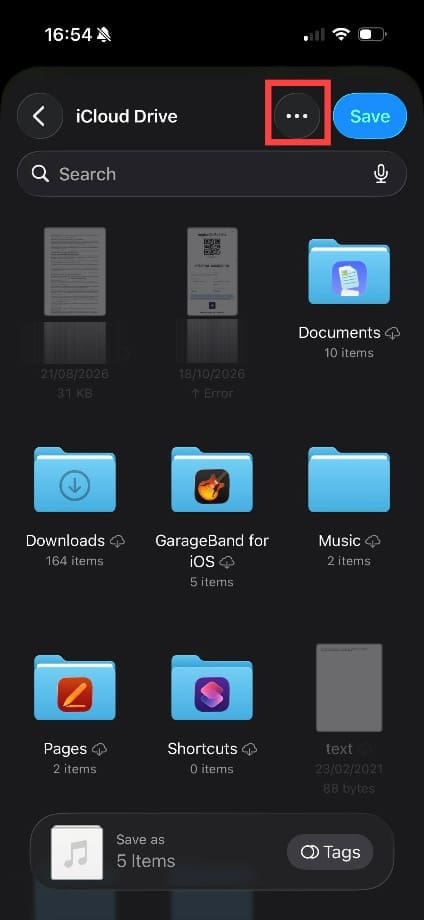
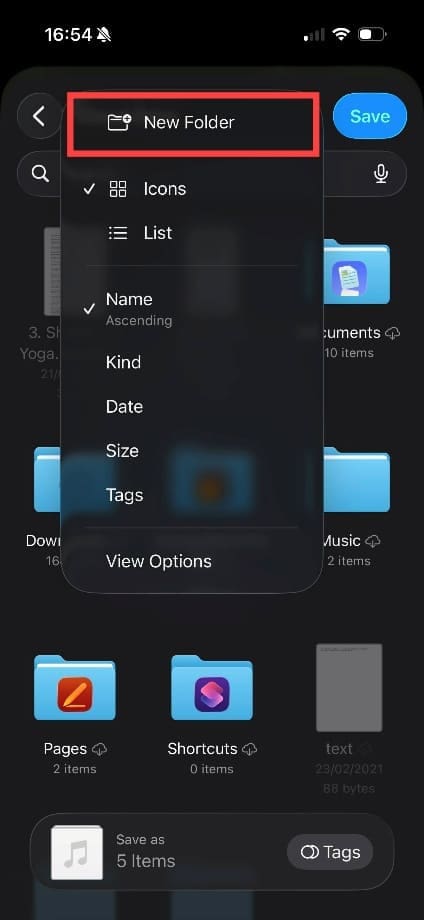
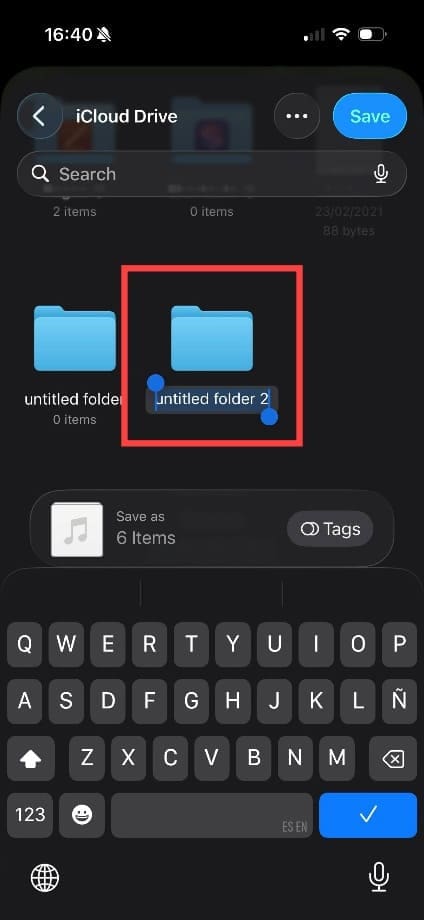
Step 5. To make your recordings easier to find later, create a folder labeled “Voice Memos” in the “Files Save” screen. If needed, use the folder-creation option in the menu.
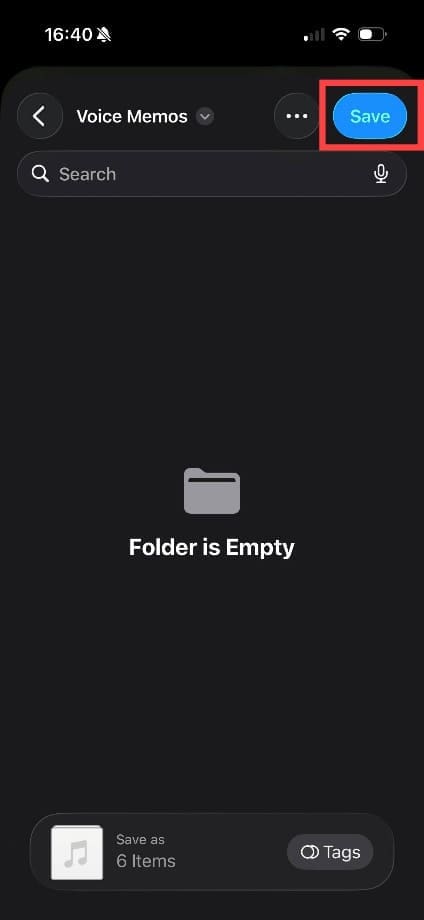
Step 6. You’ll automatically be taken into the newly created folder. Press “Save” to complete the process.
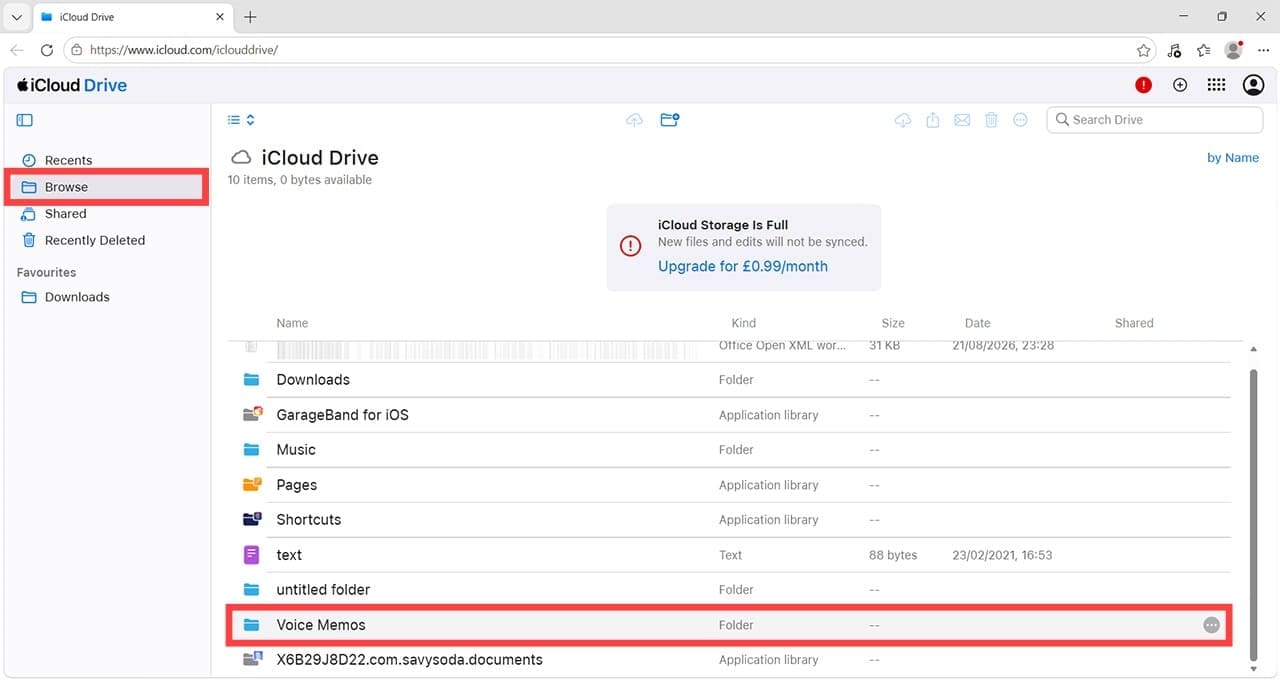
Step 7. On your Windows computer, open a web browser and go to https://www.icloud.com/iclouddrive. Enter the same Apple Account details as are in use on your iPhone.
Step 8. Click “Browse” in the left-hand menu, then scroll until you see the Voice Memos folder you created.
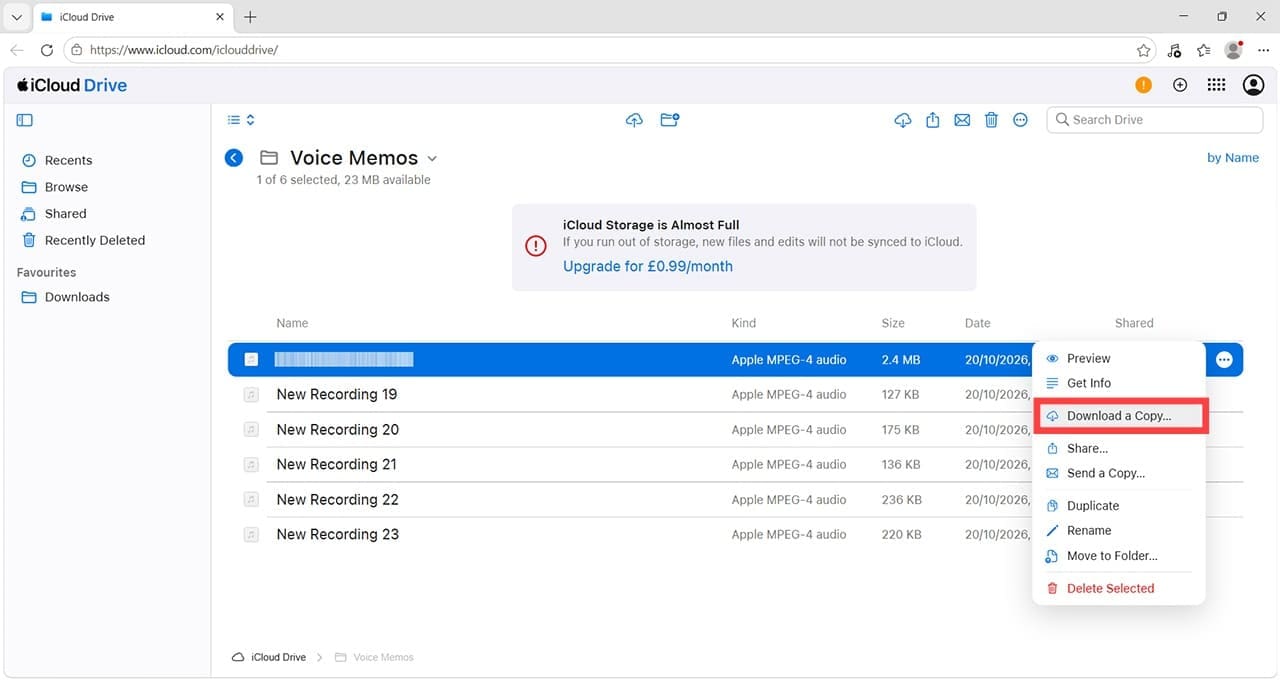
Step 9. Double-click the folder to view your saved recordings. Select the recording you want to download, then click the “Download” button or choose the available download option. The file will be saved to the location specified in your browser’s download settings, usually your Downloads folder.
Export Voice Memos to Windows: Method 2 – Email
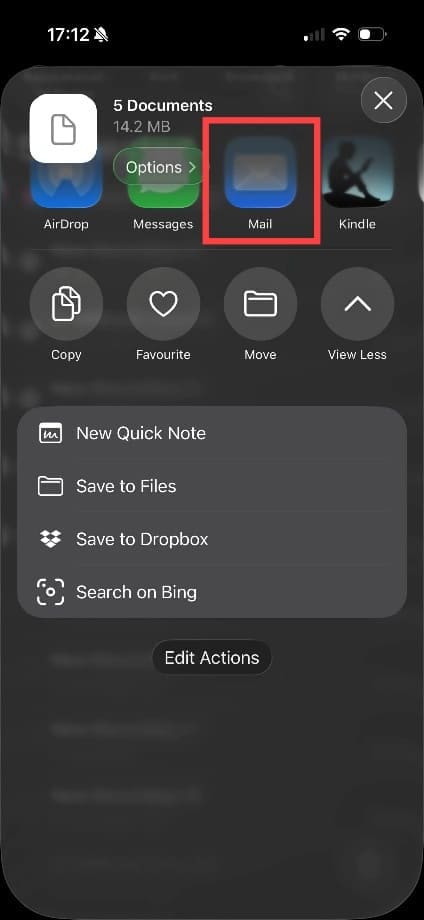
Step 1. You can also share voice recordings by email, as long as the file size is small enough. Follow the same process to start with: Voice Memos > Select > Share, but this time, choose “Mail.”
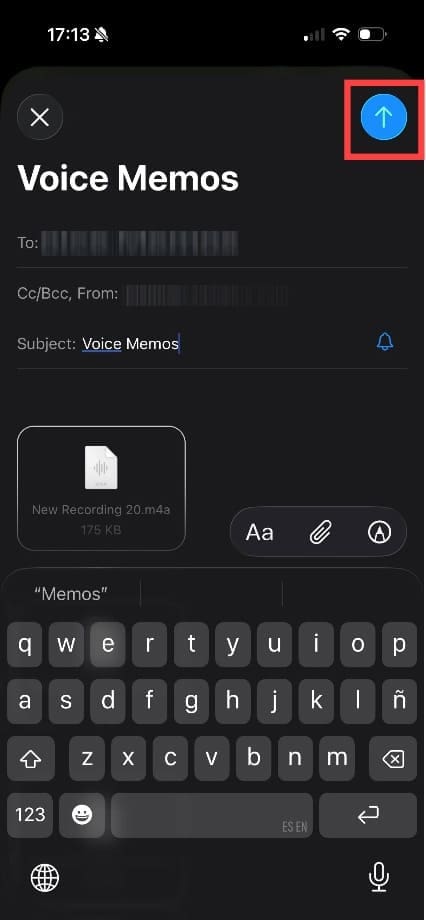
Step 2. This will open a new email using your iPhone’s native Mail app. Add a recipient (your own email address or one you have easy access to is best) and a subject, then click the blue arrow to send. You can open your email inbox on your Windows computer to access the voice memos.
As an avid gamer, I’ve run into my fair share of error codes and weird faults that have forced me to find fixes to problems I never anticipated. That gave me a passion for sharing those fixes with others so we can all game without feeling like our hardware is rebelling against us.
















Write a Comment