• Skip to primary navigation
  • Skip to main content
  • Skip to primary sidebar
  • Skip to footer

AppleToolBox

Tools and Fixes for Mac, iPad, iPhone & iWatch

Search posts

  • About
  • Contact

CONNECT WITH US

CATEGORIES

  • iPhone
  • iPad
  • iPod
  • Apple Watch
  • Mac/MacBook
  • AirPods
  • Apple TV
  • News
  • Apple Services
  • HomePod
  • Reviews

SITE

  • Home
  • About Us
  • Contact
  • Advertise

Search posts

You are here: Home / Mac / How to Export iTunes Library to New Computer

How to Export iTunes Library to New Computer

By Louis Roundtree 0 comments Last updated May 22, 2026

Things to Know
  • Apple’s iTunes app is a media player and organizer for music, TV shows, and movies.
  • If you change computers, you can transfer your existing iTunes library by consolidating files and backing them up, then restoring them using an external drive or storage device.
  • Media that you’ve purchased via your Apple account is automatically available to download.

Having your media library on your PC means you can listen to your favorite tunes or watch your top shows whenever you like. Apple’s iTunes is a popular choice of media player, and it helps organize shows, songs, and movies into categories and genres.

When you switch computers, you may worry that you’ll lose some of the media in your iTunes library. However, it’s not difficult to export iTunes library to new computer if you follow these steps.

Export iTunes Library to New Computer: Back Up Your Current iTunes Library

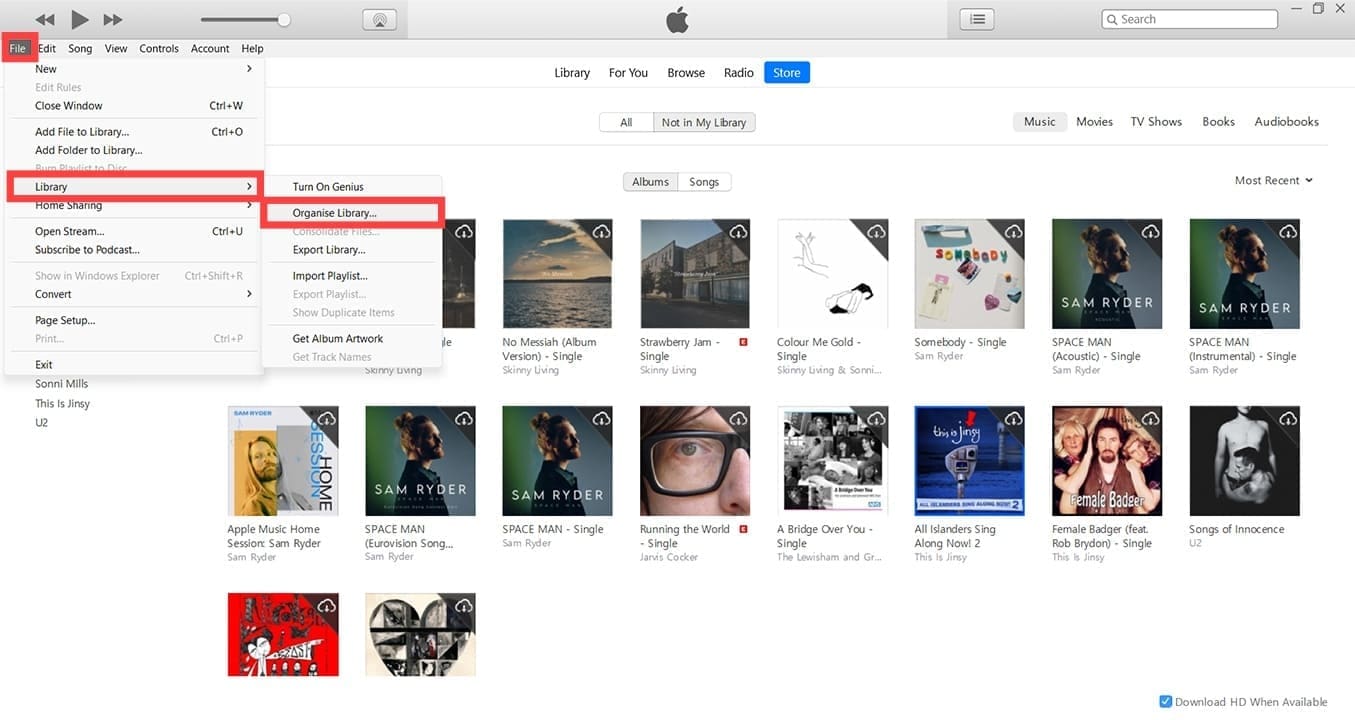
Step 1. Before you start, make sure you have an external storage device, such as a portable flash drive, and any necessary connecting cables. Set these aside for now. Open iTunes, and go to File > Library > Organize Library.

How to Export iTunes Library to New Computer 1

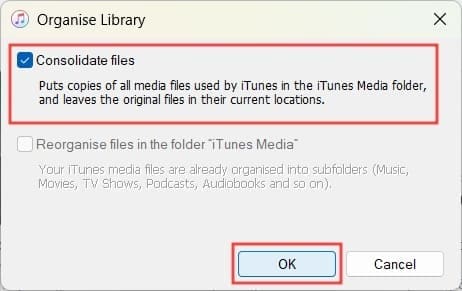
Step 2. Tick the “Consolidate Files” box, then click “OK.” This places copies of all the files into an iTunes-specific folder from which you’ll export iTunes library.

How to Export iTunes Library to New Computer 2

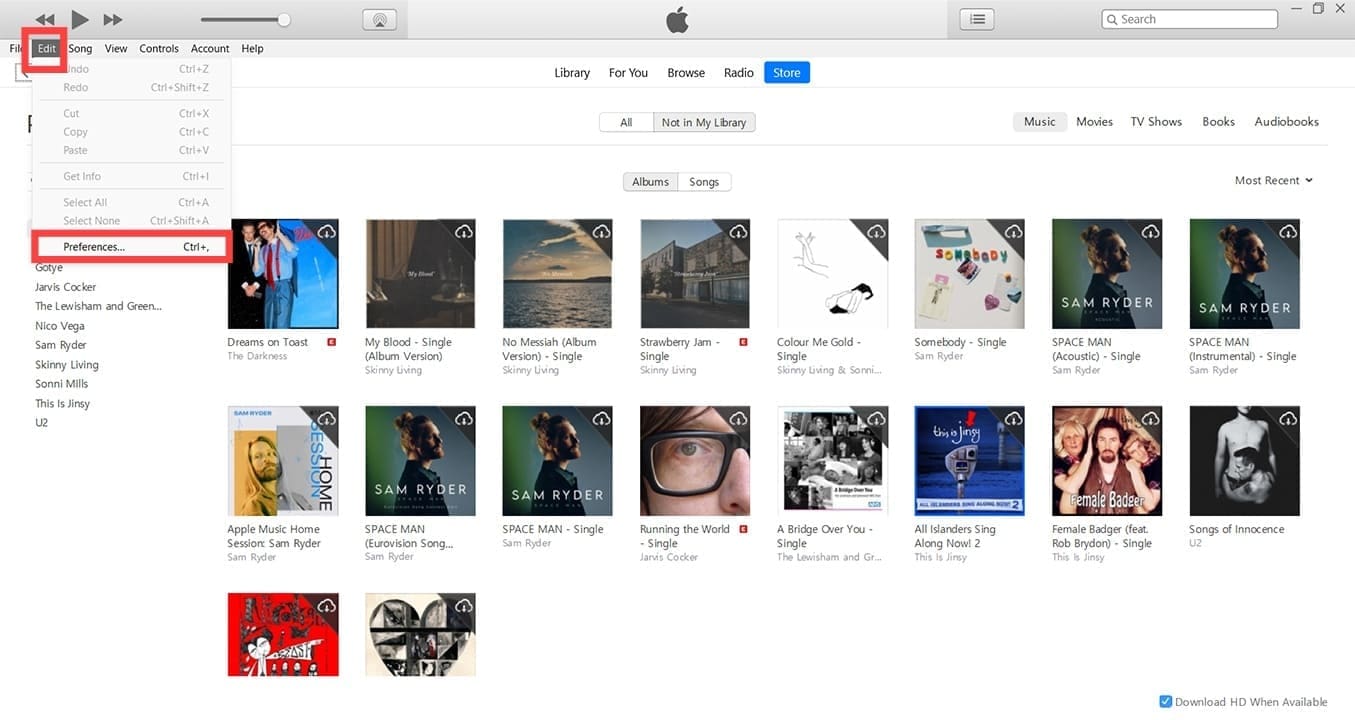
Step 3. Head to Edit > Preferences.

How to Export iTunes Library to New Computer 3

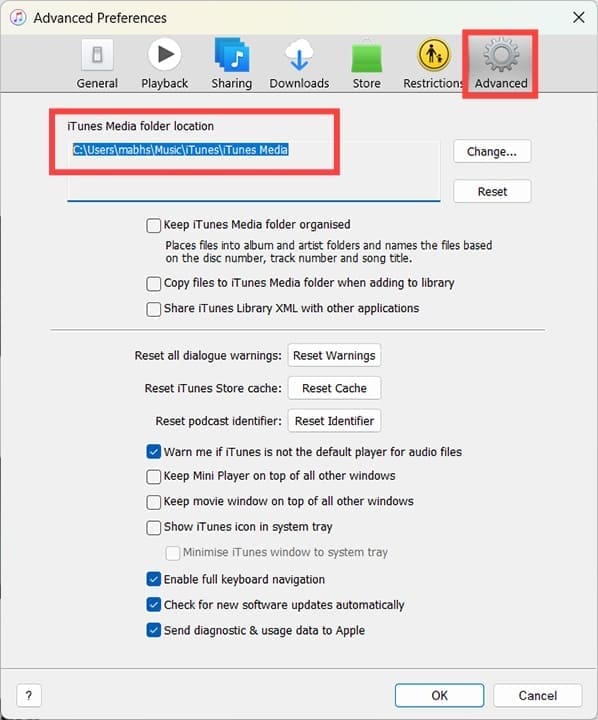
Step 4. Click “Advanced,” then look for “iTunes Media folder location.” Make a note of the location here, e.g., C:\Users\JBloggs\Music\iTunes\iTunes Media. Click “Cancel” to close this window.

How to Export iTunes Library to New Computer 4

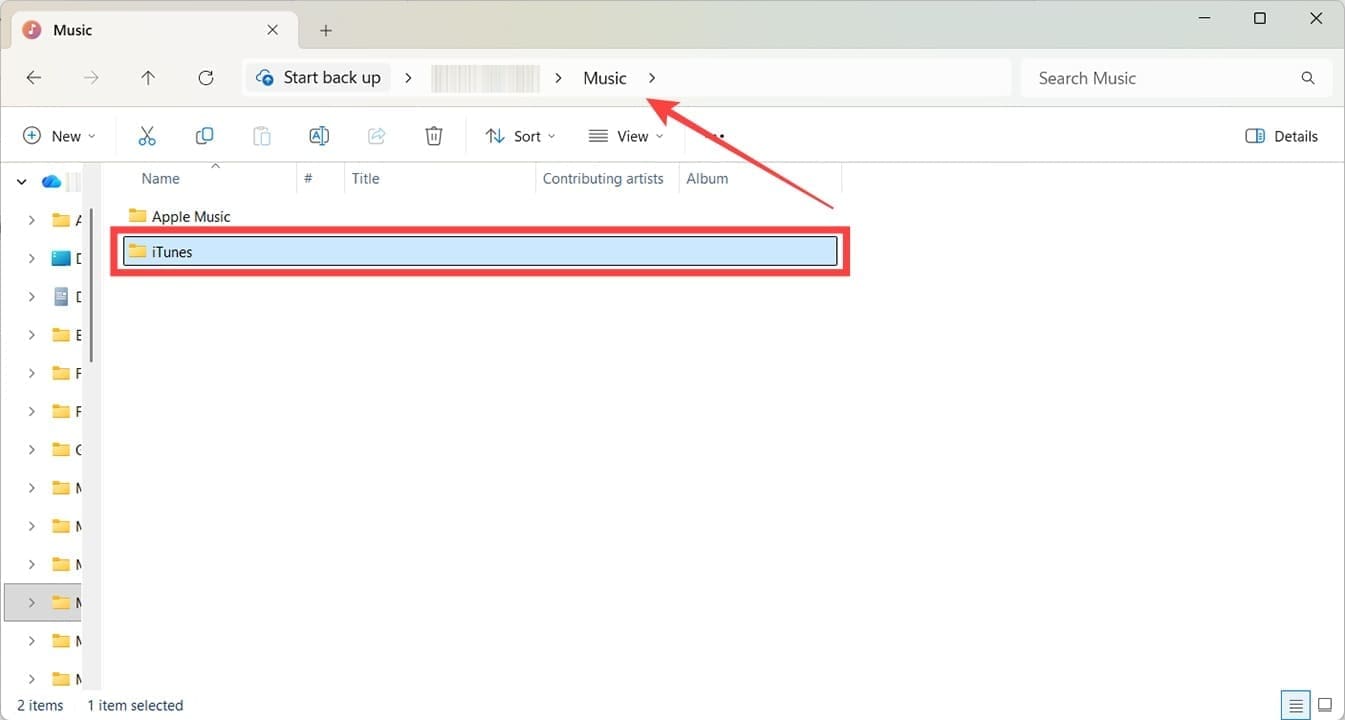
Step 5. Close iTunes and open Windows File Explorer, navigating to the location of iTunes. You do not need to go into the exact iTunes media folder. Instead, make sure you’re in the folder that holds iTunes, for example, “Music.”

How to Export iTunes Library to New Computer 5

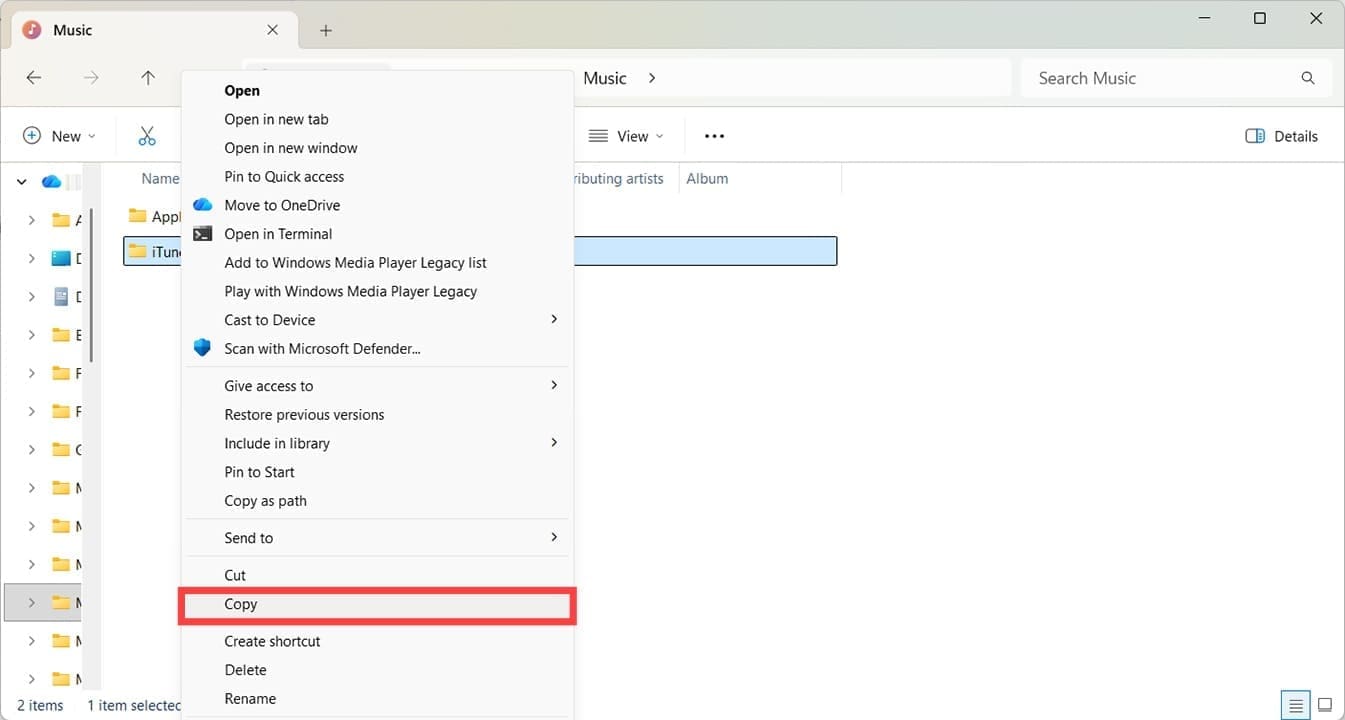
Step 6. Right-click on the iTunes folder and then click “Copy.”

How to Export iTunes Library to New Computer 6

Step 7. Insert your external hard drive, flash drive, or other storage device. Use File Explorer to find the drive. It should show up under “This PC.”

How to Export iTunes Library to New Computer 7

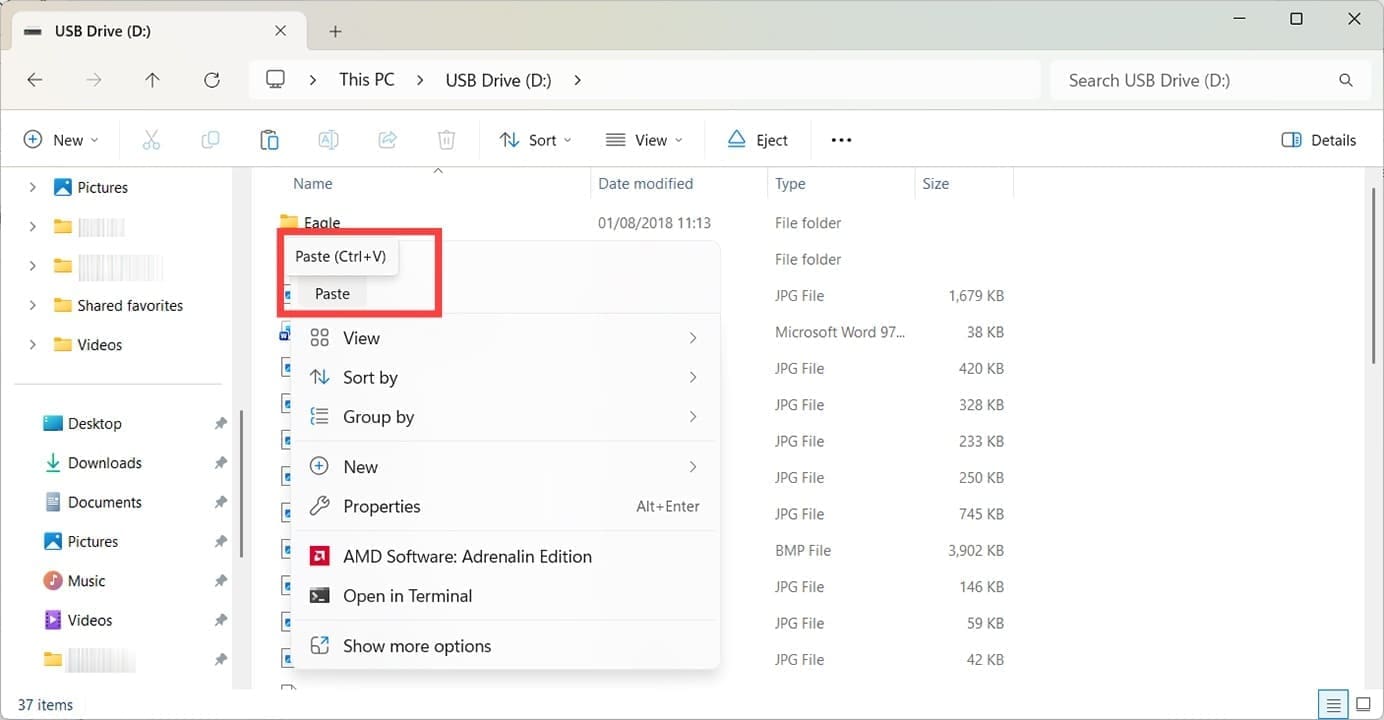
Step 8. Double-click the external drive, then right-click anywhere in the window and choose the option for Paste.

How to Export iTunes Library to New Computer 8

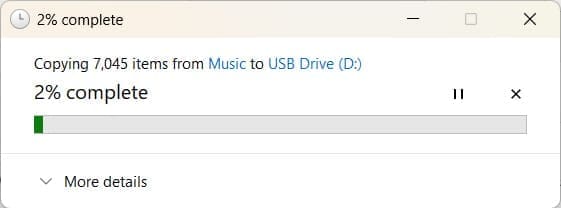
Note: The bigger your media collection, the longer this will take. You’ll see a progress box while the process is ongoing. Once complete, safely remove your external drive.

How to Export iTunes Library to New Computer 9

Export iTunes Library to New Computer: Restore Library on New PC

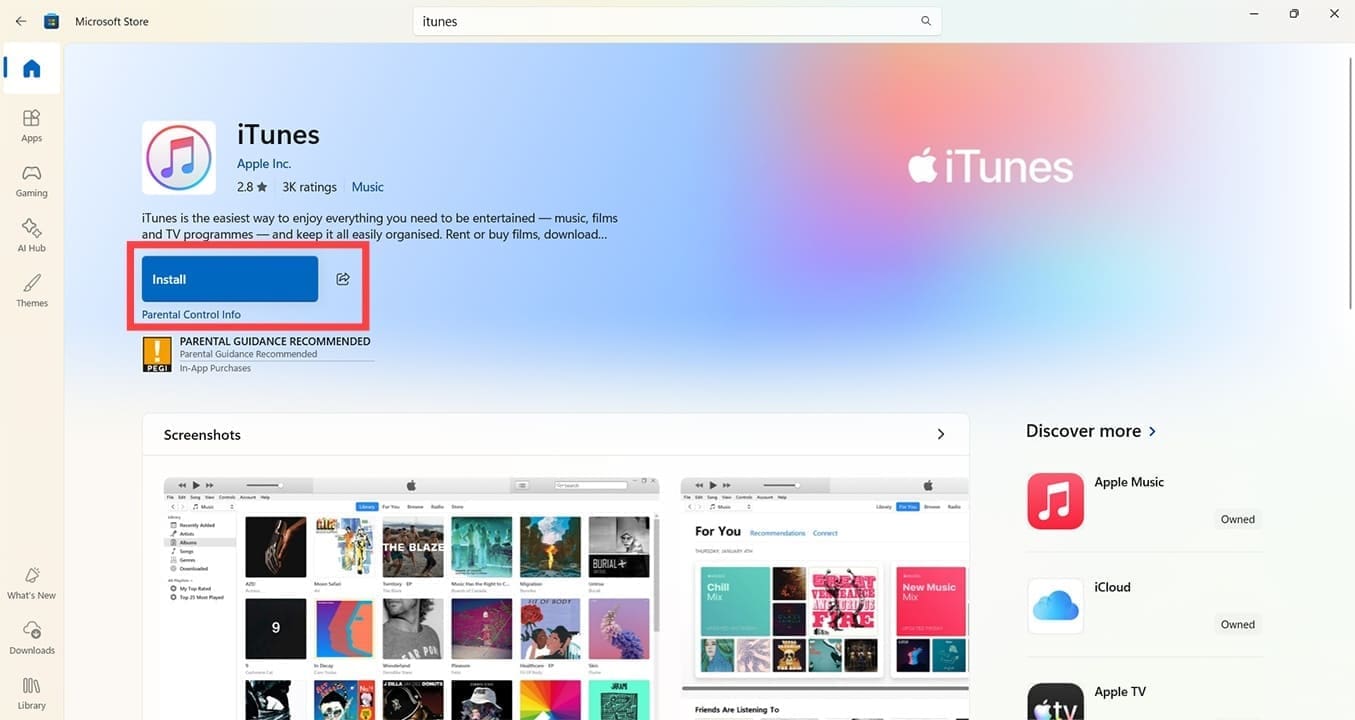
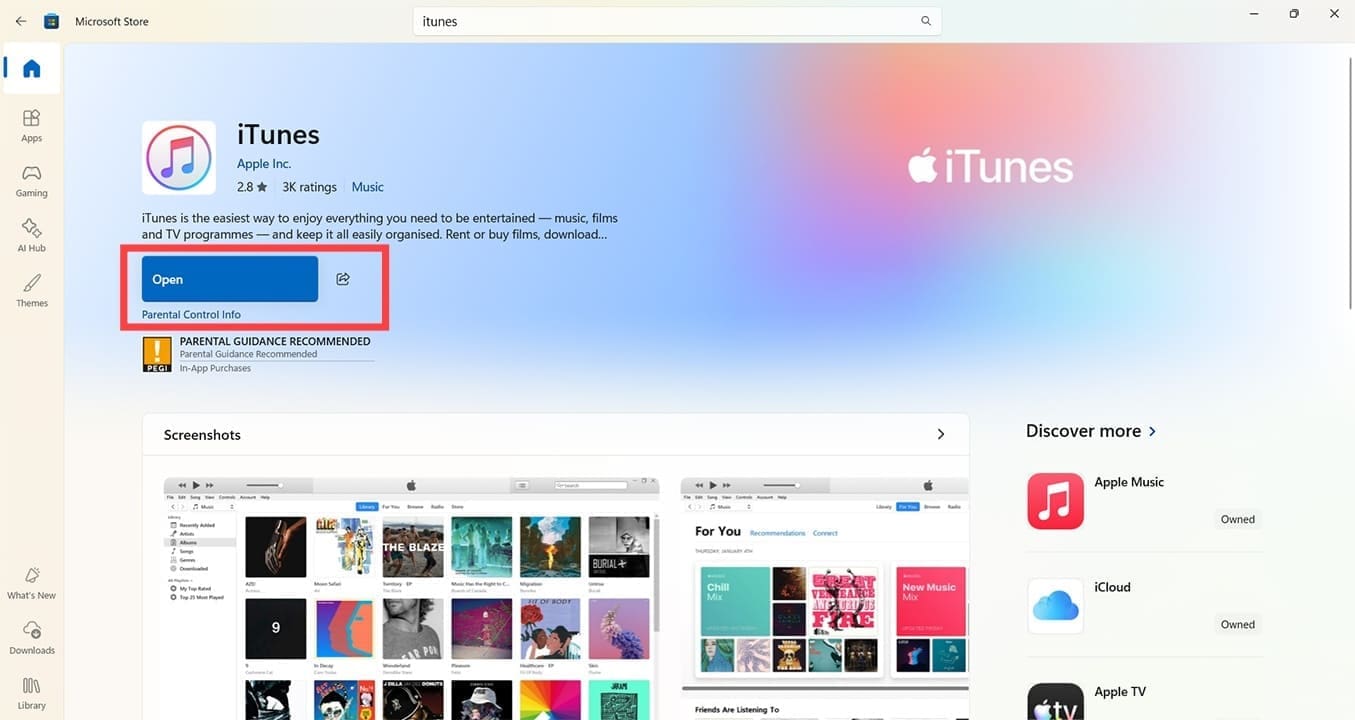
Step 1. The next step of exporting iTunes library details takes place on the new machine. Make sure your new PC has iTunes on it. If not, head to the Microsoft Store and search for the app. Click the blue install button and follow all onscreen prompts to install it.

How to Export iTunes Library to New Computer 10

Step 2. Once installed, click Open.

How to Export iTunes Library to New Computer 11

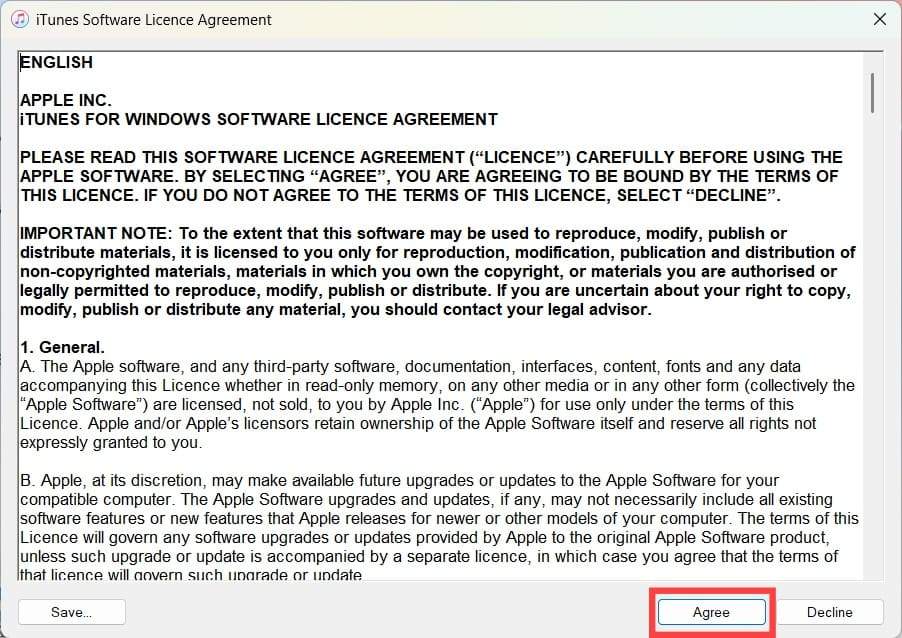
Step 3. Follow any prompts regarding terms and conditions or user agreements.

How to Export iTunes Library to New Computer 12

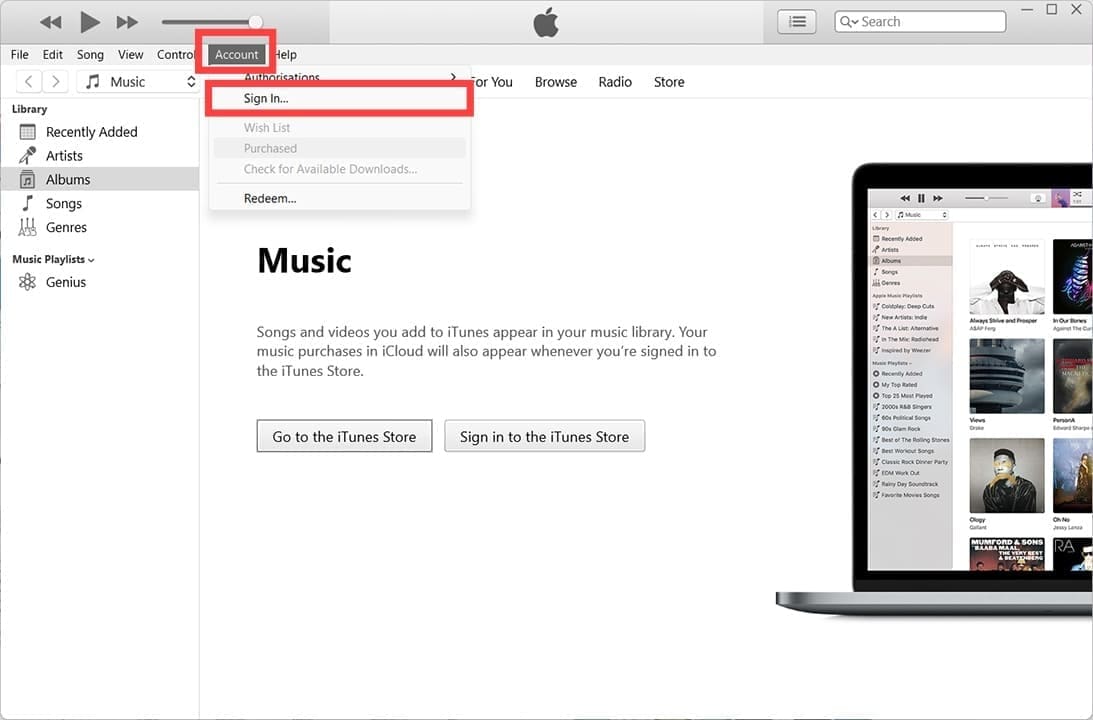
Step 4. You can sign in to instantly gain access to media purchased through your Apple account.

How to Export iTunes Library to New Computer 13

Step 5. Plug in the external drive or storage device. Open it, and head to the iTunes folder you copied. Right-click on it and press “Copy.”

How to Export iTunes Library to New Computer 14

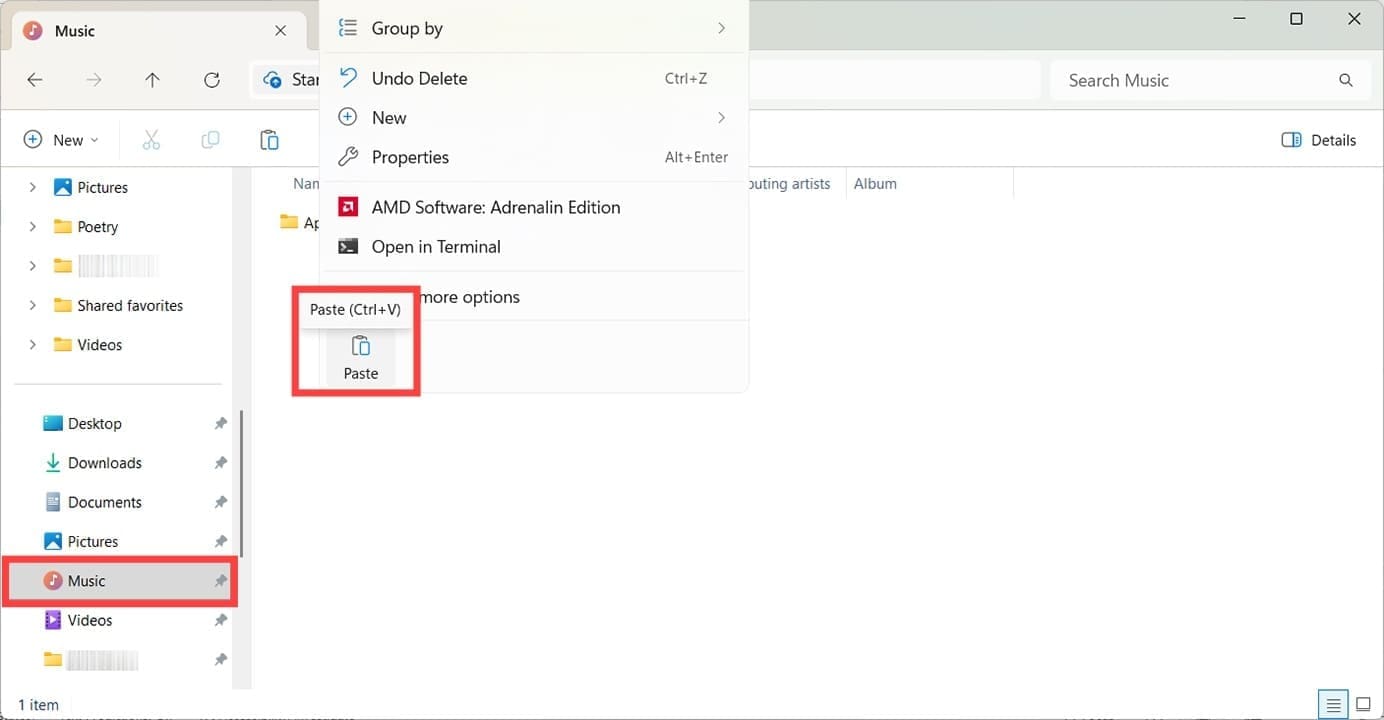
Step 6. Use File Explorer to navigate to the destination directory where your new iTunes folder will be found, e.g., C:\Users\JBloggs\Music\. Right-click in the window and then click “Paste.”

How to Export iTunes Library to New Computer 15

Step 7. Hold the shift key down while you also open the iTunes app. This prompts it to ask you to choose an iTunes Library.

How to Export iTunes Library to New Computer 16

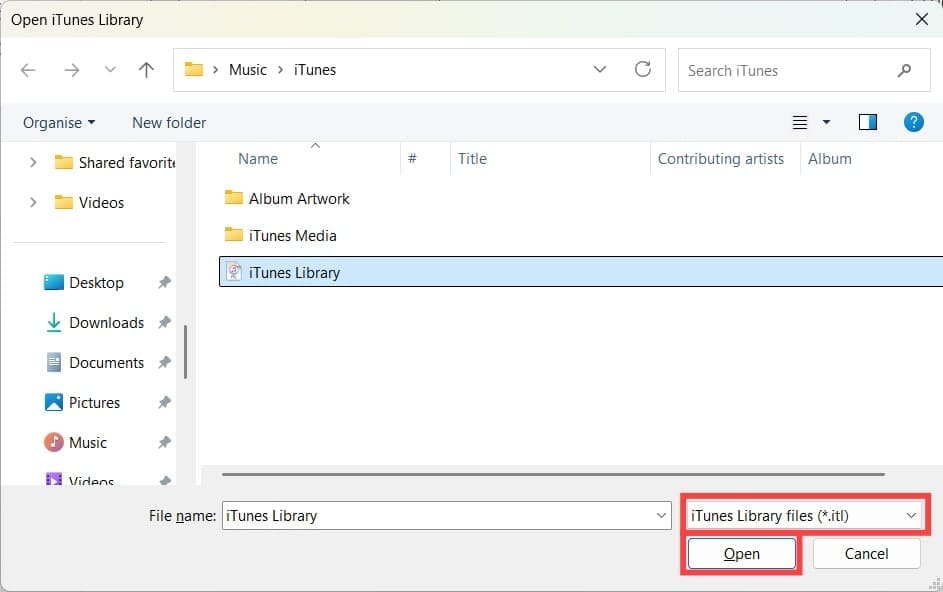
Step 8. Click on “Choose Library.” This will automatically take you to the iTunes folder you copied, where you can click on the iTunes Library file (an *.itl file). Press “Open.”

How to Export iTunes Library to New Computer 17

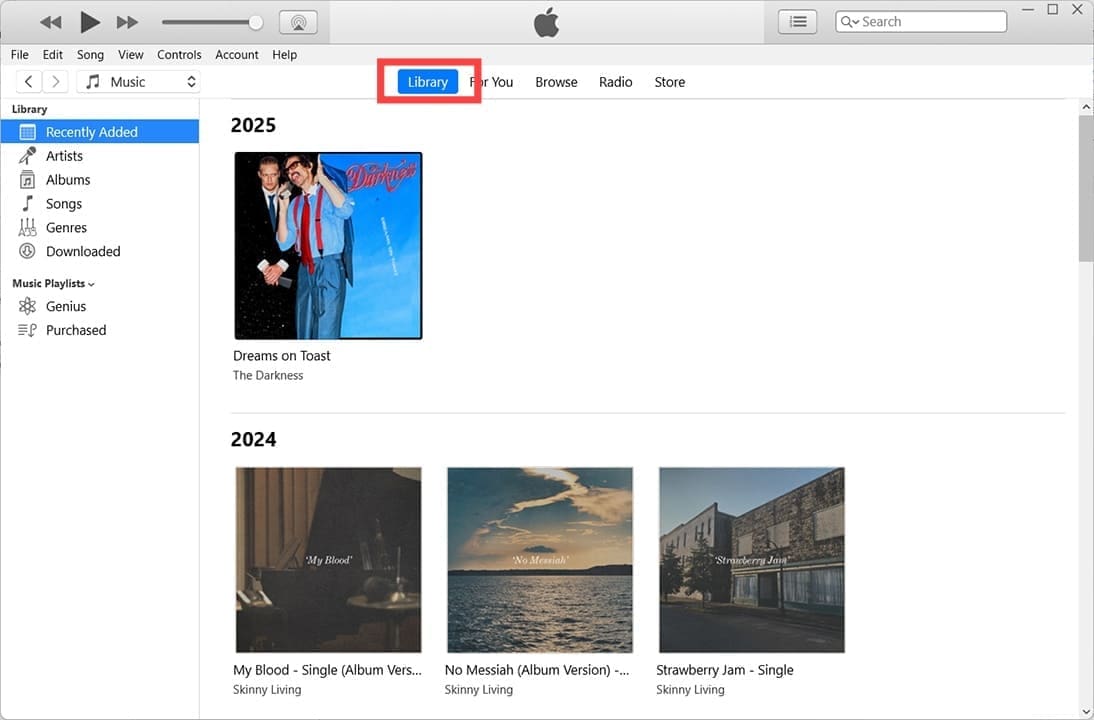
Step 9. Once you’ve chosen your Library file, iTunes will open, and you can access all your media just as you could on your old PC.

How to Export iTunes Library to New Computer 18

Related Posts:

  • Apple Watch Ultra Tips and Tricks
    Apple Watch Tips and Tricks for 2023
  • Photo of someone using Apple Music on their smartphone
    How to Fix Apple Music Not Working on iPhone / iPad
  • 0E4A6A0B-65E8-4184-B0C9-16C2179A1256
    The Best Weight Loss Apps For iPhone In 2021
  • 2022 Mac Mini with Studio Display and Accessories
    Mac Tips For New Users In 2023
  • pexels-designecologist-1779487
    The Best iPhone And Mac Shortcuts For Beginners
  • pexels-jess-bailey-designs-810079
    How To Run Linux On Mac: A Step-by-Step Guide
  • pexels-tima-miroshnichenko-6860464
    How To Start Using Regex With The Shortcuts App
  • iphone and airpods on a table
    These Apps Have the Best iOS 17 Widgets
  • 2023 Mac Studio lifestyle - 1
    macOS Could Not Be Installed, How-To Fix
Louis Roundtree
Louis Roundtree

As an avid gamer, I’ve run into my fair share of error codes and weird faults that have forced me to find fixes to problems I never anticipated. That gave me a passion for sharing those fixes with others so we can all game without feeling like our hardware is rebelling against us.

Reader Interactions

Write a Comment Cancel reply

Primary Sidebar

Recent Posts

  • How to Manage Your iPhone Call Log
  • Are Apple’s Safety Precautions Enough for AirTags?
  • How to Hide Username and Photo on the Mac Lock Screen
  • Microsoft Resume vs. Apple Handoff – Which Wins for Cross-Device Work?
  • How to Export iTunes Library to New Computer
  • What the Gemini Desktop App Will Bring to Mac

Connect with us

Footer

ABOUT

  • About Us
  • Contact us
  • Advertise
  • Privacy
  • Terms of Use

GUIDES

  • iOS & iPadOS
  • Apple ID
  • iCloud
  • App Store
  • iTunes
  • FaceTime
  • iMessage
  • Siri
  • Books and iBooks
  • Game Center
  • AirPlay

CONNECT

  • Facebook
  • Twitter
  • FeedBurner
  • YouTube

© Copyright 2010-2024 Guiding Tech Media · All Rights Reserved

This site and its content are in no way affiliated or endorsed by Apple, Inc. · Reproduction without explicit permission is prohibited

Last Updated on May 23, 2026 by Louis Roundtree