• Skip to primary navigation
  • Skip to main content
  • Skip to primary sidebar
  • Skip to footer

AppleToolBox

Tools and Fixes for Mac, iPad, iPhone & iWatch

Search posts

  • About
  • Contact

CONNECT WITH US

CATEGORIES

  • iPhone
  • iPad
  • iPod
  • Apple Watch
  • Mac/MacBook
  • AirPods
  • Apple TV
  • News
  • Apple Services
  • HomePod
  • Reviews

SITE

  • Home
  • About Us
  • Contact
  • Advertise

Search posts

You are here: Home / iPhone / How to Run Two Apps Side-by-Side on iPhone

How to Run Two Apps Side-by-Side on iPhone

By Louis Roundtree 0 comments Last updated October 7, 2026

Things to Know
  • While some devices can run two apps at once, iPhone devices don’t currently have a native split-screen function.
  • You can use Picture in Picture (PiP) with supported videos and FaceTime calls, but this is not the same as true split-screen viewing.
  • Some third-party apps offer split-screen browsing, allowing you to view two websites side-by-side within the same app.

If you’re a laptop user, you’re probably familiar with split-screen functionality. Most operating systems allow you to drag and drop your apps so that they’re running side-by-side, or one above the other, so you can quickly flick from one task to the other. This is especially useful if you’re in a meeting and need to take notes, or if you’re working with a media folder and an app at the same time.

Unfortunately, iPhone doesn’t offer native split-screen multitasking. Although you can keep multiple apps and Safari tabs open, when it comes to viewing two apps at once, iPhone and iOS don’t let you display two separate apps side-by-side.

Because this is such a beloved feature, some third-party developers have launched apps that let you emulate this functionality.

Learn how to run two apps side-by-side on iPhone devices using a third-party app with this quick and easy guide.

How to Run Two Apps Side-by-Side on iPhone Devices: Step-by-Step Guide

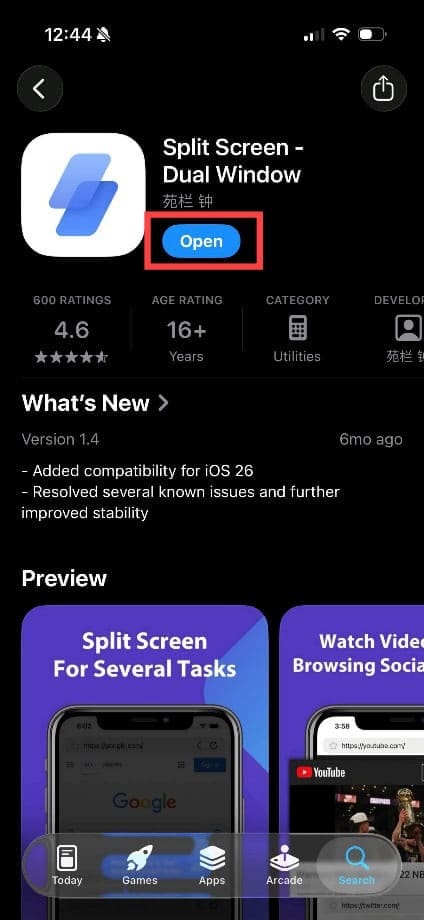
Step 1. Find a suitable third-party app in the App Store that supports split-screen functionality. For this guide, we’re using Split Screen – Dual Window, which currently has more than 4,600 ratings and a score of 4.6 out of 5. Always check reviews and ratings before downloading any third-party app. Note: This app provides split-screen browsing rather than system-level split-screen multitasking, so you can use two websites side-by-side but not two arbitrary iPhone apps.

How to Run Two Apps Side-by-Side on iPhone 1

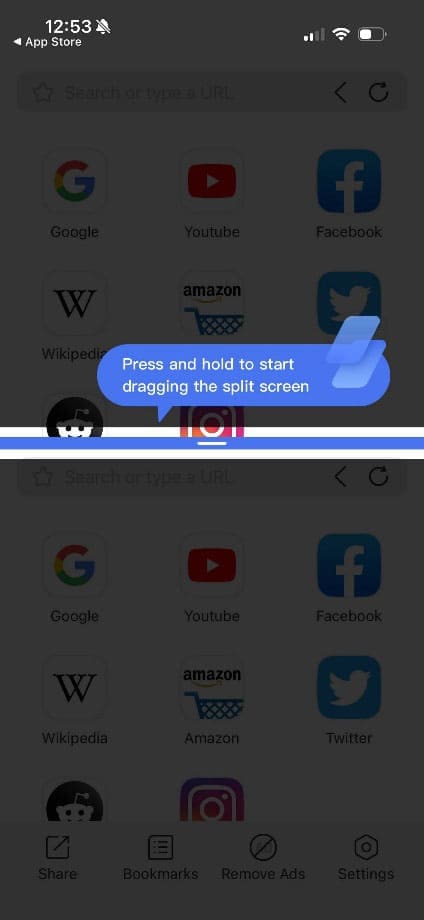
Step 2. Open the app. It should immediately start taking you through a tutorial.

How to Run Two Apps Side-by-Side on iPhone 2

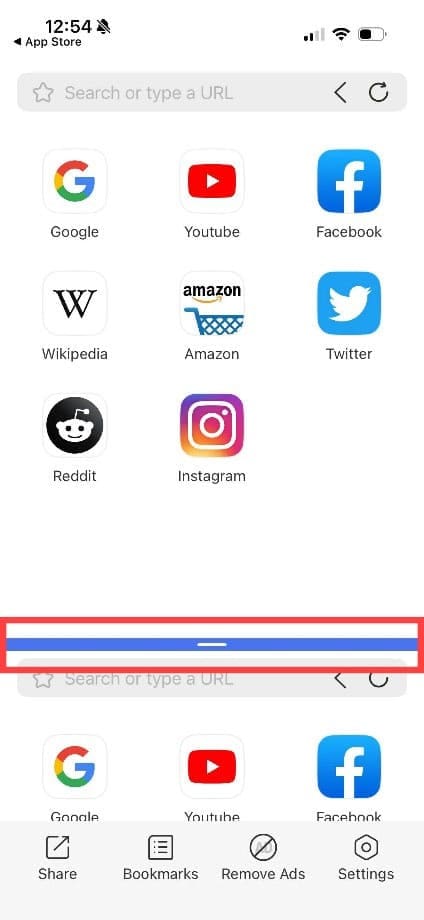
Step 3. In this instance, the app has a simple blue line that separates the screens horizontally, so there is one screen at the top and one at the bottom. Drag this line to change the size of the split windows.

How to Run Two Apps Side-by-Side on iPhone 3

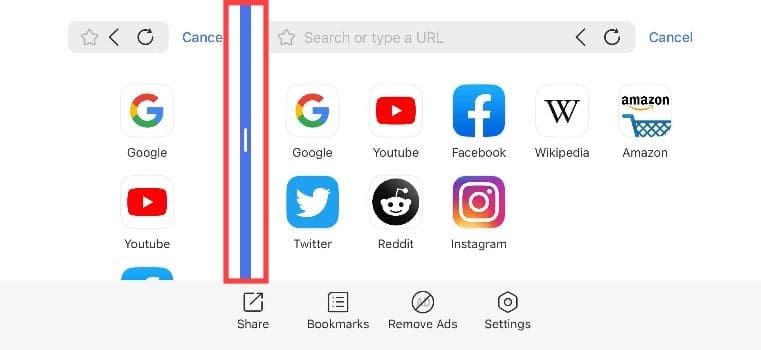
Step 4. Rotate the phone to landscape orientation to place the two browser windows side-by-side vertically.

How to Run Two Apps Side-by-Side on iPhone 4

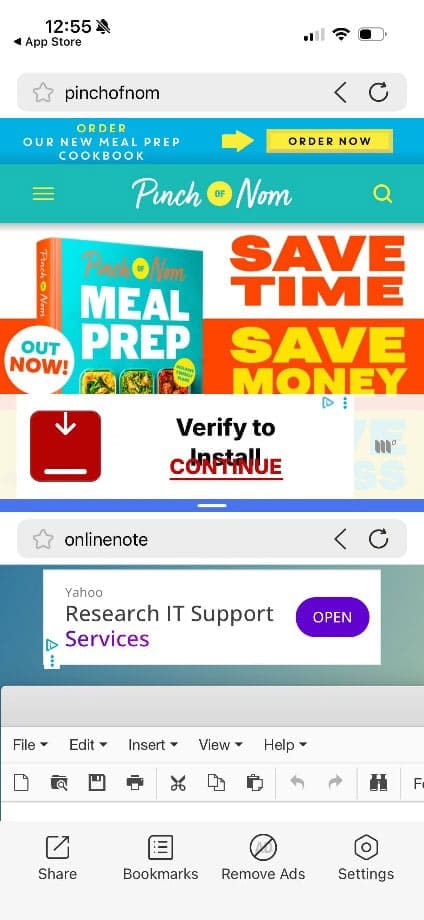
Step 5. Use one of the available shortcuts or the search bar to navigate to your chosen sites. You can now view and use both websites at the same time within the app.

How to Run Two Apps Side-by-Side on iPhone 5

You can now view and use both websites at the same time within the app. You can also pay for the app’s ad-removal option. The cheaper option is to save split-screen browsing and task management for devices that can handle it, like your laptop or a tablet.

If you’re an iPad user, make sure your iPad is running the latest version of iPadOS, and you can use iPadOS’s multitasking features to work with multiple app windows. On compatible iPads, you can arrange multiple app windows and use two apps side-by-side. Currently, there’s no indication that Apple ever plans to offer this functionality on iPhones, but of course, this may change in the future.

Related Posts:

  • Multiple Windows iPad
    How to Open Multiple Windows of Safari on iPad With iOS 16
  • photo of an iphone with ios 16 downloaded on it
    iOS 16 Tips and Tricks: The Definitive List
  • ipad stood up
    The Best iPad Tips and Tricks to Turn You into a Power User
  • 2022 Mac Mini with Studio Display and Accessories
    Mac Tips For New Users In 2023
  • WWDC 2021 Hero
    WWDC21 Recap: Everything You Missed In Apple's 2-Hour Event
  • pexels-designecologist-1779487
    The Best iPhone And Mac Shortcuts For Beginners
  • iPadOS 17 Stage Manager
    How to Use Stage Manager on iPad
  • 2023 Mac Studio lifestyle - 1
    macOS Could Not Be Installed, How-To Fix
  • pexels-dominika-roseclay-1036808
    The Best ADHD Apps For iPhone
Louis Roundtree
Louis Roundtree

As an avid gamer, I’ve run into my fair share of error codes and weird faults that have forced me to find fixes to problems I never anticipated. That gave me a passion for sharing those fixes with others so we can all game without feeling like our hardware is rebelling against us.

Reader Interactions

Write a Comment Cancel reply

Primary Sidebar

Recent Posts

  • How to Run Two Apps Side-by-Side on iPhone
  • Can You Recover Permanently Deleted Files on a Mac?
  • How to Make Google Translate Your Default iPhone App
  • How to Add ChatGPT to Messages on iPhone
  • iPhone Not Working? You Can Still Put It in Recovery Mode
  • Why macOS Blocks Downloads for Malware (And How to Override It Safely)

Connect with us

Footer

ABOUT

  • About Us
  • Contact us
  • Advertise
  • Privacy
  • Terms of Use

GUIDES

  • iOS & iPadOS
  • Apple ID
  • iCloud
  • App Store
  • iTunes
  • FaceTime
  • iMessage
  • Siri
  • Books and iBooks
  • Game Center
  • AirPlay

CONNECT

  • Facebook
  • Twitter
  • FeedBurner
  • YouTube

© Copyright 2010-2024 Guiding Tech Media · All Rights Reserved

This site and its content are in no way affiliated or endorsed by Apple, Inc. · Reproduction without explicit permission is prohibited

Last Updated on October 10, 2026 by Louis Roundtree