• Skip to primary navigation
  • Skip to main content
  • Skip to primary sidebar
  • Skip to footer

AppleToolBox

Tools and Fixes for Mac, iPad, iPhone & iWatch

Search posts

  • About
  • Contact

CONNECT WITH US

CATEGORIES

  • iPhone
  • iPad
  • iPod
  • Apple Watch
  • Mac/MacBook
  • AirPods
  • Apple TV
  • News
  • Apple Services
  • HomePod
  • Reviews

SITE

  • Home
  • About Us
  • Contact
  • Advertise

Search posts

You are here: Home / iPhone / What to Do if You Forgot Your iPhone Password

What to Do if You Forgot Your iPhone Password

By Louis Roundtree 0 comments Last updated July 17, 2026

Things to Know
  • If you forget your iPhone password, there are ways to unlock your device and start using your phone again.
  • For security, part of this process involves wiping and resetting your device.
  • You can reset your device from the lock screen, from your computer, or by using the Find My app.

If you use your iPhone every day, not being able to access it is frustrating and distressing. But if you happen to forget your iPhone password or passcode, that’s exactly what can happen. Knowing what to do if you forgot your iPhone password means you can get back into your device fast with minimal stress.

Contents

  • Forgot My Password for iPhone: Basic Checks
  • What to Do if I Forgot My Password for iPhone: Unlock Device from Lock Screen
  • What to Do if You Forgot Your iPhone Password: Connect to a Computer
  • What to Do if You Forgot Your iPhone Password: Use Find My

Forgot My Password for iPhone: Basic Checks

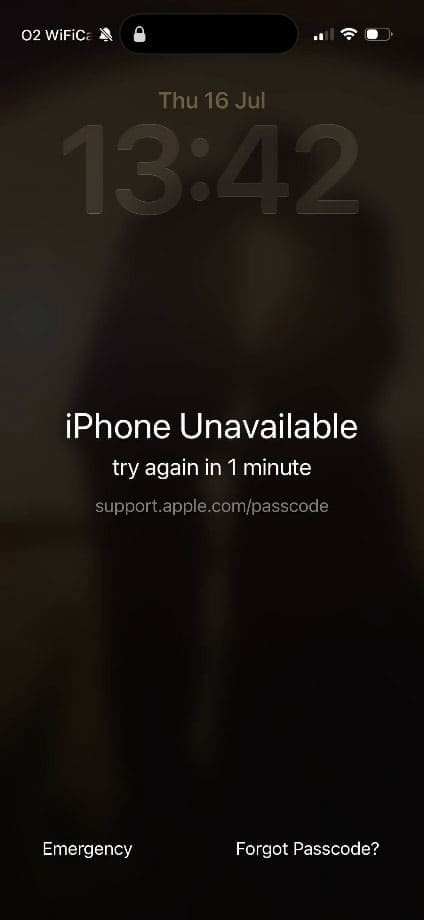
Step 1. Try your passcode several times. After several incorrect passcode attempts, your iPhone will display an “iPhone Unavailable” or “Security Lockout” message. The iPhone will usually prompt you to wait a minute and try again. This is useful to know because you may find that you actually do remember your passcode after a few tries.

What to Do if You Forgot Your iPhone Password 1

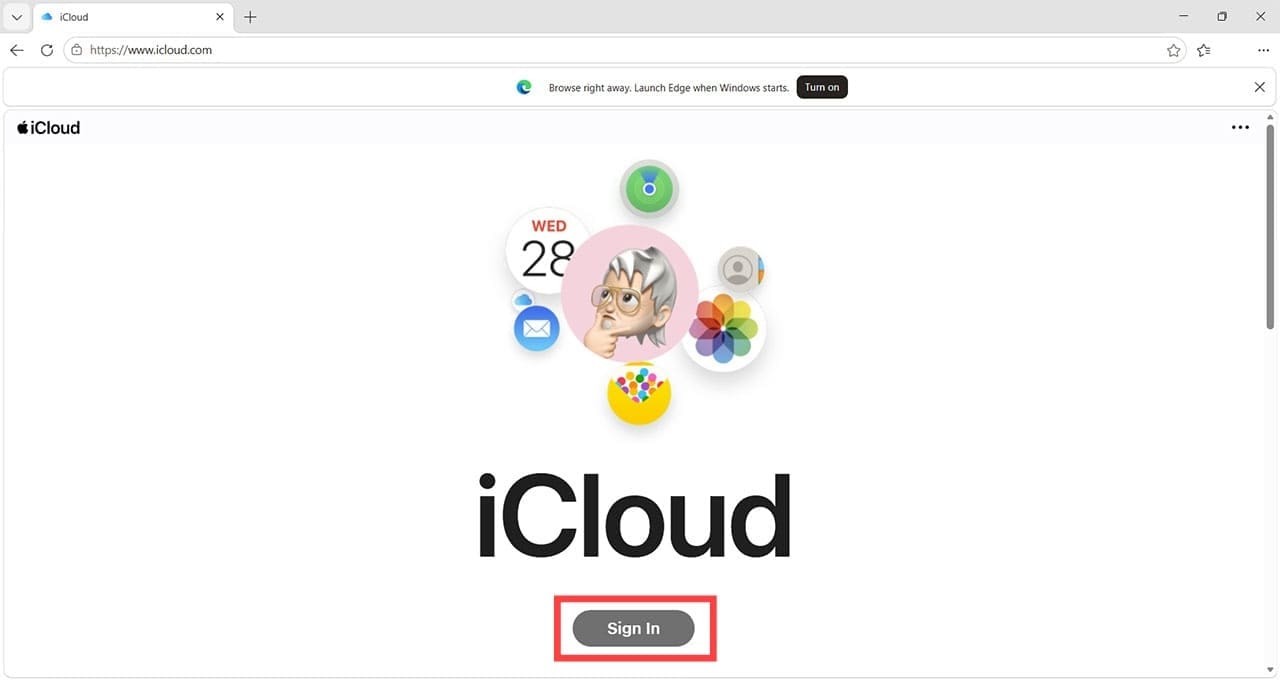
Step 2. Make sure you know your Apple Account password (previously called the Apple ID password). To check this, head to iCloud.com and try to log in.

What to Do if You Forgot Your iPhone Password 2

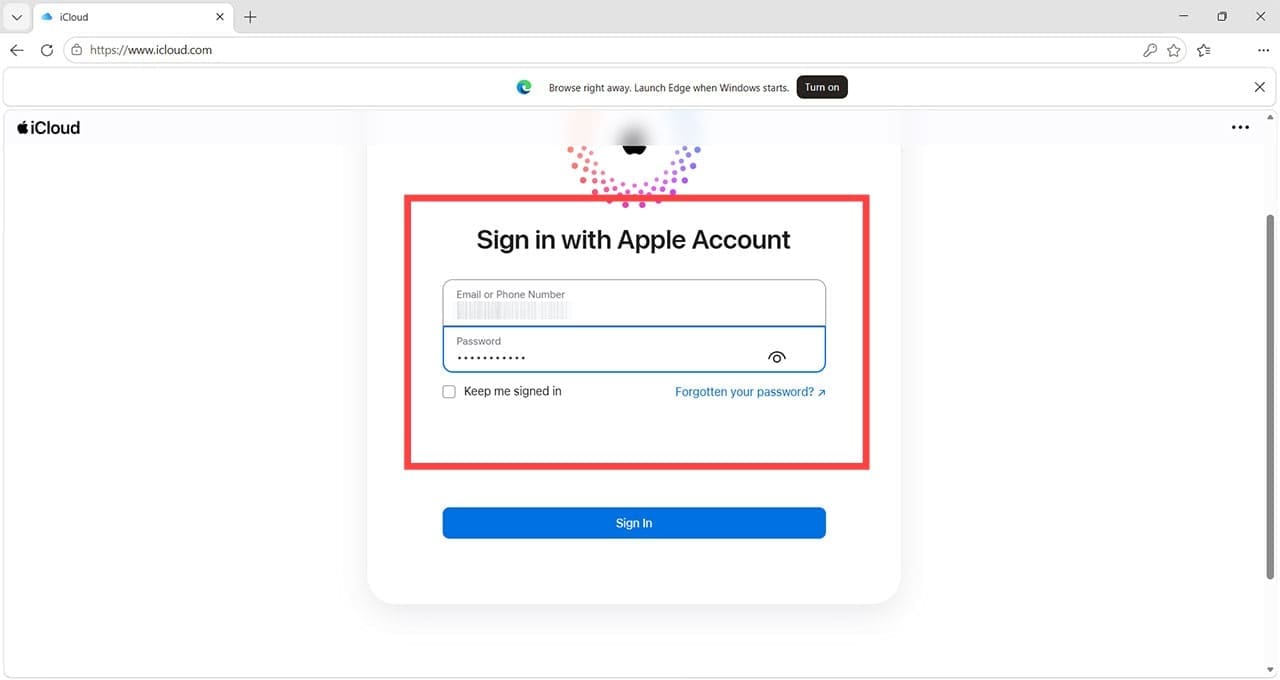
If you’re able to log in, make sure you remember the email address and password combo you used, as you will need this to regain access to your locked iPhone. If you can’t log in, click the “Forgotten your password?” link and follow the onscreen instructions.

What to Do if You Forgot Your iPhone Password 3

What to Do if I Forgot My Password for iPhone: Unlock Device from Lock Screen

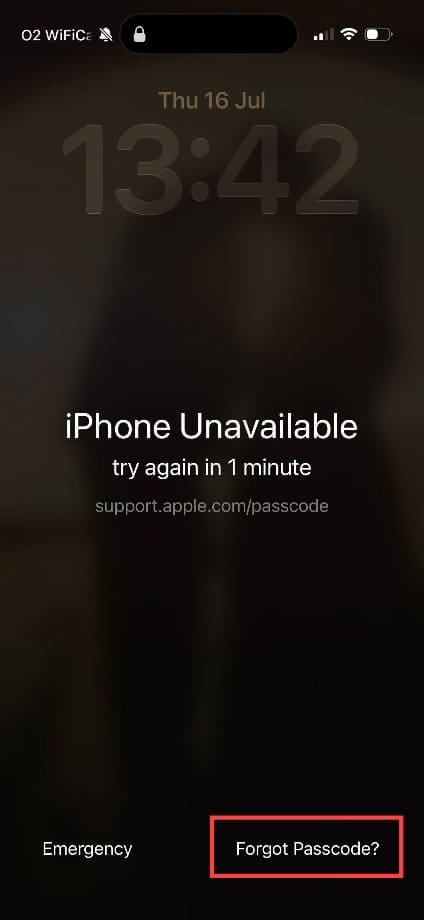
Step 1. The fastest way to regain access to your iPhone is from the lock screen. When you see the “iPhone Unavailable” message, click “Forgot Passcode?” in the bottom right corner.

What to Do if You Forgot Your iPhone Password 3a

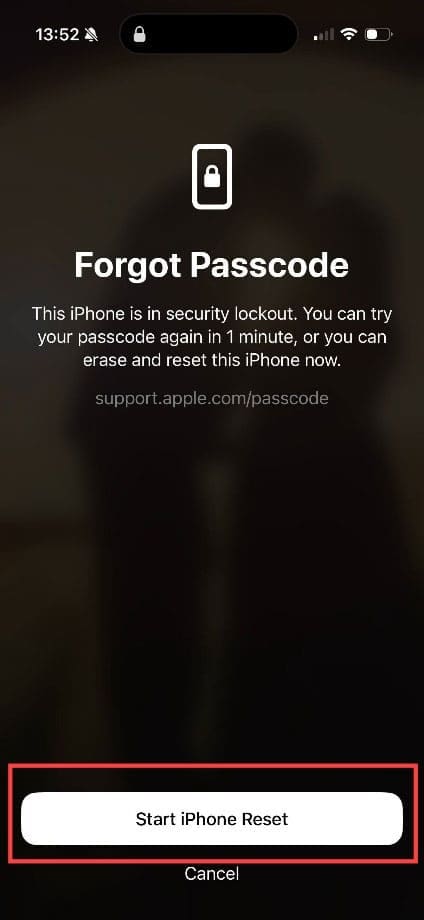
Step 2. You will see a screen telling you that the iPhone is in security lockout. To proceed with unlocking the device, click “Start iPhone Reset.”

What to Do if You Forgot Your iPhone Password 4

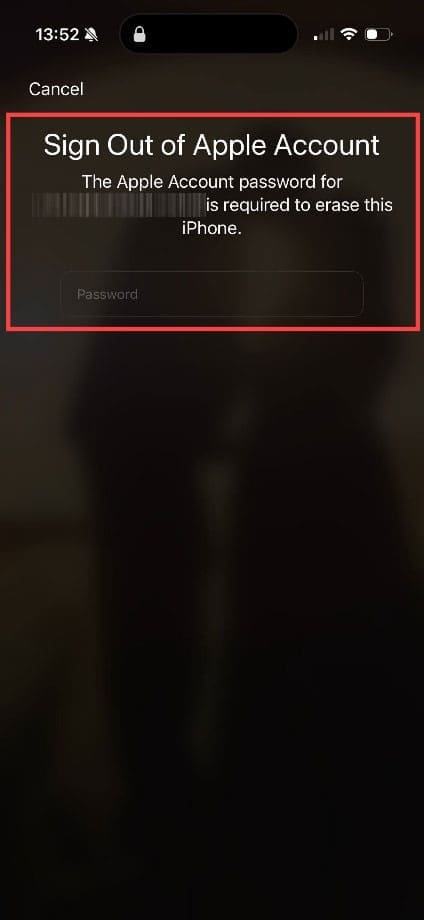
Step 3. You’ll now need to enter your Apple account password.

What to Do if You Forgot Your iPhone Password 5

Step 4. Finally, you’ll need to confirm you want to erase your iPhone. This may take a few minutes, and once complete, you will be able to set up your iPhone using your Apple account. As long as you backed up your device recently, you should be able to restore your data and apps.

What to Do if You Forgot Your iPhone Password: Connect to a Computer

Step 1. You can also reset and unlock your phone by connecting it to your computer. You’ll need to put your device in recovery mode first:

  • For most newer iPhones, press Volume Up briefly, then Volume Down, then hold the side Power button until you see “Connect to computer.”
  • If you have an iPhone 7 or older, hold the Power button and the Volume Down button or the round Home button and Power button until you see the prompt to connect the device to a computer.

Step 2. Connect the device to your computer with the appropriate cable. When you see the prompt to “Restore iPhone,” press it and follow the onscreen instructions.

What to Do if You Forgot Your iPhone Password: Use Find My

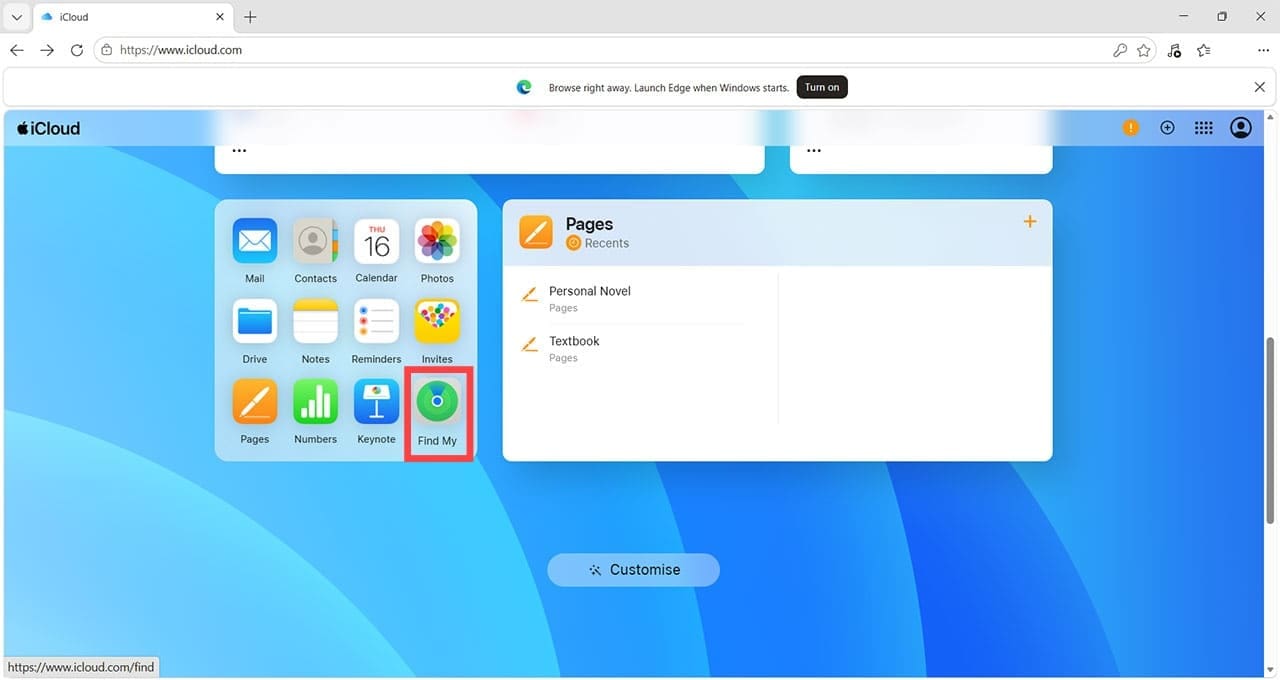
Step 1. Log in to iCloud on any web browser with your Apple account details. Select “Find My” from the main menu.

What to Do if You Forgot Your iPhone Password 6

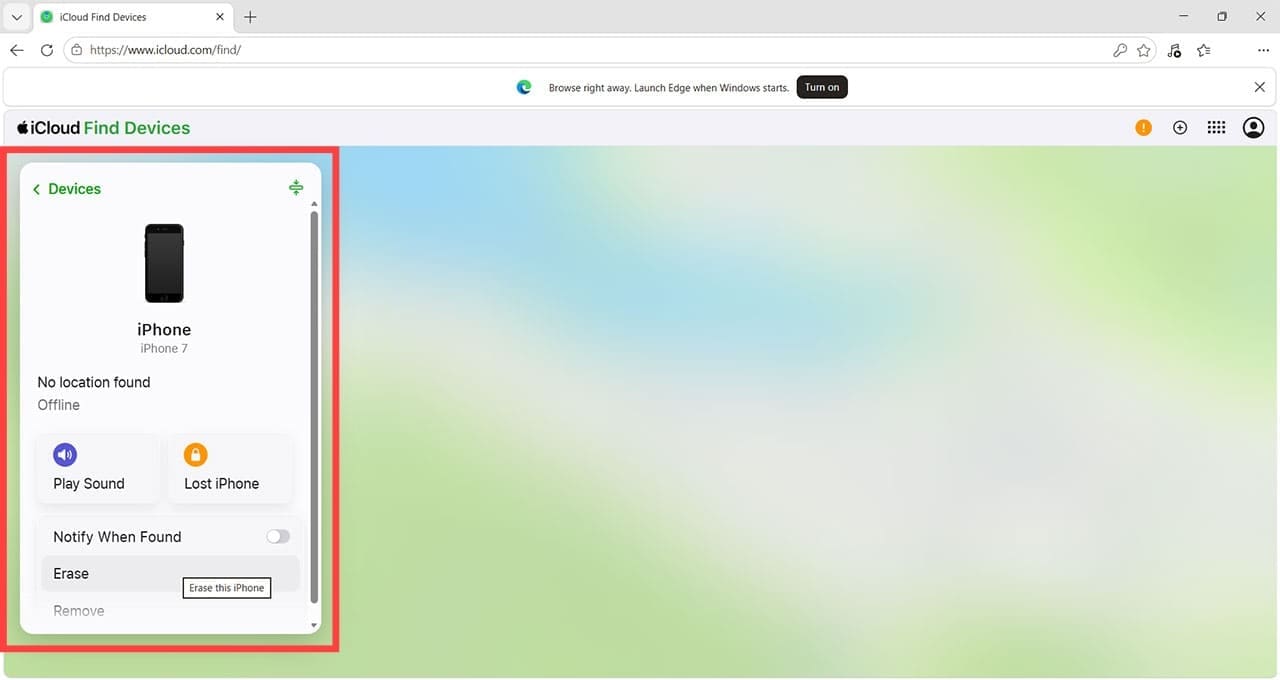
Step 2. Click the device you want to unlock and choose “Erase.” The device will return to the setup screen after a few minutes.

What to Do if You Forgot Your iPhone Password 7

Remember, whichever method you choose will wipe the phone and force you to set it up from scratch. Scheduling regular backups is essential to ensure you can restore the device with all your data and apps.

Related Posts:

  • 2023 Mac Studio lifestyle - 1
    macOS Could Not Be Installed, How-To Fix
  • iPhone 15 Pro unboxing
    How To Extend Your iPhone Battery Life
  • photo of an iphone with ios 16 downloaded on it
    iOS 16 Tips and Tricks: The Definitive List
  • an iphone on a book
    How To Reset the Screen Time Passcode on iOS,…
  • pexels-designecologist-1779487
    The Best iPhone And Mac Shortcuts For Beginners
  • sidecar on iPadOS and macOS
    Sidecar not working in iPadOS and macOS? How to fix…
  • Update Apple ID settings on your iPhone, iPad, or Mac after changing your password
    Getting a Message to Update Apple ID Settings on…
  • 0E4A6A0B-65E8-4184-B0C9-16C2179A1256
    The Best Weight Loss Apps For iPhone In 2021
  • pexels-tranmautritam-696899
    iPhone Tips for New Users In 2023
Louis Roundtree
Louis Roundtree

As an avid gamer, I’ve run into my fair share of error codes and weird faults that have forced me to find fixes to problems I never anticipated. That gave me a passion for sharing those fixes with others so we can all game without feeling like our hardware is rebelling against us.

Reader Interactions

Write a Comment Cancel reply

Primary Sidebar

Recent Posts

  • What to Do if You Forgot Your iPhone Password
  • How to Create Custom Wallpapers in iOS 27
  • How to Stop Your Pointer From Moving to Other Macs and Apple Devices
  • What Will Siri AI Bring to Apple Devices?
  • How to Check if Your Device Is Compatible With Siri AI
  • How to Get Rid of Reading List in Safari

Connect with us

Footer

ABOUT

  • About Us
  • Contact us
  • Advertise
  • Privacy
  • Terms of Use

GUIDES

  • iOS & iPadOS
  • Apple ID
  • iCloud
  • App Store
  • iTunes
  • FaceTime
  • iMessage
  • Siri
  • Books and iBooks
  • Game Center
  • AirPlay

CONNECT

  • Facebook
  • Twitter
  • FeedBurner
  • YouTube

© Copyright 2010-2024 Guiding Tech Media · All Rights Reserved

This site and its content are in no way affiliated or endorsed by Apple, Inc. · Reproduction without explicit permission is prohibited

Last Updated on July 19, 2026 by Louis Roundtree