How to Back up iPad on Windows Using Apple Devices
Step 1: Check that you have Apple Devices on your Windows PC. The easiest way to do this is to type “Apple Devices” into the search bar at the bottom of the screen. If nothing comes up, you’ll need to download the app.
Step 2: Use the same search bar to look for Microsoft Store. Open the Store once you see it in the search window.
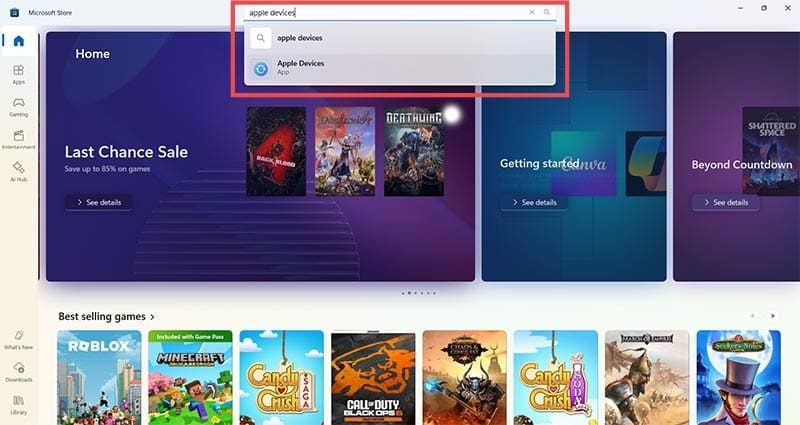
Step 3: Search for Apple Devices in the Store.
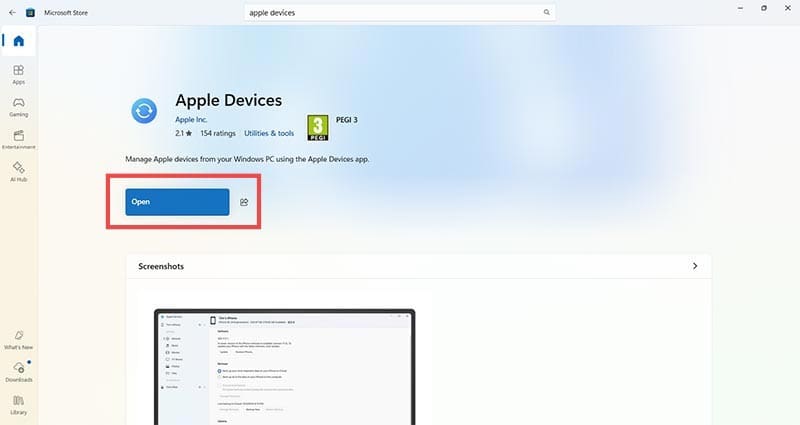
Step 4: Click the Apple Devices icon, then click the blue “Get” button (if you already have the app, this will say “Open). Follow the onscreen prompts to install Apple Devices.
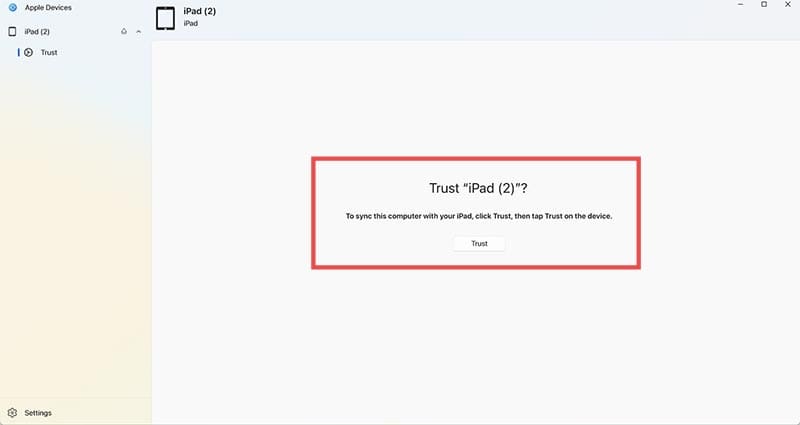
Step 5: Plug your iPad into your Windows PC. When prompted, confirm that you trust your Apple device.
Step 6: You’ll automatically be taken to the page where you can back up your data from your iPad to your Windows PC. Choose the relevant option — for most people, the option “Back up all the data on your iPad to this computer is the best. This ensures that you won’t lose any data should you lose or break your iPad. There’s also the option to encrypt data if you’re worried about the security of sensitive data.
Step 7: Click Back Up Now and you’ll see a blue progress bar start to move across the screen. The whole backup process can take a few minutes, so now might be a good time to grab a coffee.
Once complete, you’ll get a notification that the backup has finished. You can repeat this process at any time to keep your backups as up-to-date as possible.
How to Back up an iPad in Windows Using Explorer
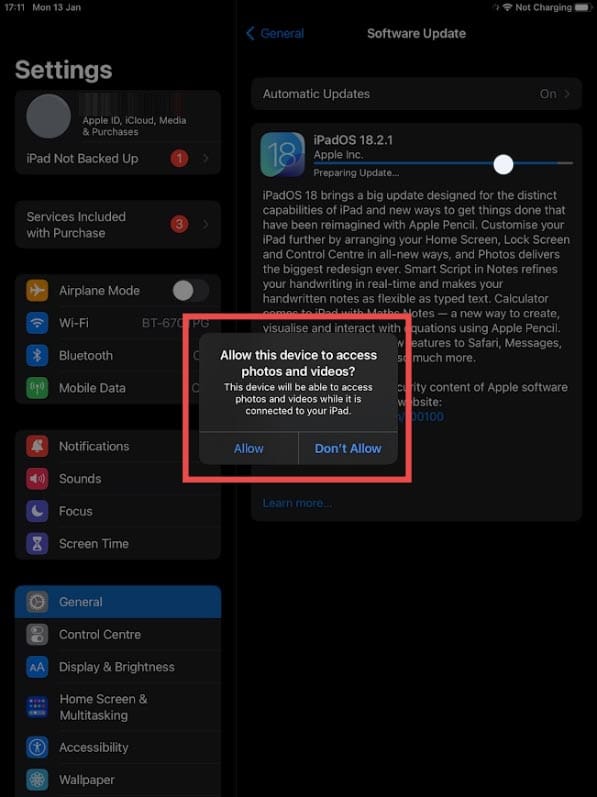
Step 1: You can back up some files from your iPad using your Windows File Explorer, however, this is not as comprehensive as a full backup. You’ll most likely find that you can only back up media files this way, i.e., videos and images. To get started, plug your iPad into your PC. On the iPad screen, you’ll see a prompt that says, “All this device to access photos and videos?” Click Allow.
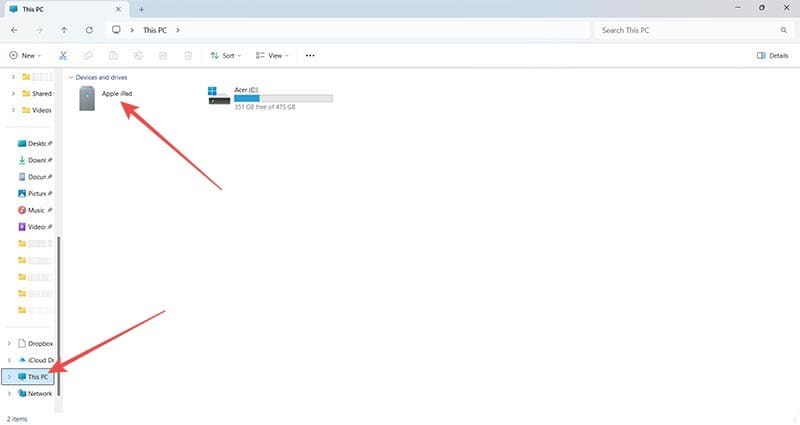
Step 2: Open your Windows File Explorer and click This PC on the left-hand side.
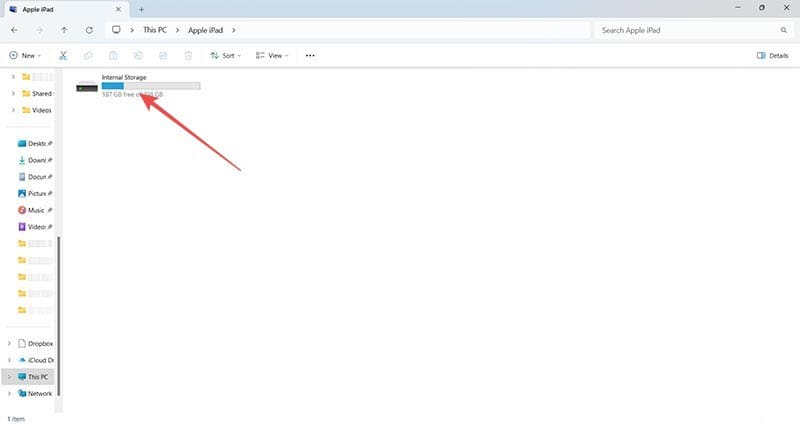
Step 3: Double-click the Apple iPad icon, then do the same to the Internal Storage icon.
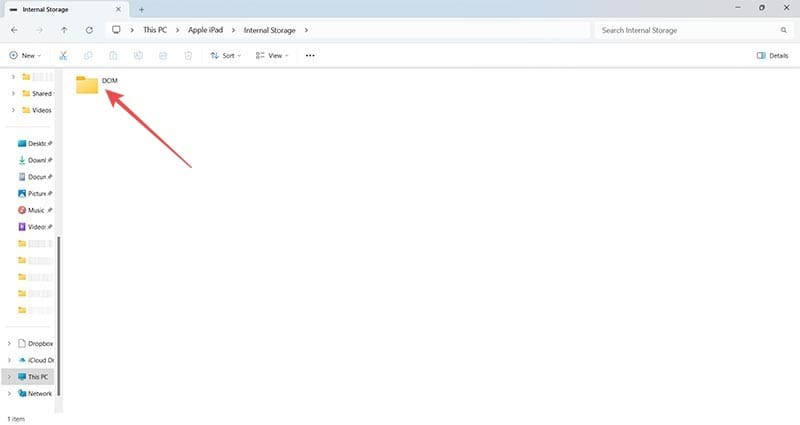
Step 4: Double-click the DCIM icon.
Step 5: You’ll see folders with dates that correspond to when you took images and videos. Double-click the relevant folder.
Step 6: Right-click on any file and click Copy. You can now paste this file into a folder of your choice on your PC, effectively backing up files from your iPad. Use CTRL + A to select all and CTRL + C to copy multiple files at once.
As an avid gamer, I’ve run into my fair share of error codes and weird faults that have forced me to find fixes to problems I never anticipated. That gave me a passion for sharing those fixes with others so we can all game without feeling like our hardware is rebelling against us.
















Write a Comment