Apple’s upcoming iOS 27 introduces several new features and changes to your iOS device. From a revamped Siri, powered by Apple Intelligence, to custom Apple Wallet passes, there’s a lot to love. But what would a good Apple update be without some cosmetic changes?
In this article, we’ll be showing you how to create custom wallpapers (iOS 27) and make your smart device better reflect who you are.
Having Fun on the Playground
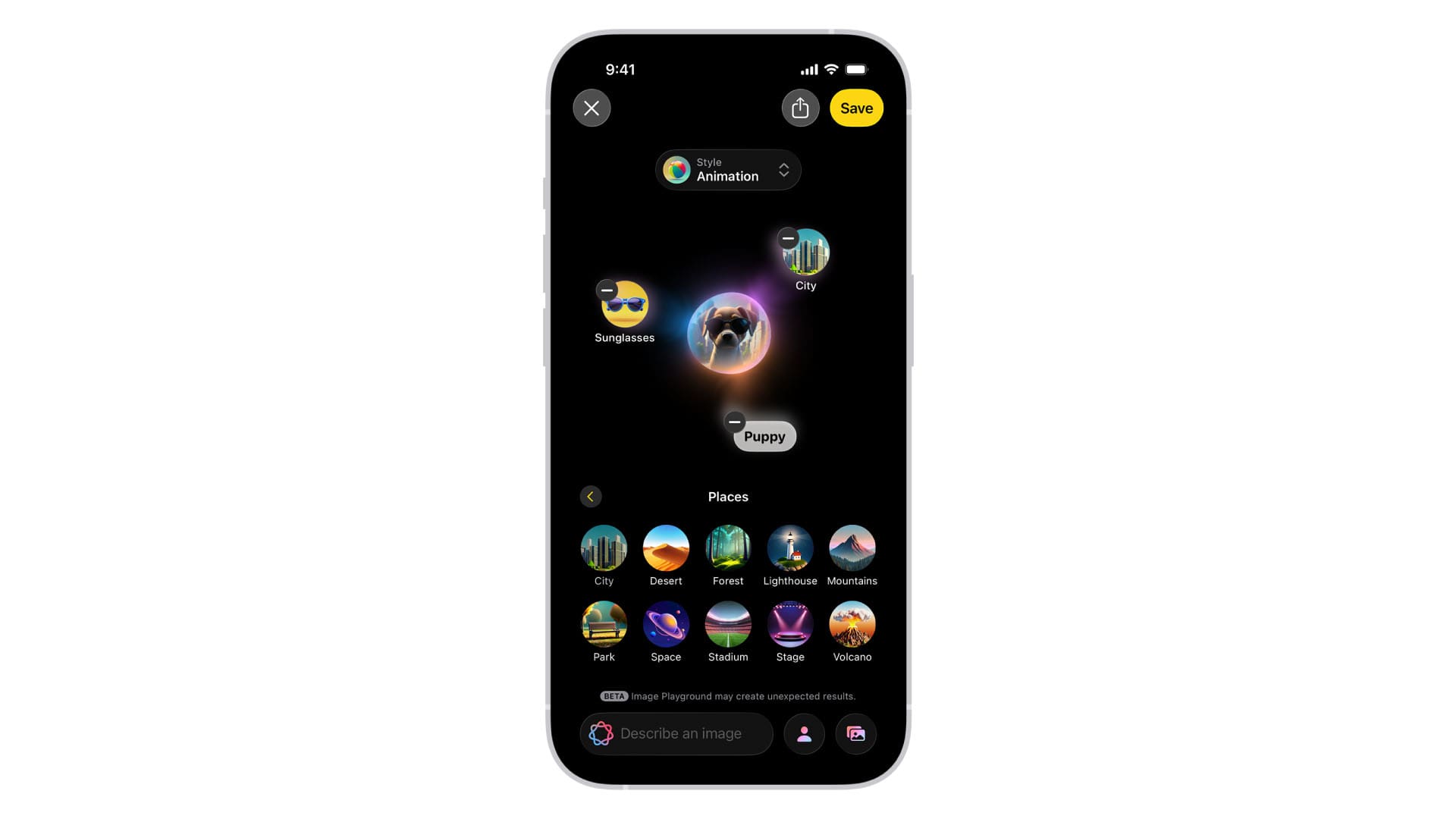
Apple users may have been able to create custom wallpapers on their iPhones and iPads for the past few versions of iOS, but iOS 27 is different thanks to the overhaul of the Image Playground app. This app works much like you would expect from any generative AI. Users can enter a prompt about what they want the image to look like and choose from a list of extra styles to help.
Now, in addition to this image generation, you can also use these images in your own wallpapers.
How to Create Custom Wallpapers (iOS 27)
So, you’re looking for a change from the standard Apple wallpapers and your own photos aren’t really doing anything for you. Not to worry; you can use Image Playground to generate your next custom iOS 27 wallpaper. Let’s take a look at how to do this:
Step 1. On your iPhone or iPad, open “Settings.”
Step 2. Scroll down and tap on “Wallpaper.”
Step 3. Tap “Add New Wallpaper.” Another way to get to this point is to tap and hold on your lock screen, then press the “Plus” icon when it appears. Slide past your current wallpaper to the blank wallpaper slide and click the blue Plus Icon.
Step 4. You should see a list of choices for wallpapers (some AI-generated) in the “Featured” section. From the top set of icons, choose “Image Playground.”
Step 5. You’ll then have the choice to describe what you want for a wallpaper, or base the generation off an existing image. To create, enter the prompt and choose your style from the dropdown menu at the top of the window. Click the “Library” tab or the Photo icon to choose a preexisting image to alter.
Step 6. Once done, press the blue arrow icon to begin the generation process.
Step 7. If you’re happy with the image, click the blue tick to confirm. If not, click the “Describe change” button below the image and type in the changes you wish to make.
Step 8. With your image in place as the wallpaper, you can change things further. Tap the “More” button (three dots) and choose “Extend Wallpaper” to generate more image, or use “Depth Effect” to place the subject in front of the lock screen clock when supported. You can also swipe to change the image’s color between certain presets.
Step 9. When finally done, tap the “Add” button to finalize the wallpaper.
Step 10. Tap “Set as Wallpaper Pair” to finish the process. Your new wallpaper should now be added and ready to use.
As an avid gamer, I’ve run into my fair share of error codes and weird faults that have forced me to find fixes to problems I never anticipated. That gave me a passion for sharing those fixes with others so we can all game without feeling like our hardware is rebelling against us.










Write a Comment