Apple has long cultivated a reputation as being the tech company for creators, and the release of their image codecs ProRes and ProRAW with the release of the iPhone 12 Pro makes capturing high-quality videos and images a cinch. While the Apple ecosystem has no trouble reading these files, the same can’t be said for Windows users.
Thankfully, in this case, the setback isn’t too major, and there are several ways to view and edit ProRes and ProRAW files in Windows, thanks to third-party software. This article will be your guide.
Just in case you’re confused, ProRes and ProRAW are both codecs unique to Apple, made for the purpose of storing much higher quality media. Both were created to enable high-quality captures while managing increased storage space effectively. Here’s a quick summary of both:
ProRes – This codec focuses on video. It allows high-quality videos to retain much of the information that can be used in editing. The storage space required is high, but all things considered, the codec goes a long way to effectively compressing 8K videos.
ProRAW – This is a more recent codec that deals with images, and ones at a much higher quality (and size) than standard HEIC. It’s almost like a RAW file, but more efficient with storage, allowing for high-quality photos from your smartphone.
Different Ways to Open ProRes and ProRAW Files in Windows
While you might think the Apple and Windows divide strikes again, nothing could be further from the truth. Both Apple and Microsoft have a few ways to get the necessary codecs onto your Windows machine, not to mention third-party apps, which can also be a great help. Let’s take a look.
Download the iCloud App
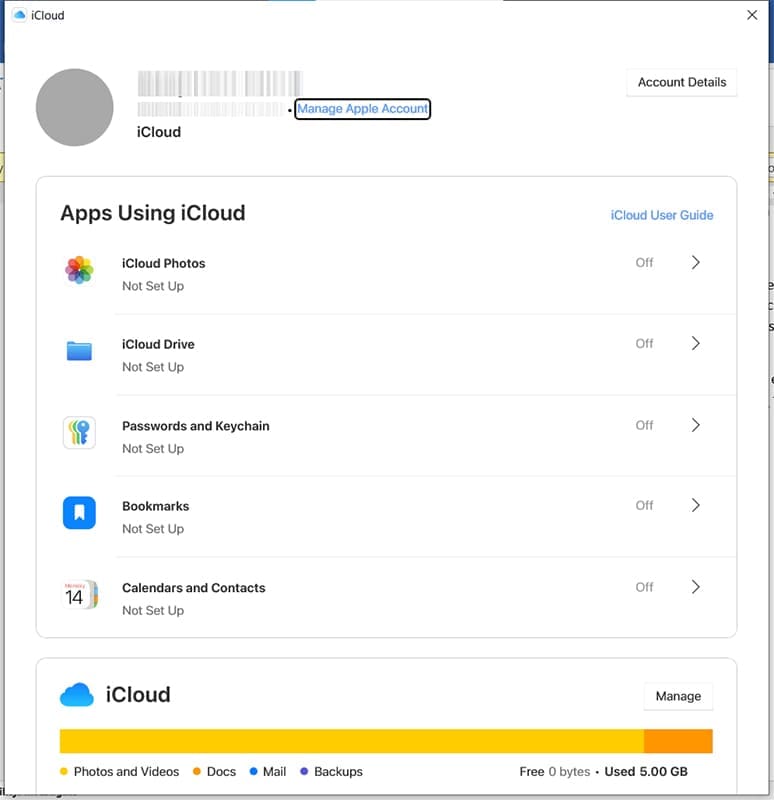
Good news, Windows users. The Microsoft Store has a version of iCloud that you can easily add to your PC, which will allow you to install the necessary codecs to run ProRes and ProRAW files. Here’s what to do:
Step 1. Visit the Microsoft Store and download iCloud.
Step 2. Once the app has downloaded and installed, open it and enter your Apple ID and password.
Step 3. Once you’ve logged in, Apple will install the codecs onto your PC.
Download the Codecs Directly
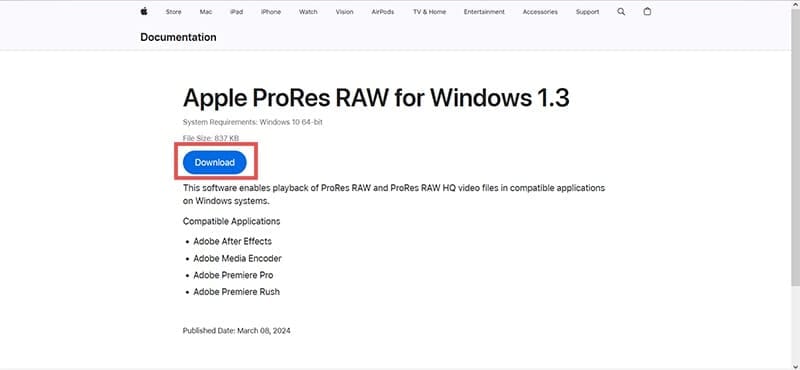
If you don’t want to go the route of having iCloud installed on your machine, you can also visit the Apple site directly to download the codecs. It’s a simple matter of downloading the file and going through the installation steps. With these installed, you’ll be able to view and edit ProRes and ProRAW files in compatible applications, like the Adobe Suite.
Install the Windows Extension
Microsoft has its own solution to the codec problem, which can be downloaded for free from the Microsoft Store: the RAW Image Extension. To download this:
Step 1. Open the Microsoft Store and download “Raw Image Extension.”
Step 2. You should now be able to view ProRAW images in any app, no problem.
Third Party Apps
There are plenty of third-party apps, both free and paid, that have the ability to run ProRes and ProRAW files. For video solutions, a versatile media player like VLC is perfect, or you could try QuickTime and stay in the Apple family.
For image files, if Photos won’t do the trick, then XnSoft is a free (for private use) solution, but only for private use.
As an avid gamer, I’ve run into my fair share of error codes and weird faults that have forced me to find fixes to problems I never anticipated. That gave me a passion for sharing those fixes with others so we can all game without feeling like our hardware is rebelling against us.














Write a Comment