Apple is working with some serious magic with the iPhone 13 Pro and 13 Pro Max this year. Not only has Apple answered many of our problems from the iPhone 12 series, such as battery life, but it also is introducing new features that you wouldn’t think would be possible.
The camera systems across all four iPhone 13 models have been vastly upgraded, with the Pro and Pro Max seeing the biggest bump. This is thanks to features like Cinematic Mode, Photographic Styles, better Night Mode, and ProRes Video.
The iPhone 13 Pro and iPhone 13 Pro Max are the only models released that year that support “ProRes”. You could think of it like ProRaw for images, but for video capturing, retaining “higher color fidelity and less compression”. Between ProRes and Dolby Vision HDR, this is the first and only smartphone in the world capable of to provide an “end-to-end workflow” for videographers.
On the face of it, ProRes sounds pretty incredible considering that it’s able to provide 4K HDR footage from a smartphone. It also opens the door for better color grading and is already widely used in commercials, movies, and TV shows. Between ProRes and apps like LumaFusion or even iMovie, being able to record, edit, and upload a ProRes video from your iPhone is just incredible.
How to record ProRes Video on iPhone
Even though Apple announced that you can record ProRes Video on iPhone 13 Pro and Pro Max, the feature has not yet been available until now. For one reason or another, Apple delayed the ProRes integration, but it has arrived in iOS 15.1 Beta 3. At the time of this writing, this has yet to be released in a stable version, but if you just can’t wait to try out ProRes, you can sign up for Apple’s Public Beta program. After signing up, make sure you’ve downloaded the latest beta with the following steps:
Open the Settings app on your iPhone.
Tap General.
Select Software Update.
Download and install the update if it’s available.
After the update has finished installing, it’s time to get started with ProRes. But just like when ProRAW was announced last year, ProRes needs to be enabled on your iPhone before you can begin using it.
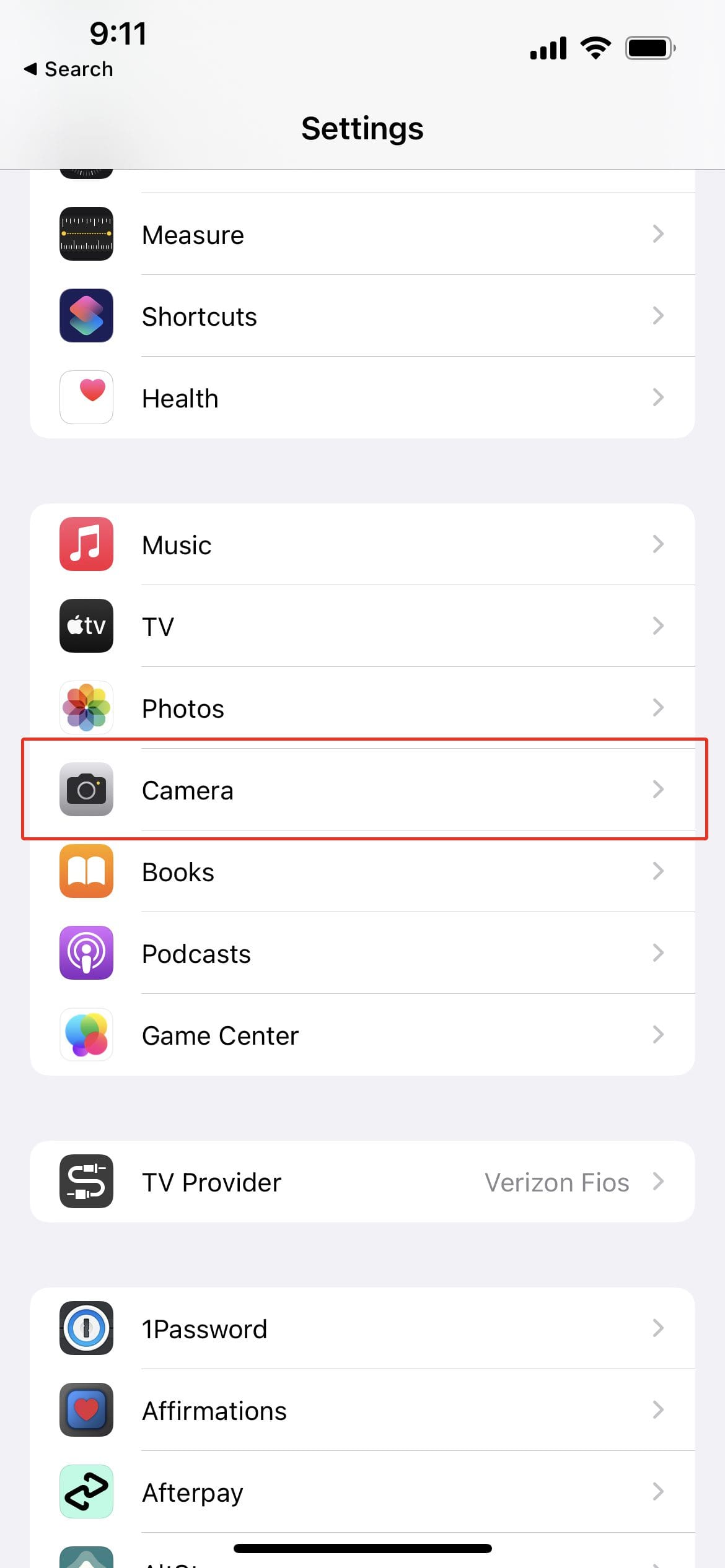
Open the Settings app.
Scroll down and select Camera from the list of apps.
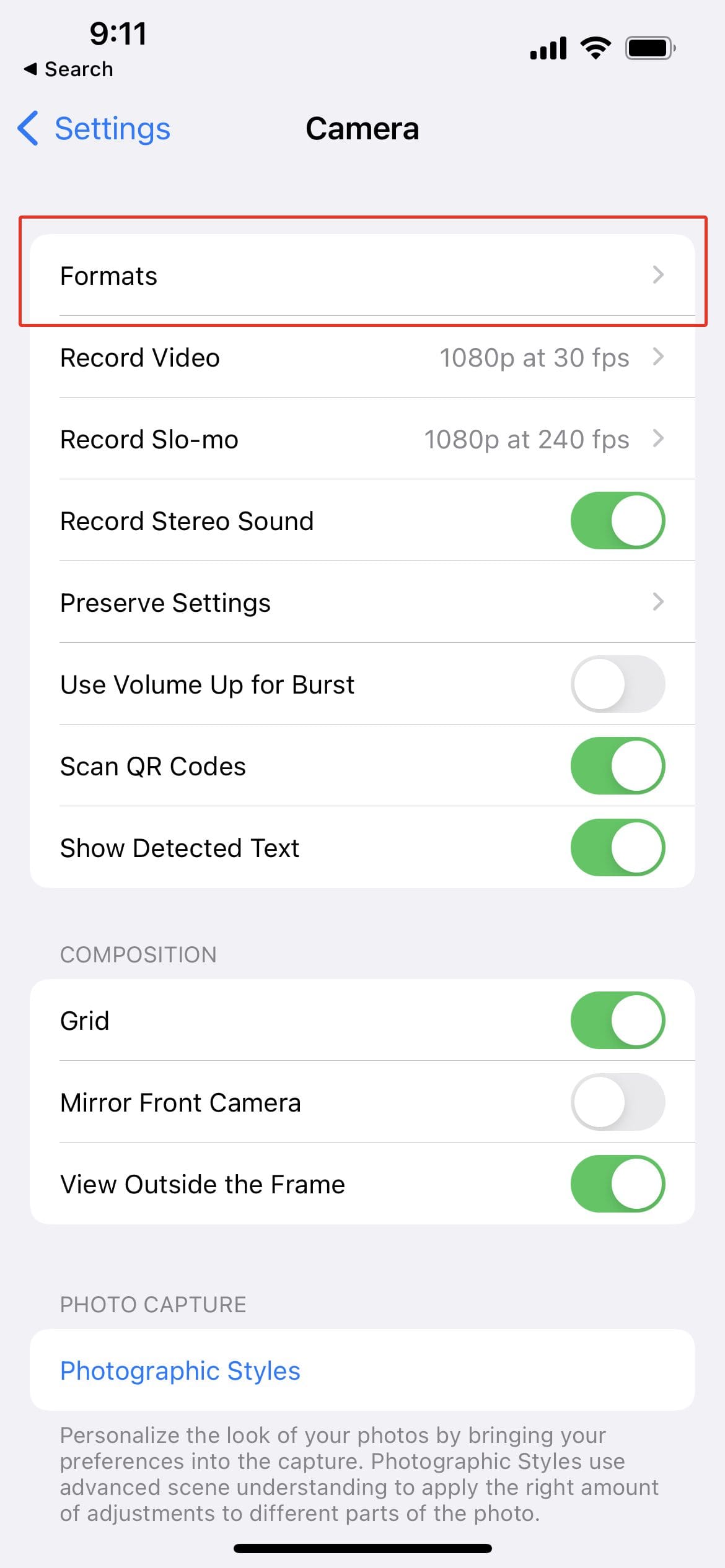
At the top of the page, tap Formats.
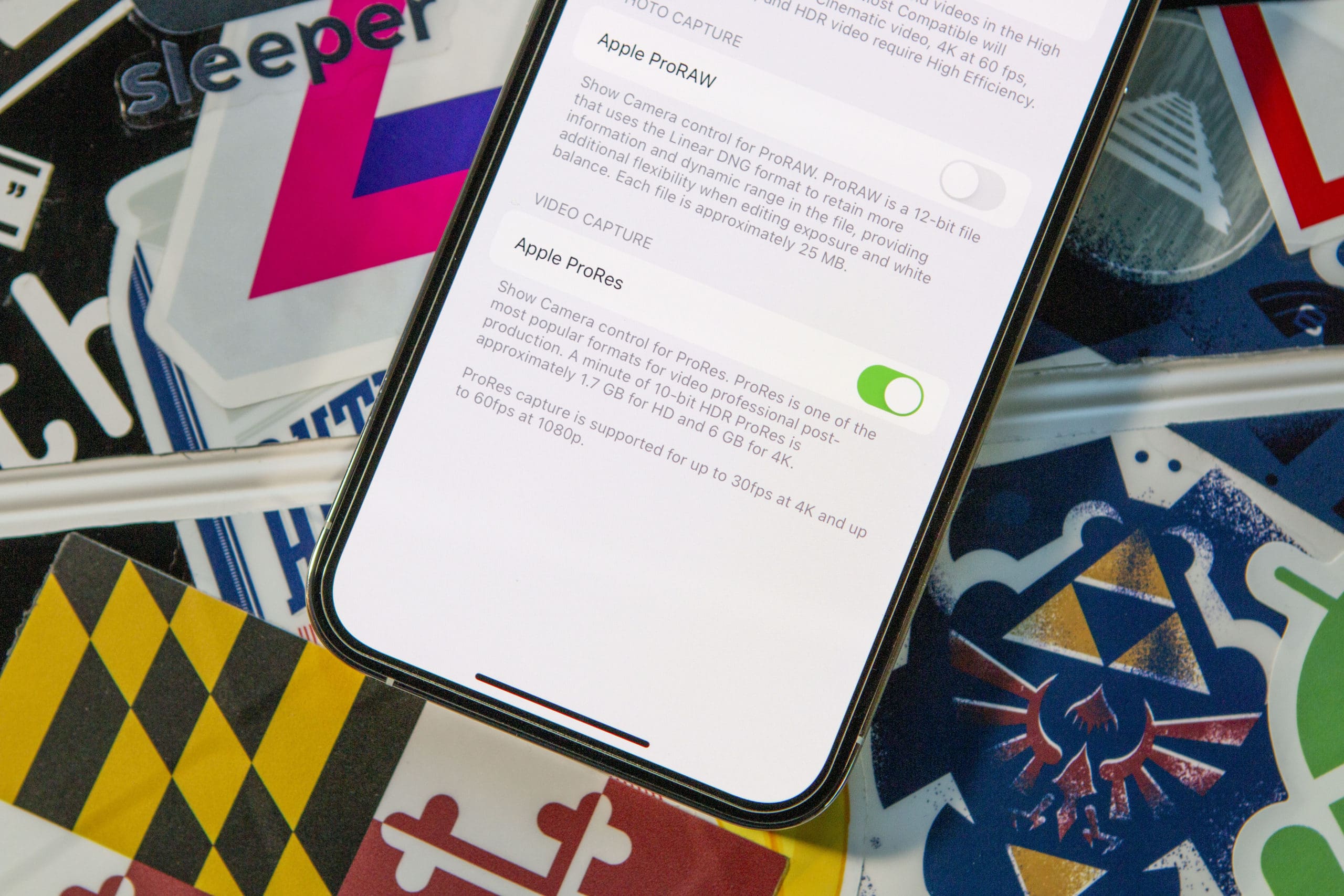
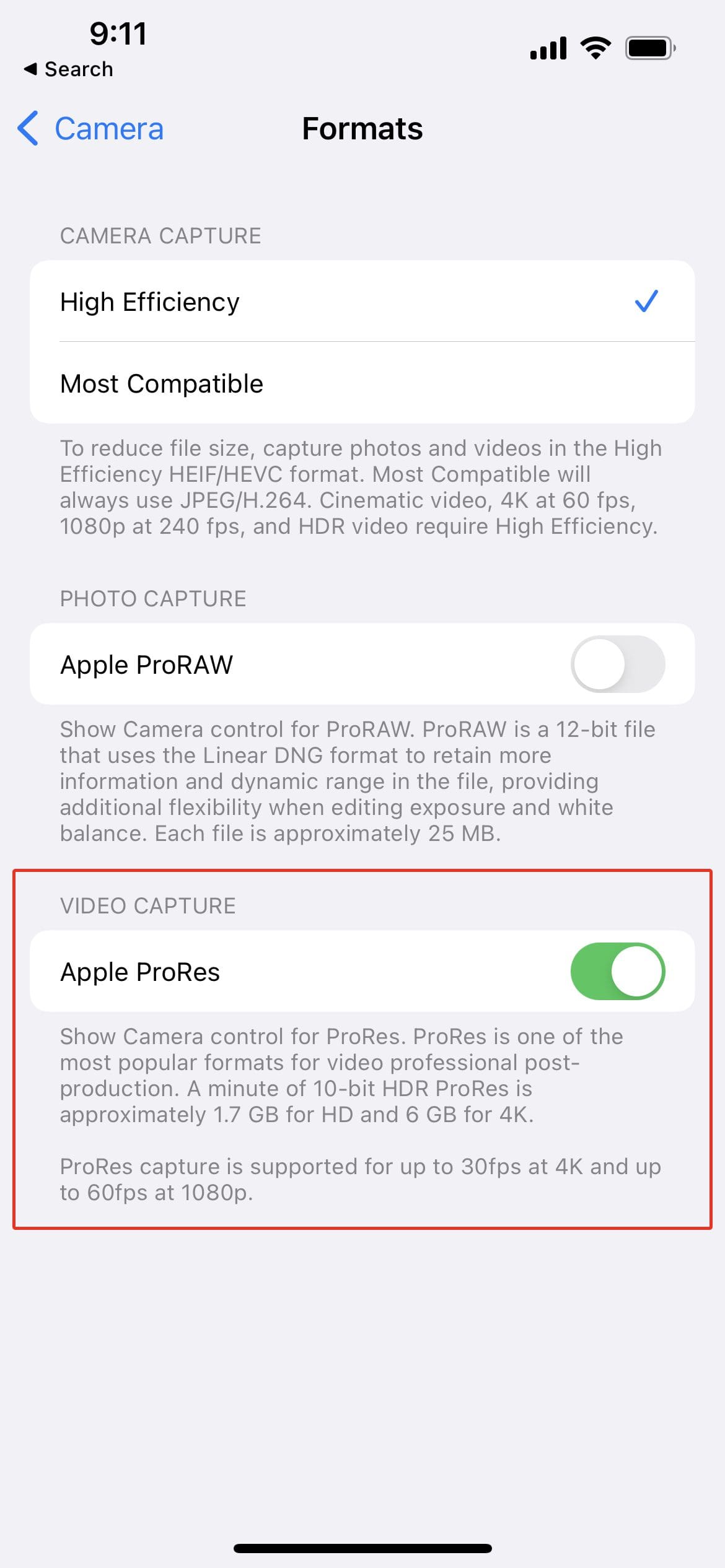
Tap the toggle next to Apple ProRes under Video Capture.
Exit the Settings app.
Now that ProRes has been enabled, it’s time to actually start to record ProRes Video on iPhone. Here’s how you can make sure that you’re recording in ProRes on your iPhone.
Open the Camera app on your iPhone.
Tap Video in the sliding menu at the bottom (or you can just swipe to the right to switch from Photo to Video).
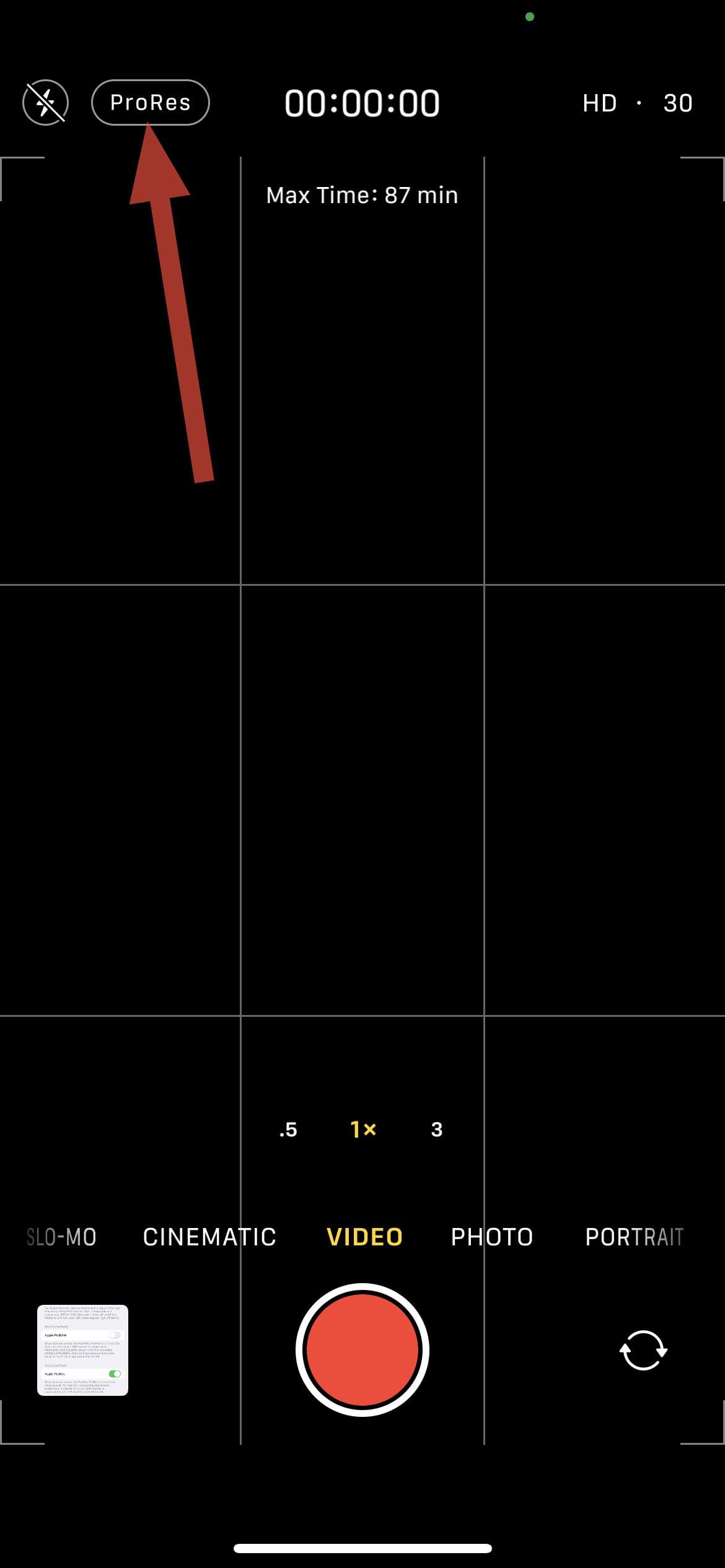
In the top left corner, tap the ProRes icon.
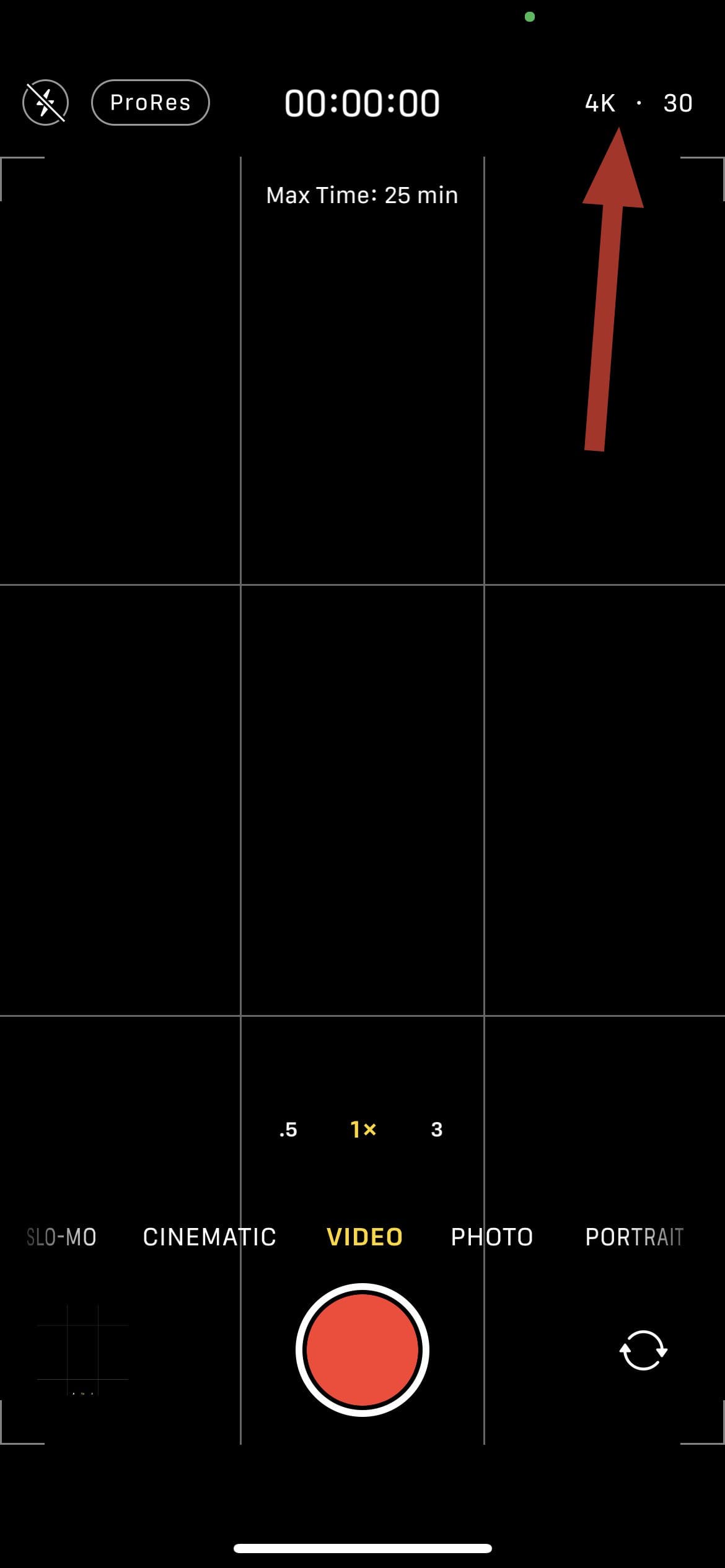
In the top right corner. tap the HD icon to switch to 4K.
Tap the 30 icon to switch the frames per second.
With the iPhone 13 Pro, you can record ProRes in 4K at either 24fps or 30fps, but 60fps is limited to 1080p.
By default, ProRes will be turned off, so you will need to make sure to tap the button in the top right corner if you want to record ProRes video on iPhone. After the feature has been enabled, the strikethrough line will be removed, and a new pop-up box appears at the top of the page. This will give you the “Max Time” available when recording in this format. Our 256GB iPhone 13 Pro shows 25 minutes, but this will all depend on how much storage you have, and whether you’re recording in 4K or 1080p.
Limitations of ProRes
But ProRes is not without its limitations. First of which is that you will not able to record ProRes video on iPhone at 4K / 30fps on the base model 128GB iPhone 13 Pro or Pro Max. It’s not available at all on the lower-tiered models, which shouldn’t come as much of a surprise.
Now that ProRes is available, we have a better idea of the reasoning behind Apple limiting this to iPhone 13 Pro models with at least 256GB of storage. It’s simply because of the amount of storage taken up when recording these video files.
Speaking of storage, Apple states that one-minute of 10-bit HDR ProRes video recorded in 1080p at 60fps will take up about 1.7GB of storage. When recording the same format in 4K at 30fps for one minute will result in a 6GB file. These numbers are just absolutely bonkers, but that’s what happens when you actually bring pro features to a smartphone.
Andrew Myrick is a freelance writer based on the East Coast of the US. He enjoys everything to do with technology, including tablets, smartphones, and everything in between. Perhaps his favorite past-time is having a never-ending supply of different keyboards and gaming handhelds that end up collecting more dust than the consoles that are being emulated.













Write a Comment