At first, it seemed like the iPhone 13 Pro and Pro Max were just iterative updates to the iPhone lineup. There weren’t any “major” new features, outside of the addition of the ProMotion display. However, after the phones began arriving in the hands of users, it was clear that this wasn’t the case.
In addition to the incredible battery life and new color options, Apple also introduced a new Macro Mode for the iPhone 13 Pro and Pro Max. But the company’s implementation from a software perspective was a bit frustrating at launch.
What Is Macro Mode
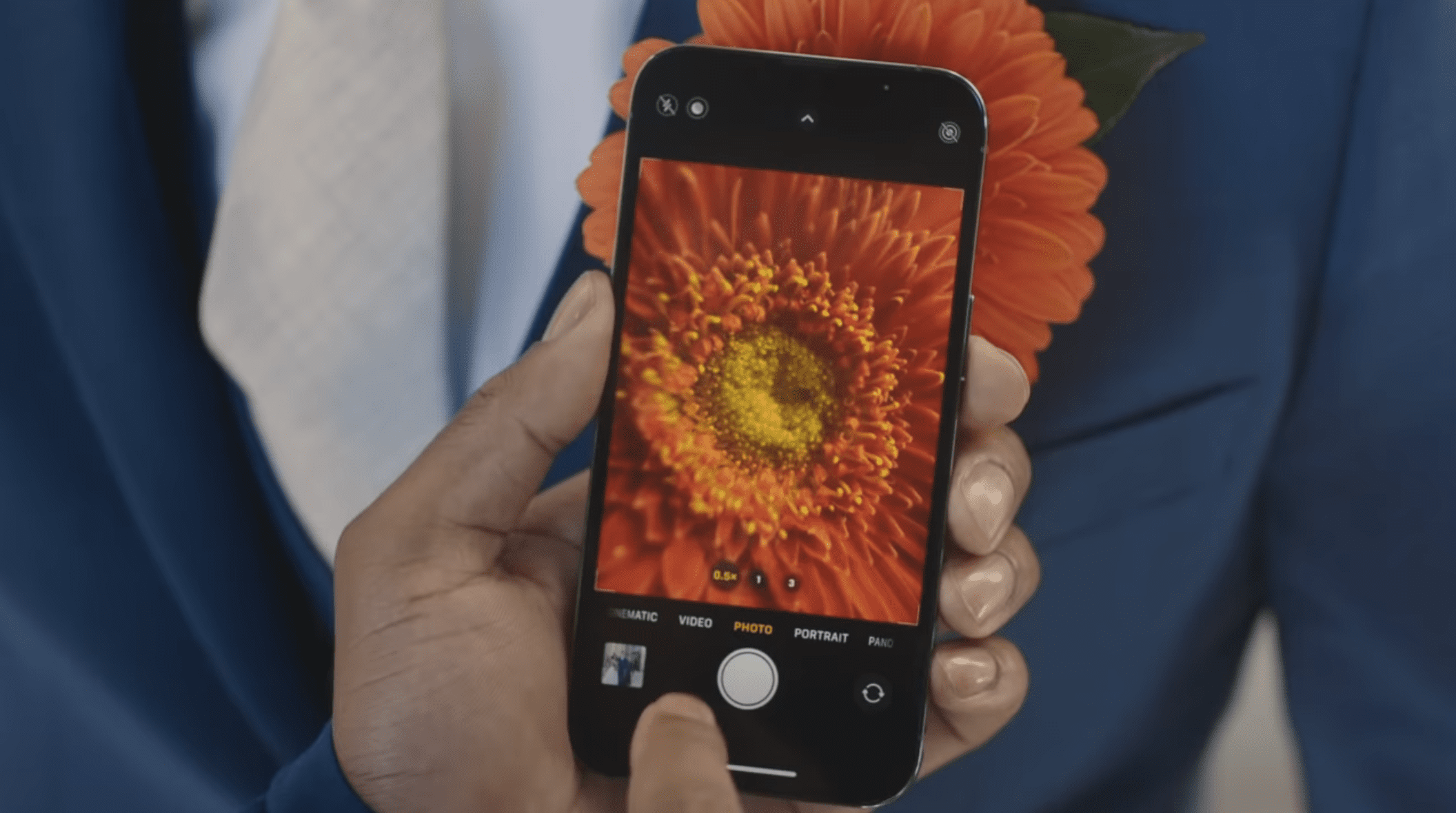
Macro photography is one of those features that we never really thought we would see on a smartphone. Putting it in simple terms, taking macro photos means that you get as close to a subject as possible without worrying about distortion. This allows you to see details in things that the naked eye may not be able to discern on its own.
But instead of just using the tertiary telephoto sensor on the iPhone 13 Pro, Apple has opted for something a bit different:
The new lens design, autofocus capability for the first time in the Ultra Wide on iPhone, and advanced software also unlock something never before possible on iPhone: macro photography. Users can capture sharp, stunning images where objects appear larger than life, magnifying subjects with a minimum focus distance of 2 centimeters. Macro also extends to video including Slo-mo and Time-lapse.
With Macro Mode on iPhone 13 Pro, you switch over to the Ultra Wide lens, get as close as you can, tap the screen, and wait until it focuses. It can result in some truly magnificent images, getting you closer to subjects than you ever thought possible. Meanwhile, the combination of autofocus and software processing turns your iPhone into even more of a photography powerhouse.
How To Use Macro Mode on iPhone 13 Pro
When the iPhone 13 Pro and Pro Max were first released, the only way for you to activate and use Macro Mode was to switch over to the Ultra Wide lens from the camera app. Then, you would need to put your iPhone as close to the subject as possible, and then tap the screen, allowing your iPhone to try and focus. As it turns out, trying to use this feature “on the fly” wasn’t exactly as seamless as Apple had hoped.
With iOS 15.1, Apple added the ability to turn off “Auto Macro” with the iPhone 13 Pro and Pro Max. But users were still left trying to play around with trying to get Macro Mode to work properly. Thankfully, in iOS 15.2, Apple introduced the software features that should have been available when the iPhone 13 Pro and Pro Max launched.
Here’s how you can use Macro Mode on iPhone 13 Pro after updating to iOS 15.2:
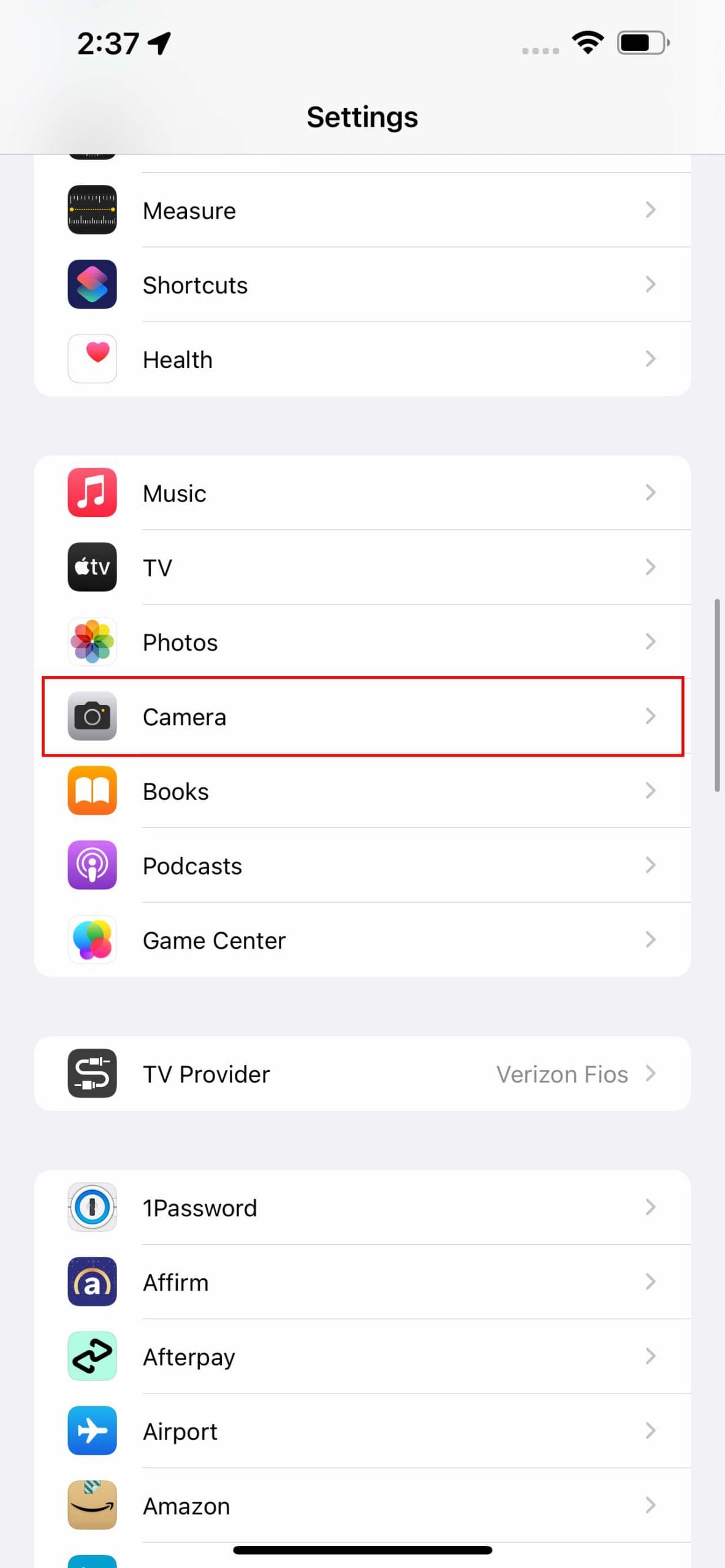
Open the Settings app on your iPhone 13 Pro or Pro Max.
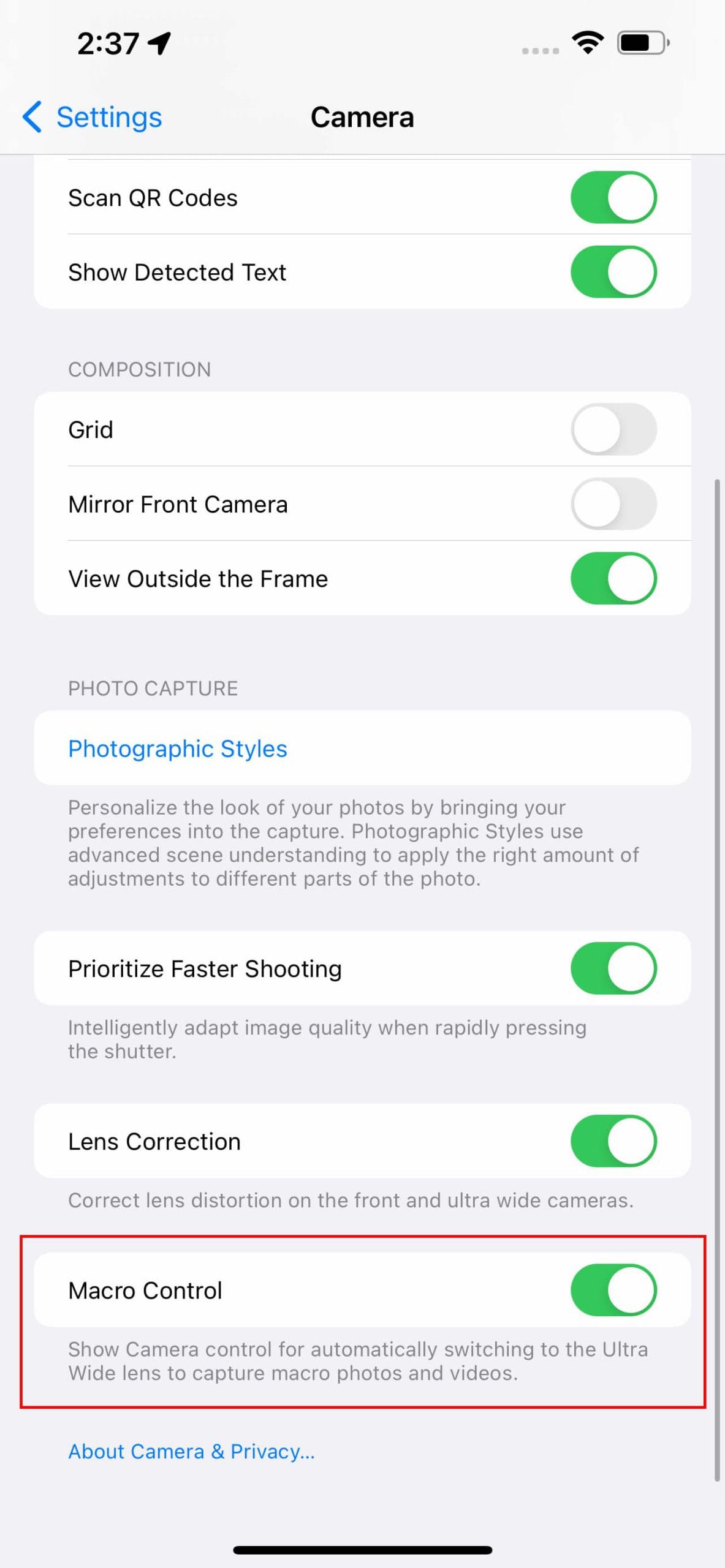
Scroll down and tap Camera.
Scroll to the bottom and tap the toggle next to Macro Control to the On position.
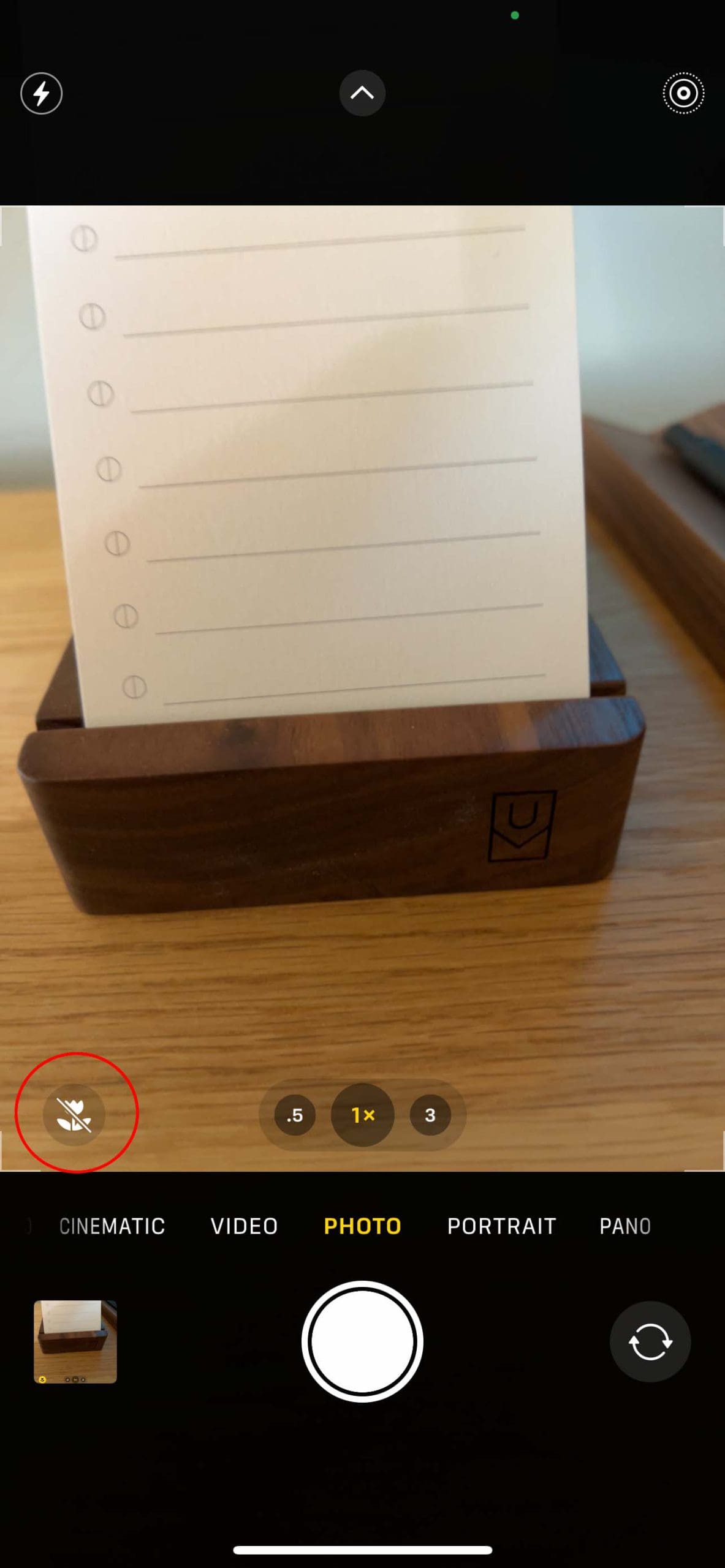
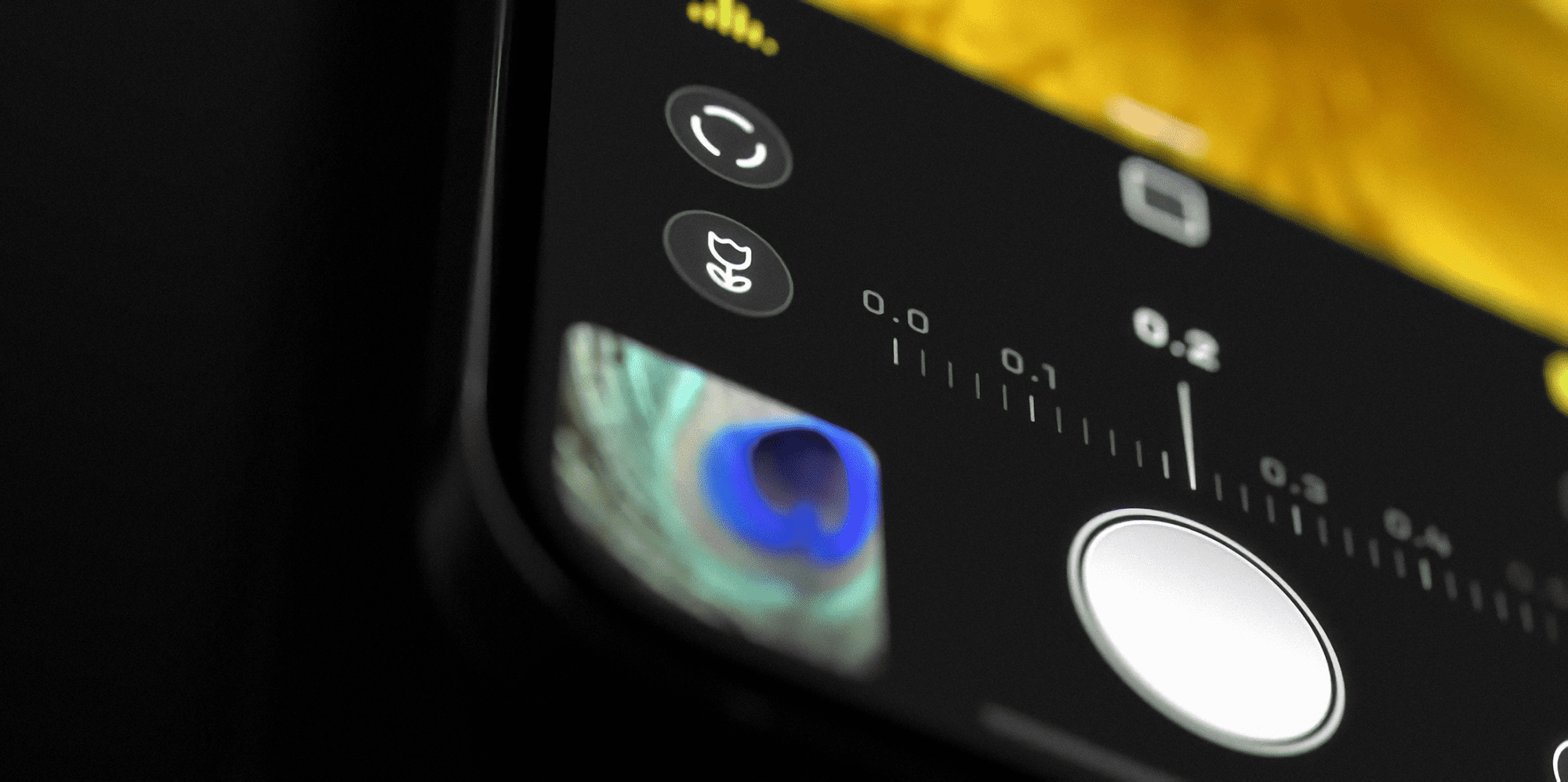
After being enabled, a new flower icon will appear in the bottom left corner of the viewfinder when the camera app is open. But it will also only appear when your iPhone is close to a subject, allowing you to toggle the feature on and off. By turning this on, Macro Mode will automatically be enabled whenever you get close enough to warrant the use of macro photography. But you can manually turn it off if you see fit.
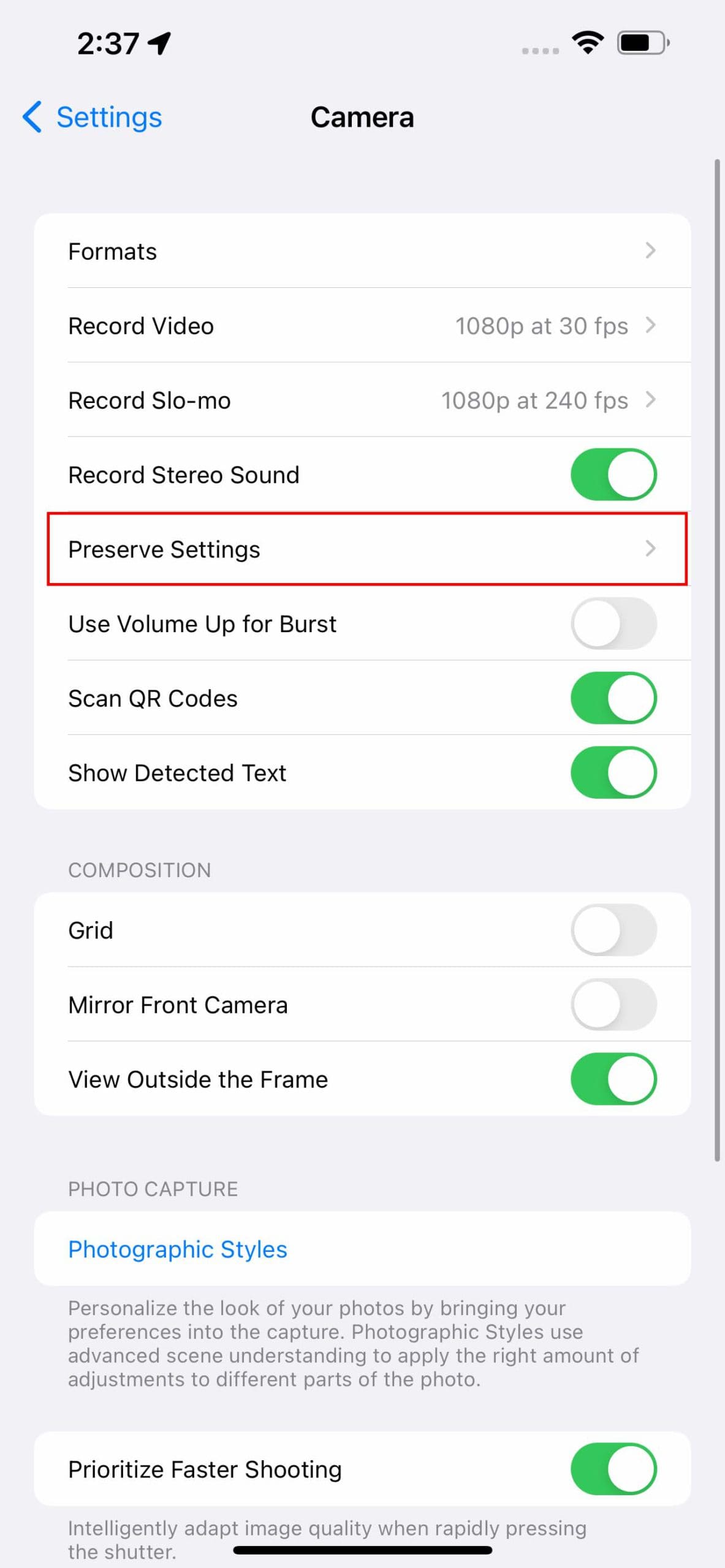
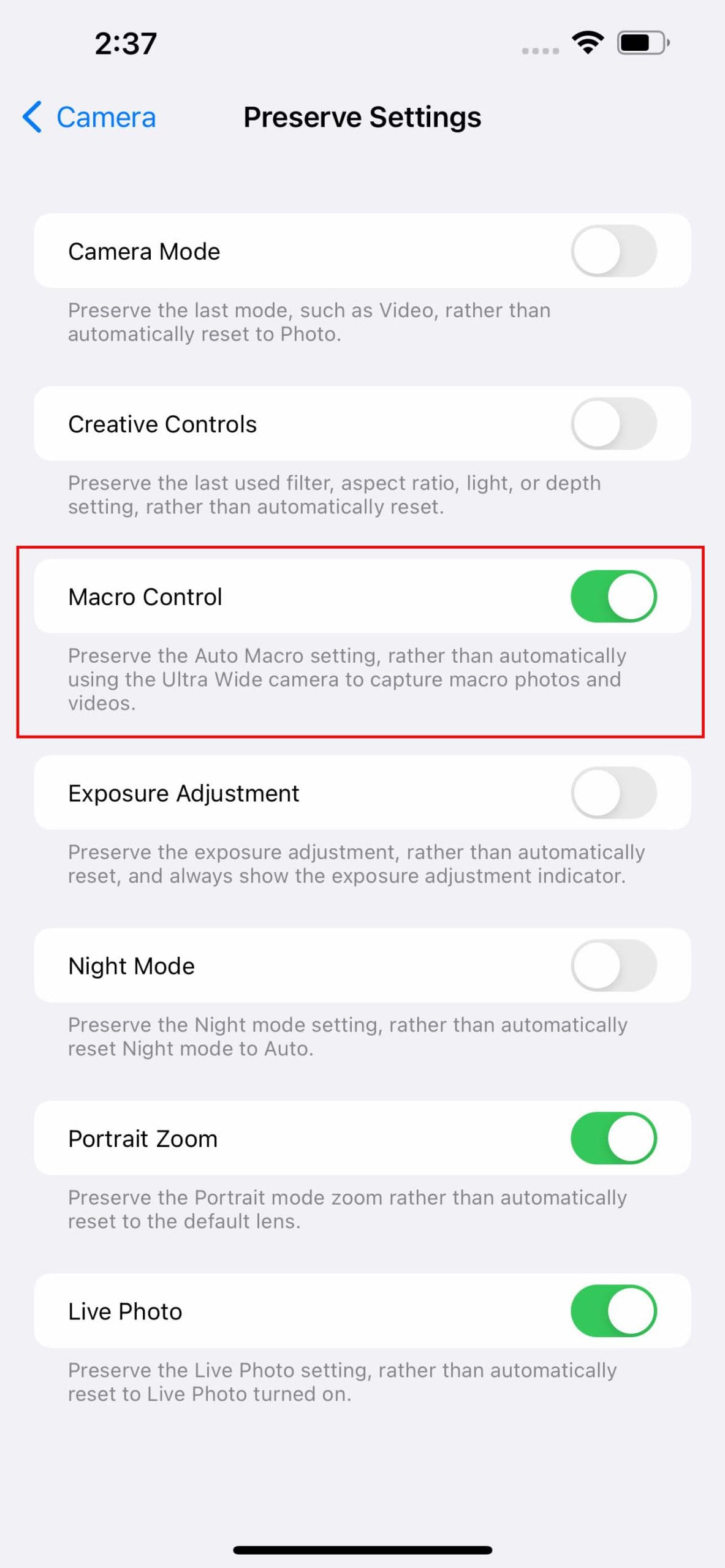
Additionally, Apple is making it possible to “preserve” the settings for Macro mode in the Camera app. Essentially, this means that the aforementioned icon will always appear when your iPhone is super-close to a subject.
Open the Settings app on your iPhone 13 Pro or Pro Max.
Scroll down and tap Camera.
Near the top, select Preserve Settings.
Tap the toggle next to Macro Control to the On position.
In the event that you decide against using Macro Controls, your iPhone reverts back to the previous method for switching. This means your iPhone will try to automatically determine whether a picture should be captured in Macro Mode or if you are just trying to use the Ultra-Wide camera “normally”.
Andrew Myrick is a freelance writer based on the East Coast of the US. He enjoys everything to do with technology, including tablets, smartphones, and everything in between. Perhaps his favorite past-time is having a never-ending supply of different keyboards and gaming handhelds that end up collecting more dust than the consoles that are being emulated.








Write a Comment