Tired of receiving too many calls from specific contacts on your iPhone? Learn how to silence their calls without blocking them. They won’t even know you’ve silenced their calls unless they’re right next to you when they call, in which case you’ll need to find a good excuse fast.
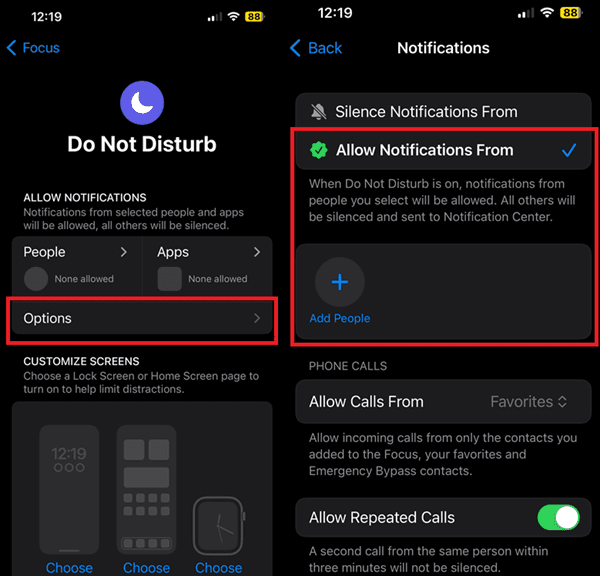
You can use Do Not Disturb to silence notifications from people and apps except those you’ve whitelisted.
Go to Settings, select Focus and tap Do Not Disturb. You can tweak your settings, and allow notifications from specific apps and people.
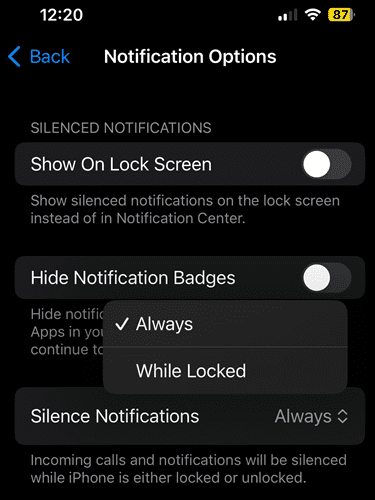
A very handy option is the one that allows you to silence incoming calls and notifications while your iPhone is locked. You can also choose to show silenced notifications on the lock screen.
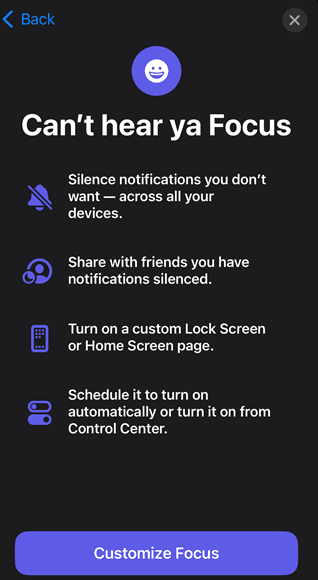
Customize Focus
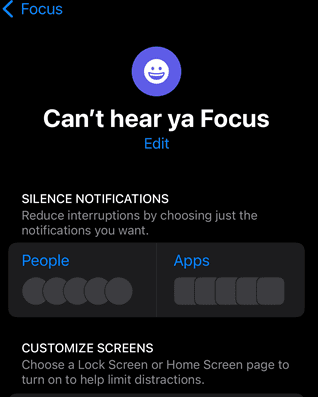
You can customize the Focus option on your iPhone to silence app and call notifications.
Go to Settings
Select Focus
Tap the + button and select Custom
Name your new Focus and hit Next
Tap Customize Focus
Tap Silence Notifications
Add the people you want to silence calls from
Just remember, you’ll need to enable this new Focus setting each time you want to silence calls from those contacts.
You can also set a schedule for this Focus and have it turn on automatically at a set time.
Set a Silent Ringtone
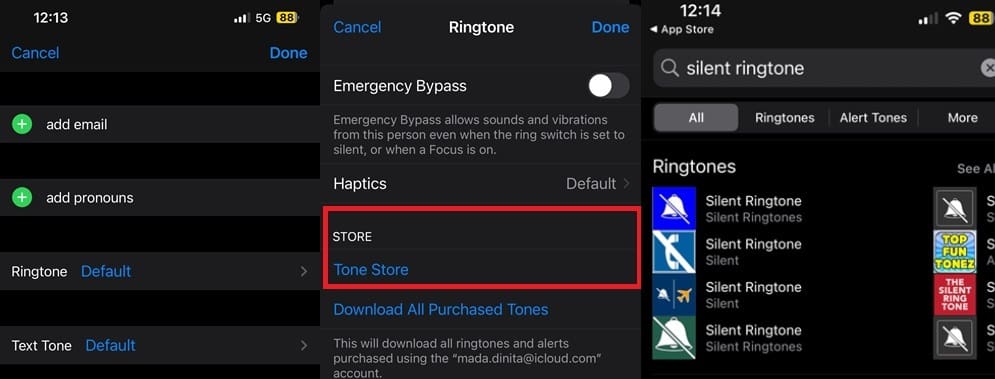
Another option is to set a silent ringtone for specific contacts. But here’s the catch: you’ll have to pay for it. Well, it’s not that much, just under $1.
Go to Contacts
Select the contact you want to silence
Tap the Edit button and scroll down to Ringtone
Select Tone Store
Search “silent ringtone” in the App Store
Assign that ringtone to your contacts
I don’t like paying for something when there’s a free alternative available. So, I use the Focus option instead.
However, if your iPhone is running on an iOS version older than iOS15, your Focus settings might be limited. In that case, paying for a silent ringtone could be worth considering.
When I’m in a hurry, I typically use the Side button to silence all calls and notifications, or I enable Airplane Mode.
Managing incoming calls on your iPhone is really simple with the help of these three tips. Use them to enjoy uninterrupted moments whenever you need them.
Madalina has been a Windows fan ever since she got her hands on her first Windows XP computer. She is interested in all things technology, especially emerging technologies — AI and DNA computing in particular.
I find Focus more trouble than it’s worth and have disabled it as much as possible and right behind it Screen time. Two features that make using a iPhone a pain-in-the-butt.










I find Focus more trouble than it’s worth and have disabled it as much as possible and right behind it Screen time. Two features that make using a iPhone a pain-in-the-butt.