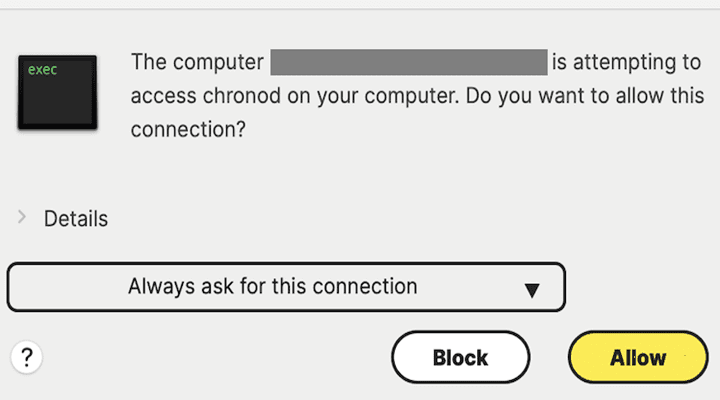
If you’ve been getting a strange pop-up message on your Mac lately about a computer trying to access Chronod on your Mac, you’ve come to the right place. Let’s take a quick look at what this process does.
Chronod is a LaunchAgent that manages various widget and user-specific tasks. It’s located in this folder: /System/Library/PrivateFrameworks/ChronoCore.framework/Support.
It’s part of macOS, you can’t stop it or remove it. The OS uses it on a per-user basis.
Chronod performs various background actions on behalf of your user account and widgets. The pop-up should not even be showing on your screen.
If you keep getting Chronod pop-ups, this usually indicates one of your widgets or your user account is not working properly.
Another explanation is that your security software or firewall has flagged Chronod as potential malware. Norton Antivirus often does that.
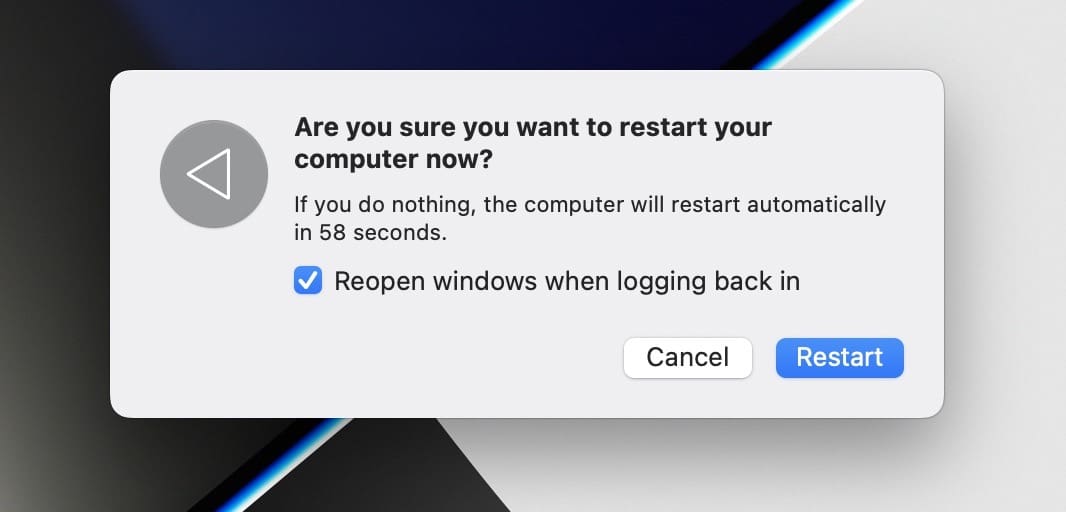
The easiest way to troubleshoot Chronod-issues is to restart your computer. A simple restart force-stops all the processes running on your device, frees up memory, reinitializes hardware, and clears out temporary system glitches.
Don’t use the Sleep option, restart or shut down your Mac.
Use Terminal to Restart Chronod
You can also use Terminal to manage the Chronod agent. First, run the launchctl print gui/UserID/com.apple.chronod command to see if Chronod is indeed running on your device.
If the process is actively running on your Mac, restart it using this command: launchctl kickstart -kp gui/UserID/com.apple.chronod
Whitelist Chronod
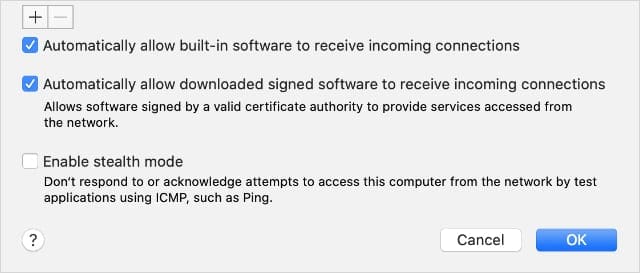
Check your network access settings and whitelist Chronod in your firewall settings.
If you’re using macOS’ built-in firewall, go to Settings, select Network, click Firewall and then Options. Make sure that Chronod is allowed to accept incoming connections.
If this option is disabled, some of your widgets may stop working. Rest assured, most of the time, Chronod is properly validated by Apple but it’s always safer to double-check that.
Malware often uses common program names to trick you into granting hackers access to your system. Don’t allow unknown processes access to your Mac until you know for sure they’re safe.
The next time the Chronod window shows up, click on Details to locate the file that is trying to access the process.
Make sure the file is properly validated by Apple before allowing permanent access.
And with that, we’ve reached the end of this guide. We trust that things are clearer for you now. If there’s anything you’d like to add, feel free to share in the comments below.
Madalina has been a Windows fan ever since she got her hands on her first Windows XP computer. She is interested in all things technology, especially emerging technologies — AI and DNA computing in particular.











Why do I keep getting this error in my analytics data on my iPhone? I do NOT own a Mac so why would this be on my phone?