• Skip to primary navigation
  • Skip to main content
  • Skip to primary sidebar
  • Skip to footer

AppleToolBox

Tools and Fixes for Mac, iPad, iPhone & iWatch

Search posts

  • About
  • Contact

CONNECT WITH US

CATEGORIES

  • iPhone
  • iPad
  • iPod
  • Apple Watch
  • Mac/MacBook
  • AirPods
  • Apple TV
  • News
  • Apple Services
  • HomePod
  • Reviews

SITE

  • Home
  • About Us
  • Contact
  • Advertise

Search posts

You are here: Home / Mac / Fix: Time Machine SparseBundle Could Not Be Accessed

Fix: Time Machine SparseBundle Could Not Be Accessed

By Madalina Dinita 0 comments Last updated April 1, 2024

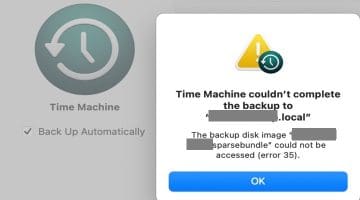
If you encounter the error message ‘Time Machine couldn’t complete the backup. The backup disk image SparseBundle could not be accessed‘ on your Mac, here’s how to solve it.

Contents

  • Enable Full Disk Access for Time Machine
  • Remove and Re-add Your Drive
  • Fixes for Synology Drives

Enable Full Disk Access for Time Machine

This error often occurs because Time Machine doesn’t have full permission to access the disk.

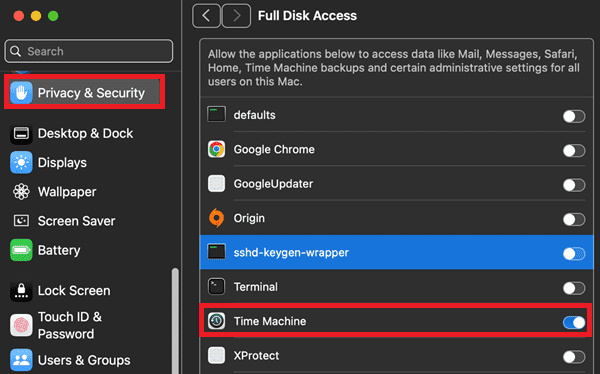
Go to Settings, select Security & Privacy, click on the lock and enter your password. Then, select Full Disk Access, and toggle on Time Machine.macOS-Time-Machine-full-disk-access

If Time Machine is not on the list, add it and then toggle it on.

Save your settings, restart your Mac and check if Time Machine can successfully backup your system.

Remove and Re-add Your Drive

Go to Settings, select General and go to Time Machine. Select your TM drive and select Forget Destination to remove it from the list.

Restart your computer, go back to Settings, launch Time Machine again, select Add Backup Disk and re-add your drive. Check if TM can back your system.

Fixes for Synology Drives

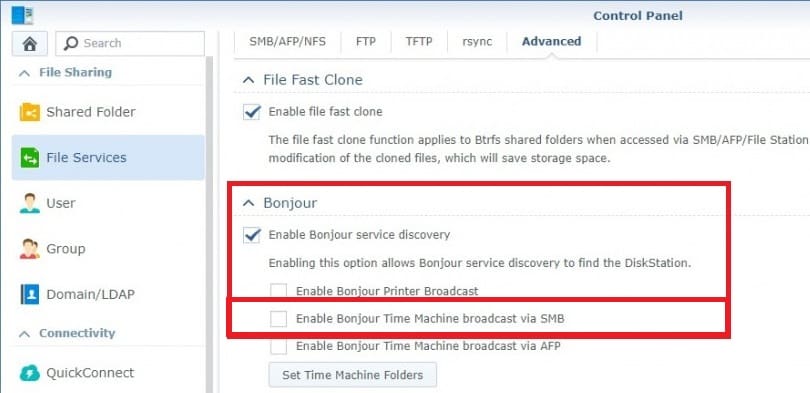
If you’re using a Synology drive, go to the Control Panel, select File Services, go to Advanced, and Enable Bonjour discovery by SMB.

Enable-Bonjour-discovery-by-SMB-Synology

Other users have resolved this issue by verifying their backups. Go to Time Machine Settings, right-click on your disk and select Verify Backups.

If Time Machine finds some issues, follow the on-screen suggestions. If the folders on your disk are corrupted, the tool may even ask you to delete everything and start from scratch.

Other users got rid of this error after disabling and re-enabling the SMB settings.

Go to File Services, disable SMB Settings, save the changes, wait for one minute and then re-enable the same settings. Create a new Shared Folder and initiate a new Time Machine backup.

Another solution is to rename your Mac to something as simple as MacBook. If your computer name contains special characters, that could prevent Time Machine from accessing the backup folder.

When you use Time Machine with a backup server, there’s always a chance that the disk image you create (SparseBundle) may get corrupted. These issues are less frequent when using Time Machine with a storage device.

However, if multiple users need access to those files, indeed, a local storage device is not a good enough option.

We hope one of these potential solutions did the trick for you. As always, if you found other ways to fix SparseBundle errors, share your tips in the comments below.

Related Posts:

  • 2023 Mac Studio lifestyle - 1
    macOS Could Not Be Installed, How-To Fix
  • How to Disable the Login Password on Mac
    How to Disable the Login Password on Mac
  • An iPhone, Mac, and MacBook on a table
    Can You Use Time Machine to Back up Your Mac to…
  • iPhone 15 Pro Max - 4
    Best iPhone Lock Screen Widgets for iOS 17
  • Update Apple ID settings on your iPhone, iPad, or Mac after changing your password
    Getting a Message to Update Apple ID Settings on…
  • photo of an iphone with ios 16 downloaded on it
    iOS 16 Tips and Tricks: The Definitive List
  • sidecar on iPadOS and macOS
    Sidecar not working in iPadOS and macOS? How to fix…
  • an iphone on a book
    How To Reset the Screen Time Passcode on iOS,…
  • Photo of someone using Apple Music on their smartphone
    How to Fix Apple Music Not Working on iPhone / iPad
Madalina Dinita

Madalina has been a Windows fan ever since she got her hands on her first Windows XP computer. She is interested in all things technology, especially emerging technologies — AI and DNA computing in particular.
Reader Interactions

Write a Comment Cancel reply

Primary Sidebar

Recent Posts

  • Are Apple’s Safety Precautions Enough for AirTags?
  • How to Hide Username and Photo on the Mac Lock Screen
  • Microsoft Resume vs. Apple Handoff – Which Wins for Cross-Device Work?
  • How to Export iTunes Library to New Computer
  • What the Gemini Desktop App Will Bring to Mac
  • What to Do When Windows 11 Won’t Detect Your iPad

Connect with us

Footer

ABOUT

  • About Us
  • Contact us
  • Advertise
  • Privacy
  • Terms of Use

GUIDES

  • iOS & iPadOS
  • Apple ID
  • iCloud
  • App Store
  • iTunes
  • FaceTime
  • iMessage
  • Siri
  • Books and iBooks
  • Game Center
  • AirPlay

CONNECT

  • Facebook
  • Twitter
  • FeedBurner
  • YouTube

© Copyright 2010-2024 Guiding Tech Media · All Rights Reserved

This site and its content are in no way affiliated or endorsed by Apple, Inc. · Reproduction without explicit permission is prohibited