• Skip to primary navigation
  • Skip to main content
  • Skip to primary sidebar
  • Skip to footer

AppleToolBox

Tools and Fixes for Mac, iPad, iPhone & iWatch

Search posts

  • About
  • Contact

CONNECT WITH US

CATEGORIES

  • iPhone
  • iPad
  • iPod
  • Apple Watch
  • Mac/MacBook
  • AirPods
  • Apple TV
  • News
  • Apple Services
  • HomePod
  • Reviews

SITE

  • Home
  • About Us
  • Contact
  • Advertise

Search posts

You are here: Home / iPhone / iPhone Not Working? You Can Still Put It in Recovery Mode

iPhone Not Working? You Can Still Put It in Recovery Mode

By Louis Roundtree 0 comments Last updated September 25, 2026

Things to Know
  • Recovery mode lets Apple Devices or your Mac recognize an iPhone, even if it has a fault.
  • If the phone won’t update, won’t restore, or isn’t starting normally, recovery mode may help
  • iPhone 8 and later enter recovery mode after these button presses: Volume Up (press and quickly release), Volume Down (press and quickly release), then the Side button (press and hold).

Apple devices can still experience software and hardware problems. When software issues occur, Apple may address them through software updates.

Unfortunately, iPhones can still develop faults. Sometimes, they stop updating even when the model is compatible with the latest version of iOS. Other times, you may want to restore the device, but the restore function will not work.

In these instances, you can force your device into iPhone recovery mode. This is a safety mode that means you cannot do anything on your device until you plug it into a computer. Sometimes, you can even force iPhone recovery mode after water damage.

Once you’ve done this, you can use your Mac, or the Apple Devices app if you’re a Windows user, to manually restore the device and, in some cases, get it back in working order.

How to Put iPhone in Recovery Mode: Check Your Device Model

If your device will turn on, you can go to Settings > General > About to find out the exact model of your iPhone.

iPhone Not Working You Can Still Put It in Recovery Mode 1

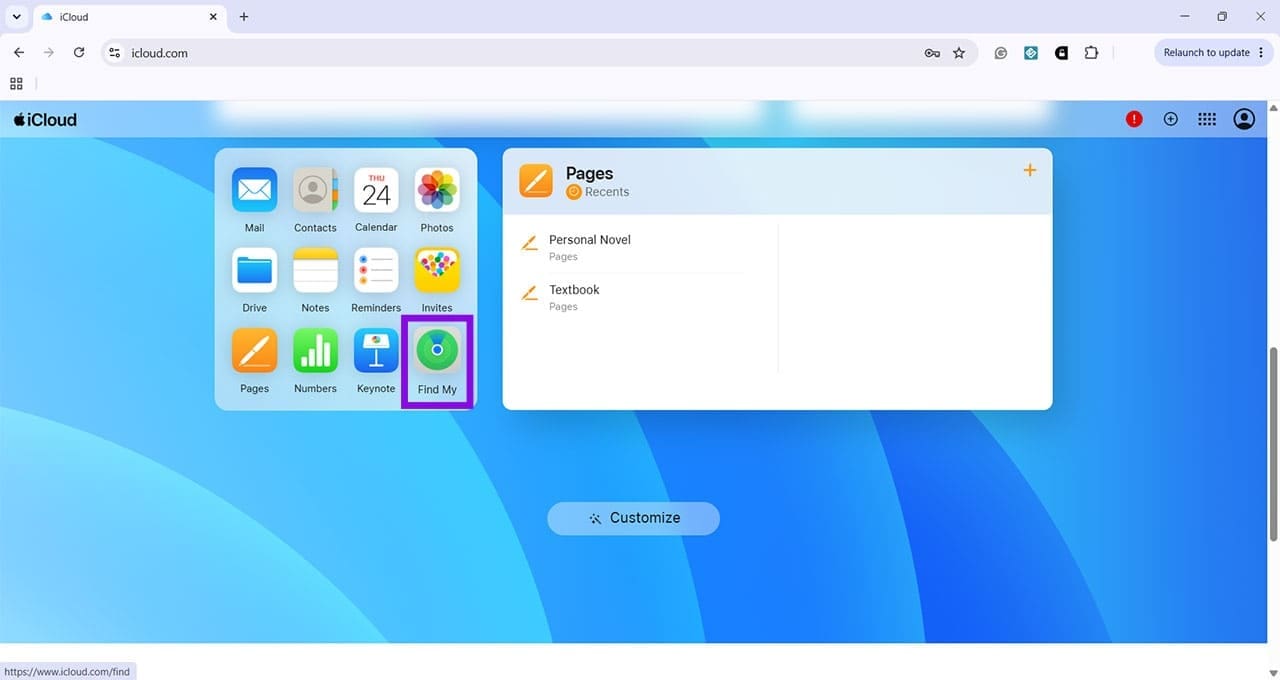
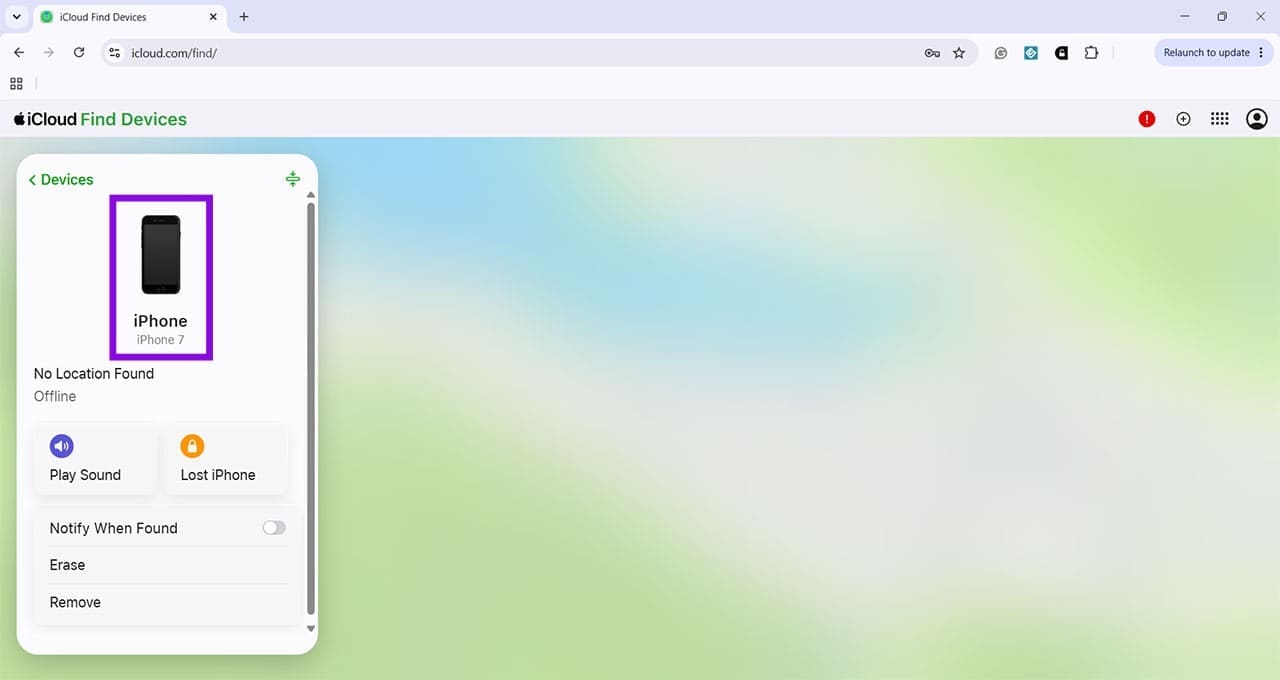
If the iPhone won’t turn on, you can check your devices through the “Find My” app on another Apple device or through iCloud.com, if the iPhone is associated with your Apple account.

iPhone Not Working You Can Still Put It in Recovery Mode 2

Click here, and you should see the details of any Apple device you’re currently using with this account. Simply click on a device to see what model of iPhone it is.

iPhone Not Working You Can Still Put It in Recovery Mode 3

The reason you need to know this is that there are different ways to force an iPhone into Recovery mode, depending on the model:

  • iPhone 6s and older: Hold the button at the side or the top (the same button you would power the phone on with) at the same time as holding the round home button. After about 10 seconds, you will see the screen prompting you to connect the device to the computer.
  • iPhone 7 and 7 Plus: Hold the side button and the volume down buttons simultaneously until you see the same screen.
  • iPhone 8 and newer: Quickly press and release the Volume Up button. Then quickly press and release the Volume Down button. Finally, press and hold the side button until the “Connect to computer” screen appears.

The screen you are waiting for should look like this:

iPhone Not Working You Can Still Put It in Recovery Mode 4

Once you see this, use the appropriate cable to connect it to your computer. A Mac should automatically recognize the device and provide relevant options. On a Windows PC, head to the Start menu and search for Apple Devices, and open this app.

iPhone Not Working You Can Still Put It in Recovery Mode 5

Once the app recognizes your device, you’ll be given options to “Update” or “Restore” the iPhone. If you haven’t already tried updating it, Apple recommends trying “Update” first. If that doesn’t resolve the problem, choose “Restore” and follow the prompts. “Restore” reinstalls iOS and erases your data and settings. If you have a recent iCloud or computer backup, you can use it to restore your information after the process is complete.

iPhone Not Working You Can Still Put It in Recovery Mode 6

Related Posts:

  • pexels-tima-miroshnichenko-6860464
    How To Start Using Regex With The Shortcuts App
  • microsoft family safety app on iphone
    How to Set Up Microsoft Family Safety App on Your iPhone
  • 2023 Mac Studio lifestyle - 1
    macOS Could Not Be Installed, How-To Fix
  • 2022 Mac Mini with Studio Display and Accessories
    Mac Tips For New Users In 2023
  • Photo of someone using Apple Music on their smartphone
    How to Fix Apple Music Not Working on iPhone / iPad
  • pexels-lisa-4629485
    The Best HomeKit Devices For 2021
  • pexels-designecologist-1779487
    The Best iPhone And Mac Shortcuts For Beginners
  • photo of an iphone and ipad next to one another
    iOS 17/iPadOS 17 Problems & How to Fix Them:…
  • pexels-cottonbro-5082579
    Getting Started With iOS 15: Everything Good And Bad
Louis Roundtree
Louis Roundtree

As an avid gamer, I’ve run into my fair share of error codes and weird faults that have forced me to find fixes to problems I never anticipated. That gave me a passion for sharing those fixes with others so we can all game without feeling like our hardware is rebelling against us.
Reader Interactions

Write a Comment Cancel reply

Primary Sidebar

Recent Posts

  • iPhone Not Working? You Can Still Put It in Recovery Mode
  • Why macOS Blocks Downloads for Malware (And How to Override It Safely)
  • How to Stop the Fake “iPhone Hacked” Safari Pop-Up for Good
  • How to Recover Deleted Files on a Mac
  • MacOS System Data Taking Up Too Much Space? Here’s What to Do
  • How to Get Missing AirPods Pro and Max Features Working on Windows PC

Connect with us

Footer

ABOUT

  • About Us
  • Contact us
  • Advertise
  • Privacy
  • Terms of Use

GUIDES

  • iOS & iPadOS
  • Apple ID
  • iCloud
  • App Store
  • iTunes
  • FaceTime
  • iMessage
  • Siri
  • Books and iBooks
  • Game Center
  • AirPlay

CONNECT

  • Facebook
  • Twitter
  • FeedBurner
  • YouTube

© Copyright 2010-2024 Guiding Tech Media · All Rights Reserved

This site and its content are in no way affiliated or endorsed by Apple, Inc. · Reproduction without explicit permission is prohibited

Last Updated on September 27, 2026 by Louis Roundtree